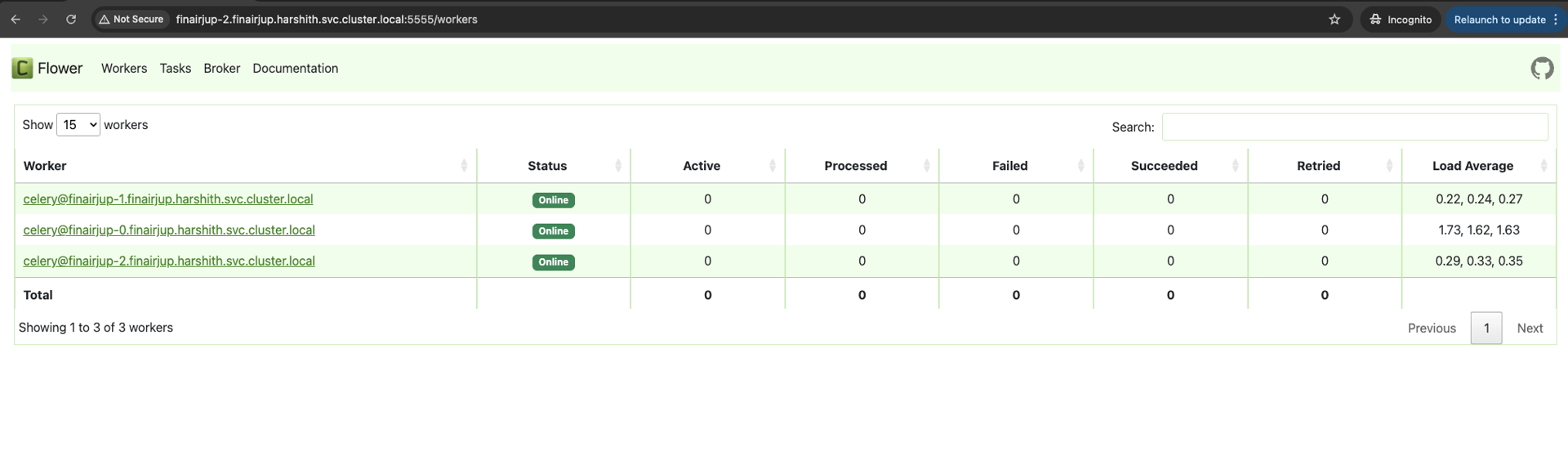
Flower UI is a web-based interface used to monitor Celery, the distributed task queue commonly leveraged by Apache Airflow. In an ODP Airflow deployment, Flower UI is accessible on all Airflow worker hosts.
By default, Flower UI does not enforce authentication, which may expose operational details. This document describes how to enable Basic Authentication for Flower UI using Ambari configuration.
Default Behavior
Flower UI is enabled and accessible on Airflow worker nodes.
No authentication is configured by default.
Any user with network access can view Flower UI.
Enable Basic Authentication for Flower UI
To secure Flower UI, Basic Authentication can be enabled through Ambari.
Navigate to Ambari → Airflow → Configs
Locate the Flower UI configuration section
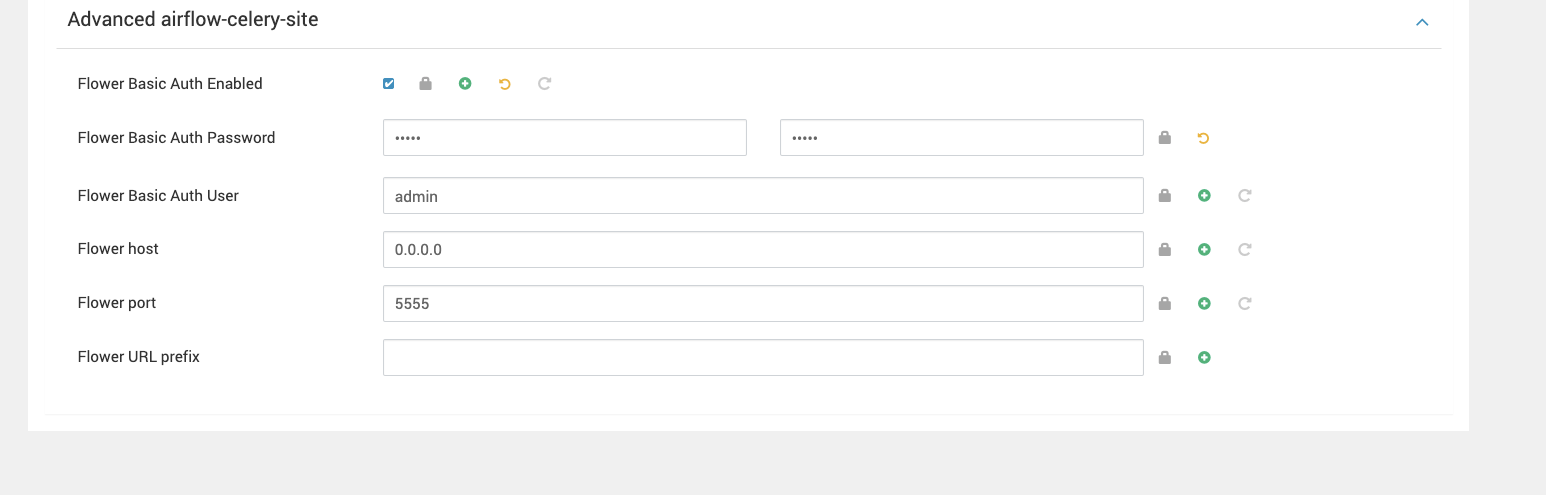
Update the following properties:
Enable Flower Authentication
Basic Auth Username
Basic Auth Password
Port and other Flower-related configurations are optional and can be adjusted based on deployment requirements.
Save the configuration changes.
Restart the Airflow service when prompted.
Post-Configuration Behavior
Authentication Prompt
Once Basic Authentication is enabled and Airflow is restarted:
Accessing the Flower UI URL will prompt for username and password.

Successful Login
After providing valid credentials:
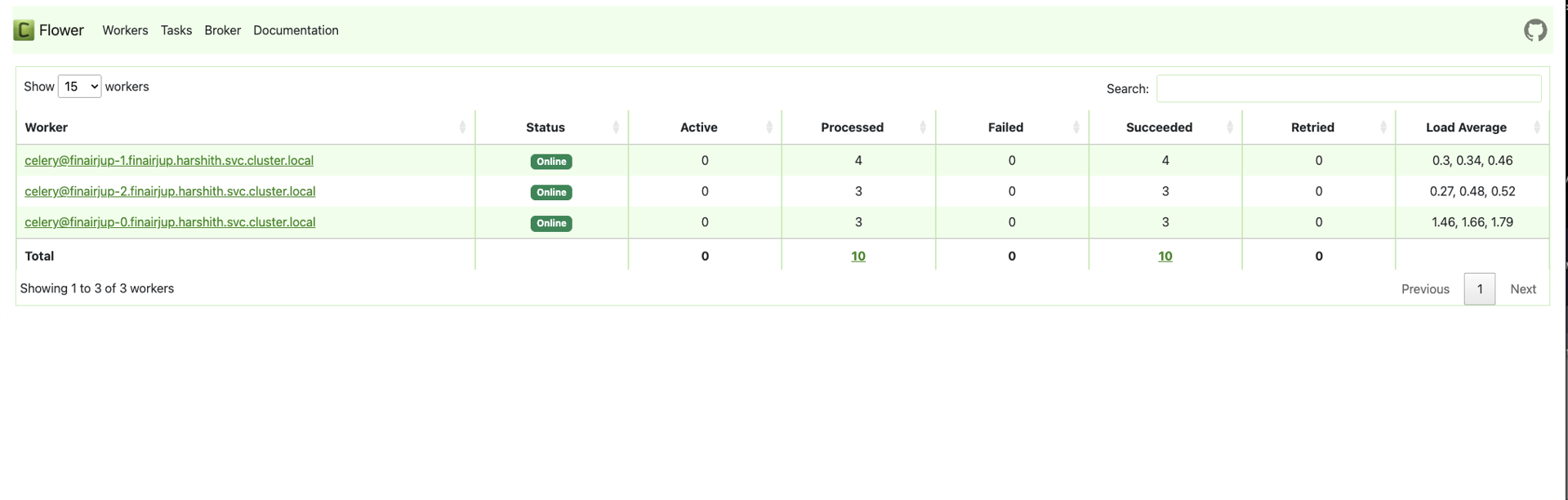
The Flower UI dashboard is displayed.
Users can monitor Celery workers, tasks, and queues as usual.