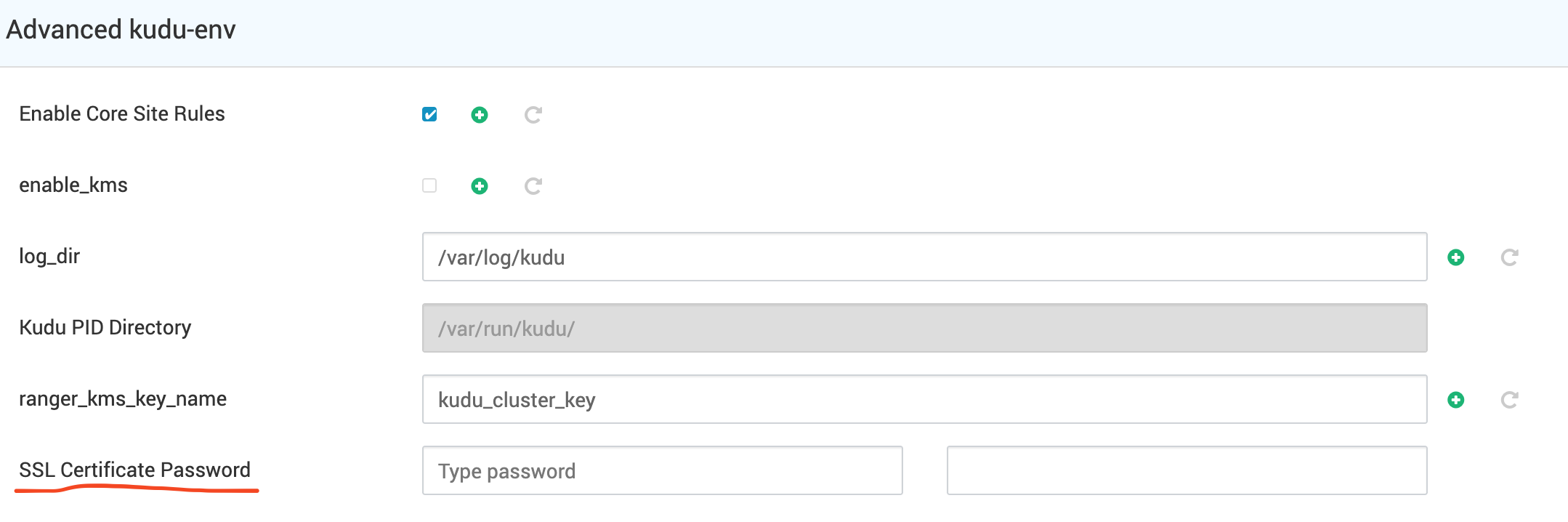
This document provides step-by-step instructions for implementing password obfuscation in ODP stack components, starting with release 3.3.6.2-1.
OBF password obfuscation converts plaintext passwords into an obfuscated format to prevent casual exposure in configuration files. This method is supported for components that explicitly state OBF format compatibility.
Run the following commands to locate the required Jetty utility JAR file:
cd /usr/odp/3.3.6.2-1
find hadoop* -iname jetty-util-*.jar
Example output:
hadoop/lib/jetty-util-9.4.51.v20230217.jar
hadoop/lib/jetty-util-ajax-9.4.51.v20230217.jar
hadoop/client/jetty-util-9.4.51.v20230217.jar
hadoop/client/jetty-util-ajax-9.4.51.v20230217.jar
hadoop/client/jetty-util-ajax.jar
hadoop-hdfs/lib/jetty-util-9.4.51.v20230217.jar
Use the Jetty Password utility to generate an obfuscated password:
java -cp hadoop/lib/jetty-util-9.4.51.v20230217.jar \
org.eclipse.jetty.util.security.Password \
<keystore-or-truststore-password>
Example:
java -cp hadoop/lib/jetty-util-9.4.51.v20230217.jar \
org.eclipse.jetty.util.security.Password \
Hadoop@123
Example output:
Hadoop@123
OBF:1dhw1i9a1inm1nse1x8e1x8g1nps1iks1i6o1dgq
MD5:d61eb912413c69c46d34b847ef660caa
Update configuration files
Add the generated OBF value to the ssl.*.password properties.
Replace all plaintext passwords with the OBF string OBF:1dhw1i9a1inm1nse1x8e1x8g1nps1iks1i6o1dgq in the required configuration files.
Apply these steps to all components that explicitly support the OBF format.
In ODP-Ambari, database passwords and SSL truststore passwords stored in ambari.properties can be secured using the Ambari Server utility and OBF password obfuscation.
root@ub22-33611-1:~# ambari-server setup-security
Using python /usr/bin/python3.11
Security setup options...
===========================================================================
Choose one of the following options:
[1] Enable HTTPS for Ambari server.
[2] Encrypt passwords stored in ambari.properties file.
[3] Setup Ambari kerberos JAAS configuration.
[4] Setup truststore.
[5] Import certificate to truststore.
===========================================================================
Enter choice, (1-5): 2
Please provide master key for locking the credential store:
Re-enter master key:
Do you want to persist master key. If you choose not to persist, you need to provide the Master Key while starting the ambari server as an env variable named AMBARI_SECURITY_MASTER_KEY or the start will prompt for the master key. Persist [y/n] (y)? y
Adjusting ambari-server permissions and ownership...
Ambari Server 'setup-security' completed successfully.
Verify that passwords are referenced by alias in ambari.properties:
root@ub22-3362-1:/etc/ambari-server/conf# grep -ir -e "password" -e "secret" -e "Hadoop@123"
ambari.properties:security.passwords.encryption.enabled=true
ambari.properties:server.jdbc.rca.user.passwd=${alias=ambari.db.password}
ambari.properties:server.jdbc.user.passwd=${alias=ambari.db.password}
ambari.properties:ssl.trustStore.password=${alias=ambari.ssl.trustStore.password}
root@ub22-33611-1:/etc/ambari-server/conf#
The SSL password stored in /var/lib/ambari-server/keys/https.pass.txt can be updated in OBF format using Jetty utilities:
root@ub22-33611-1:~# java -cp /usr/lib/ambari-server/jetty-util-9.4.43.v20210629.jar \
> org.eclipse.jetty.util.security.Password \
> <<PASSWORD>>
2025-05-27 15:54:19.535:INFO::main: Logging initialized @94ms to org.eclipse.jetty.util.log.StdErrLog
[PASSWORD]
OBF:<< hash generated >>
MD5:<< md5 hash >>
Confirm that the password is updated:
root@ub22-33611-1:~# cat /var/lib/ambari-server/keys/https.pass.txt
OBF:1dhw1i9a1inm1nse1x8e1x8g1nps1iks1i6o1dgq
OBF password obfuscation is supported for SSL-related properties.
Use Jetty utilities to generate an obfuscated password:
java -cp lib/jetty-util-9.4.53.v20231009.jar org.eclipse.jetty.util.security.Password <SSL_Password>
Example:
java -cp zookeeper/lib/jetty-util-9.4.53.v20231009.jar org.eclipse.jetty.util.security.Password Hadoop@123
Expected output:
[root@rl9-zk-ssl 3.3.6.2-1]# java -cp zookeeper/lib/jetty-util-9.4.53.v20231009.jar org.eclipse.jetty.util.security.Password Hadoop@123
2025-06-11 18:33:12.737:INFO::main: Logging initialized @87ms to org.eclipse.jetty.util.log.StdErrLog
Hadoop@123
OBF:1dhw1i9a1inm1nse1x8e1x8g1nps1iks1i6o1dgq
MD5:d61eb912413c69c46d34b847ef660caa
Use the OBF value (for example, OBF:1dhw1i9a1inm1nse1x8e1x8g1nps1iks1i6o1dgq) in configuration.
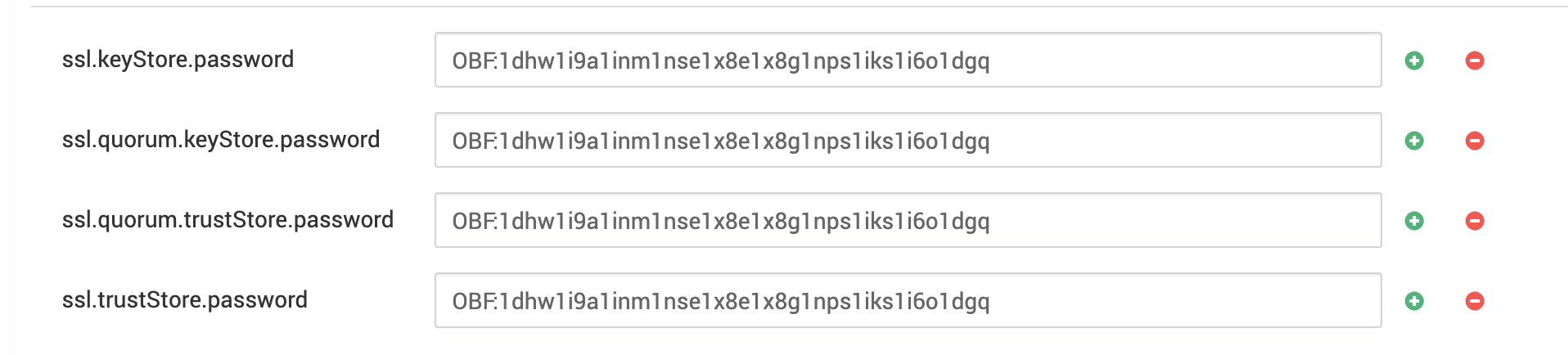
Update the following ZooKeeper SSL properties in Ambari UI:
ssl.keyStore.password=<OBF:<obfuscate-password>>
ssl.quorum.keyStore.password=<OBF:<obfuscate-password>>
ssl.quorum.trustStore.password=<OBF:<obfuscate-password>>
An example is shown below in the screenshot.
After restarting ZooKeeper, verify that the updated properties are applied:
[root@rl9-zk-ssl 3.3.6.2-1]# grep -irn password /etc/zookeeper/conf/*
/etc/zookeeper/conf/zoo.cfg:39:ssl.keyStore.password=OBF:1dhw1i9a1inm1nse1x8e1x8g1nps1iks1i6o1dgq
/etc/zookeeper/conf/zoo.cfg:42:ssl.quorum.keyStore.password=OBF:1dhw1i9a1inm1nse1x8e1x8g1nps1iks1i6o1dgq
/etc/zookeeper/conf/zoo.cfg:44:ssl.quorum.trustStore.password=OBF:1dhw1i9a1inm1nse1x8e1x8g1nps1iks1i6o1dgq
/etc/zookeeper/conf/zoo.cfg:46:ssl.trustStore.password=OBF:1dhw1i9a1inm1nse1x8e1x8g1nps1iks1i6o1dgq
In the ODP-Ambari UI, no Hadoop service passwords (HDFS, YARN, MR) appear to be exposed.
Passwords can be reviewed in the saved XML configuration files located at:
Run the following command:
grep -irn "password" * -A 2
Results
secure/ssl-client.xml:24: <name>ssl.client.truststore.password</name>
secure/ssl-client.xml-25- <value>Hadoop@123</value>
secure/ssl-client.xml-26- </property>
--
ssl-client.xml:9: <name>ssl.client.keystore.password</name>
ssl-client.xml-10- <value>Hadoop@123</value>
ssl-client.xml-11- </property>
--
ssl-client.xml:24: <name>ssl.client.truststore.password</name>
ssl-client.xml-25- <value>Hadoop@123</value>
ssl-client.xml-26- </property>
ssl-server.xml:4: <name>ssl.server.keystore.keypassword</name>
ssl-server.xml-5- <value>Hadoop@123</value>
ssl-server.xml-6- </property>
--
ssl-server.xml:14: <name>ssl.server.keystore.password</name>
ssl-server.xml-15- <value>Hadoop@123</value>
ssl-server.xml-16- </property>
--
ssl-server.xml:29: <name>ssl.server.truststore.password</name>
ssl-server.xml-30- <value>Hadoop@123</value>
ssl-server.xml-31- </property>
Run the following commands on every cluster node:
Create ssl.client.keystore.password
hadoop credential create ssl.client.keystore.password \
-value Hadoop@123 \
-provider jceks://file/etc/hadoop/conf/ssl-client.jceks
Response:
WARNING: You have accepted the use of the default provider password
by not configuring a password in one of the two following locations:
* In the environment variable HADOOP_CREDSTORE_PASSWORD
* In a file referred to by the configuration entry
hadoop.security.credstore.java-keystore-provider.password-file.
Please review the documentation regarding provider passwords in
the keystore passwords section of the Credential Provider API
Continuing with the default provider password.
ssl.client.keystore.password has been successfully created.
Provider jceks://file/etc/hadoop/conf/ssl-client.jceks was updated.
Create ssl.client.truststore.password
hadoop credential create ssl.client.truststore.password \
-value Hadoop@123 \
-provider jceks://file/etc/hadoop/conf/ssl-client.jceks
Response:
WARNING: You have accepted the use of the default provider password
by not configuring a password in one of the two following locations:
* In the environment variable HADOOP_CREDSTORE_PASSWORD
* In a file referred to by the configuration entry
hadoop.security.credstore.java-keystore-provider.password-file.
Please review the documentation regarding provider passwords in
the keystore passwords section of the Credential Provider API
Continuing with the default provider password.
ssl.client.truststore.password has been successfully created.
Provider jceks://file/etc/hadoop/conf/ssl-client.jceks was updated.
Then update the provider path in Ambari UI.
Repeat the same procedure for SSL server keys.
Keystore Key Password
hadoop credential create ssl.server.keystore.keypassword \
-provider jceks://file/etc/hadoop/conf/ssl-server.jceks \
-value Hadoop@123
Response:
WARNING: You have accepted the use of the default provider password
by not configuring a password in one of the two following locations:
* In the environment variable HADOOP_CREDSTORE_PASSWORD
* In a file referred to by the configuration entry
hadoop.security.credstore.java-keystore-provider.password-file.
Please review the documentation regarding provider passwords in
the keystore passwords section of the Credential Provider API
Continuing with the default provider password.
ssl.server.keystore.keypassword has been successfully created.
Provider jceks://file/etc/hadoop/conf/ssl-server.jceks was updated.
Truststore Password
hadoop credential create ssl.server.truststore.password \
-provider jceks://file/etc/hadoop/conf/ssl-server.jceks \
-value Hadoop@123
Keystore Password
hadoop credential create ssl.server.keystore.password \
-provider jceks://file/etc/hadoop/conf/ssl-server.jceks \
-value Hadoop@123
hadoop credential list -provider jceks://file/etc/hadoop/conf/ssl-server.jceks
Response:
ssl.server.truststore.password
ssl.server.keystore.password
ssl.server.keystore.keypassword
hadoop credential list -provider jceks://file/etc/hadoop/conf/ssl-client.jceks
Response:
ssl.client.keystore.password
ssl.client.truststore.password
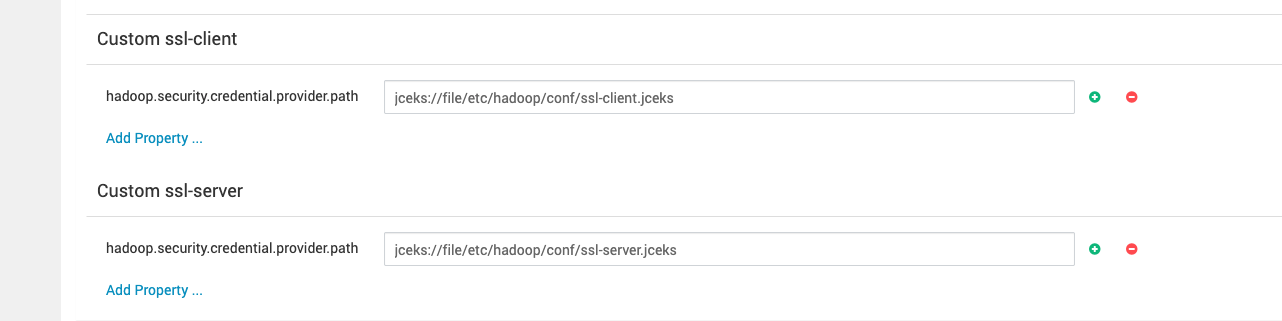
Navigate to HDFS → Configs → custom ssl-client and add:
hadoop.security.credential.provider.path=jceks://file/etc/hadoop/conf/ssl-client.jceks
Navigate to HDFS → Configs → custom ssl-server and add:
hadoop.security.credential.provider.path=jceks://file/etc/hadoop/conf/ssl-server.jceks
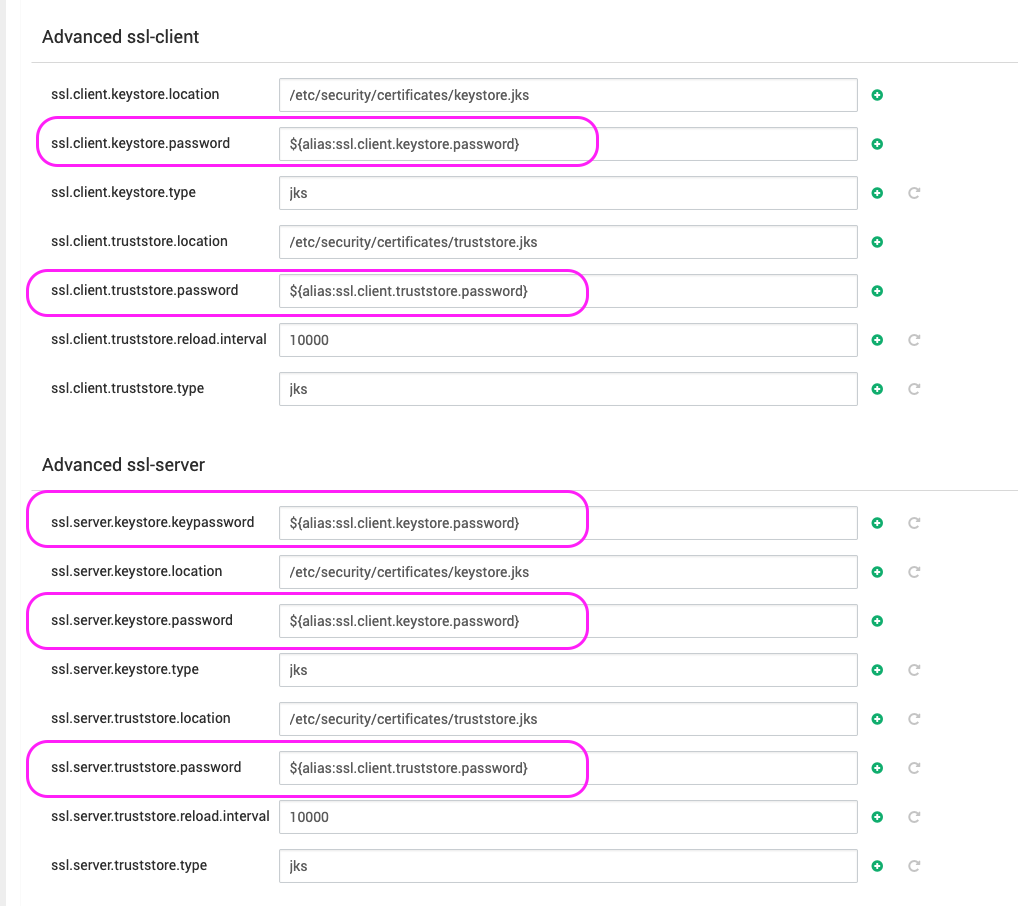
ssl.client.keystore.password=${alias:ssl.client.keystore.password}
ssl.client.truststore.password=${alias:ssl.client.truststore.password}
ssl.server.keystore.keypassword=${ssl.server.keystore.keypassword}
ssl.server.keystore.password=${alias:ssl.server.keystore.password}
ssl.server.truststore.password=${alias:ssl.server.truststore.password}
Run:
chown hdfs:hadoop ssl-client.jceks .ssl-client.jceks.crc ssl-server.jceks .ssl-server.jceks.crc
chmod 640 ssl-client.jceks .ssl-client.jceks.crc ssl-server.jceks .ssl-server.jceks.crc
Check files:
ls -la /etc/hadoop/conf/ | grep jceks
Response:
[root@odpnode1-336 conf]# ls -la /etc/hadoop/conf/ | grep jceks
-rw-r----- 1 hdfs hadoop 1000 Dec 1 12:00 ssl-client.jceks
-rw-r----- 1 hdfs hadoop 16 Dec 1 12:00 .ssl-client.jceks.crc
-rw-r----- 1 hdfs hadoop 1486 Dec 1 12:03 ssl-server.jceks
-rw-r----- 1 hdfs hadoop 20 Dec 1 12:03 .ssl-server.jceks.crc
Restart the HDFS service.
All services started successfully and sample jobs executed without issues.
cd /etc/hadoop/conf
grep -irn "password" ssl-*.xml -A 2
Response:
ssl-client.xml:14: <name>ssl.client.keystore.password</name>
ssl-client.xml:15: <value>${alias:ssl.client.keystore.password}</value>
ssl-client.xml-16- </property>
ssl-client.xml-17-
--
ssl-client.xml:29: <name>ssl.client.truststore.password</name>
ssl-client.xml:30: <value>${alias:ssl.client.truststore.password}</value>
ssl-client.xml-31- </property>
ssl-client.xml-32-
--
ssl-server.xml:9: <name>ssl.server.keystore.keypassword</name>
ssl-server.xml:10: <value>${ssl.server.keystore.keypassword}</value>
ssl-server.xml-11- </property>
ssl-server.xml-12-
--
ssl-server.xml:19: <name>ssl.server.keystore.password</name>
ssl-server.xml:20: <value>${alias:ssl.server.keystore.password}</value>
ssl-server.xml-21- </property>
ssl-server.xml-22-
--
ssl-server.xml:34: <name>ssl.server.truststore.password</name>
ssl-server.xml:35: <value>${alias:ssl.server.truststore.password}</value>
ssl-server.xml-36- </property>
ssl-server.xml-37-
No passwords are exposed in the configuration. Password obfuscation is not applicable.
OBF format password obfuscation is supported and can be enabled. Add the OBF passwords to hbase-site.xml:
ssl.server.keystore.keypassword=OBF:1dhw1i9a1inm1nse1x8e1x8g1nps1iks1i6o1dgq
ssl.server.keystore.password=OBF:1dhw1i9a1inm1nse1x8e1x8g1nps1iks1i6o1dgq
Flink supports password obfuscation in OBF format. You can configure it either from the Ambari UI or directly in the backend configuration files.
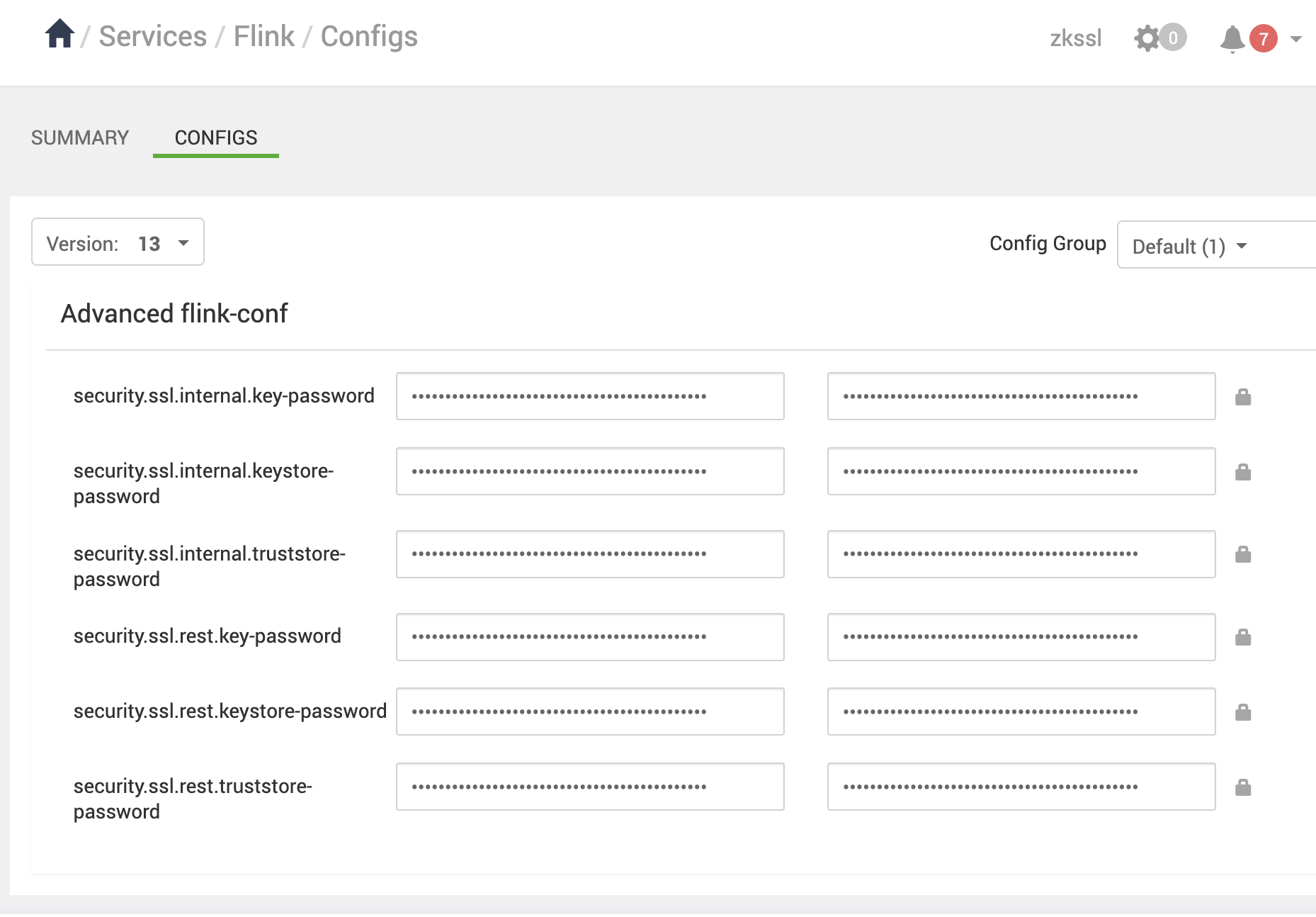
Go to Flink > Configs > Advanced flink-conf.
Add the OBF passwords:
security.ssl.internal.key-password=OBF:1dhw1i9a1inm1nse1x8e1x8g1nps1iks1i6o1dgq
security.ssl.internal.keystore-password=OBF:1dhw1i9a1inm1nse1x8e1x8g1nps1iks1i6o1dgq
security.ssl.internal.truststore-password=OBF:1dhw1i9a1inm1nse1x8e1x8g1nps1iks1i6o1dgq
security.ssl.rest.key-password=OBF:1dhw1i9a1inm1nse1x8e1x8g1nps1iks1i6o1dgq
security.ssl.rest.keystore-password=OBF:1dhw1i9a1inm1nse1x8e1x8g1nps1iks1i6o1dgq
security.ssl.rest.truststore-password=OBF:1dhw1i9a1inm1nse1x8e1x8g1nps1iks1i6o1dgq
Restart the Flink service.
In /etc/flink/conf/config.yaml
security:
ssl:
internal:
enabled: 'true'
key-password: OBF:1dhw1i9a1inm1nse1x8e1x8g1nps1iks1i6o1dgq
truststore-password: OBF:1dhw1i9a1inm1nse1x8e1x8g1nps1iks1i6o1dgq
keystore-password: OBF:1dhw1i9a1inm1nse1x8e1x8g1nps1iks1i6o1dgq
truststore: /etc/security/certificates/truststore.jks
keystore: /etc/security/certificates/keystore.jks
In /etc/flink/conf/history-server.conf/config.yaml
security:
ssl:
rest:
keystore-password: OBF:1dhw1i9a1inm1nse1x8e1x8g1nps1iks1i6o1dgq
authentication-enabled: 'false'
truststore-password: OBF:1dhw1i9a1inm1nse1x8e1x8g1nps1iks1i6o1dgq
key-password: OBF:1dhw1i9a1inm1nse1x8e1x8g1nps1iks1i6o1dgq
truststore: /etc/security/certificates/truststore.jks
keystore: /etc/security/certificates/keystore.jks
enabled: 'true'
internal:
enabled: 'true'
key-password: OBF:1dhw1i9a1inm1nse1x8e1x8g1nps1iks1i6o1dgq
truststore-password: OBF:1dhw1i9a1inm1nse1x8e1x8g1nps1iks1i6o1dgq
keystore-password: OBF:1dhw1i9a1inm1nse1x8e1x8g1nps1iks1i6o1dgq
truststore: /etc/security/certificates/truststore.jks
keystore: /etc/security/certificates/keystore.jks
historyserver:
archive:
fs:
dir: hdfs://rl9-zk-ssl.acceldata.ce:8020/apps/odp/flink/completed-jobs/
refresh-interval: '10000'
web:
address: 0.0.0.0
port: '9022'
ssl:
enabled: 'true'
Flink and History Server should start without errors.
HS WebUI should be accessible over HTTPS.
Backend config files will display passwords in OBF format, confirming obfuscation.
No passwords are exposed.
Passwords are stored in encrypted format rather than plain text.
Example: nifi.properties
./nifi.properties:115:nifi.security.keyPasswd=8703Ep5pNuqS/pAr||hnGE1NFC/KO7xSabjLaObuyCP2MNuA1BMSQ=
./nifi.properties:116:nifi.security.keyPasswd.protected=aes/gcm/256
./nifi.properties-117-nifi.security.keystore=/etc/security/certificates/keystore.jks
./nifi.properties:118:nifi.security.keystorePasswd=QGZicHq+FfnaG/OR||ALZq7GaoemuV1GIypLRSbG/BQI7SLJPh238=
./nifi.properties:119:nifi.security.keystorePasswd.protected=aes/gcm/256
./nifi.properties-120-nifi.security.keystoreType=jks
Key Points
Example: registry.yaml
[root@rl9-nifi01 registry]# grep -irn password /etc/registry/conf/registry.yaml
61: dataSource.password: ${REGISTRY_DB_PASSWORD}
92: keyStorePassword: OBF:1dhw1i9a1inm1nse1x8e1x8g1nps1iks1i6o1dgq
95: trustStorePassword: OBF:1dhw1i9a1inm1nse1x8e1x8g1nps1iks1i6o1dgq
104: keyStorePassword: OBF:1dhw1i9a1inm1nse1x8e1x8g1nps1iks1i6o1dgq
107: trustStorePassword: OBF:1dhw1i9a1inm1nse1x8e1x8g1nps1iks1i6o1dgq
[root@rl9-nifi01 registry]#
No passwords are exposed.
Run the following command:
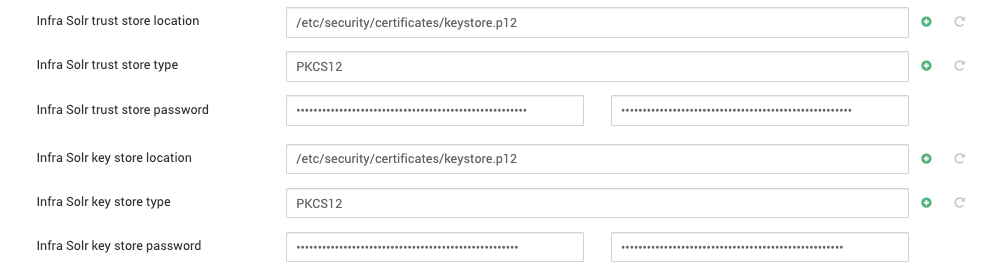
# java -cp /usr/lib/ambari-infra-solr/dist/solrj-lib/jetty-util-9.4.53.v20231009.jar \
> org.eclipse.jetty.util.security.Password \
> <<PASSWORD>>
2025-05-27 15:54:19.535:INFO::main: Logging initialized @94ms to org.eclipse.jetty.util.log.StdErrLog
<<PASSWORD>>
OBF:<< hash generated >>
MD5:<< md5 hash >>
*Output includes: *
Plaintext password (for confirmation)
OBF:<<hash generated>> — obfuscated password
MD5:<<md5 hash>> — hash representation
Use the generated OBF password for both trust store and key store passwords.
Example (/etc/ambari-infra-solr/conf/infra-solr-env.sh):
root@ub22-3362-1:~/acceldata# cat /etc/ambari-infra-solr/conf/infra-solr-env.sh | grep -i password
SOLR_SSL_KEY_STORE_PASSWORD=OBF:1dhw1i9a1inm1nse1x8e1x8g1nps1iks1i6o1dgq
SOLR_SSL_TRUST_STORE_PASSWORD=OBF:1dhw1i9a1inm1nse1x8e1x8g1nps1iks1i6o1dgq
Save the updated configuration.
Restart the Infra Solr service.
Verify that passwords are stored locally in hashed format.
No passwords are exposed.
Run the following command:
[root@test15 certificates]# java -cp /usr/odp/current/zeppelin-server/lib/jetty-util-9.4.52.v20230823.jar \
> org.eclipse.jetty.util.security.Password \
> <<PASSWORD>>
2025-05-27 15:54:19.535:INFO::main: Logging initialized @94ms to org.eclipse.jetty.util.log.StdErrLog
<<PASSWORD>>
OBF:<< hash generated >>
MD5:<< md5 hash >>
Output includes:
Plaintext password (for confirmation)
OBF:<<hash generated>> — obfuscated password
MD5:<<md5 hash>> — hash representation
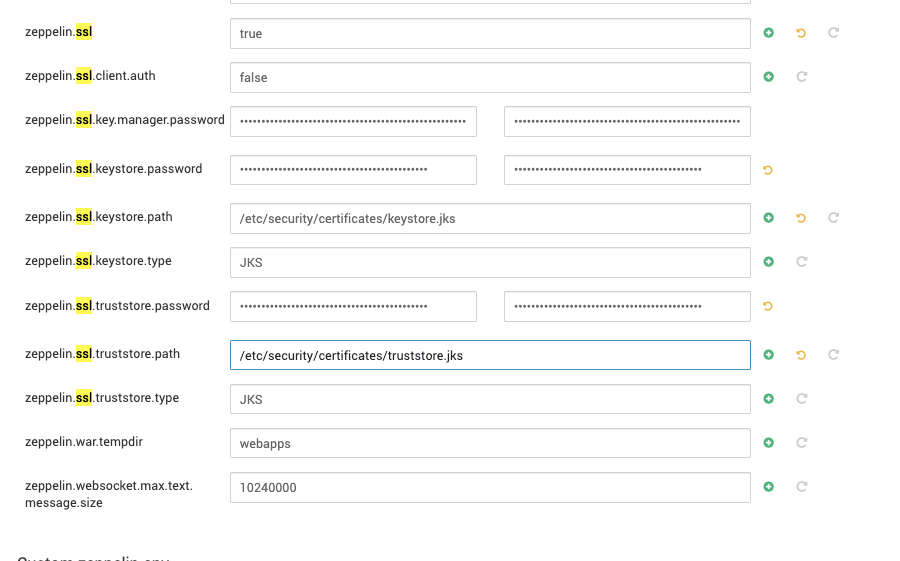
Update the following passwords in Ambari with the generated OBF value:
Key manager password
Keystore password
Truststore password
Example (zeppelin-site.xml):
[root@test15 conf]# grep -r -A 1 "password" zeppelin-site.xml
<name>zeppelin.ssl.key.manager.password</name>
<value>OBF:1dhw1i9a1inm1nse1x8e1x8g1nps1iks1i6o1dgq</value>
--
<name>zeppelin.ssl.keystore.password</name>
<value>OBF:1dhw1i9a1inm1nse1x8e1x8g1nps1iks1i6o1dgq</value>
--
<name>zeppelin.ssl.truststore.password</name>
<value>OBF:1dhw1i9a1inm1nse1x8e1x8g1nps1iks1i6o1dgq</value>
In Ambari, passwords configured in OBF format show a check mark confirming obfuscation.
Refer to Apache Zeppelin 0.7.3 Documentation: Data Source Authorization for guidance on securing interpreter passwords.
Visit https://<zeppelin host>:9995/#/credential
Add credentials — the Entity field acts similarly to an alias in JCEKS
Use the stored credentials directly in interpreter settings
No passwords are exposed.
No passwords are exposed.
No passwords are exposed.
Password handling is managed by security_credential_helper.py for database connections.
No SSL passwords are exposed.
No passwords are exposed.
Password handling is managed by security_credential_ helper.py for database connections.
No SSL passwords are exposed.
Sensitive Pinot Controller configuration passwords (including Basic Auth and SSL keystore/truststore passwords) are now encrypted using the Hadoop JCEKS credential store. Passwords are no longer stored in plaintext in configuration files or static environment files. They are securely managed and injected at runtime.
*Key features: *
Passwords are stored encrypted in a Hadoop JCEKS file.
A wrapper script extracts the secrets at startup using Ambari’s GenericStorePasswordExtractor.
Secrets are injected as environment variables and referenced in Pinot configuration through dynamic environment settings.
No plaintext secrets appear in configuration or static environment files.
Steps
Create and store passwords in JCEKS: Use the Hadoop credential command to store each password securely in the Hadoop JCEKS credential store.
hadoop credential create pinot.admin.pass \
-value 'your_admin_password' \
-provider jceks://file/etc/security/credential/pinot/pinot.jceks
hadoop credential create pinot.keystore.pass \
-value 'your_keystore_password' \
-provider jceks://file/etc/security/credential/pinot/pinot.jceks
hadoop credential create pinot.truststore.pass \
-value 'your_truststore_password' \
-provider jceks://file/etc/security/credential/pinot/pinot.jceks
Configure Pinot for dynamic environment variables: In pinot-controller.conf, reference passwords using environment variable placeholders instead of hardcoding them.
dynamic.env.config=controller.admin.access.control.principals.admin.password,controller.tls.keystore.password,controller.tls.truststore.password
controller.admin.access.control.principals.admin.password=PINOT_ADMIN_PASSWORD
controller.tls.keystore.password=PINOT_KEYSTORE_PASS
controller.tls.truststore.password=PINOT_TRUSTSTORE_PASS
Wrapper script for secret extraction: Create /usr/odp/3.3.6.2-1/pinot/start-pinot-controller.sh to automatically fetch secrets from the JCEKS store and inject them as environment variables before starting Pinot.
#!/bin/bash
export PINOT_ADMIN_PASSWORD=$(
java -cp '.:/etc/hadoop/conf/*:/var/lib/ambari-agent/cred/lib/*' \
org.apache.ambari.security.tools.GenericStorePasswordExtractor \
JCEKS jceks://file/etc/security/credential/pinot/pinot.jceks pinot.admin.pass
)
export PINOT_KEYSTORE_PASS=$(
java -cp '.:/etc/hadoop/conf/*:/var/lib/ambari-agent/cred/lib/*' \
org.apache.ambari.security.tools.GenericStorePasswordExtractor \
JCEKS jceks://file/etc/security/credential/pinot/pinot.jceks pinot.keystore.pass
)
export PINOT_TRUSTSTORE_PASS=$(
java -cp '.:/etc/hadoop/conf/*:/var/lib/ambari-agent/cred/lib/*' \
org.apache.ambari.security.tools.GenericStorePasswordExtractor \
JCEKS jceks://file/etc/security/credential/pinot/pinot.jceks pinot.truststore.pass
)
exec /usr/odp/3.3.6.2-1/pinot/bin/pinot-admin.sh StartController -config /usr/odp/3.3.6.2-1/pinot/conf/pinot-controller.conf
Update systemd service
ExecStart=/usr/odp/3.3.6.2-1/pinot/start-pinot-controller.sh
Benefits
No plaintext passwords in config or environment files.
Centralized and secure password management using Hadoop JCEKS.
Easy password rotation without changing Pinot configs.
Compliant with security best practices for production systems.
References
In summary: Passwords are encrypted in a JCEKS file, extracted securely at runtime, and injected into Pinot Controller using dynamic environment variables—ensuring no plaintext secrets are ever present on disk or in process listings.
Druid
No passwords are exposed.
No passwords are exposed.
No passwords are exposed.
Example Configuration (Advanced kafka-mirrormaker2)
source.ssl.key.password=${env:SOURCE_SSL_KEY_PASSWORD}
source.ssl.keystore.password=${env:SOURCE_SSL_KEYSTORE_PASSWORD}
source.ssl.truststore.password=${env:SOURCE_SSL_TRUSTSTORE_PASSWORD}
dest.ssl.key.password=${env:DEST_SSL_KEY_PASSWORD}
dest.ssl.keystore.password=${env:DEST_SSL_KEYSTORE_PASSWORD}
dest.ssl.truststore.password=${env:DEST_SSL_TRUSTSTORE_PASSWORD}
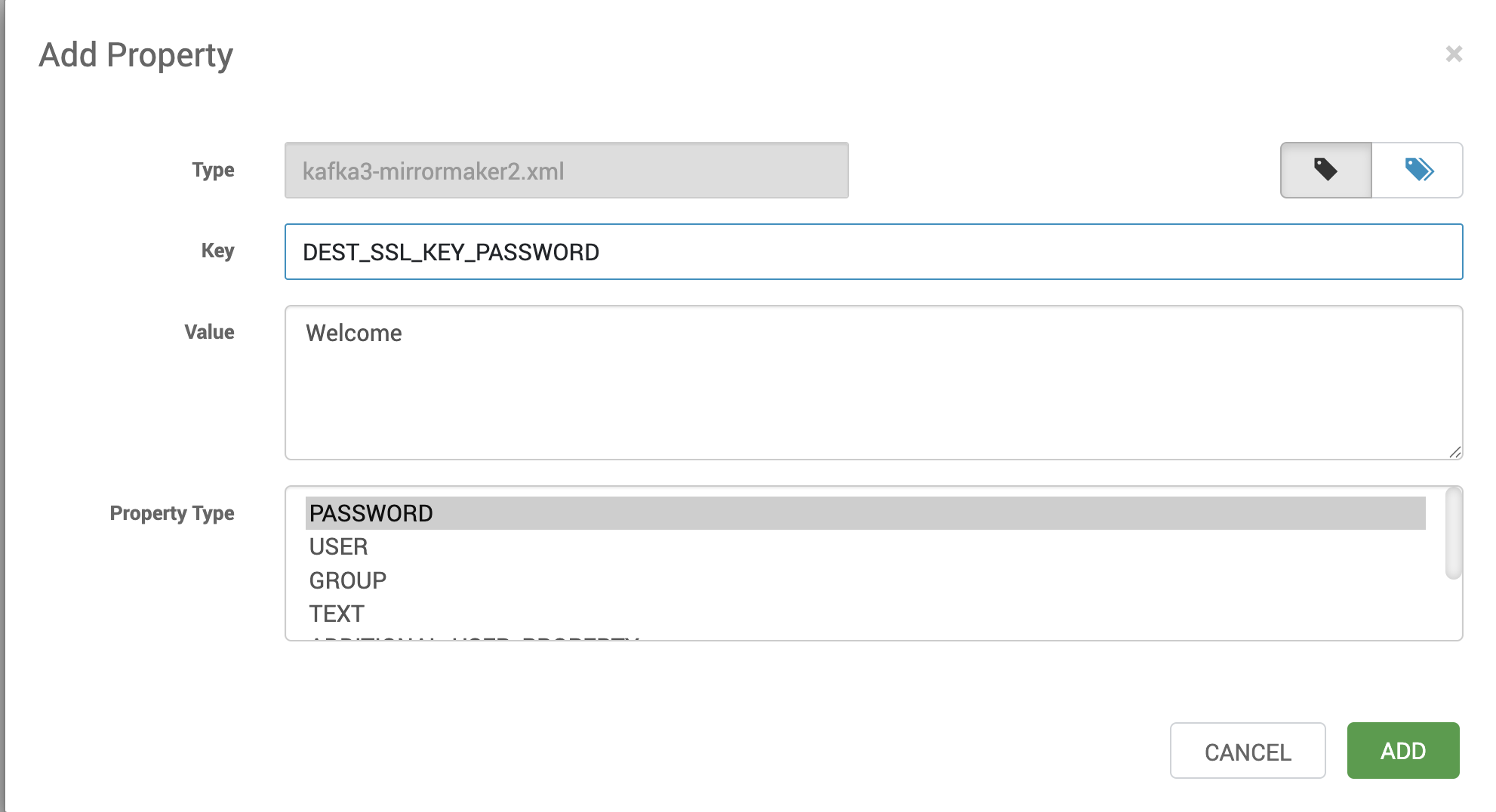
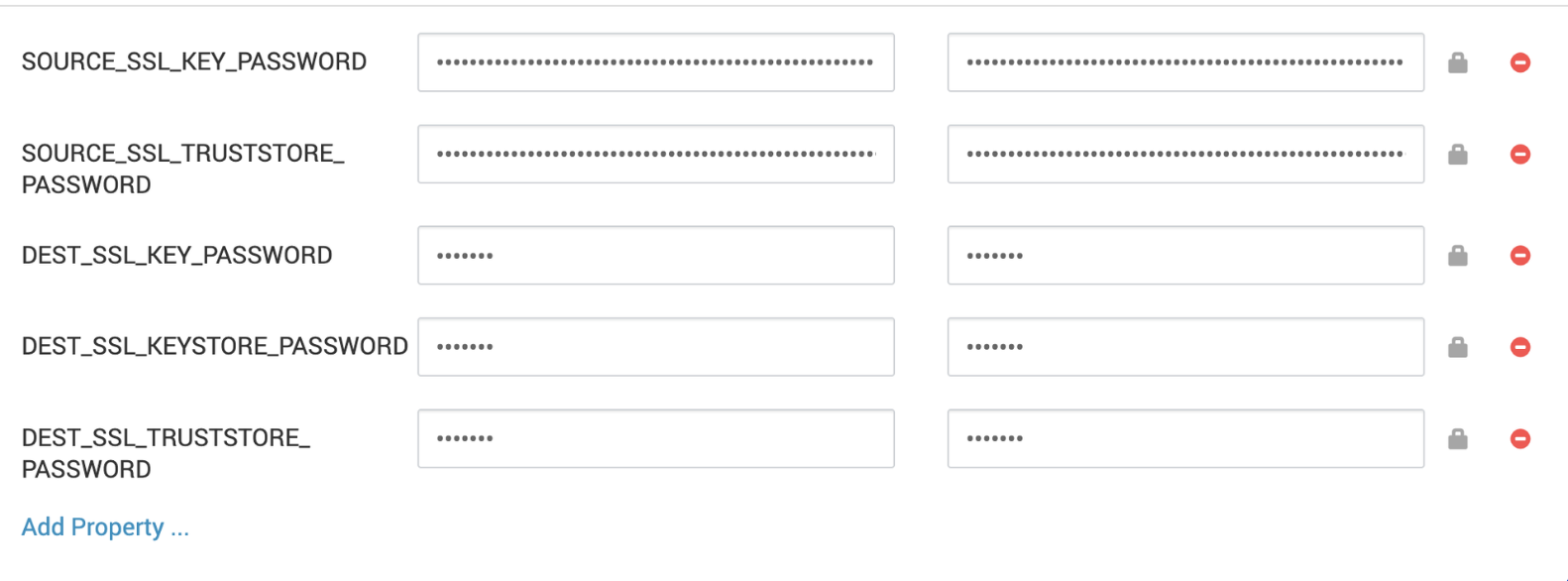
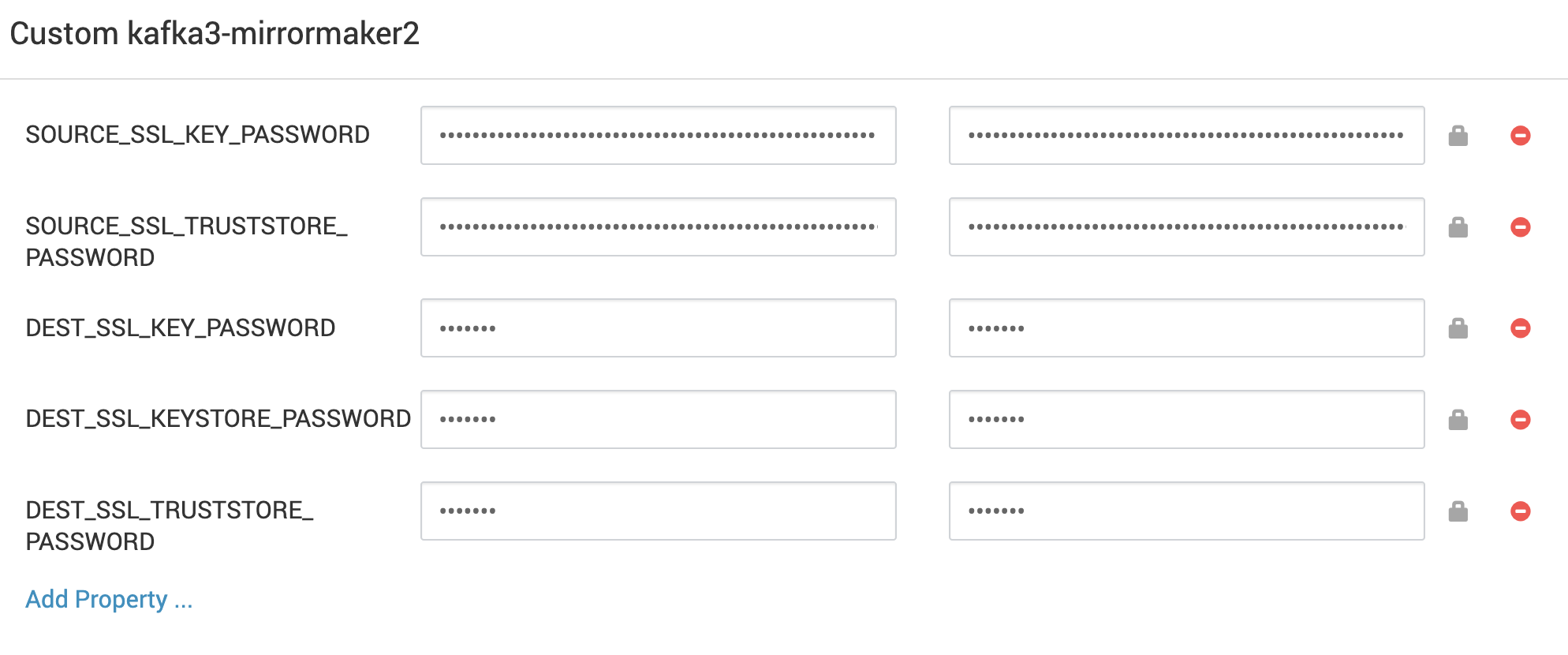
Adding Actual Passwords (Custom kafka-mirrormaker2)
Example Configuration (Advanced kafka3-mirrormaker2)
source.ssl.key.password=${env:SOURCE_SSL_KEY_PASSWORD}
source.ssl.keystore.password=${env:SOURCE_SSL_KEYSTORE_PASSWORD}
source.ssl.truststore.password=${env:SOURCE_SSL_TRUSTSTORE_PASSWORD}
dest.ssl.key.password=${env:DEST_SSL_KEY_PASSWORD}
dest.ssl.keystore.password=${env:DEST_SSL_KEYSTORE_PASSWORD}
dest.ssl.truststore.password=${env:DEST_SSL_TRUSTSTORE_PASSWORD}
Adding Actual Passwords (Custom kafka3-mirrormaker2)
LDAP passwords are obfuscated using security_credential_helper.py.
No passwords are exposed.
Previously, SSL passwords were displayed in the Ambari UI, even though they were encrypted in the configuration file system under oozie-site.jceks.
These SSL passwords in the UI are now obfuscated.