
Documentation
Pulse 3.5.x
Release Notes
Getting Started
Architecture
Installation
Advanced Installation
Advanced Feature Integrations
Features
Troubleshooting
User Guide
CLI Guide
Workflows
Additional Resources
Tech Preview
Pulse NextGen Docs (Beta)
Title
Message
Create new category
What is the title of your new category?
Edit page index title
What is the title of the page index?
Edit category
What is the new title of your category?
Edit link
What is the new title and URL of your link?
Update License
Summarize Page
Copy Markdown
Open in ChatGPT
Open in Claude
Connect to Cursor
Connect to VS Code
Pre-requisites
Ensure you have the updated license file from Acceldata team to update the Pulse license.
Create a ticket at https://support.acceldata.io/ to receive the updated license file.
To update the Pulse license file, do the following:
- Open the license file.
- Copy the entire content of the license file.
- Login to Pulse server running the core components.
- Go to
<PULSE_HOME>/work. Here<PULSE_HOME>is directory where the Pulse is installed.
Run the which accelo command to find out where Pulse is installed.
- Open and update the contents of the
licensefile as copied on step 2. - Run the following command to update and restart Pulse UI for new license.
Bash
xxxxxxxxxxaccelo restart ad-graphql- To validate the license, open Pulse UI and check the following contents for the new license date or new components list.
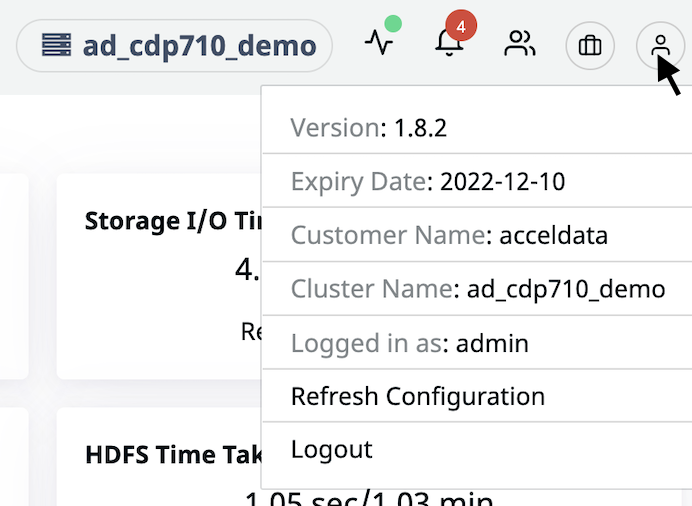
License & Version Details
Type to search, ESC to discard
Last updated on
Was this page helpful?
Next to read:
Modify Storage RetentionFor additional help, contact www.acceldata.force.com OR call our service desk +1 844 9433282
Copyright © 2026
Discard Changes
Do you want to discard your current changes and overwrite with the template?
Archive Synced Block
Message
Create new Template
What is this template's title?
Delete Template
Message