
Deploy Pulse Hydra Agent
There are three ways to install the Hydra Agent across all nodes in a cluster:
- With SSH Enabled: If SSH is enabled for all nodes, you can deploy the Hydra Agent using the Ansible playbook.
- Without SSH Enabled: If SSH is not enabled, the agent must be installed manually on each node, which is an inefficient approach.
- Using the Ambari Mpack: Ambari uses its internal implementation to install custom services to any of the nodes of the cluster through Mpack. This allows Hydra to be installed in all nodes through a single click from Ambari.
With SSH Access
If you have the SSH access to the cluster nodes use the following steps:
- Deploy the Pulse Hydra agent by executing the following steps.
- Execute the following deploy command, here -f argument defines parallel ssh session to deploy agents
- Type y when the Have you run 'accelo configure agents' ?[y/n] question is displayed.
- Press the enter key.
xxxxxxxxxxaccelo deploy hydra -f 5Without the SSH Access
If you do not have the SSH access to the cluster nodes, contact the Acceldata Support Team for offline Hydra agent packages (RPM or DEB) that you can install to all the cluster nodes with your preferred configuration management tool of your choice.
Install Agent(s)
- Download and upload hystaller binary on mentioned node from provided link and credentials.
- Place hystaller on /tmp directory and follow the below steps of command sequences, here replace <PULSE_HOSTNAME> to hostname running Pulse UI (main server).
chmod +x /tmp/hystallerPULSE_HOME="/opt/pulse"PATH="/usr/local/sbin:/usr/local/bin:/usr/sbin:/usr/bin"HYDRA_SERVER_URL="http://<PULSE_HOSTNAME>:19072"HYDRA_HEARTBEAT_DURATION="60"HYDRA_PARCEL_MODE="False"HYDRA_HOSTNAME_CASE="lower"HYDRA_HOSTNAME_METHOD="CMD"HYDRA_HEARTBEAT_JITTER="10"#sudo if this is non-root usersudo env "PULSE_HOME=$PULSE_HOME" "PATH=$PATH" "HYDRA_SERVER_URL=$HYDRA_SERVER_URL" "HYDRA_HEARTBEAT_DURATION=$HYDRA_HEARTBEAT_DURATION" "HYDRA_PARCEL_MODE=$HYDRA_PARCEL_MODE" "HYDRA_HOSTNAME_CASE=$HYDRA_HOSTNAME_CASE" "HYDRA_HOSTNAME_METHOD=$HYDRA_HOSTNAME_METHOD" "HYDRA_HEARTBEAT_JITTER=$HYDRA_HEARTBEAT_JITTER" /tmp/hystaller install- SSH to main Pulse server running UI and run below command to sync configuration from Pulse server to new node.
xxxxxxxxxxaccelo reconfig clusterUninstall Agent(s)
- Using the same hystaller agent can be uninstalled
xxxxxxxxxx/tmp/hystaller uninstallDeploy Pulse Hydra using the Ambari Mpack
Prerequisites
Tested Versions:
- Ambari: 2.7.4.0, 2.6.2.2, 2.7.6.0
- Cluster: HDP 3.1, HDP 2.6, ODP 3.2
Deployment of Hydra
- Download the Tarball in Ambari server and save it as
/tmp/hystaller_mpack<version>.tar.gz.
xxxxxxxxxxwget <S3 LINK FROM LICENSE UI> -O "hystaller_mpack<version>.tar.gz"- Install
hystaller_mpack<version>.tar.gzin ambari-server .
xxxxxxxxxxambari-server install-mpack --mpack=/tmp/hystaller_mpack<version>.tar.gz -v- Add the Hydra Service symlink in the service list of Ambari.
cd /var/lib/ambari-server/resources/stacks/<Cluster_type>/<Cluster_version>/servicesln -s /var/lib/ambari-server/resources/mpacks/ambari-hydra-agent-mpack-<hydra_version>/common-services/PULSE_HYDRA_AGENT/<hydra_version> PULSE_HYDRA_AGENT- Restart
ambari-server.
xxxxxxxxxxambari-server restartIt must now restart the server with logs stating Server started listening on 8080.
- Navigate to the Ambari UI and select
Add Service.
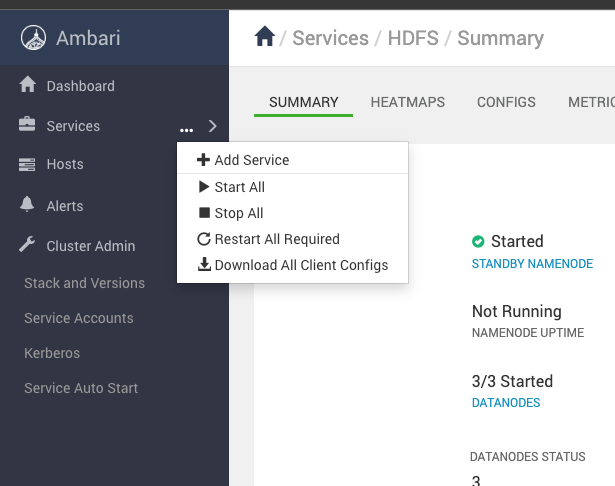
- Select
Hydrafrom the services list and select the nodes to deploy hydra.
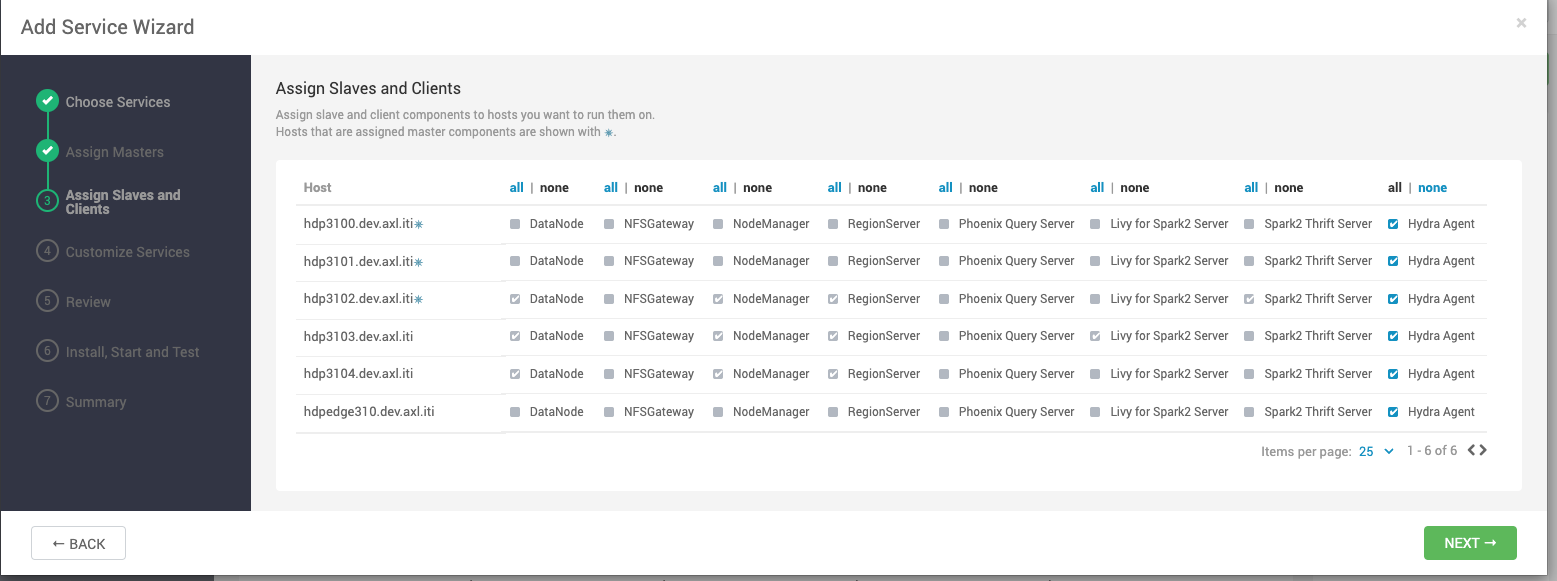
- Edit the configurations as per the requirements.
- Give the full URL of the form
http://<Pulse_IP>:<Hydra_Port>/ad-hydra - For hydra installer Repository URL : http://pulse:Hydra_Password@Pulse_IP:19072/files/parcels
- For K8s this route can be different: http://pulse:Hydra_Password@INGRESS_IP __EXPOSED PORT/HYDRA_EXPOSED PATH/files/parcels
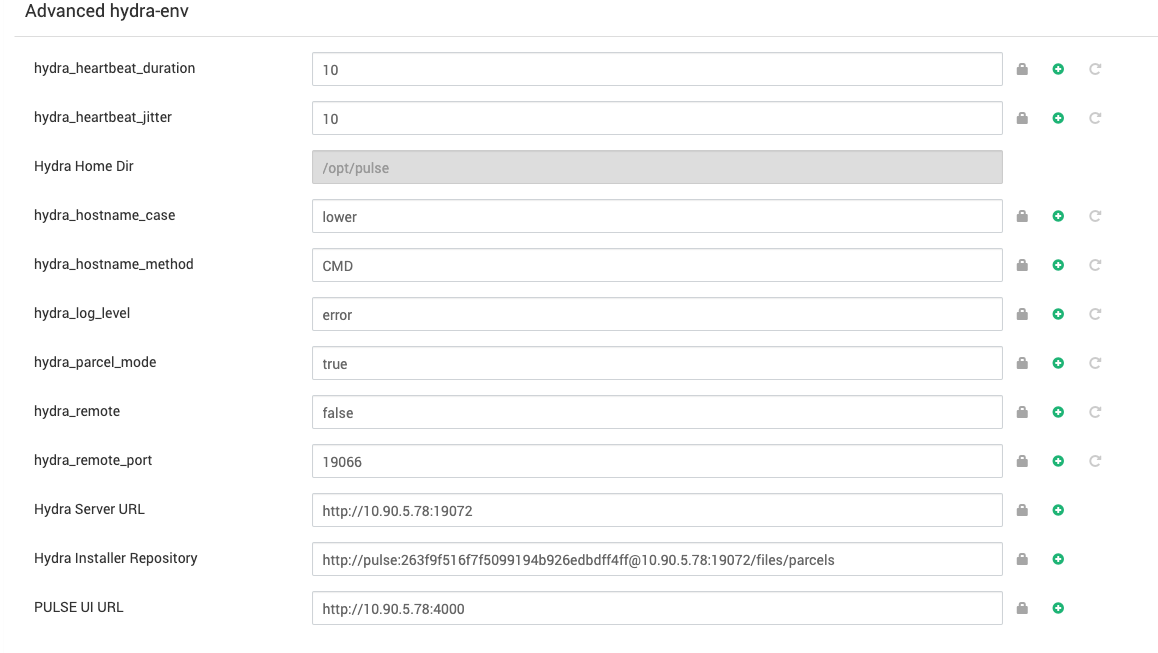
- Select
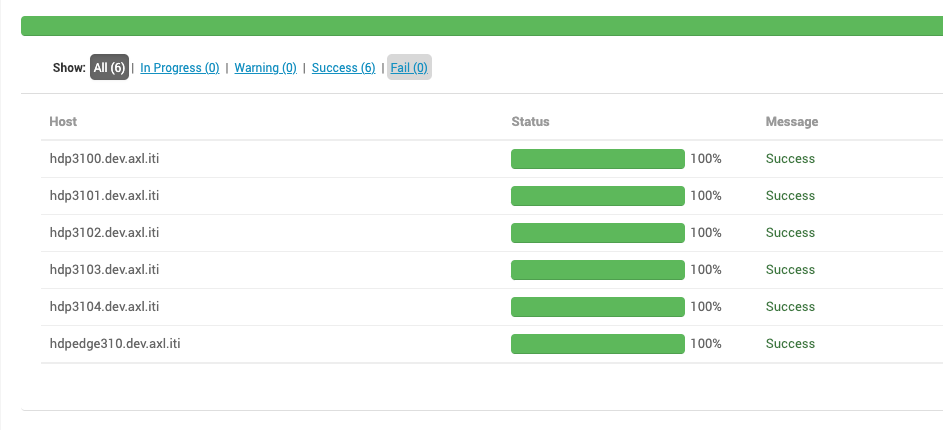
Deployto install and start Hydra in respective hosts.
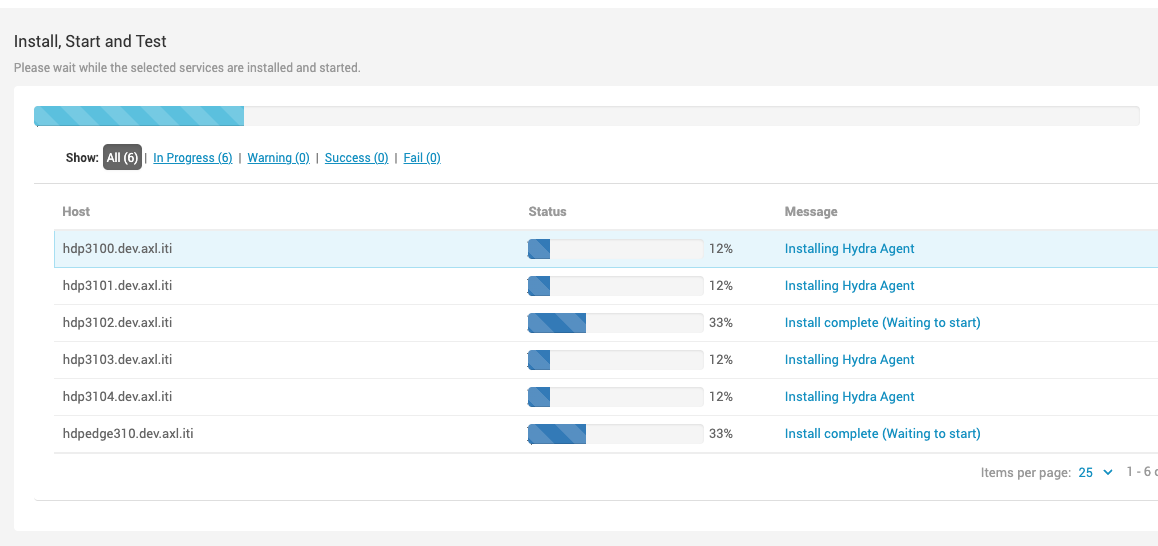
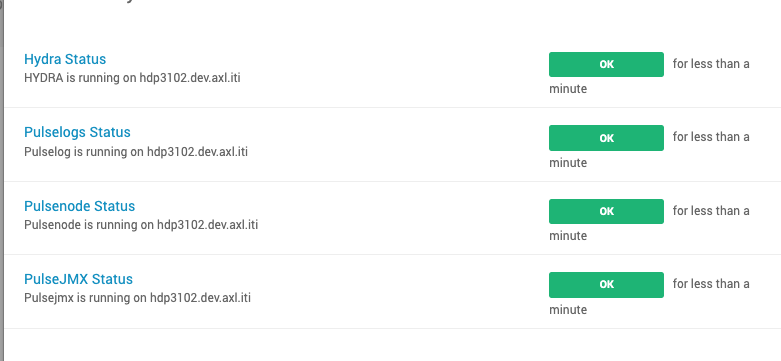
- Once deployment is successful, we can get the status of each hydra agent as well as the status of pulsenode, pulselog, pulsejmx.
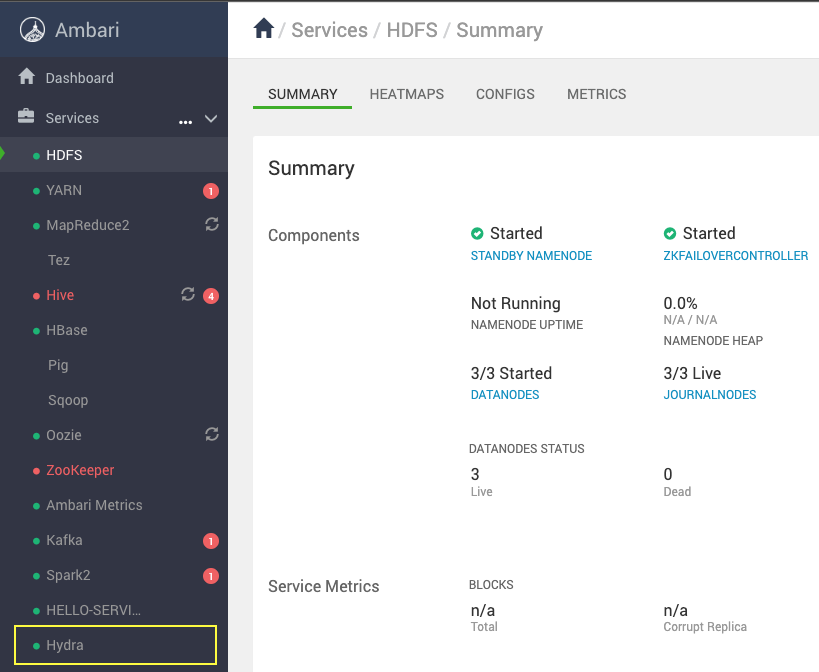

Check the logs of ad-hydra_default container to confirm if the hydra agents are working fine or not.
Installation of Hydra Agent on Newly Added Hosts
The Hydra Agent must be installed on at least one node in a cluster.
- Run the following commands on Ambari node.
curl -s -u admin:admin http://0.0.0.0:8080/api/v1/hosts|grep host_name|sed -n 's/.*"host_name" : "\([^\"]*\)".*/\1/p'>hostcluster.txt while read line ; do j=$line; mkdir -p $j; curl -u admin:admin -H "X-Requested-By:ambari" -i -X POST http://0.0.0.0:8080/api/v1/clusters/<CLUSTER_NAME>/hosts/$j/host_components/PULSE_HYDRA_AGENT; done < hostcluster.txt while read line ; do j=$line; mkdir -p $j; curl -u admin:admin -H "X-Requested-By:ambari" -i -X PUT -d '{"HostRoles": {"state": "INSTALLED"}}' http://0.0.0.0:8080/api/v1/clusters/<CLUSTER_NAME>/hosts/$j/host_components/PULSE_HYDRA_AGENT; done < hostcluster.txt while read line ; do j=$line; mkdir -p $j; curl -u admin:admin -H "X-Requested-By:ambari" -i -X PUT -d '{"HostRoles": {"state": "STARTED"}}' http://0.0.0.0:8080/api/v1/clusters/<CLUSTER_NAME>/hosts/$j/host_components/PULSE_HYDRA_AGENT; done < hostcluster.txtThe Hydra Agent is installed on all the nodes. Restart if required.
Test your Agent Configuration Changes
If you made any changes to telegraph(node agent), filebeat(logs agent) or jmx(jmx agent), and you want to test your feature, then:
- Build the Hydra test image from bitbucket and tag to running ad-hydra container and restart
ad-hydra. - From the Ambari server, stop the Hydra service.
- Delete the Hydra service.
- Add the Hydra Service, follow the above Images and provide Hydra Server URL, Hydra Installer Repository, PULSE UI URL and deploy.
- From Pulse node, do reconfig cluster, wait for ~2 minutes.
- Then check your changes on the nodes for your changes.
Uninstallation of Hydra Agent
- Stop all the Hydra Agents from the Ambari UI and delete the Hydra Service.
- Run the uninstall mpack command on CLI of Ambari host .
xxxxxxxxxxambari-server uninstall-mpack --mpack-name=ambari-hydra-agent-mpack -vValidate Pulse Installations
Run the following command to validate Pulse installation.
xxxxxxxxxxaccelo infoYou get output as shown in the following image.
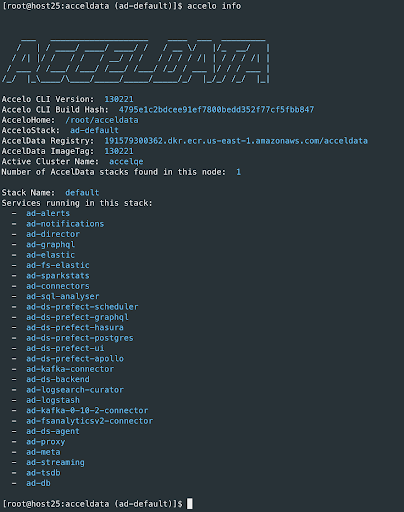
You can now check Pulse Web UI. Pulse Web UI runs on the 4000 port of the Pulse server’s IP.