
Setup SMTP Notifications
Create ad-notification YAML to edit and update details
Add or modify the following details as per your environment:
Configure Pulse Notifications
Go to the CLI command and type the command
Add the JODA timeline value here, use this link to know the right value based on your timezone.
Select the required additional metric groups that you want to enable. Use the arrows to move and space to select the metric group. Example: To select ntpd or chrony here use the space key in your keyboard.
You are now prompted to select the notifications you would like to enable. Use the arrows to move and space to select the notifications type. Each notification requirements has been shared section Notification Channel Requirements
Depending on the above selected options you can provide required default options such as default slack webbook URL or default receiver mail distribution list.
Select default snooze and other threshold options.
Enable the notifications for the cluster in the alert types.
Once configure setup is complete restart the following components.
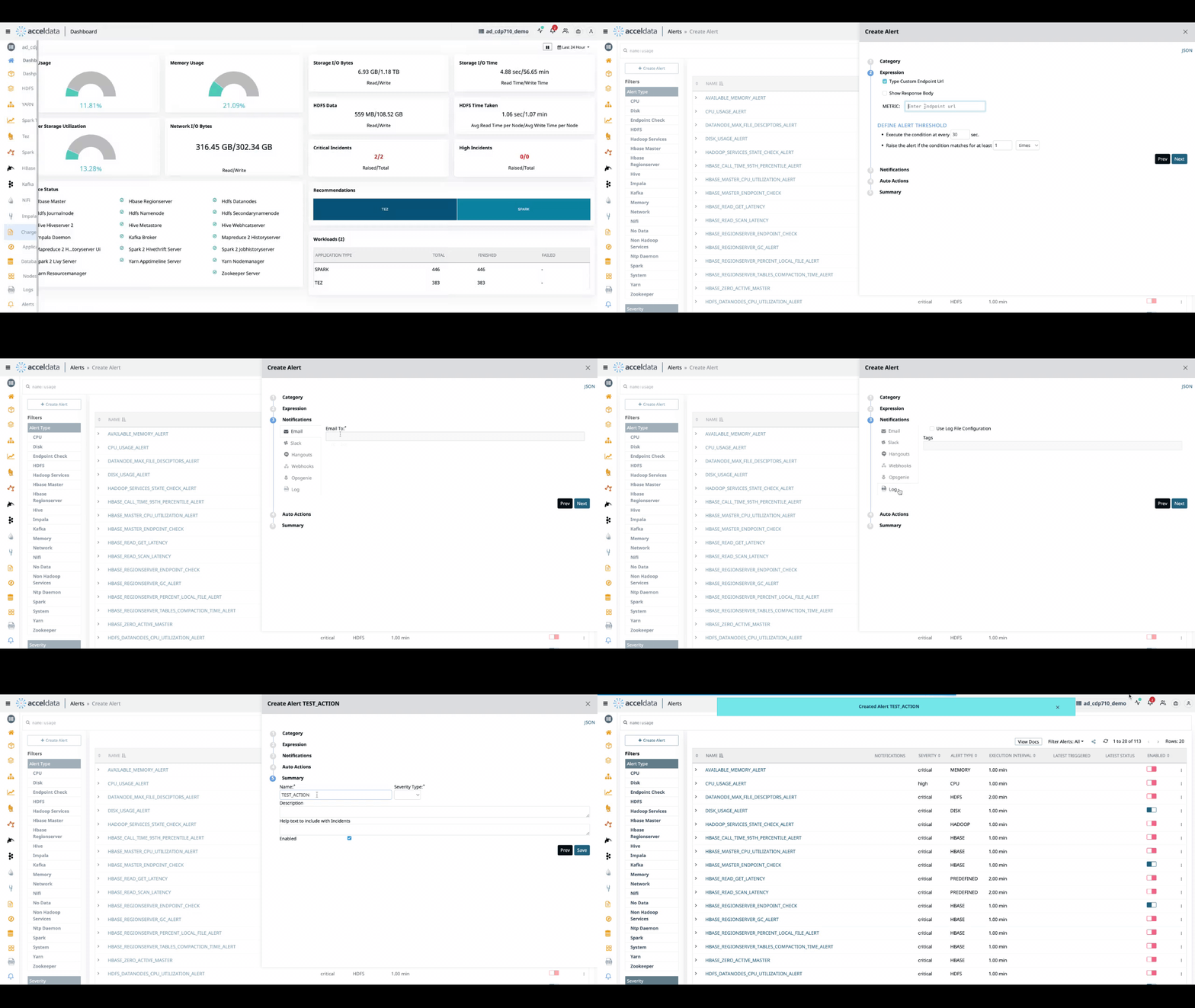
Perform a notification test by selecting respective notification channel in Pulse UI
Notification Channel Requirements
As updated above in the SETUP SMTP notifications, the following details are required to be updated in the ad-notifications yaml.
Slack
CLI will prompt the following details to configure the Slack notifications.
Configuration Entry | Example |
|---|---|
Enter Slack Default Incoming Web Hook URL's | Add Webhook URL (comma separated multiple URLs are allowed) |
Enter Slack Default Snooze Intervals in Secs | 0 |
Enter Slack MAX Slack message Threshold | 1 |
PagerDuty Notifications
Enter the routing key obtained from PagerDuty.
Telegram
Enter the default BotToken from Telegram.
Enter the default ChatIds from Telegram. You can enter multiple ChatIds separated by a comma.
Line
Enter the API Keys obtained from Line
ServiceNow
Enter the ServiceNow Table Names; you can enter multiple ServiceNow Table Names separated by commas.
Enter the BearerToken that you received from ServiceNow.
Enter the ServiceNow-provided Caller ID.
Webhooks
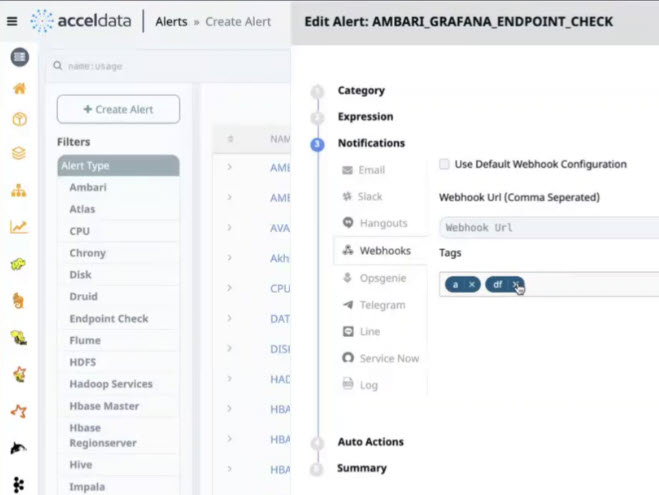
Webhooks are automated messages sent from the application about incidents. It contains tags that can be added for the incidents as displayed in the following image.
CLI will prompt the following details to configure the Webhook notifications.
Configuration Entry | Example |
|---|---|
Enter Webhook Default Web Hook URL | Add Webhook URL (comma separated multiple URLs are allowed) |
Enter Webhook Default Snooze Intervals in Secs | 0 |
Enter Webhook Max message Threshold | 1 |
Webhook Notifications
Actions
Opsgenie
Enter the API key obtained from Opsgenie
File Log
All the raised incidents are recorded in the file logs.
1.Save the notifications as a log files on your server. Perfect for individuals or organizations for better control.
Enter the Log file Name and Directory.
Rolling Files Size supports automatic log file rollover. This means that a log file of a certain size shuts its existing collection of log files and opens new log files.
Enter the Index of the log file.
Hangouts
CLI will prompt the following details to configure the Hangout notifications.
Configuration Entry | Example |
|---|---|
Enter Hangouts Chatroom Web Hook URL | Add webhook URL (comma separated multiple URLs are allowed)) |
Enter Slack Default Snooze Intervals in Secs | 0 |
Enter Hangouts Max message Threshold | 1 Note Ensure the value is not 0 as this will prevent the messages from being sent. |
Jira
Issue Types allowed by the Jira Plugin are: Bug, Story, and Task.
Alert Snooze Manager - The notification sender communicates with this actor to determine whether or not to transmit an alert. It manages the alert incident count and snoozes the wait duration.
Enter the URL you got from Jira.
Enter the Project key.
Enter your User Name.
Enter the user's Jira token.
Enter Jira as a priority.
Add the Jira Label.