
You can monitor Pulse services deployed on Kubernetes using the Admin UI.
This provides real-time visibility into Pulse application health and logs.
This view helps administrators:
Monitor Pulse server health
Troubleshoot runtime issues
Analyze authentication, API, and service errors
Validate deployments and restarts
Steps
In the Admin UI, click the configured cluster.
Click any Core or Add-on service.
The following details are displayed.
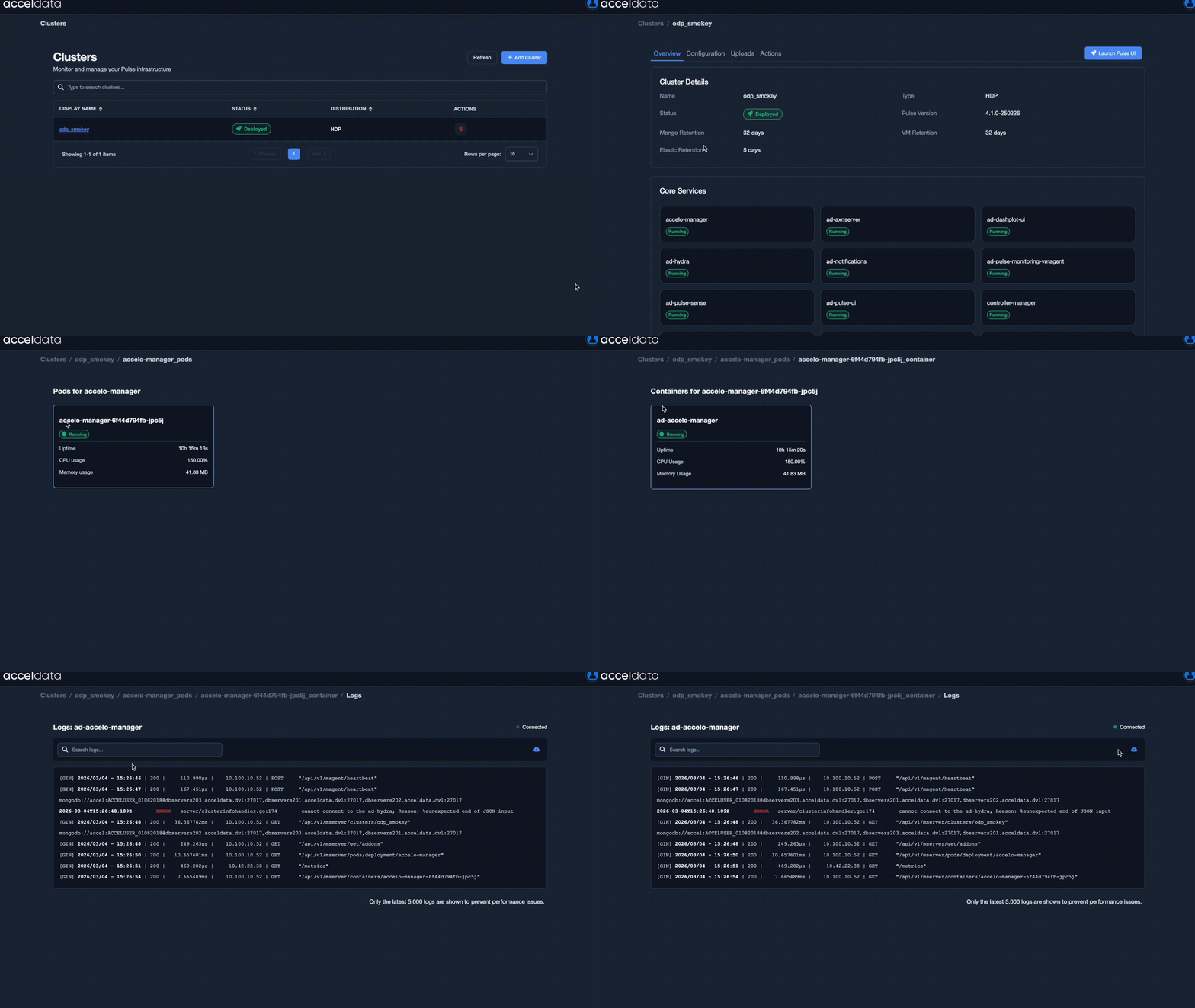
PODs
Lists all Pulse-related pods running in the selected cluster.
Pod Information includes:
Pod Name – Unique name assigned to the Pulse pod
Example: ad-pulse-ui-576766755b-pvs2c
Uptime – Duration the pod has been running
CPU Usage – Current CPU consumption of the pod
Memory Usage – Current memory consumption of the pod
Containers
Each Pulse pod may contain one or more containers.
Container Information includes:
Container Name – Name of the Pulse service container Example: ad-pulse-ui
Uptime – How long the container has been running
CPU Usage – CPU consumption percentage
Memory Usage – Memory usage in MB
Logs
The Logs view provides real-time log streaming for the selected Pulse container.
Available options:
Connected – Indicates that live log streaming is active
Search logs – Filter logs using keywords
Download: Download the logs.
You can only see the logs up to 5000 from the time you are viewing them.