
Generate a Pulse sanity report to assess the health of a selected monitor group.
The report validates key Pulse services, integrations, and modules by running a predefined set of application, infrastructure, and backend checks. Pulse compiles the results into an Excel report with separate sections for each category of checks.
If a check cannot be completed, Pulse continues generating the report and marks the affected section accordingly. Detailed diagnostic information is recorded in the application logs to assist with troubleshooting.
This feature has been redesigned with the Pulse version 4.1.2.
Before You Begin
Verify that:
You have the Admin role in Pulse.
Pulse services are running and healthy.
Generate the Report
In the Pulse UI, go to the Admin menu in the bottom-left corner.
Select Generate Report.
Pulse starts generating the report in the background and displays a confirmation message.
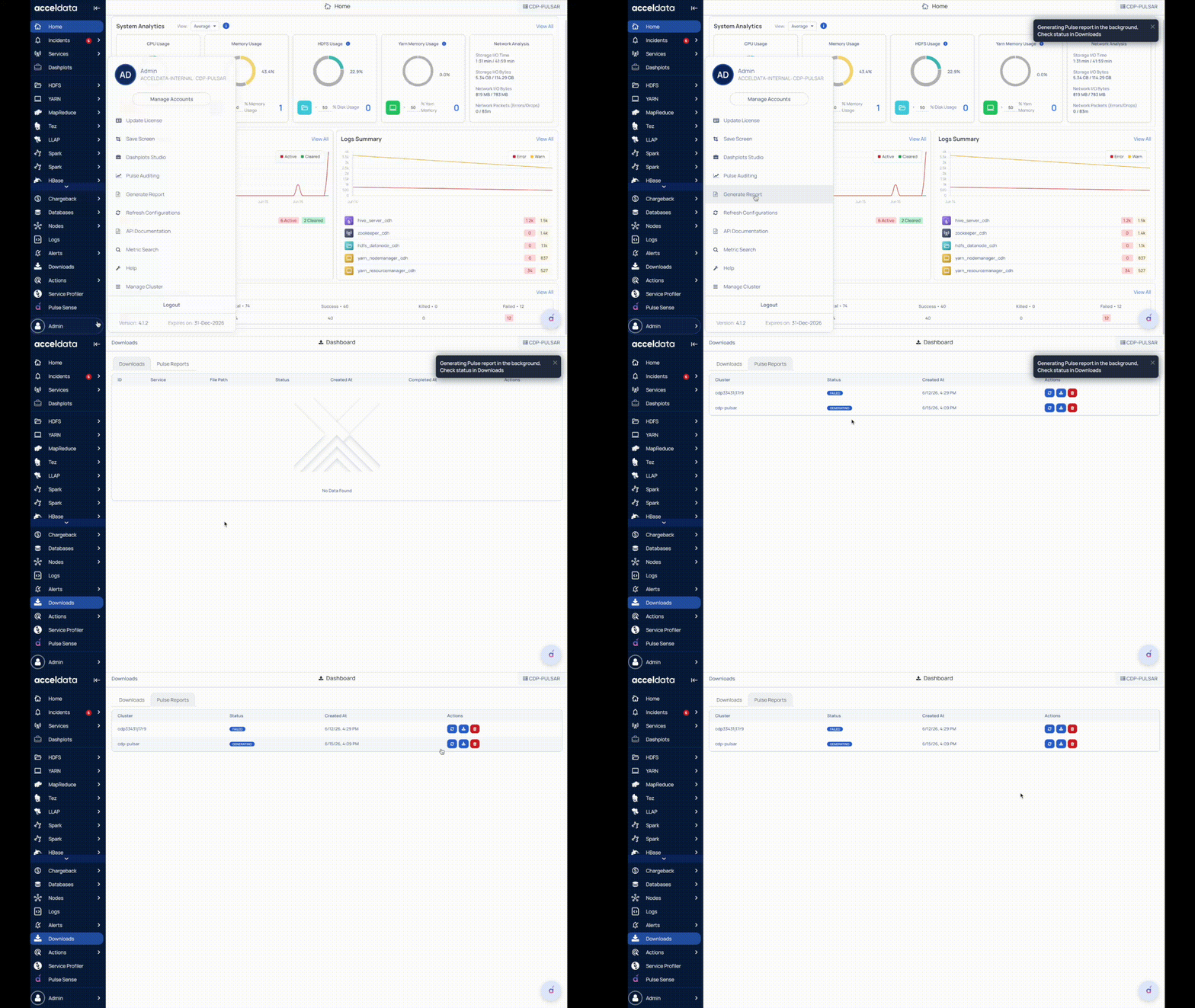
Monitor Report Generation
Open the Downloads page.
Select the Pulse Reports.
The Reports page displays the status of all generated sanity reports.
Report Status
A report can have one of the following statuses:
Generating: Report generation is in progress.
Done: Report generation completed successfully.
Failed: Report generation did not complete successfully.
Manage Reports
From the Reports page, you can:
Download a report
Rerun report generation
Delete a report
Only users with the Admin role can generate, view, rerun, or delete sanity reports.
Downloads Tab
The Downloads tab lists long-running jobs or queries that generate large downloadable files.
For example, downloads that take time to process and prepare, such as export jobs for 1M+ Impala query results.