
Quick Start
Access ADM
ADM is part of Acceldata Data Observability Cloud (ADOC). You open it from the ADOC left navigation, so you don't need a separate URL or sign-in.
- Sign in to ADOC with your single sign-on (SSO) credentials, or with the user name and password that your administrator gave you.
- In the left navigation, select Agentic Data Management > Home. The Home page opens with the chat box, where you start conversations with ADM.
Start your first conversation
Start with a simple question about your data to see how ADM works. ADM keeps the context of the conversation, so you can ask follow-up questions without repeating details.
- On the Home page, click the chat box. The chat box shows the text Ask Agents Anything. Use / for commands or @ for Actions.
- Type your question, and then press Enter. For example, type Show me all data assets with data quality scores below 7. To use a suggested question instead, select it on the Recommended tab.
- Review the answer. While ADM works, it shows the agents and tools that it uses. To see these steps after the answer appears, expand Thinking.
- To refine the answer, ask a follow-up question in the same conversation, or select one of the Follow up questions under the answer.
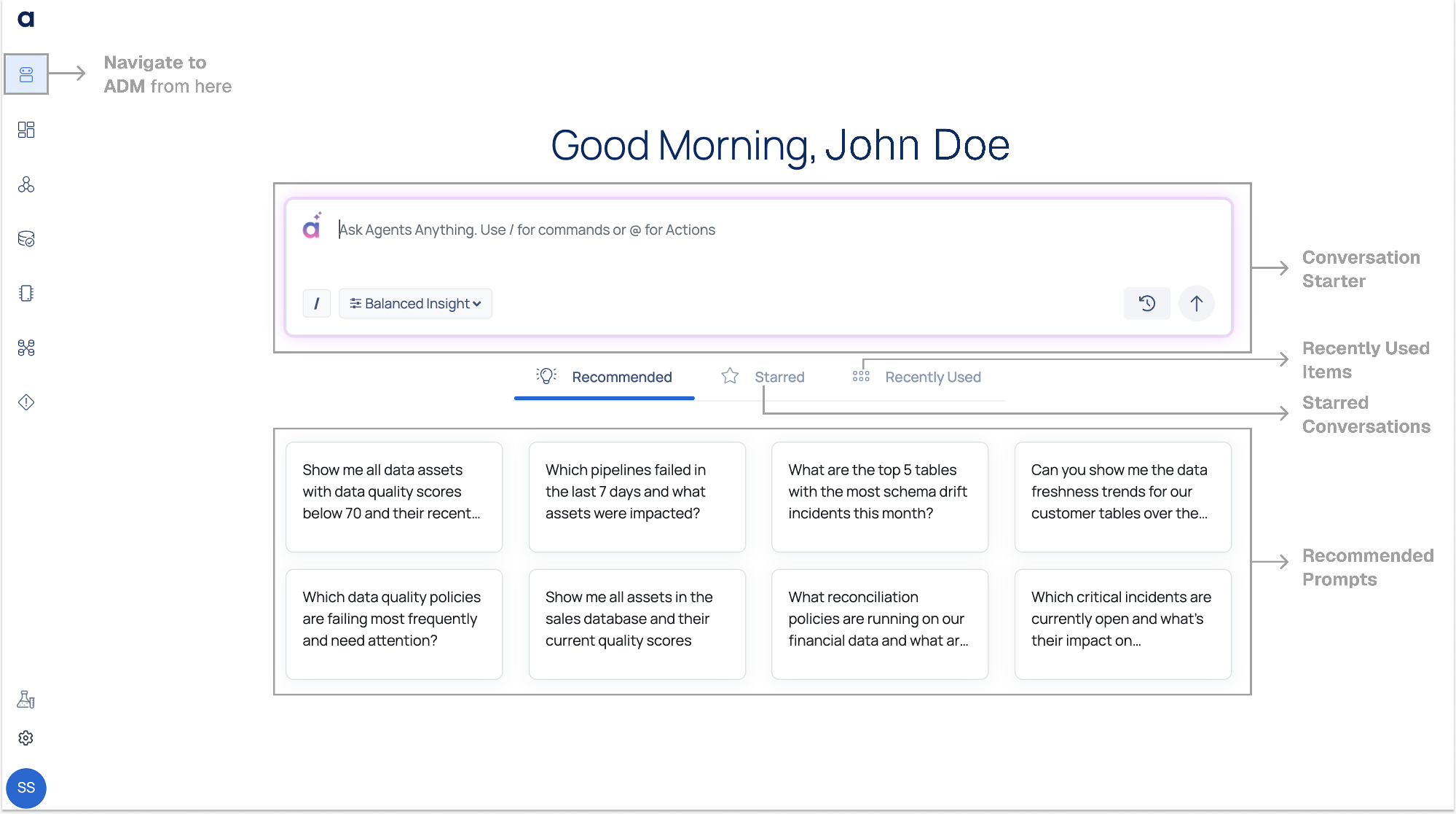 Navigate the interface
Use the following elements on the Home page to ask questions, control what ADM uses to answer, and return to earlier work:
- Greeting: Shows your name.
- Chat box: Type your question here. Type / to see the available commands, such as /Visualize Pipeline. Type @ to refer to a specific item, such as an asset, a policy, a pipeline, or a data product.
- Response style list: Choose how ADM presents its answers. The default style is Balanced Insight.
- Attach: Add a file that ADM uses only in this conversation.
- Files: Shows the files that are attached to this conversation. You can attach up to 10 files.
- Knowledge base: Choose whether ADM searches all Knowledge Base files, only the files that you select, or no Knowledge Base files.
- View conversation history: Opens the Conversations panel, where you can search for and reopen earlier conversations.
- Recommended, Starred, and Recently Used tabs: Show suggested questions, the conversations that you starred, and the conversations that you used recently.
For more information about each control, see Conversation.
Basic operations
You can do the following tasks from the Home page:
Action | Description |
Start a New Conversation | Type a question or command in the chat box, and then press Enter. To start another conversation while a conversation is open, click New Conversation. |
View Conversation History | Click View conversation history to open the Conversations panel. To find a conversation, search by name, or filter by All, Starred, or Shared. |
Star a Conversation | Open a conversation, and then click Star. The conversation appears on the Starred tab so that you can find it quickly. |
Share a Conversation | Open a conversation, click Share with users, select the users, and then click Invite. |
Use Slash Commands | Type / in the input field to open available commands, such as |
Choose a response style
A response style controls how much detail ADM includes and how it presents the answer. Choose the style that matches the person who will read the answer.
Response Style | Description | Best for |
Executive Summary | High-level, business-focused responses highlighting key insights and implications. | C-level executives and decision-makers |
Balanced Insight (Default) | Combines business and technical details for clear, actionable context. | Managers, analysts, and stewards |
Raw Data | Displays unformatted data for direct analysis and exploration. | Data analysts and scientists |
Technical Deep Dive | Provides detailed technical output, including code snippets and system-level details. | Engineers and technical users |
To select a response style:
- In the chat box, click the response style list. The list shows the current style, for example, Balanced Insight.
- Select the style that you want.
- To change the style later, repeat these steps. ADM remembers the style that you select in this browser and applies it to all your conversations. If you use another browser, select the style again.
Have a suggestion?