To deploy the plugin on Managed Workflows for Apache Airflow (MWAA), perform the following:
1. Setup Environment Variables
Configure the necessary environment variables within your MWAA environment. For a detailed list of required variables and their values, refer the configuration section.
2. Create Plugins.zip File
Package the environment variables into a plugins.zip file. For instructions on creating a custom plugin that generates runtime environment variables, refer Creating a custom plugin that generates runtime environment variables - Amazon Managed Workflows for Apache Airflow.
The following screenshot is a sample env_var_plugin.py file for your reference:
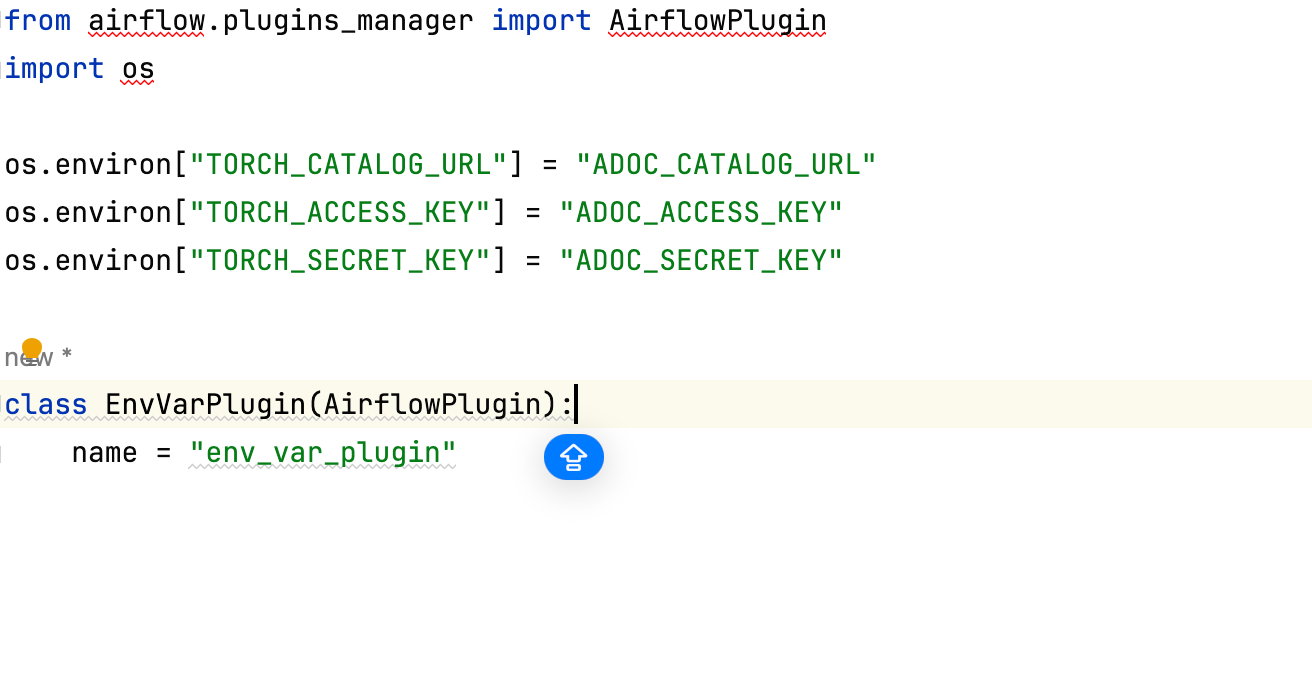
You can either hardcode the environment variables directly in the file or use AWS Secrets Manager to securely store them and configure the plugins.zip file to read from Secrets Manager.
3. Install Required Packages
Check for
requirements.txt: Inspect your DAG code folder in the Amazon S3 bucket to see if arequirements.txtfile is already present.If
requirements.txtdoes not exist:- Upload a new
requirements.txtfile that includes the latest versions of theadoc_airflow_pluginpackage.
- Upload a new
If
requirements.txtexists:- Verify that it includes the
adoc_airflow_pluginpackages. If they are not listed, update the file to include their latest versions.
- Verify that it includes the
4. Update Airflow Environment Packages
Point your MWAA environment to the updated versions of the plugins.zip and requirements.txt files. Apply these changes in the MWAA console to ensure the updated configurations are loaded correctly.
5. Validate the Plugin Installation
Navigate to Admin > Plugins in your Airflow UI. Ensure that both AcceldataListenerPlugin and env_var_plugin are listed, confirming successful installation.
6. Verify Instrumentation
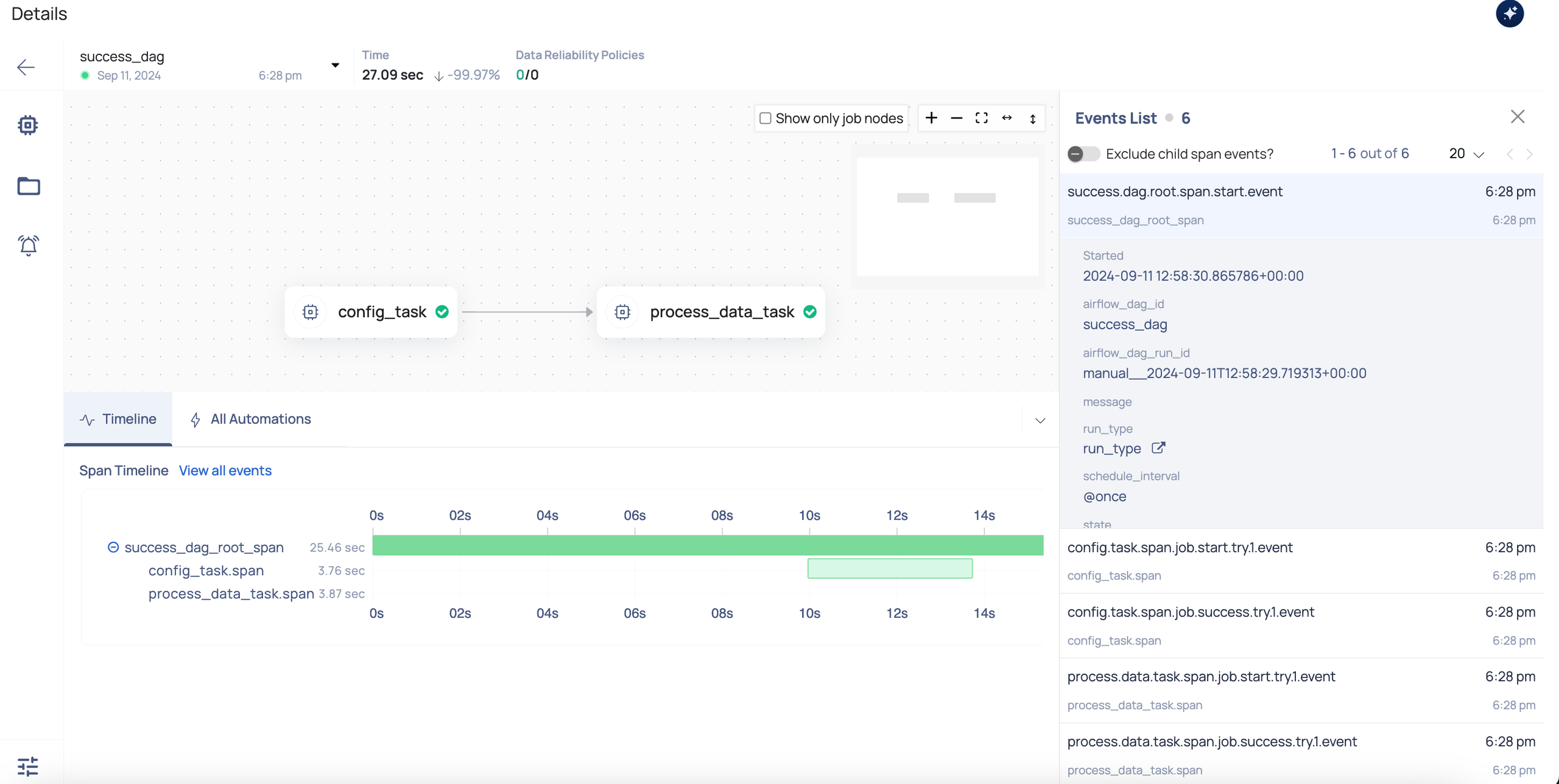
After installing the plugin and configuring the environment, trigger a DAG in your Airflow instance. Once the DAG run is complete, navigate to ADOC UI > Pipelines to confirm successful instrumentation. Locate the pipeline corresponding to your DAG’s name; it should be displayed with its associated spans and events, as shown in the screenshot below.