
Express Upgrade
This page describes how to perform an ODP Express Upgrade using Ambari.
The process includes starting the Express Upgrade, taking the required database backups, pausing the upgrade to upgrade supported Mpacks, resuming and finalizing the ODP stack upgrade, and verifying the upgrade status and history.
Complete each step in sequence and verify that it finishes successfully before proceeding to the next step.
Step 1: Start the Express Upgrade (Express)
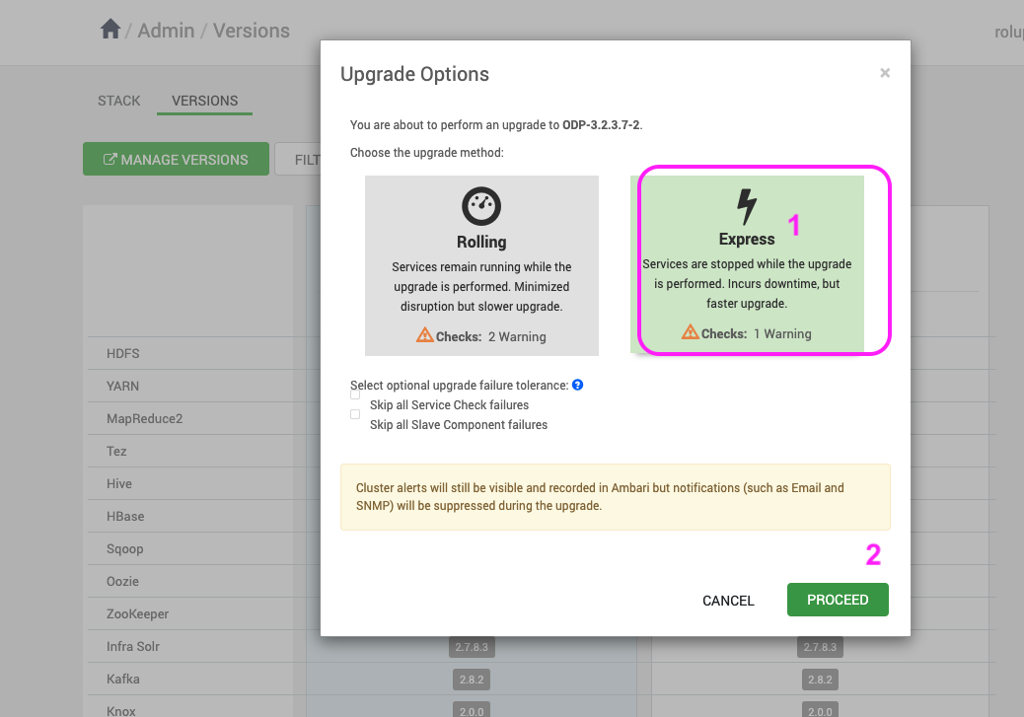
- On the Upgrade Options page, select Express.
- Click Proceed.
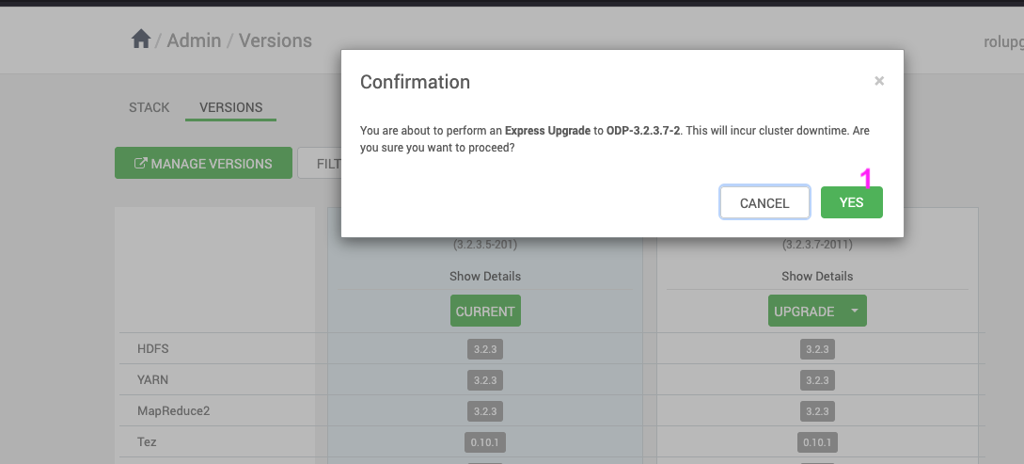
- Click OK to confirm and start the upgrade.
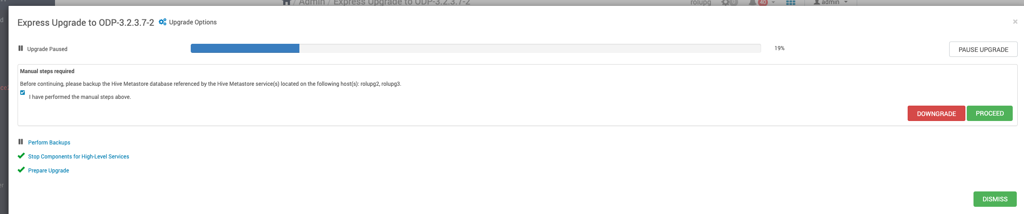
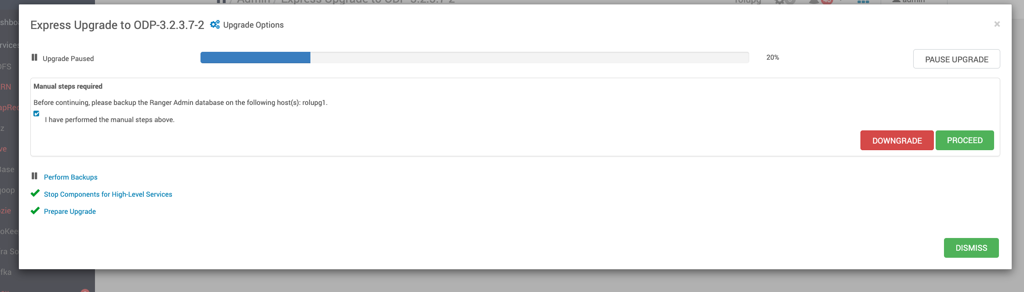
Step 2: Take Database Backups (Express)
Take backups of all required databases before proceeding to the next step.
After completing the database backups:
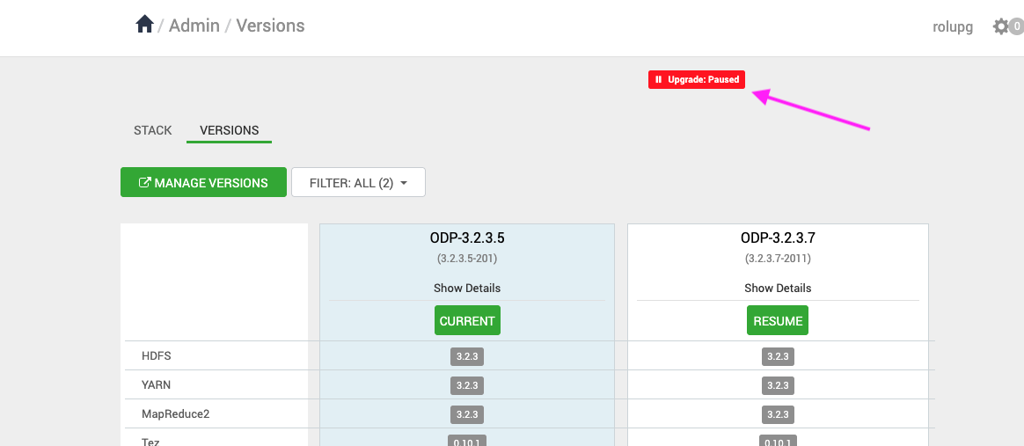
Step 3: Pause the Upgrade (Express)

Step 4: Ambari Upgrade (Express)
Upgrade Ambari to the newer version. For details, see Ambari Upgrade.
Step 5: Mpack Upgrades (Express)
Perform the required Mpack upgrades.
For details, see Upgrade Mpacks.
Step 6: Configure JDK 11 Environment Changes (Express)
For details, see Configure JDK 11 Environment Changes.
Step 7: Resume the Upgrade (Express)
After the Mpack upgrades complete successfully, resume the upgrade.

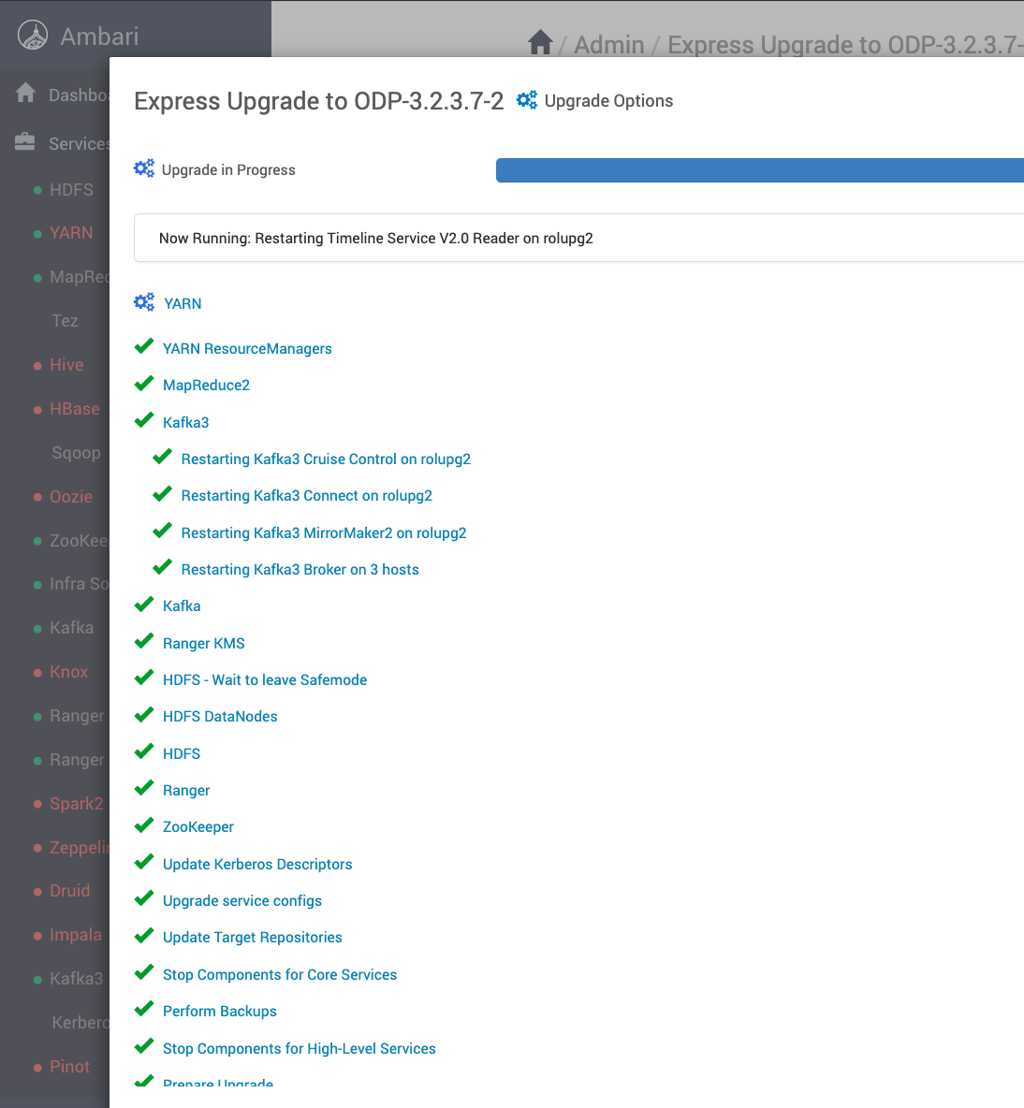
Step 8: Finalize the Upgrade (Express)
For details, see Finalize the ODP Stack Upgrade.
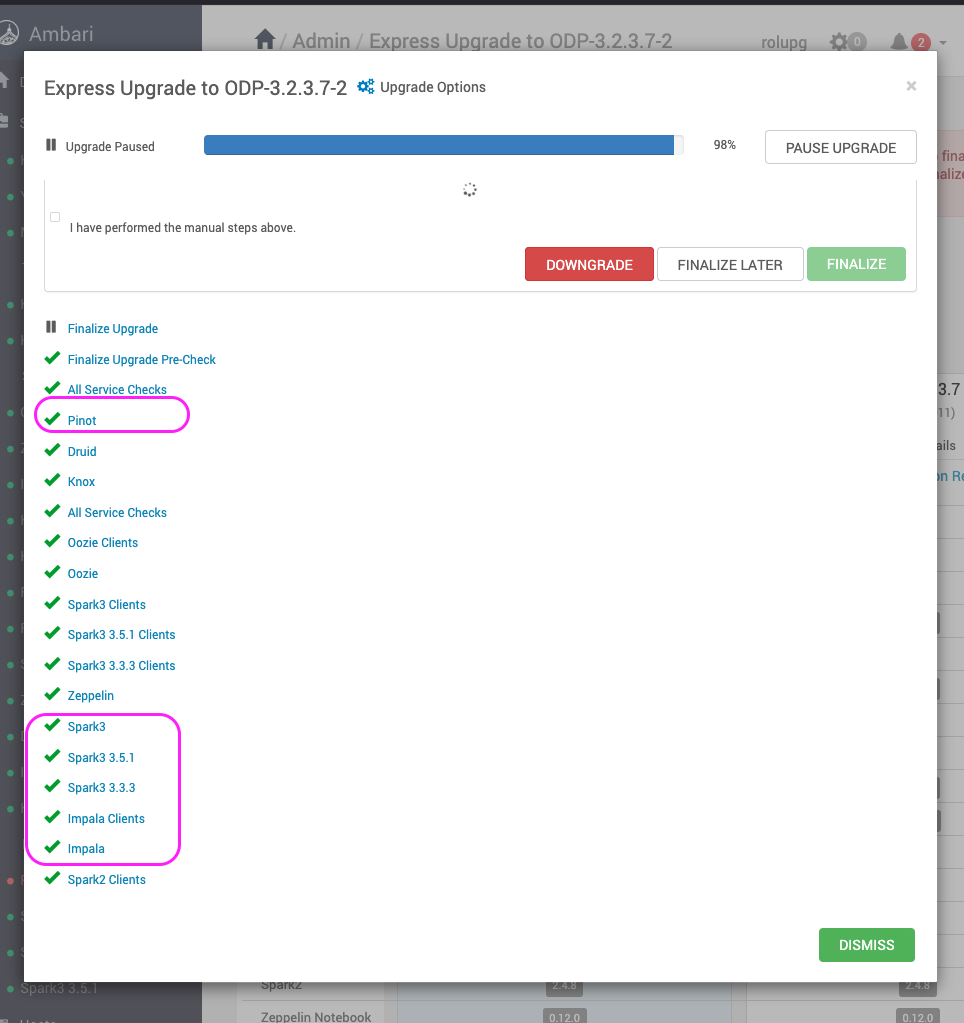
Step 9: Verify the Upgrade (Express)
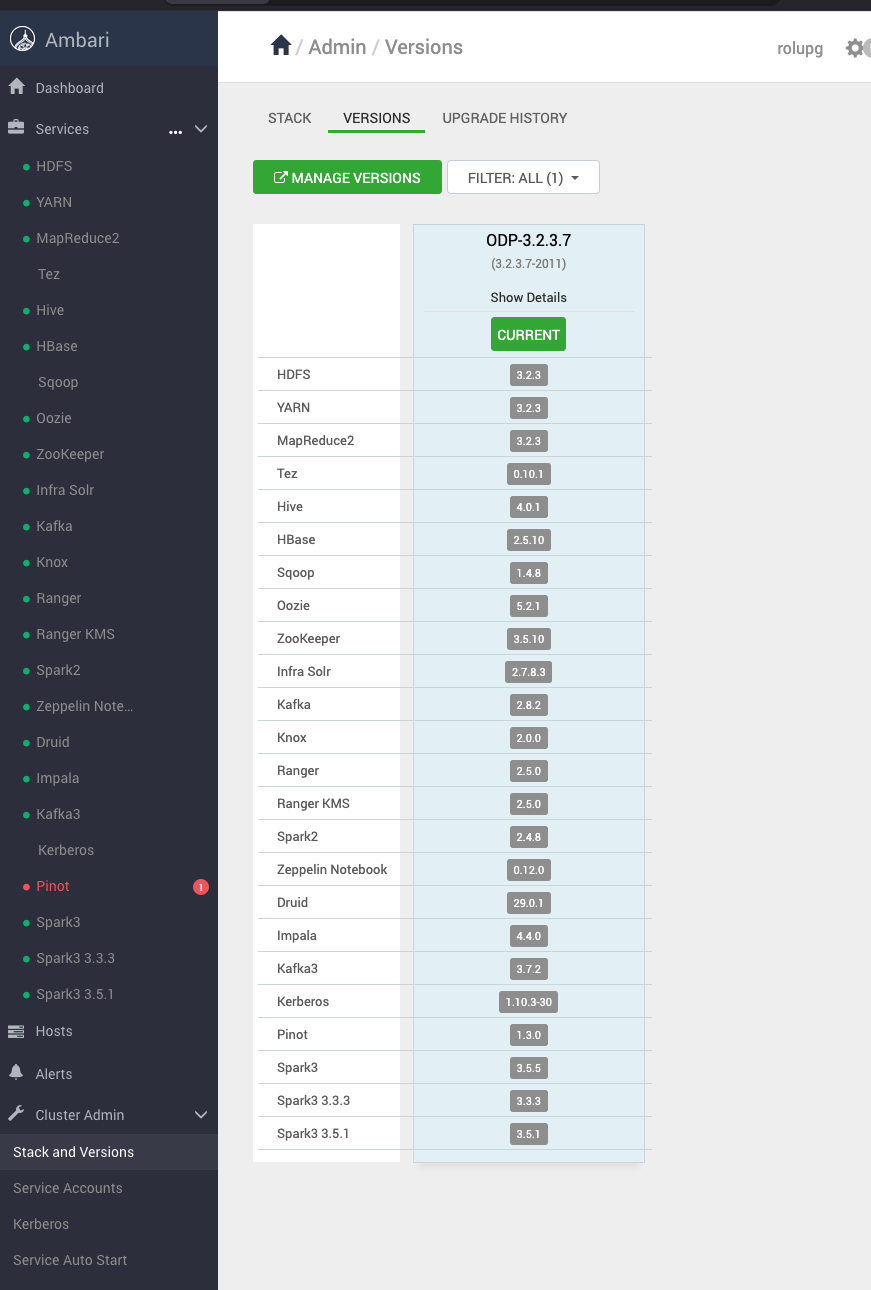
Verify that the Express Upgrade completes successfully and that the cluster and its services are operating as expected.
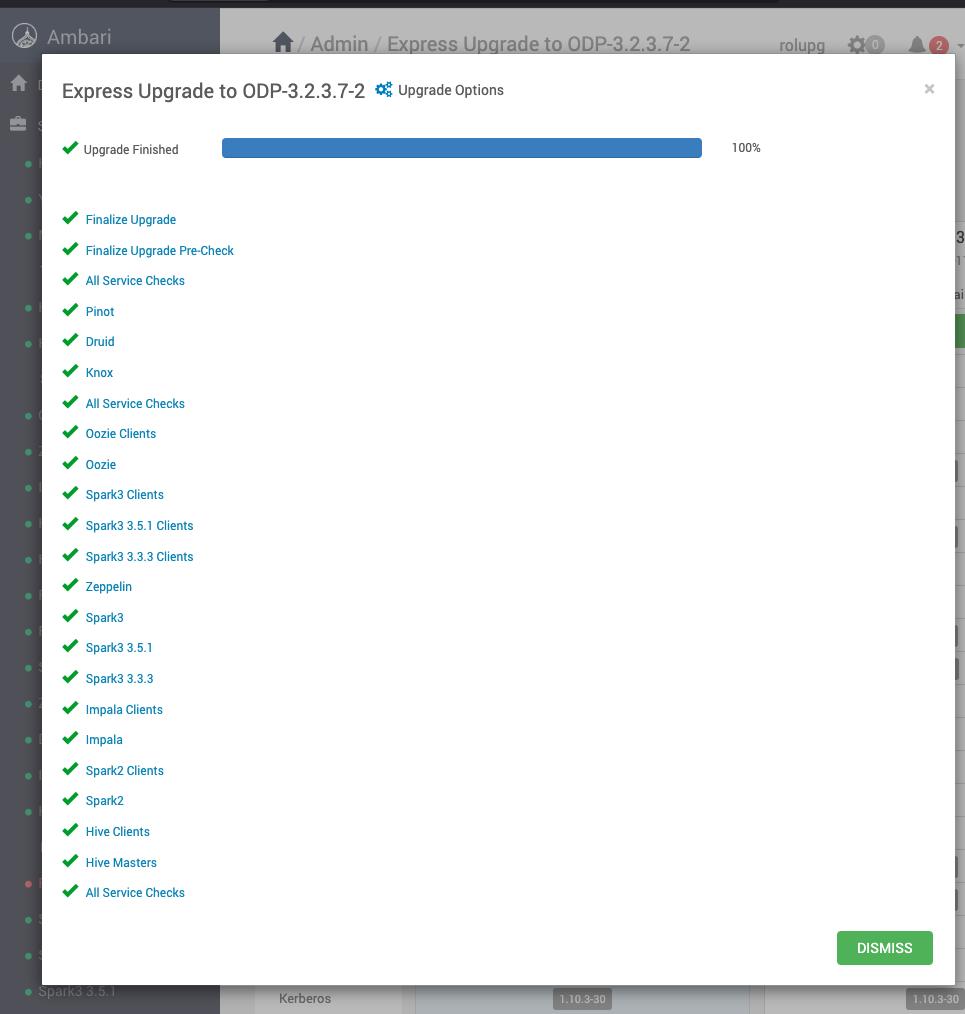
Step 10: Verify the Upgrade History (Express)
Review the upgrade history in Ambari and confirm that the Express Upgrade completed successfully.
Have a suggestion?