
Install Pinot via Mpack
Perform the following steps to install Pinot via Mpack.
Install JDK 11
For RHEL/CentOS systems:
sudo dnf install java-11-openjdk-devel -y
python -m pip install requests
Register Custom Java 11 with update-alternatives (for Script Compatibility)
If you have installed JDK 11 via a custom method (e.g., extracting from a .tar.gz
This is because the script relies on the output of update-alternatives/usr/lib/jvm/java-11-*
Solution: Register Java 11 (without setting it as default)
You can register your custom Java 11 installation with update-alternatives
Info
To ensure compatibility with the script, place or link your custom JDK under /usr/lib/jvm/java-11
- Move or link your custom JDK under
/usr/lib/jvm
sudo mv /path/to/custom/java-11 /usr/lib/jvm/java-11-custom
Alternatively, create a symlink:
sudo ln -s /path/to/custom/java-11 /usr/lib/jvm/java-11-custom
- Register the JDK with update-alternatives.
# Ubuntu/Debian:
sudo update-alternatives --install /usr/bin/java java /usr/lib/jvm/java-11-custom/bin/java 1
# RHEL/CentOS:
sudo alternatives --install /usr/bin/java java /usr/lib/jvm/java-11-custom/bin/java 1
- (Optional) Verify the registration:
update-alternatives --display java
You must now see the /usr/lib/jvm/java-11-custom/bin/java
Info
Do not run update-alternatives --config java
For Ubuntu/Debian systems:
sudo apt install openjdk-11-jdk -y
python -m pip install requests
Install the Mpack using Ambari:
ambari-server install-mpack --mpack={Pinot_Mpack_Name} --verbose
Restart Ambari server:
ambari-server restart
Info
Before installing the service through Ambari, make sure to re-install ODP-SELECT for 3.2.3.X release. Also, make sure to perform this step on all the nodes where you want to install the Pinot service.
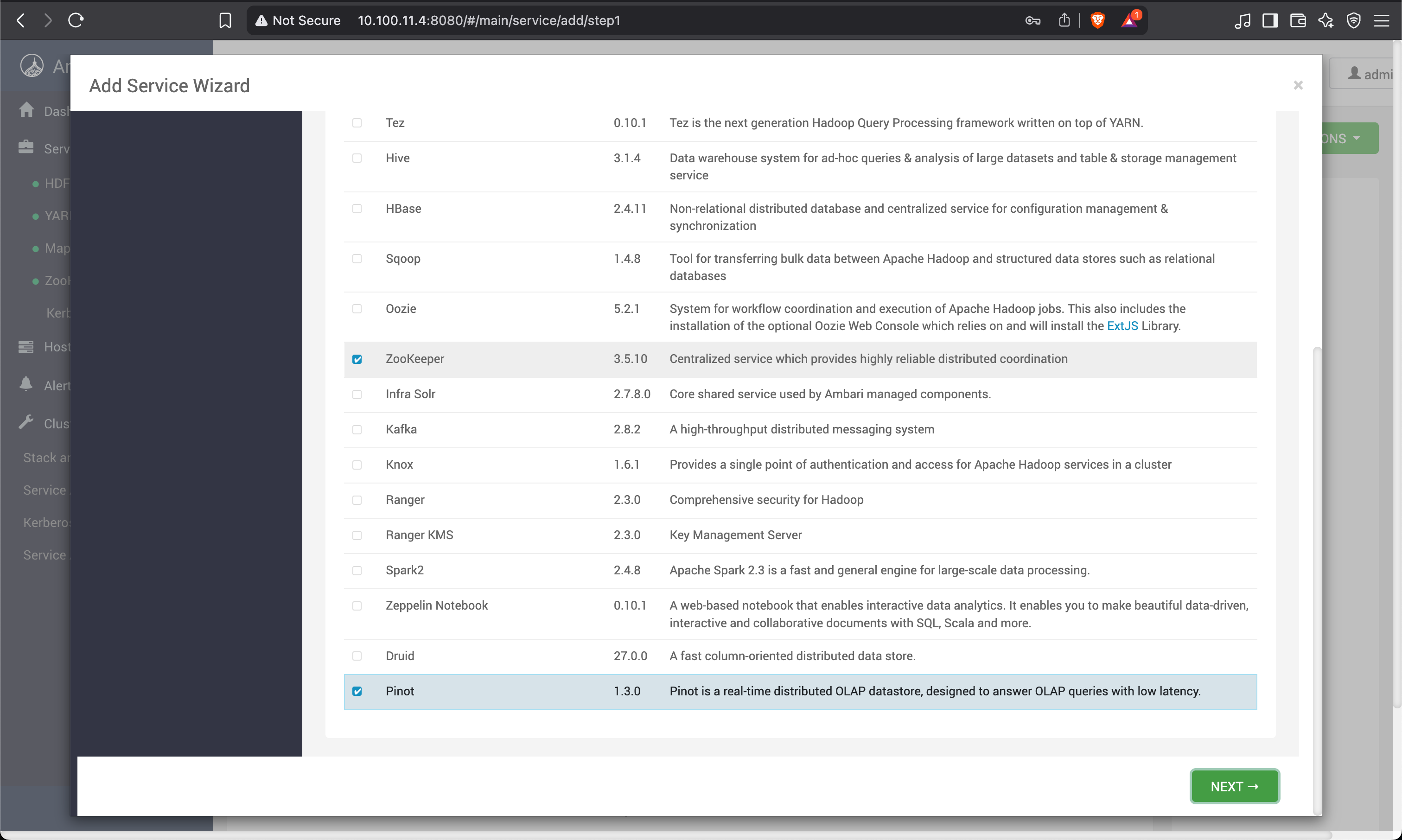
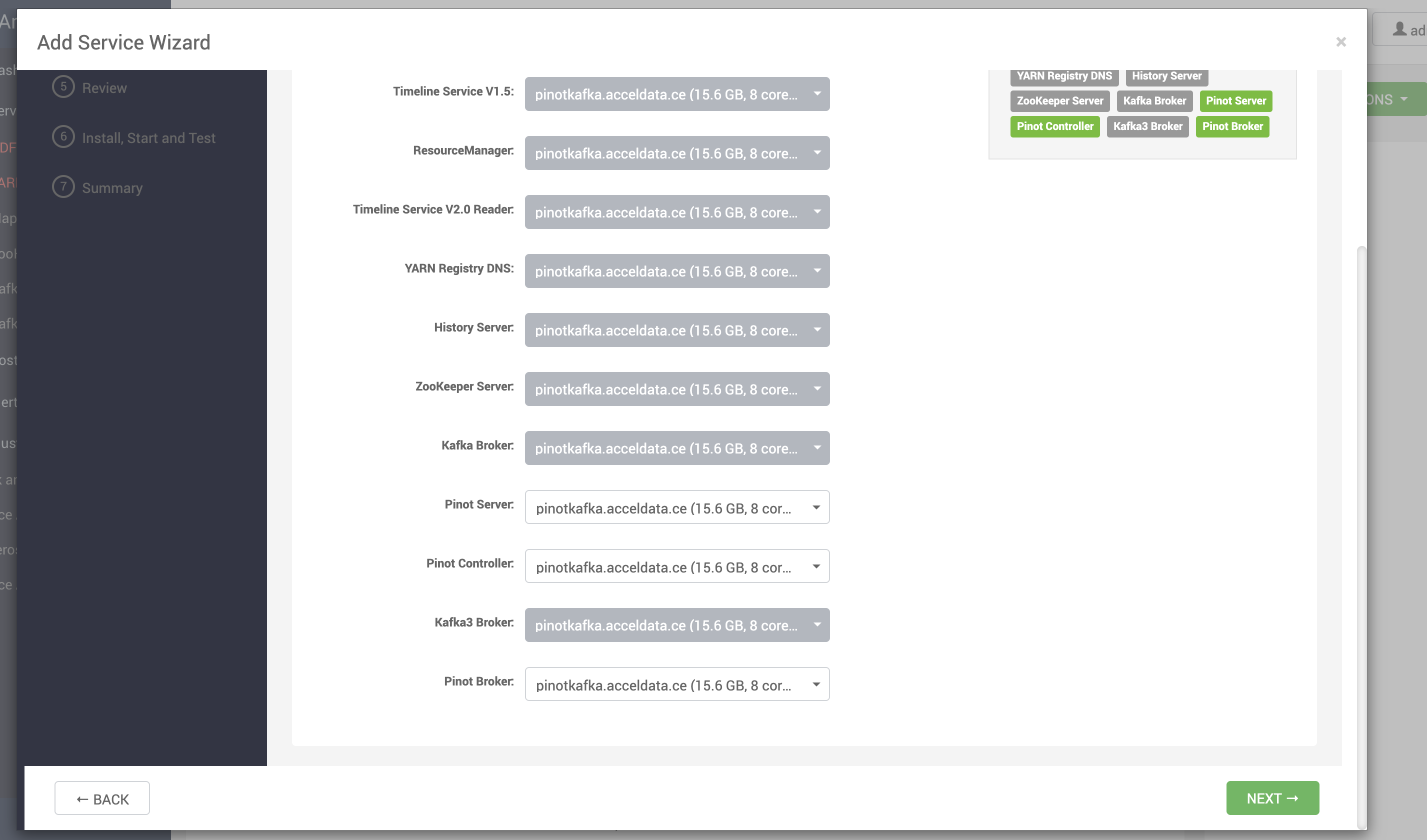
Install Pinot Service via Ambari
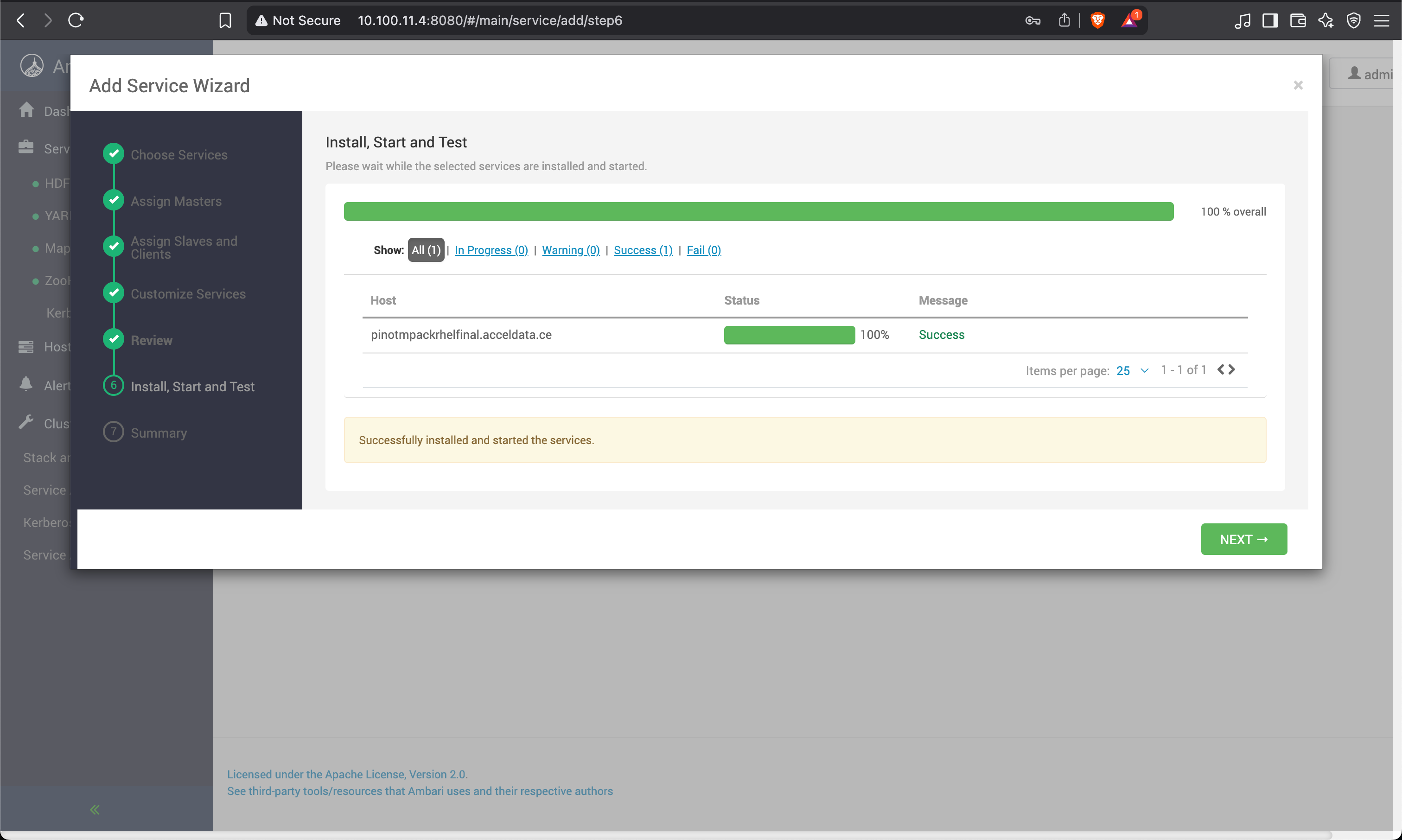
Use the Ambari UI to install the Pinot service. The process is automated—simply select the target hosts for Pinot components and proceed with the installation.
 Info
Info
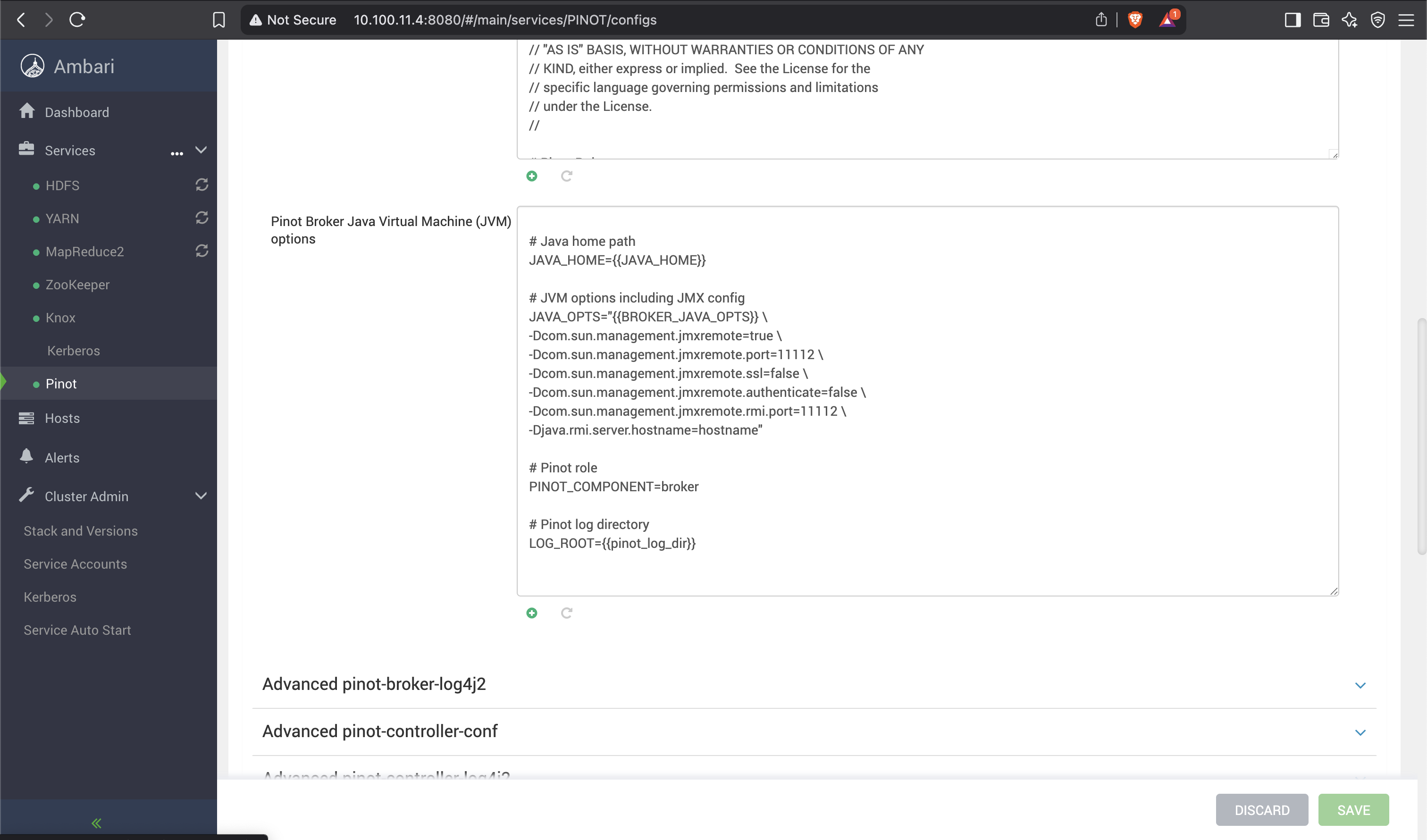
Configure the JVM options in the Pinot Broker Java Virtual Machine (JVM) options.
Info
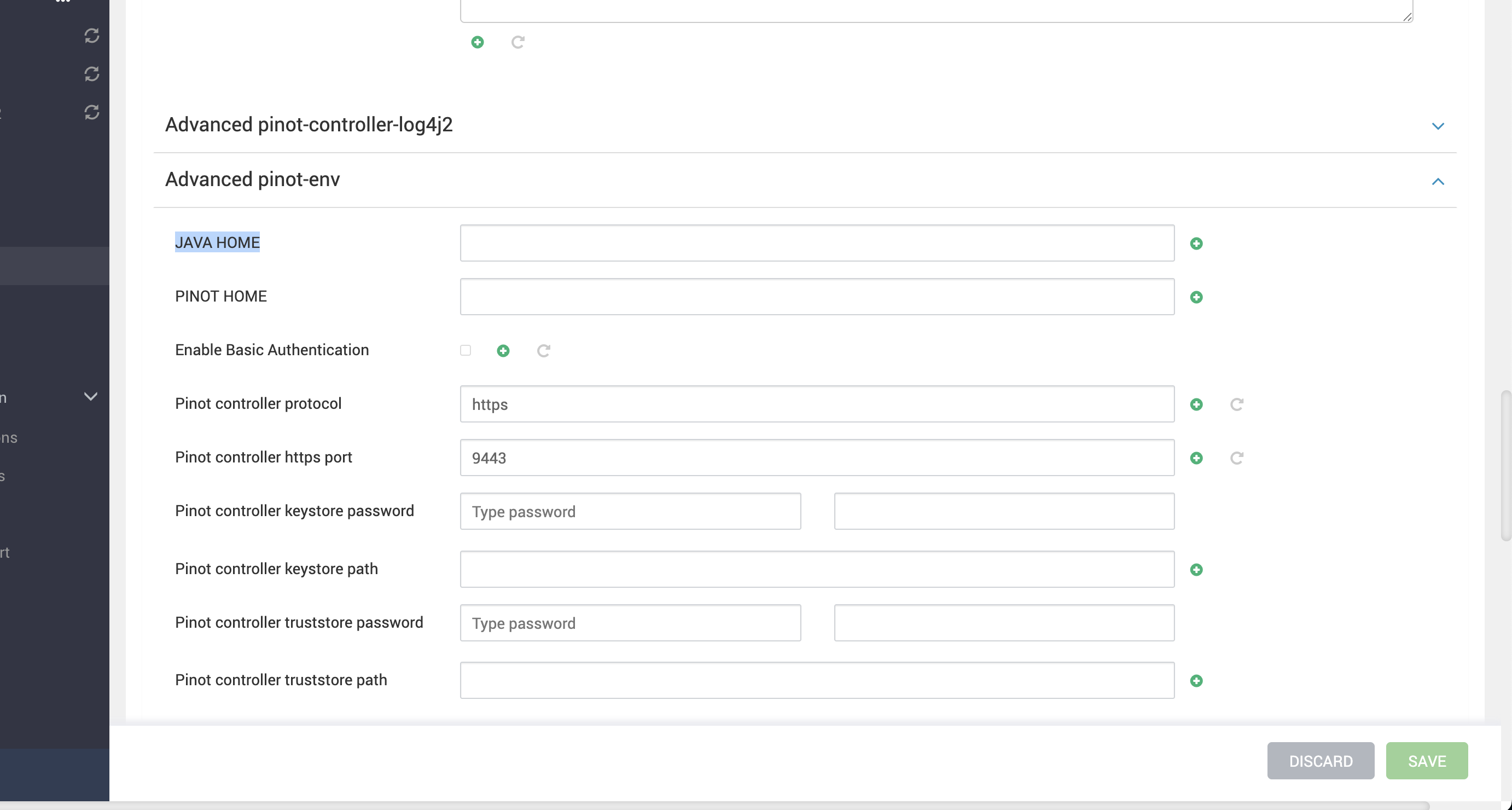
If you're using a custom JDK 11 path and are unable to register it using the update-alternatives
Info
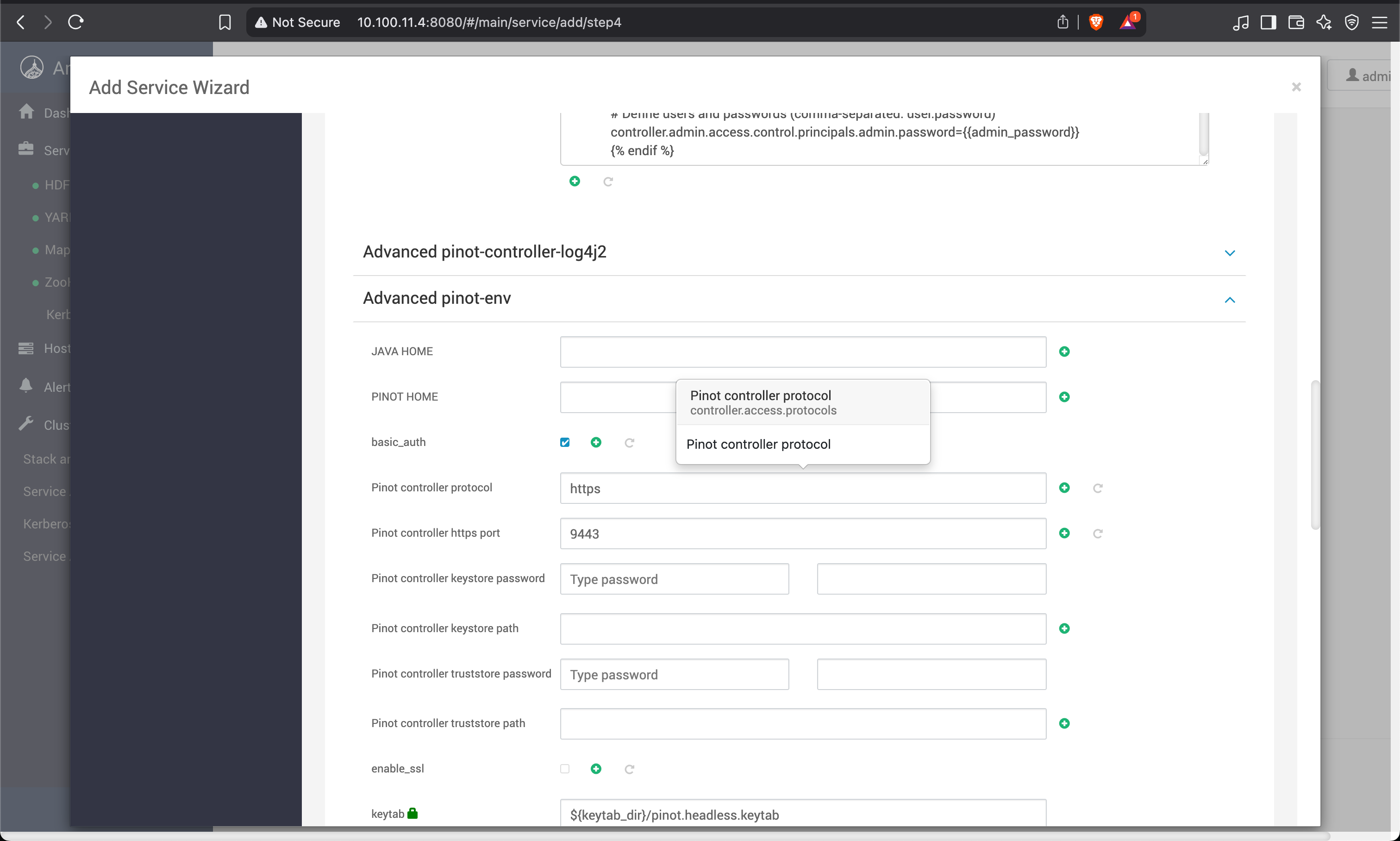
Basic authentication is enabled by default. You can disable it by unchecking the "Basic Auth" option during the setup.
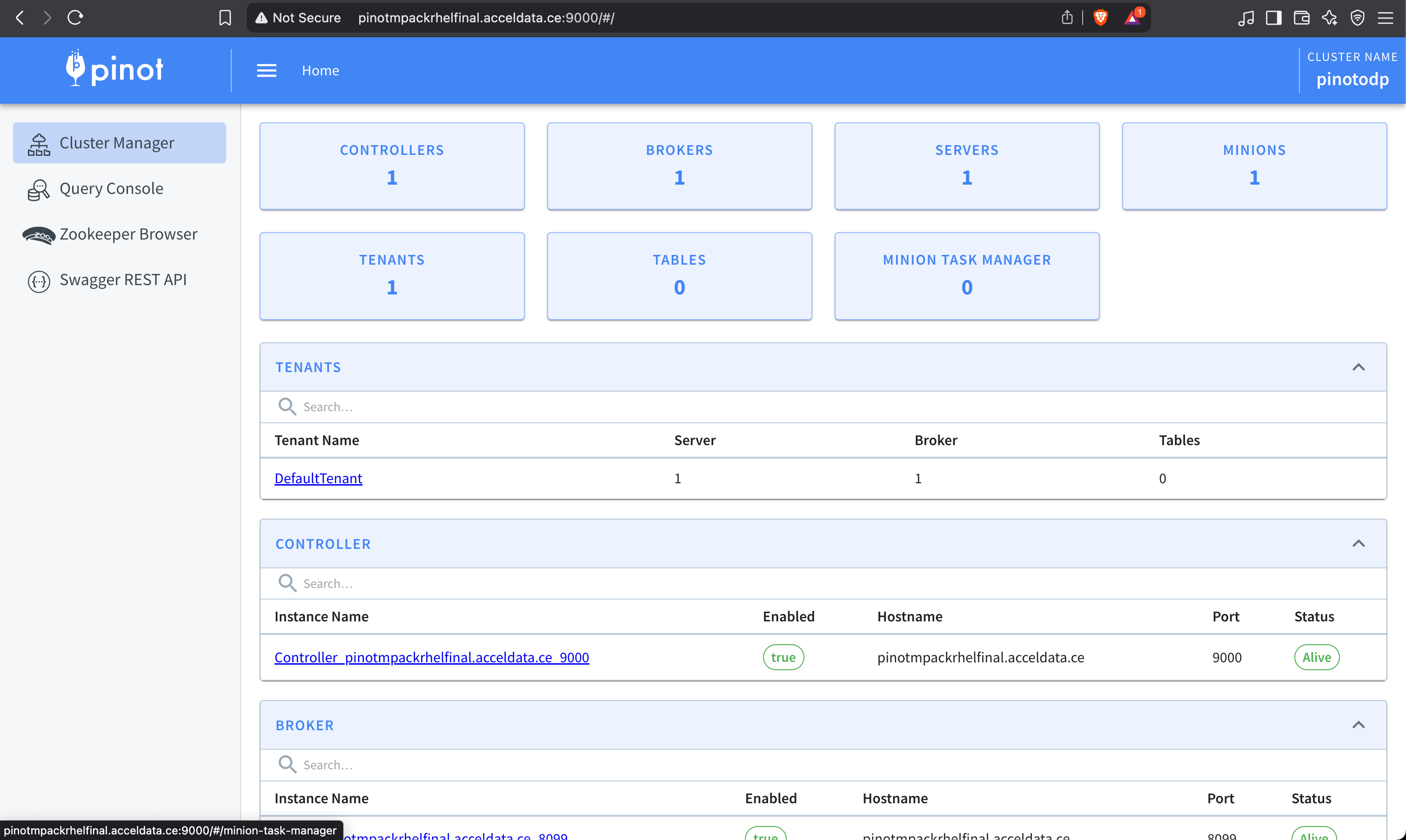
Access the Pinot Controller UI
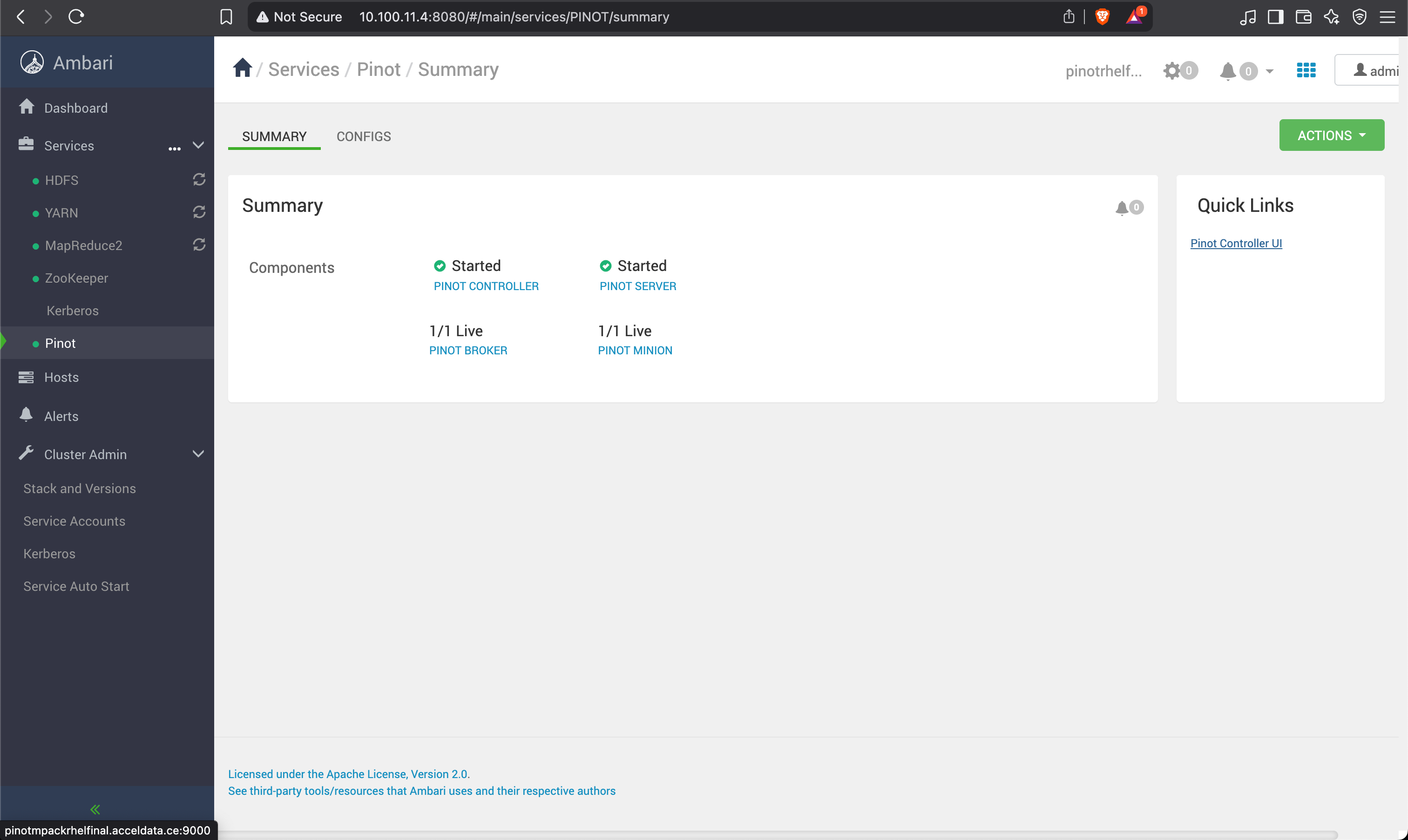
After installation, access the Pinot Controller UI via the Quick Links in Ambari.
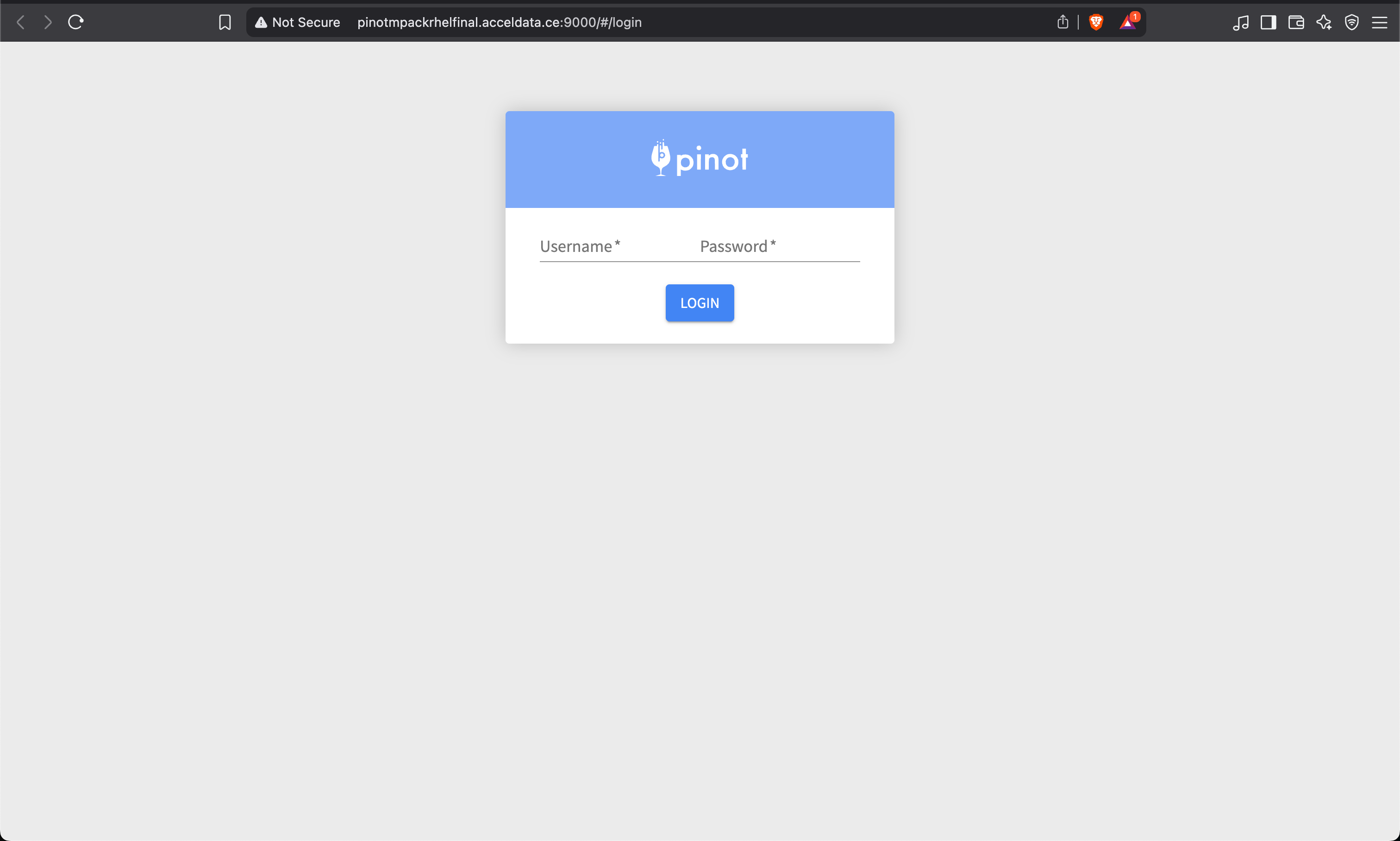
Default Credentials:
- Username:
admin - Password:
admin
Have a suggestion?