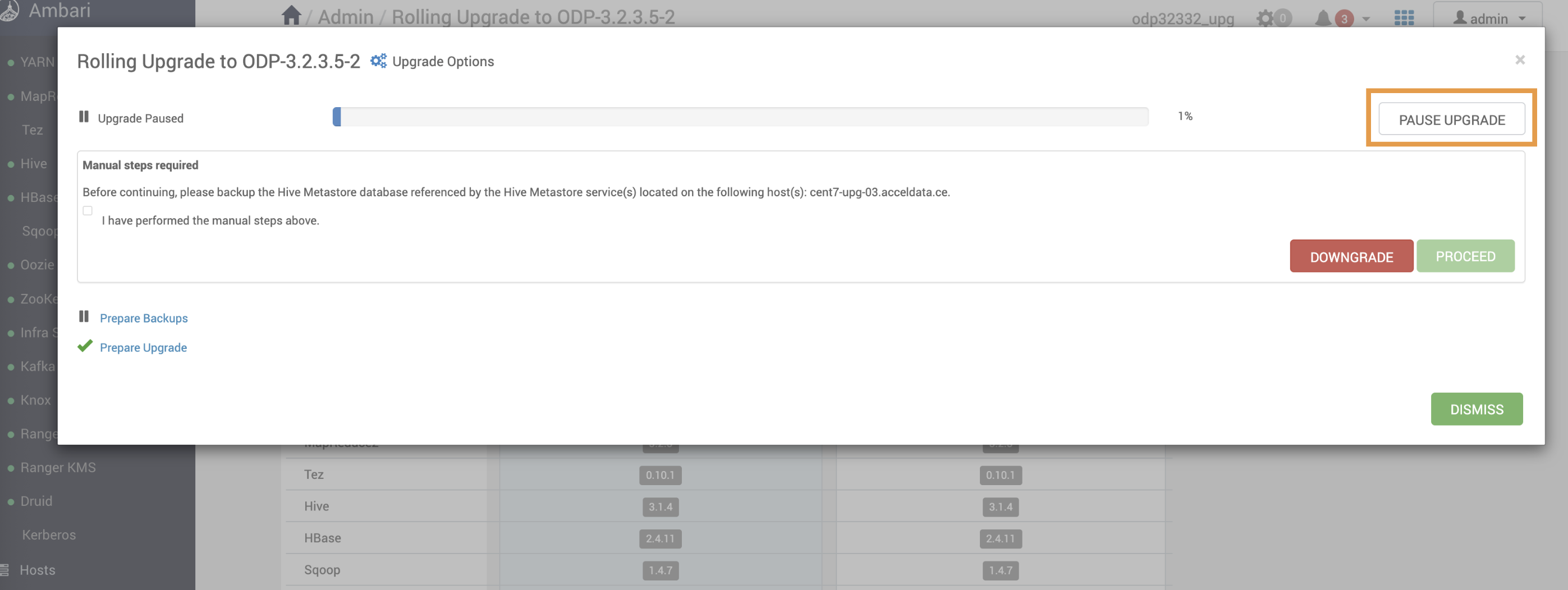
This page describes the details of the ODP stack rolling and express upgrade.
Consider the versions shown in the screenshot as a reference. During the upgrade, you can see the target version you’re upgrading to.
Run Service Checks for Components
Ensure that you run service checks for all installed stack services by navigating to Actions > Service Check in the UI Ambari UI.
For example:
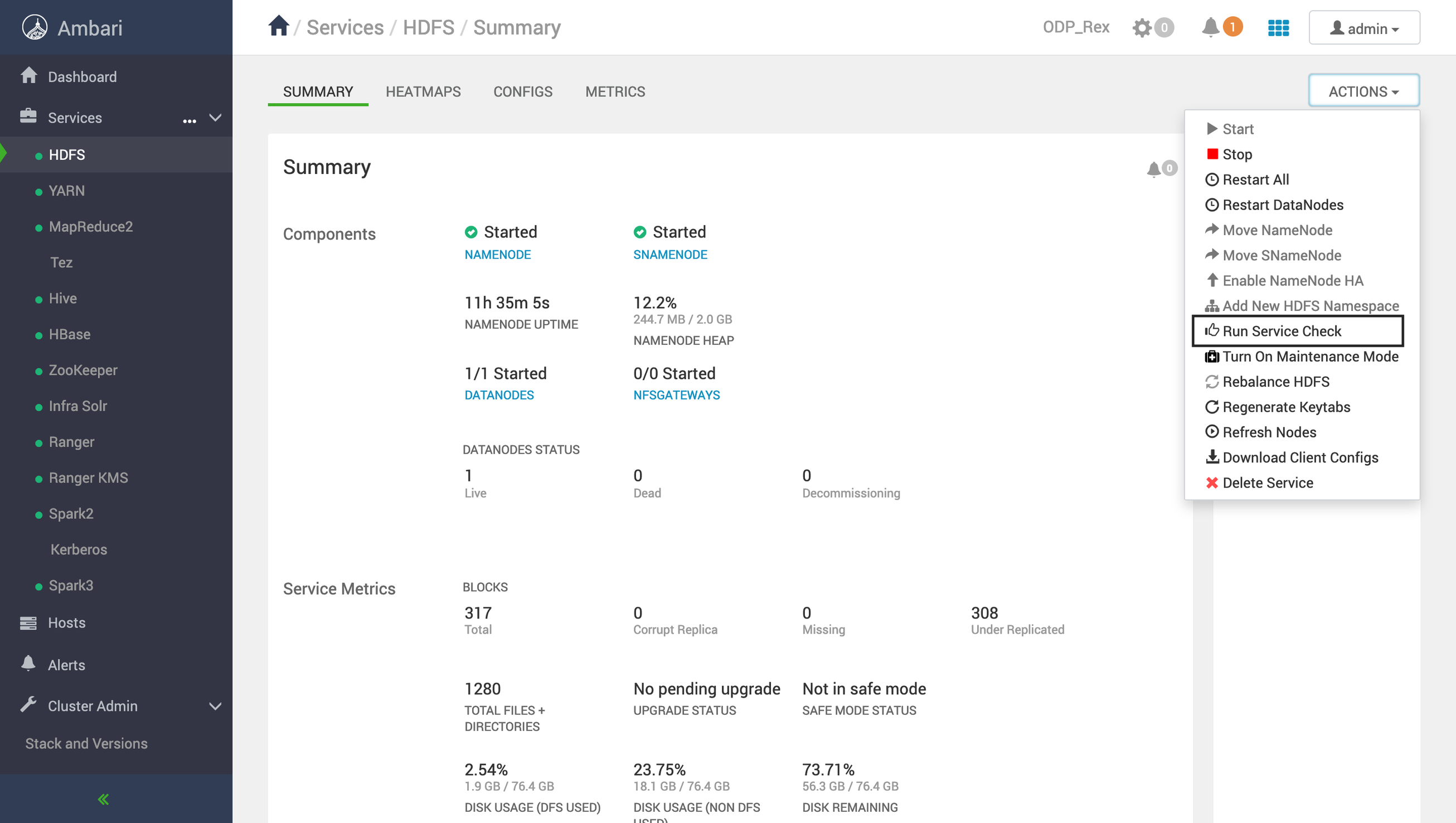
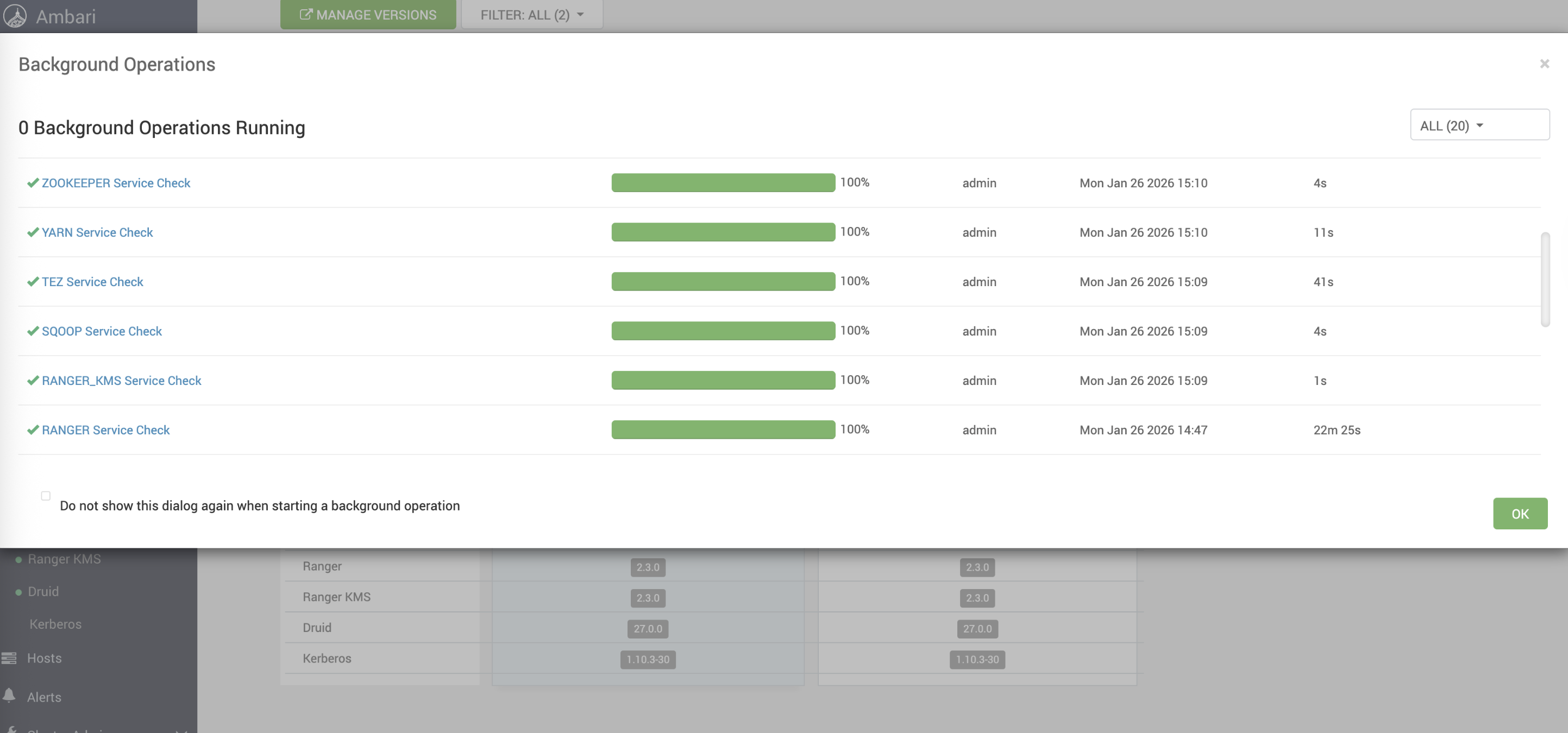
Similarly, run the service check for the services. Ensure that all run successfully.
For example, the success status must be shown as follows.
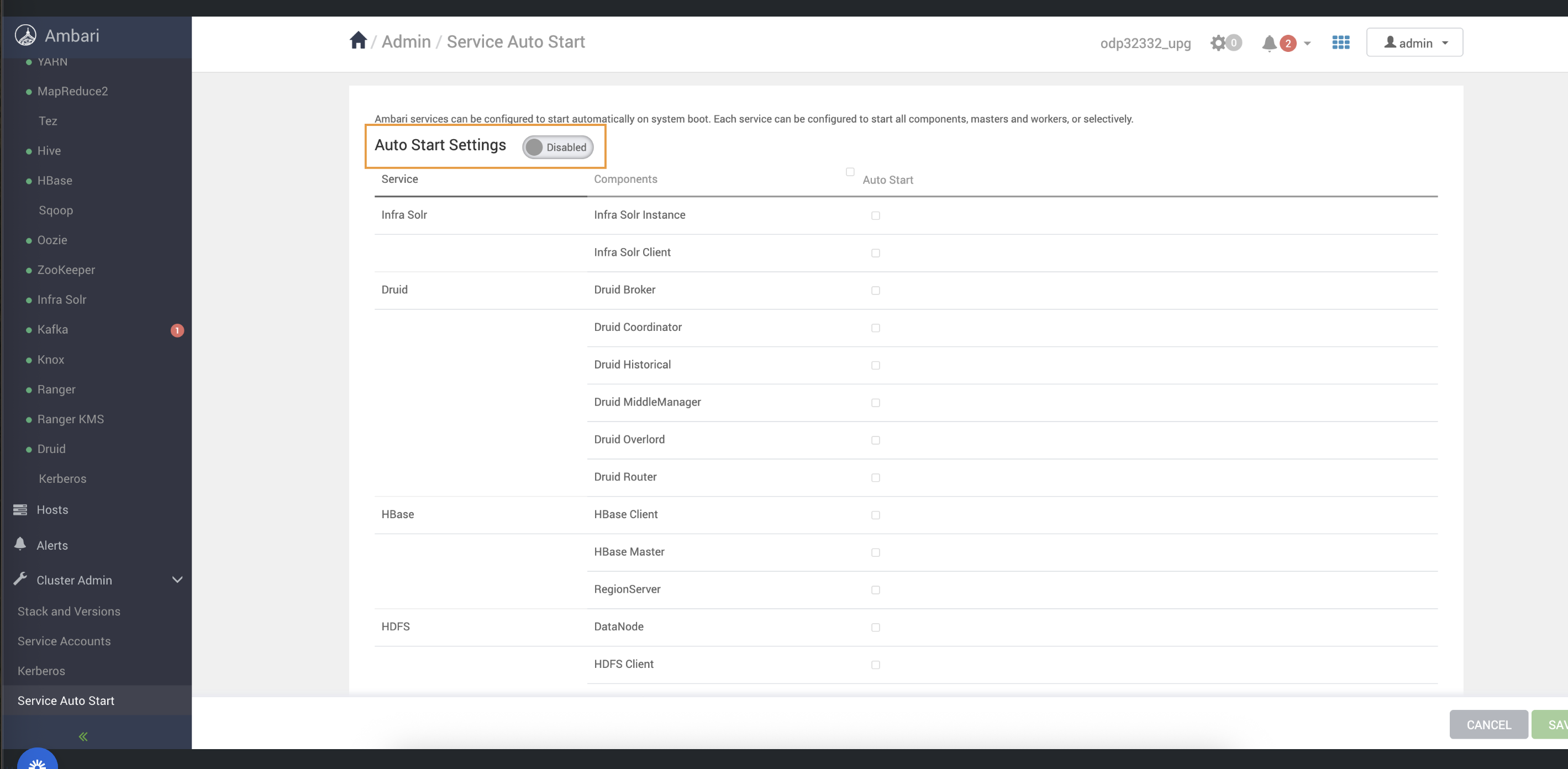
Disable Service Auto-Start
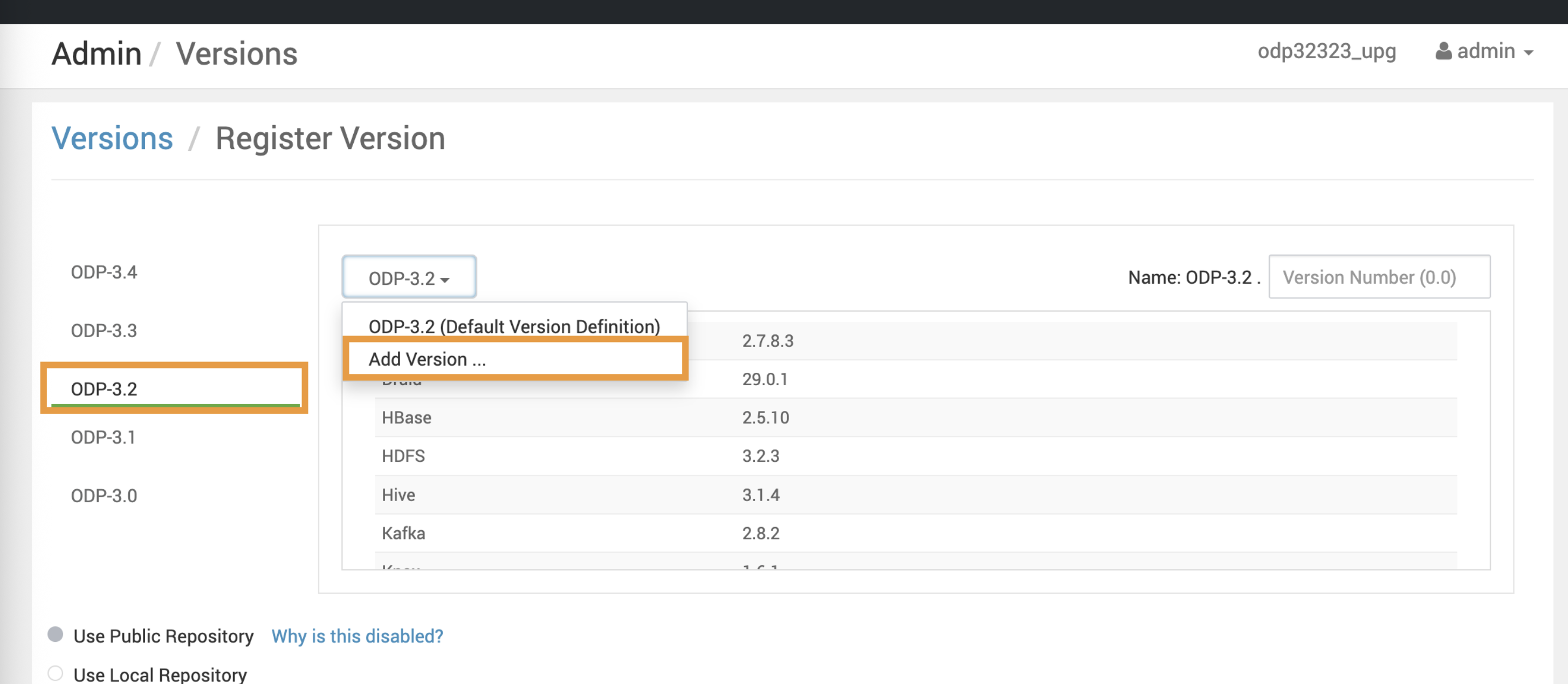
Create and Update the VDF File.
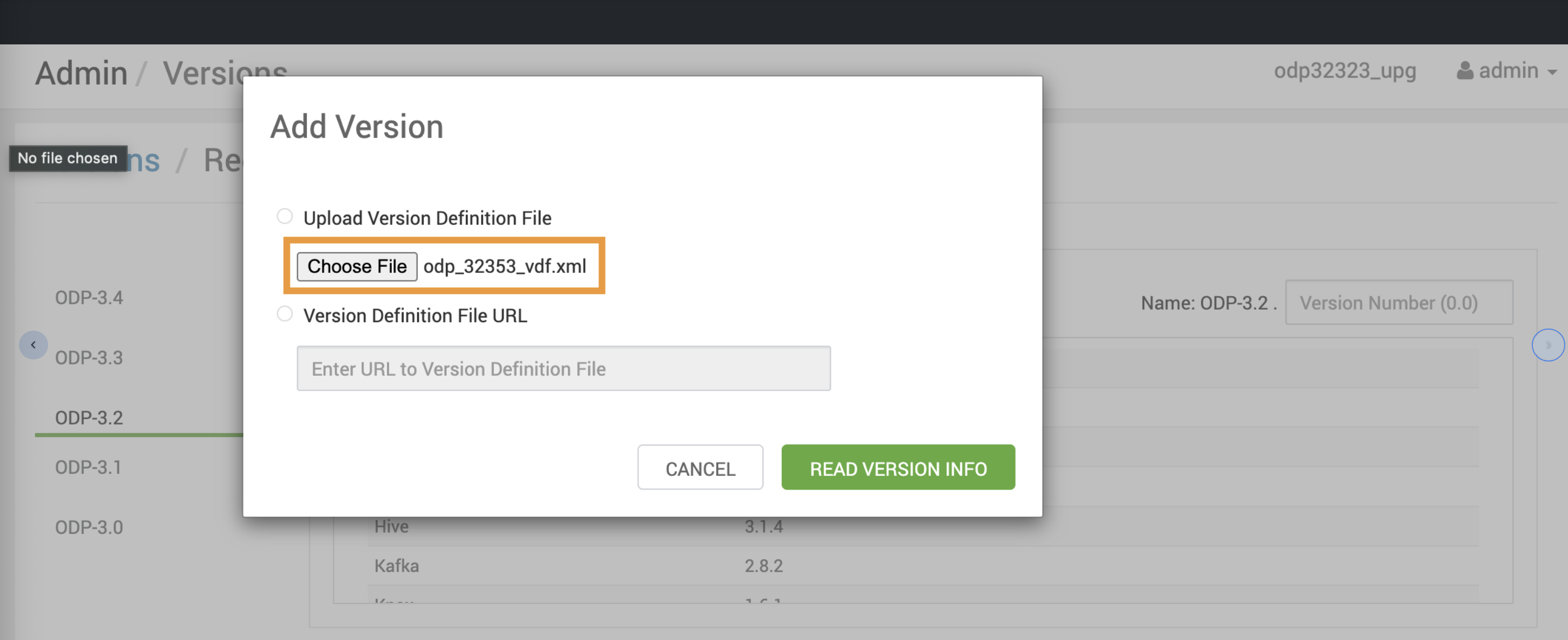
Create a local VDF file with the odp_32352_ vdf.xml file.
Navigate to Versions > Register Version
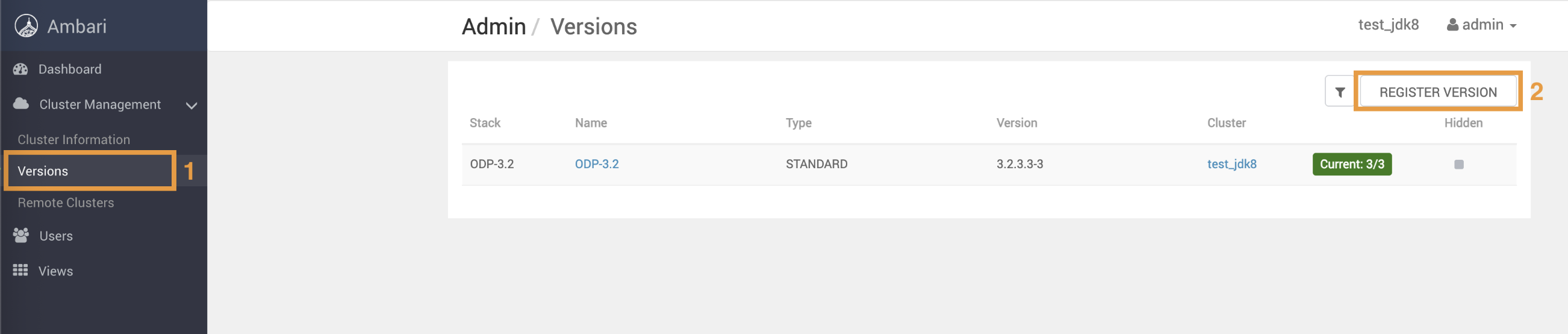
Upload the VDF file to register the upgraded ODP version.
Install the ODP Packages
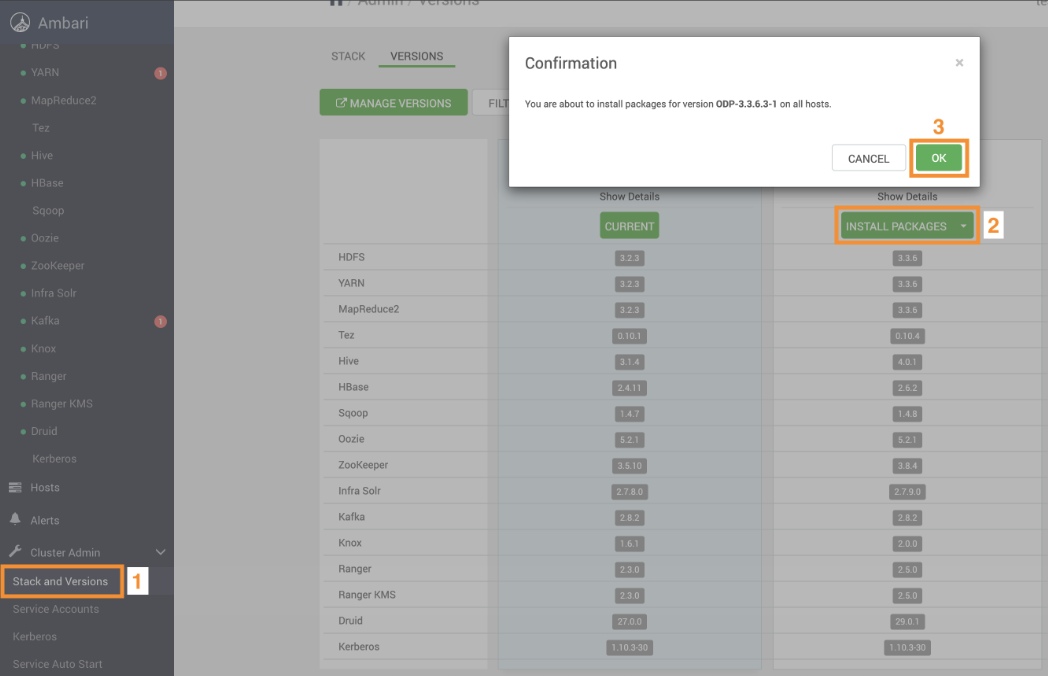
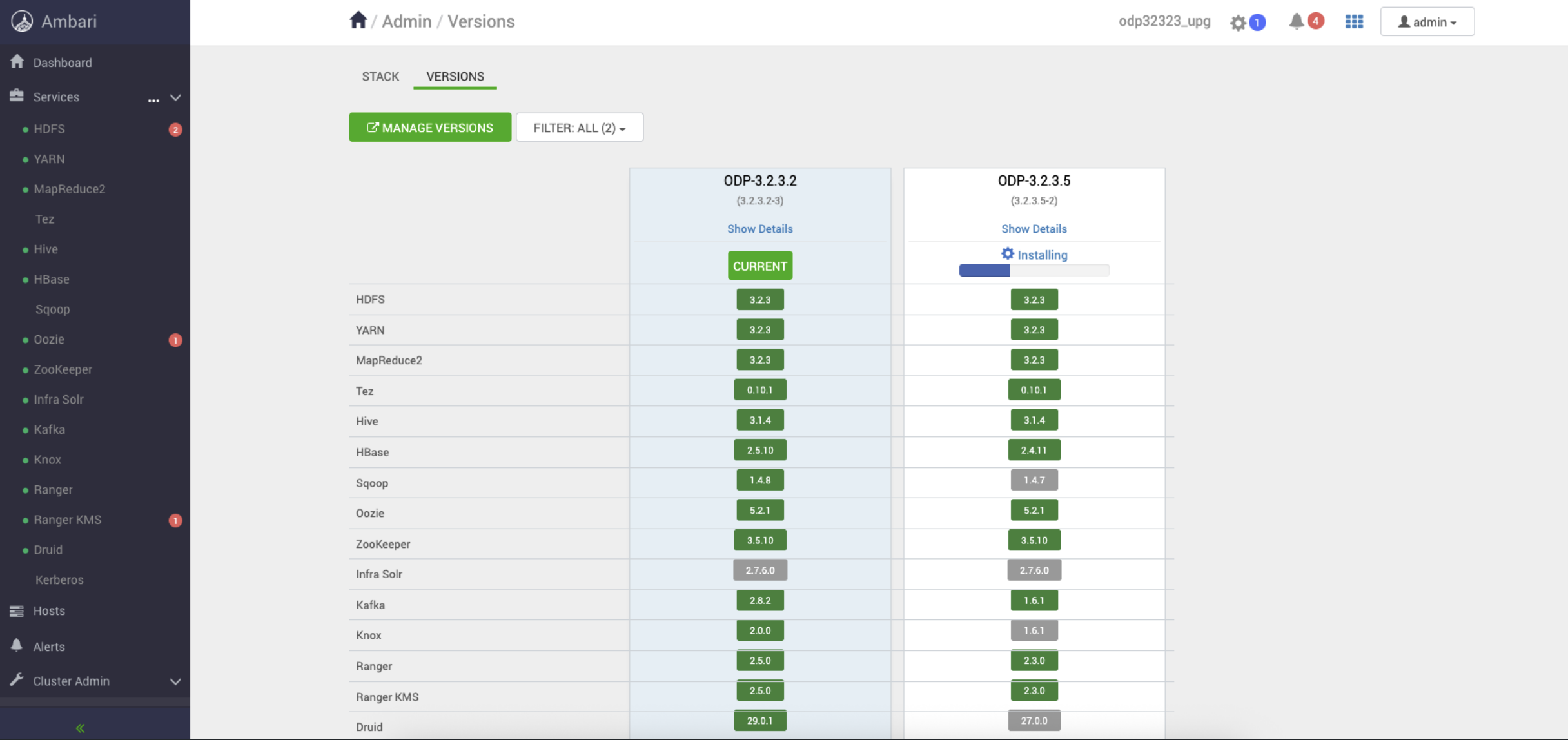
Steps
In the Ambari UI, navigate to the Admin -> Versions page and click Upgrade.
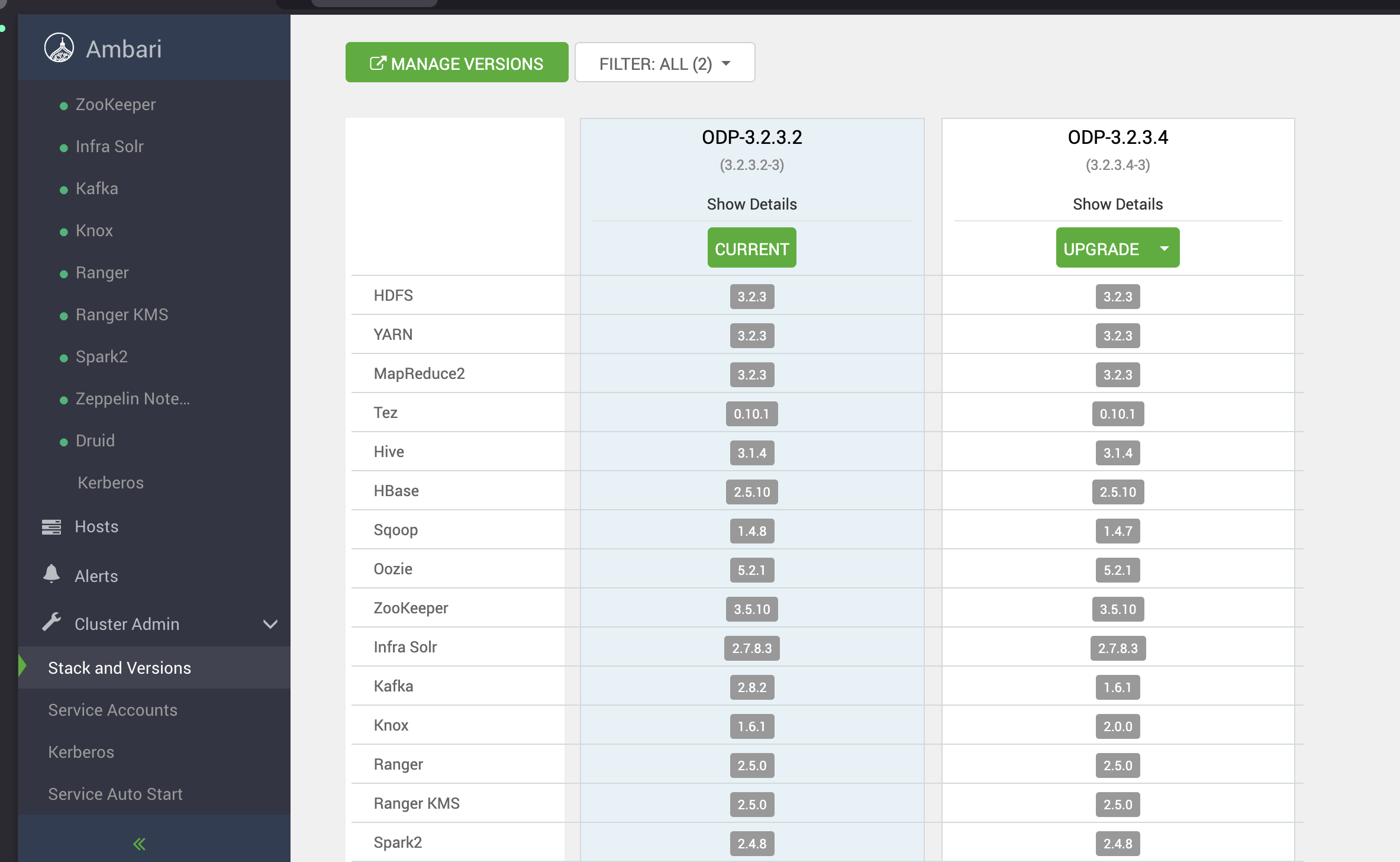
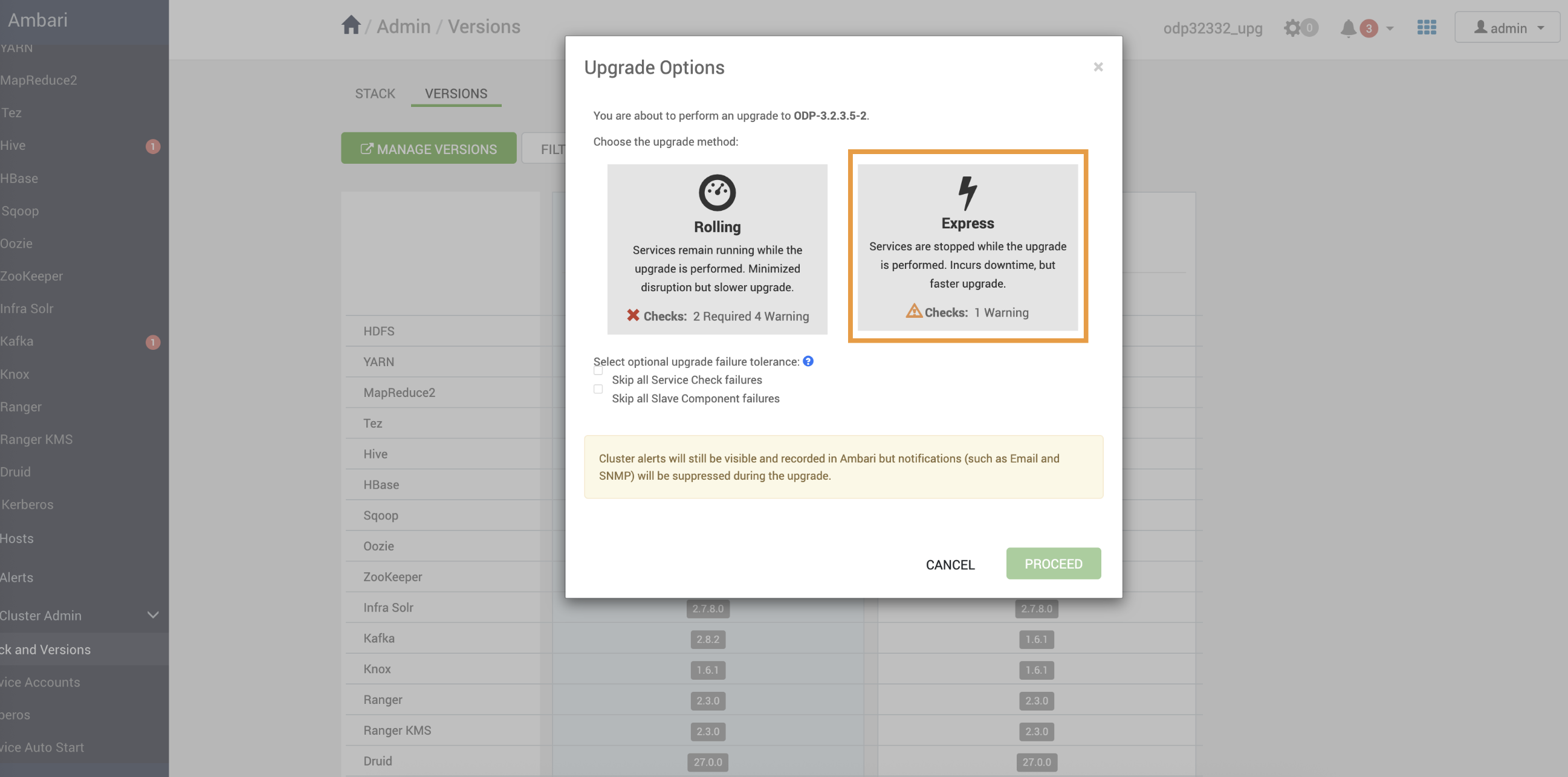
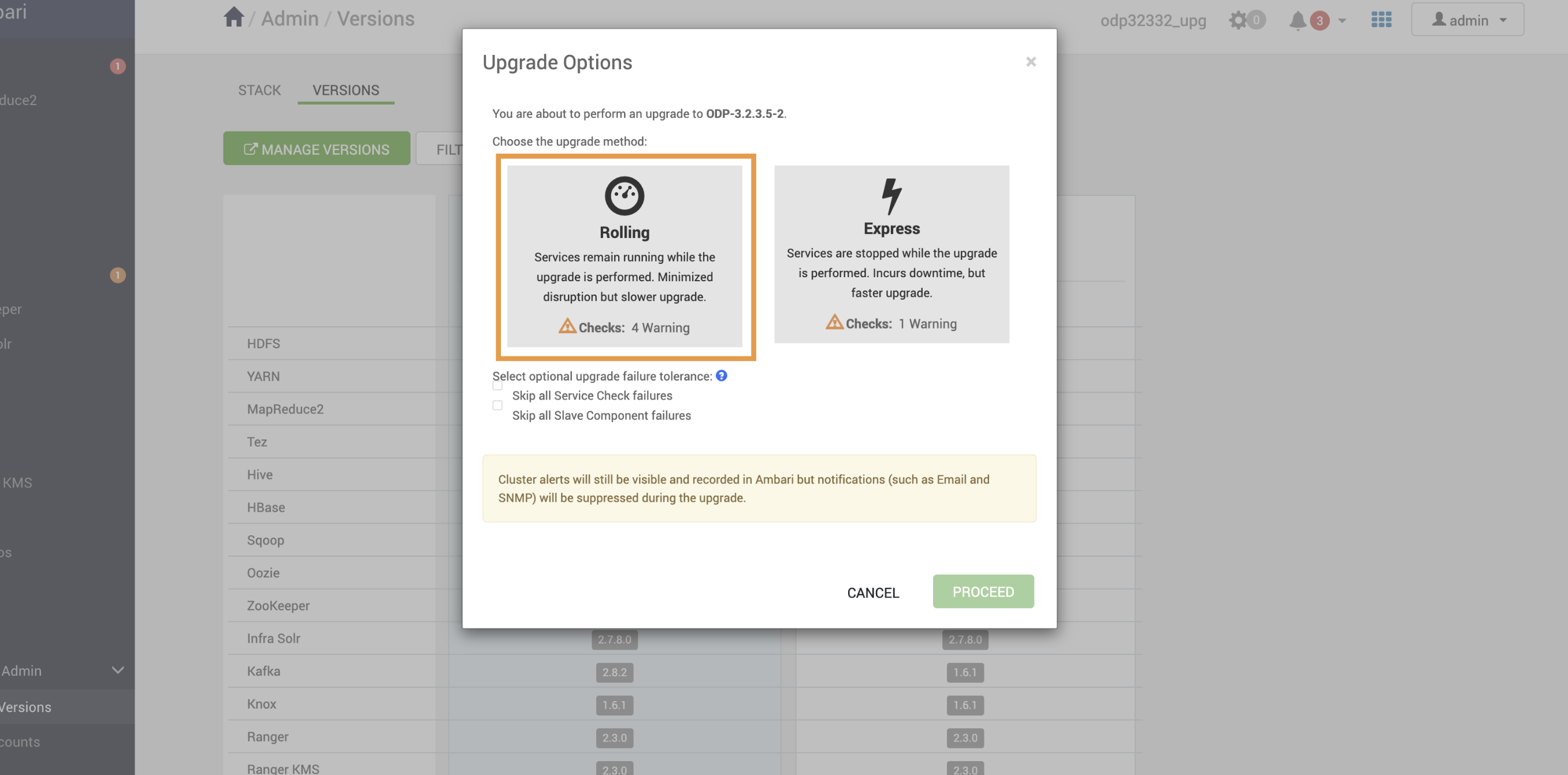
Upon selecting the Upgrade option:
The Rolling and Express options appear on the screen.
Select Rolling/Express and click Proceed.
Make sure to take all the Database backups before proceeding with next step
Pause the upgrade before accepting perform backups.
Pause the ODP Upgrade and proceed to the Ambari upgrade.