
This page describes the steps to perform an ODP stack upgrade using Rolling or Express upgrade via Ambari.
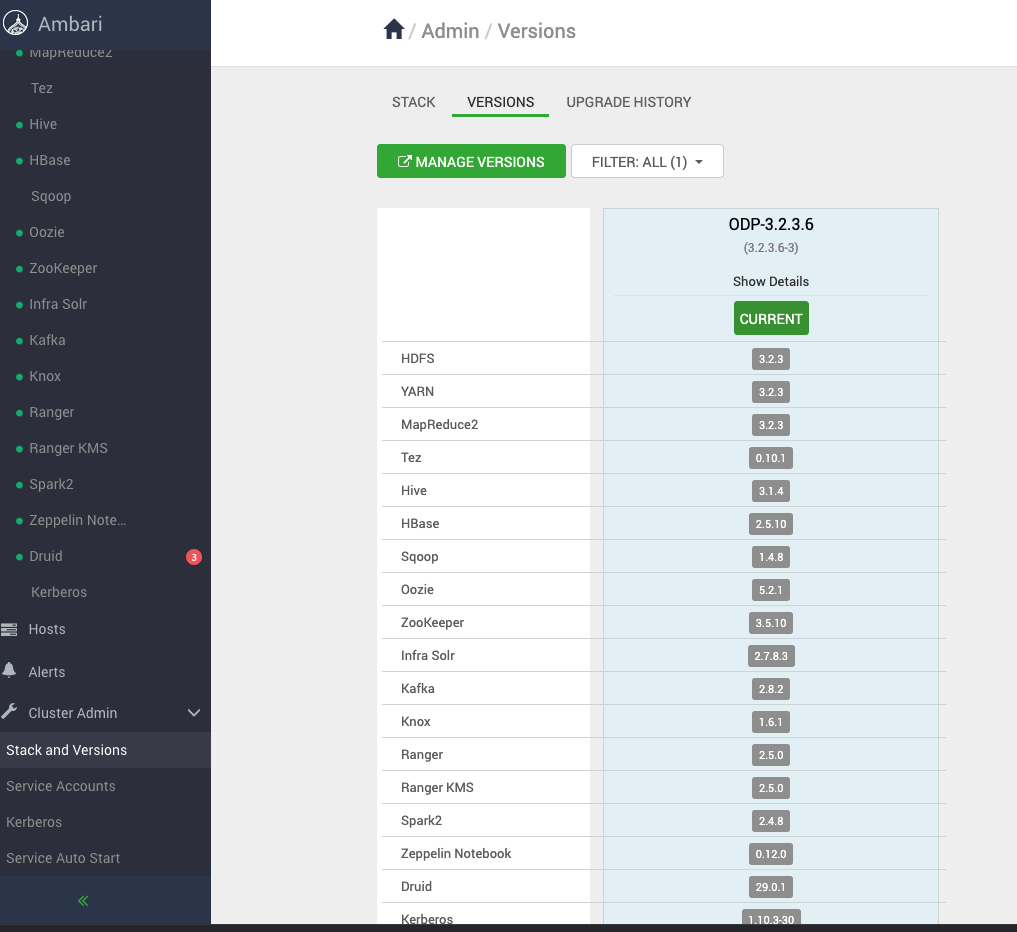
Consider the versions shown in the screenshot as a reference. During the upgrade, you can see the target version you’re upgrading to.
Pre-Upgrade Steps
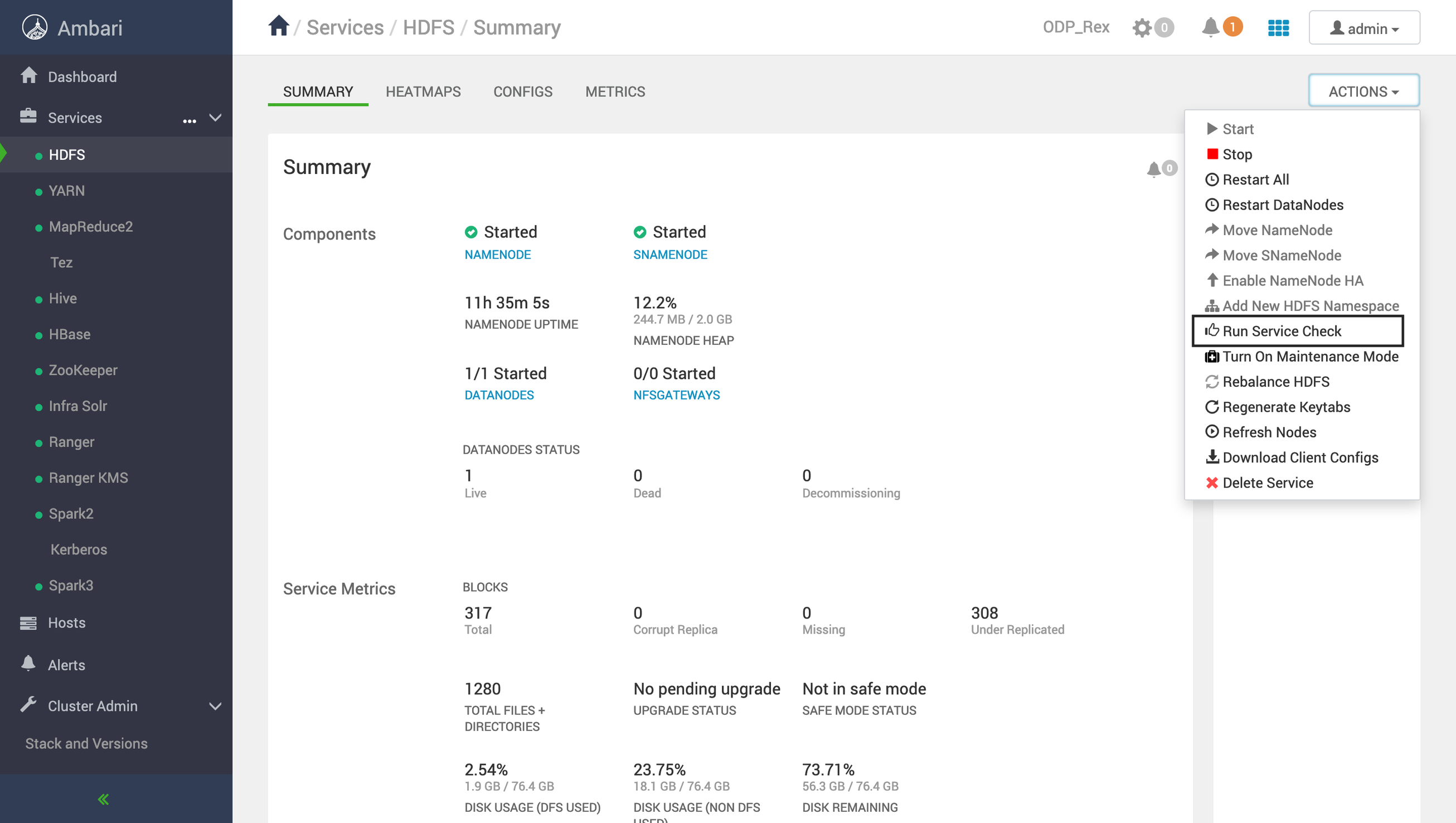
Navigate to Ambari UI → Actions → Service Check.
Run service checks for all installed services
Ensure:
All checks completed successfully
Status shows SUCCESS
For example:
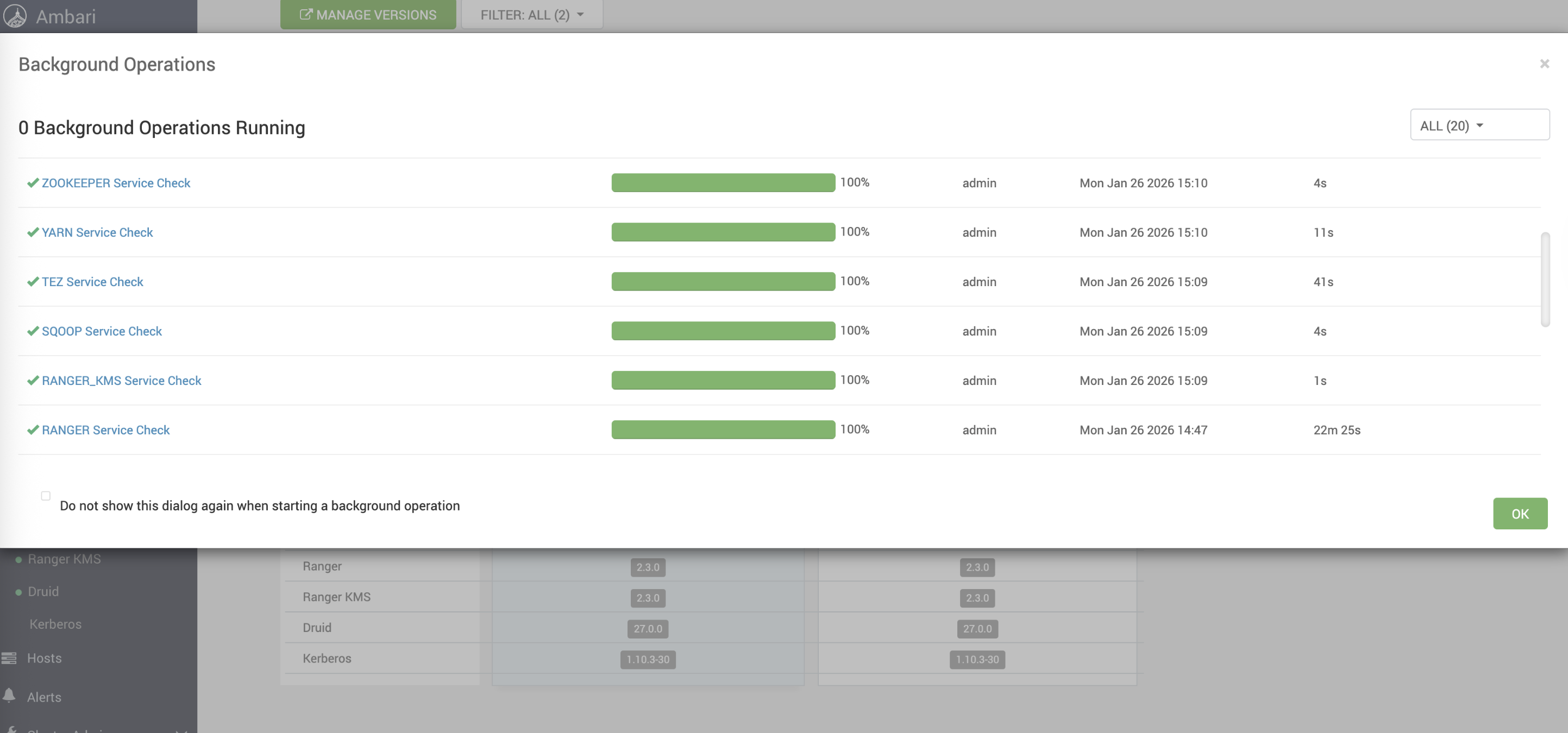
For example, the success status must be shown as follows.
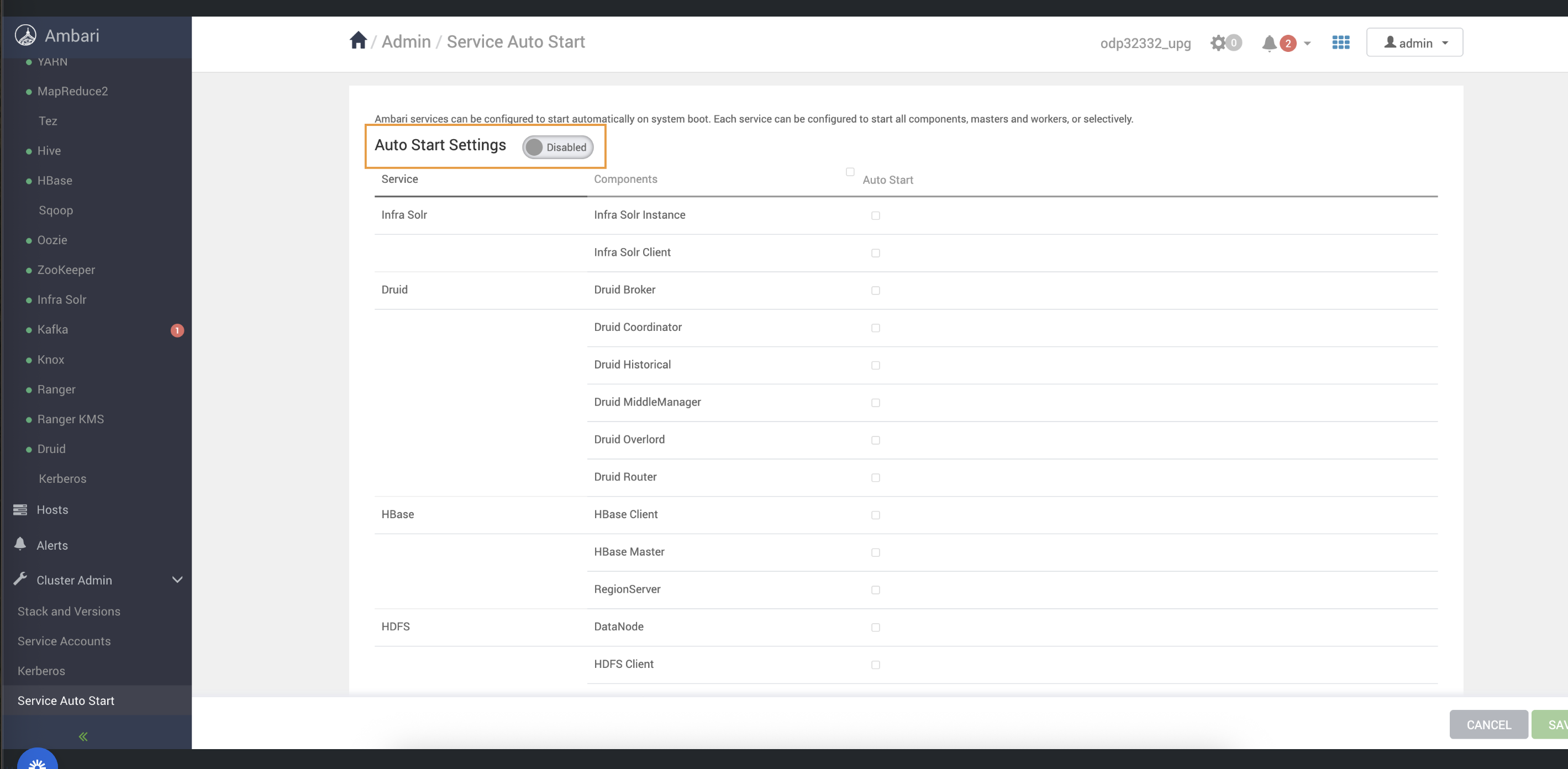
Disable Service Auto-Start
Register a New ODP Version and Upload the VDF File
Download the VDF file here: Link.
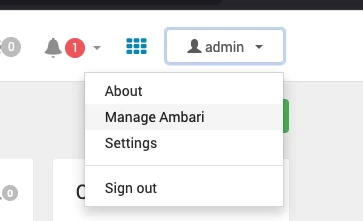
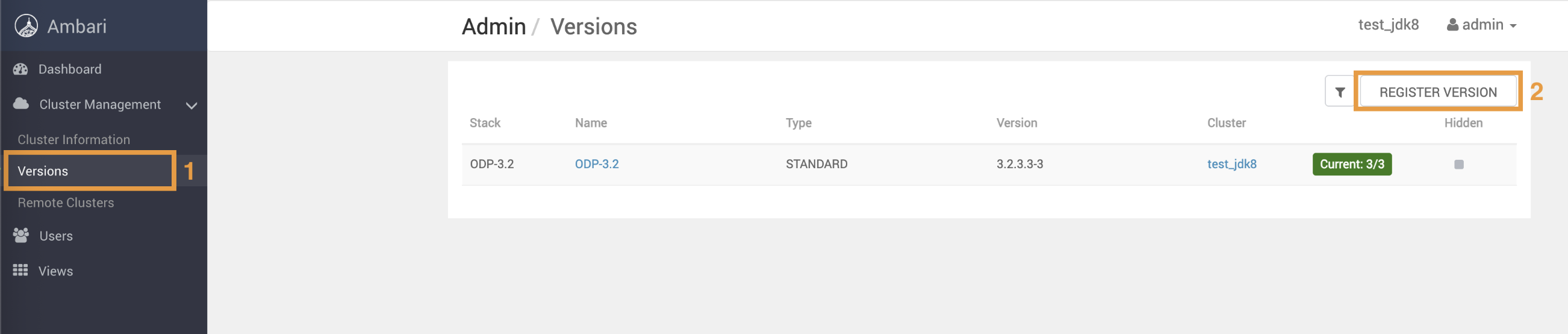
Go to Admin > Manage Ambari. An Admin / Cluster Information page opens.
From the left pane, select Versions. An Admin / Versions page opens.
On the Admin / Versions page, click Register Version. The Versions / Register Versions page opens.
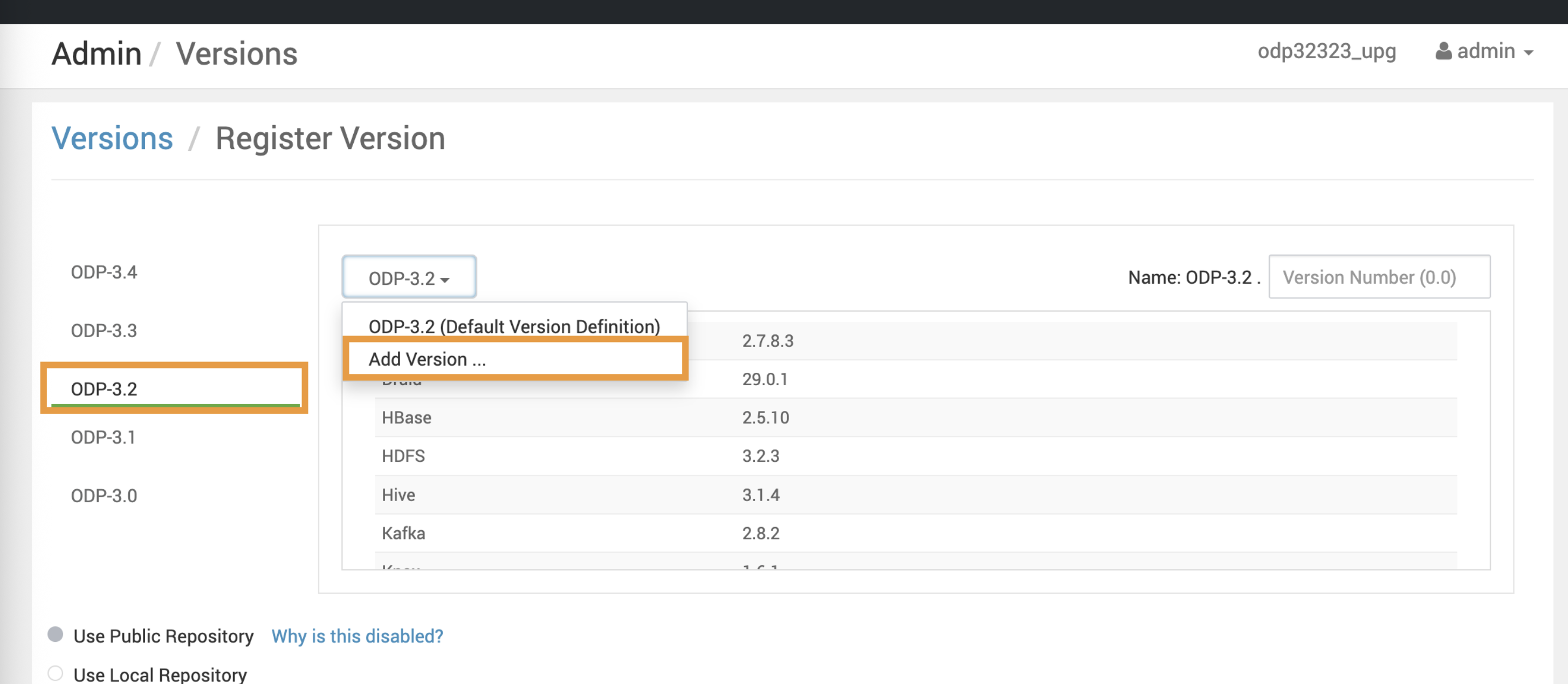
On the Versions / Register Versions page, click ODP-x-x and select Add Version.
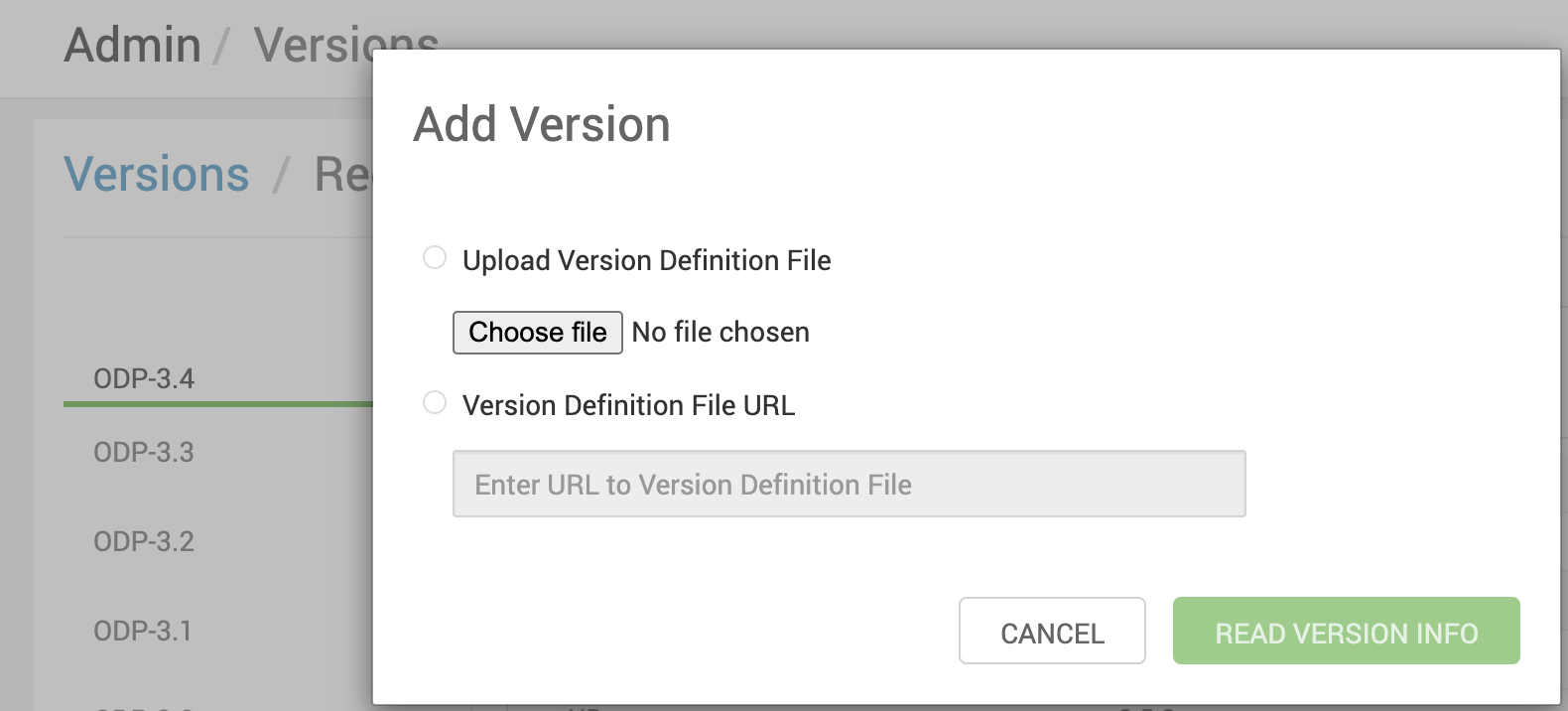
Upload the VDF file to register the upgraded ODP version.
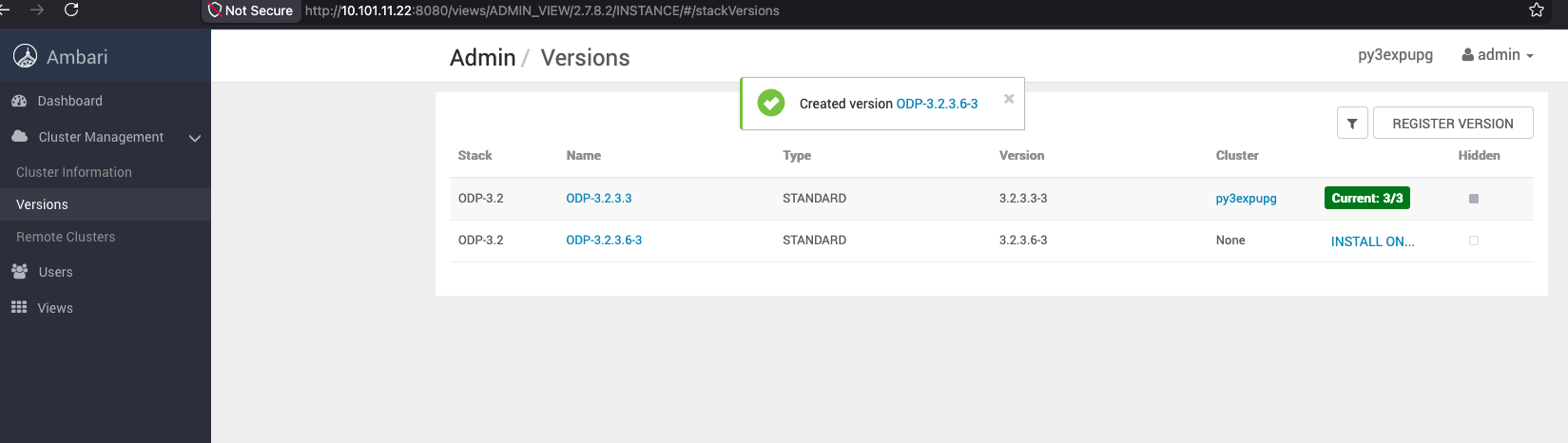
After a successful upload, the new version appears in the Admin / Versions page.
Then, select Installation On > <cluster_name>.
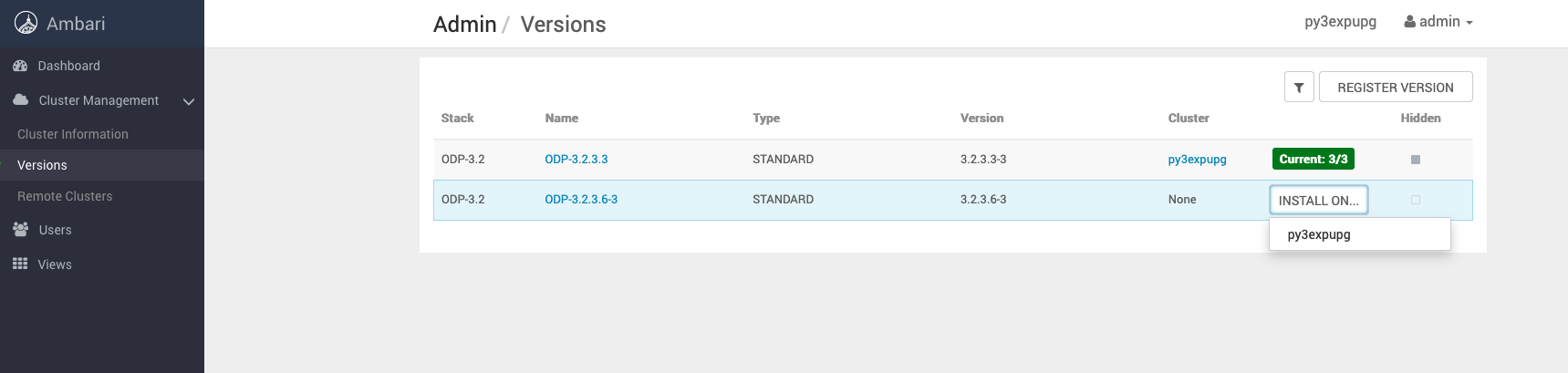
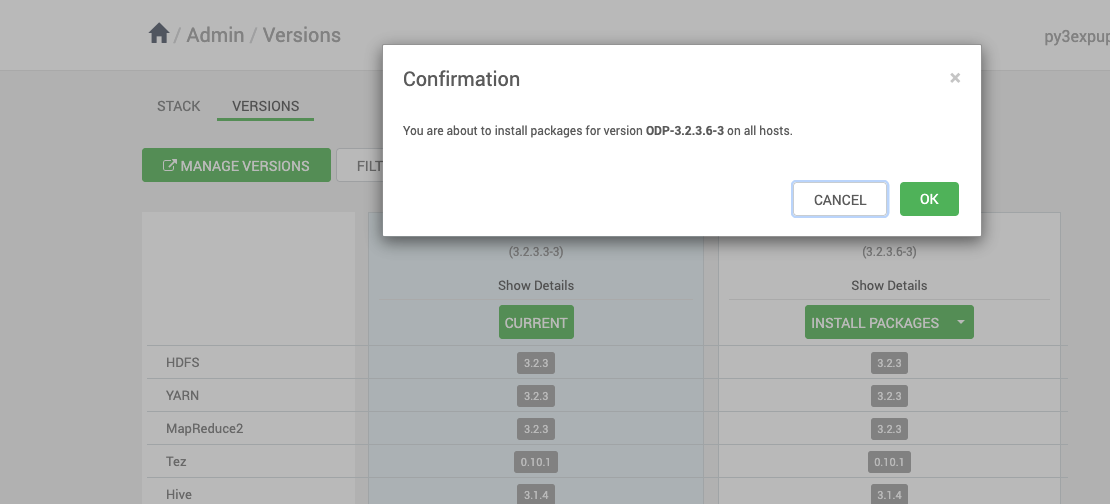
Click OK to confirm the ODP package to install.
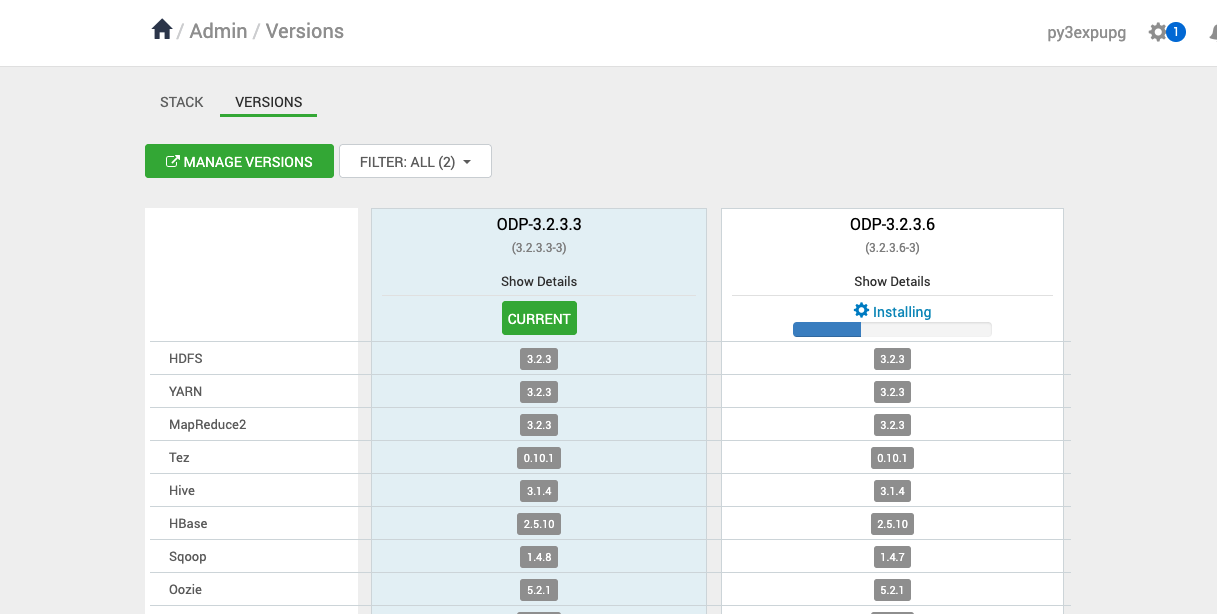
Monitor the progress of the ODP installation package from the UI.
Upgrade Steps
In the Ambari UI, navigate to the Stack and Versions page and click Upgrade.
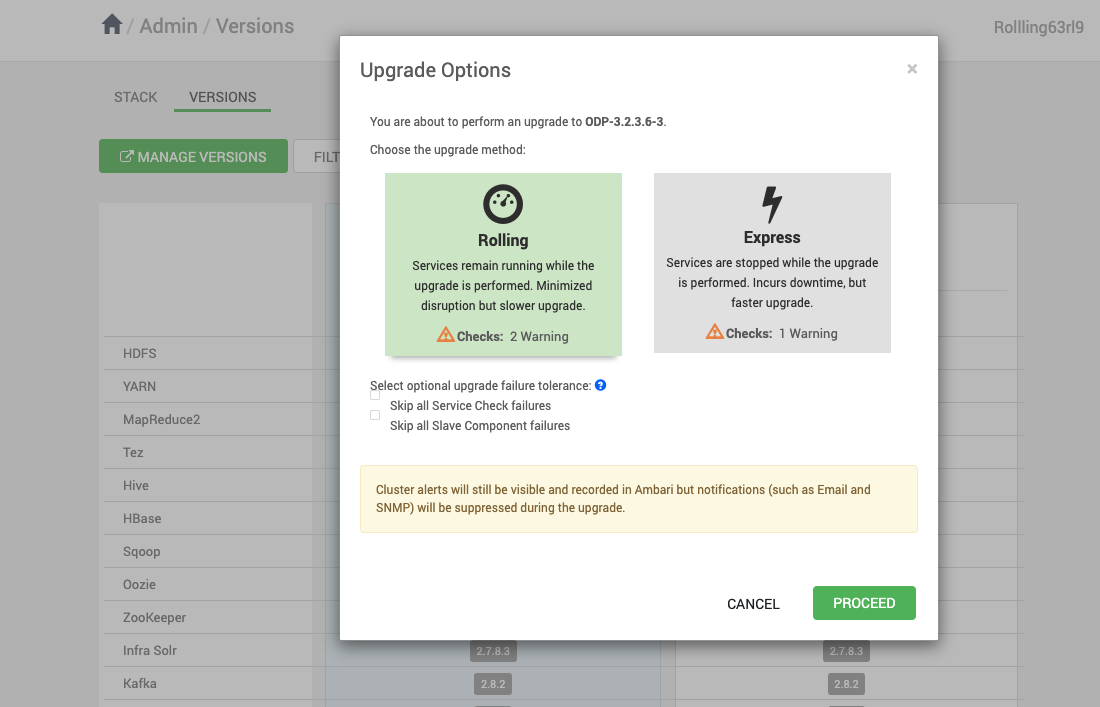
Upon selecting the Upgrade option:
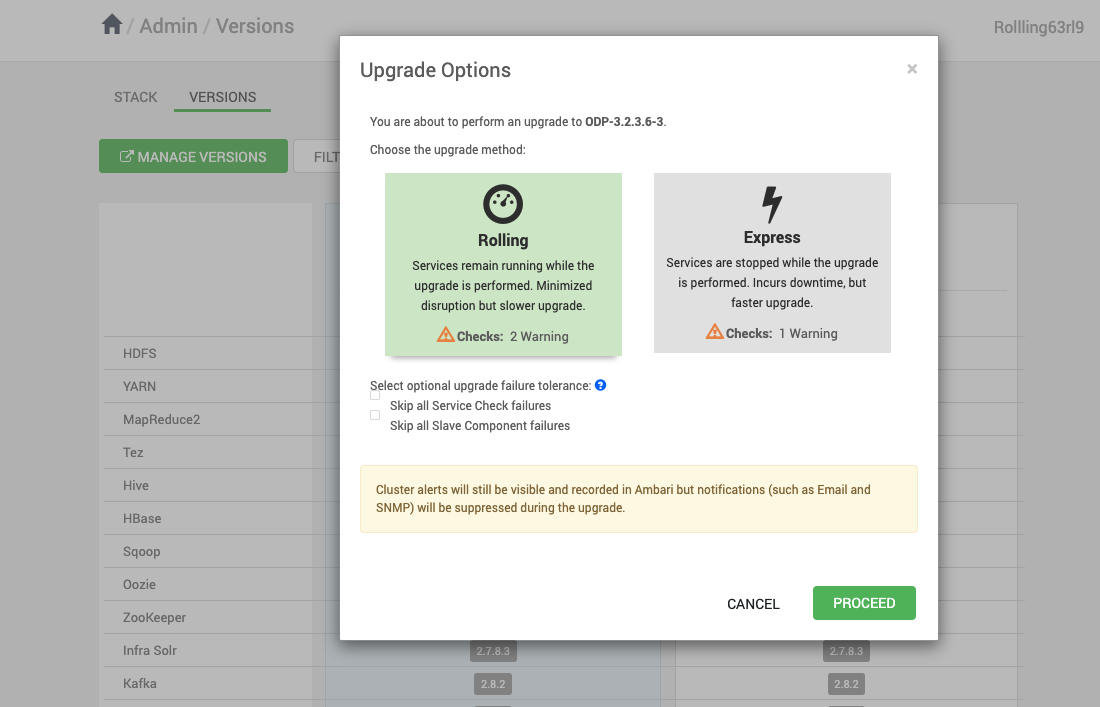
The Rolling and Express options appear on the screen.
Select Rolling/Express and click Proceed.
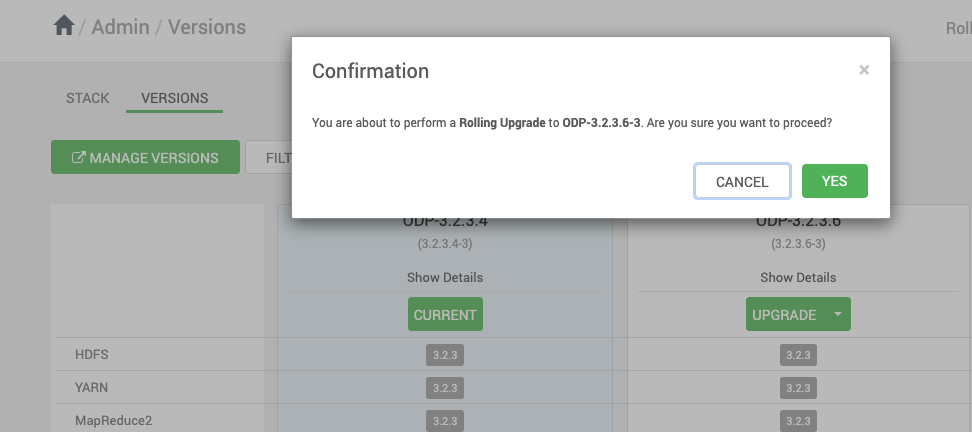
Make sure to take all the Database backups before proceeding with next step.
Pause the upgrade before performing backups.
Pause the ODP Upgrade and proceed to Upgrade Ambari Server
Rolling Upgrade
If you want to select the Rolling upgrade, select Rolling from the Upgrade Options page and click Proceed.
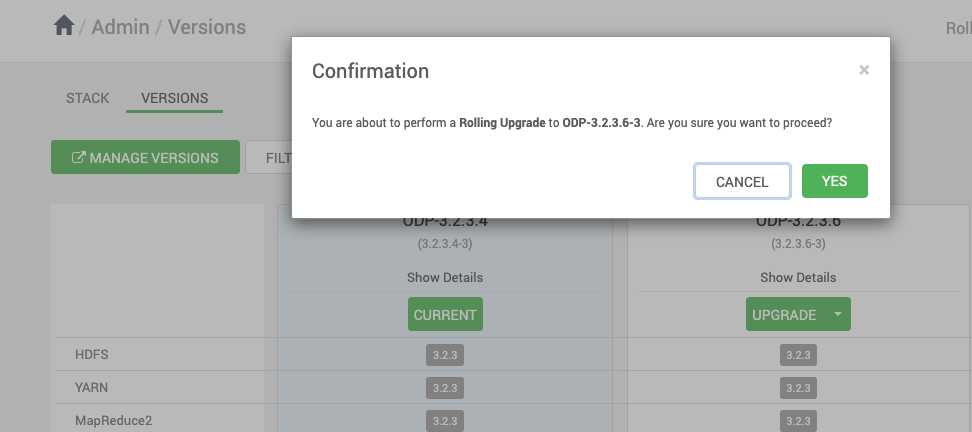
Click OK to proceed with the upgrade.
Database Backups
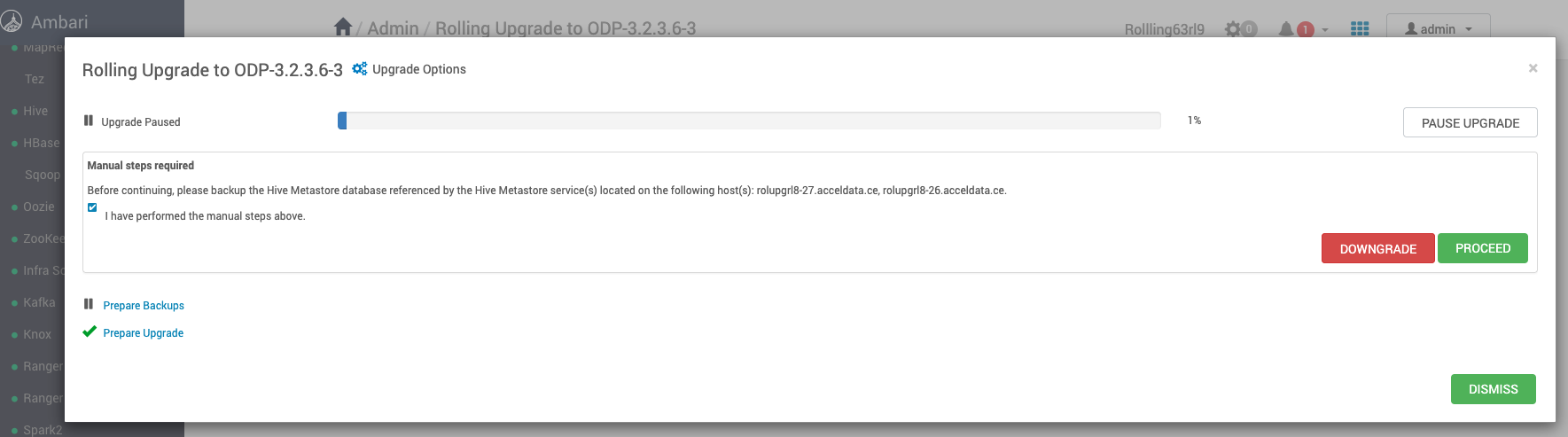
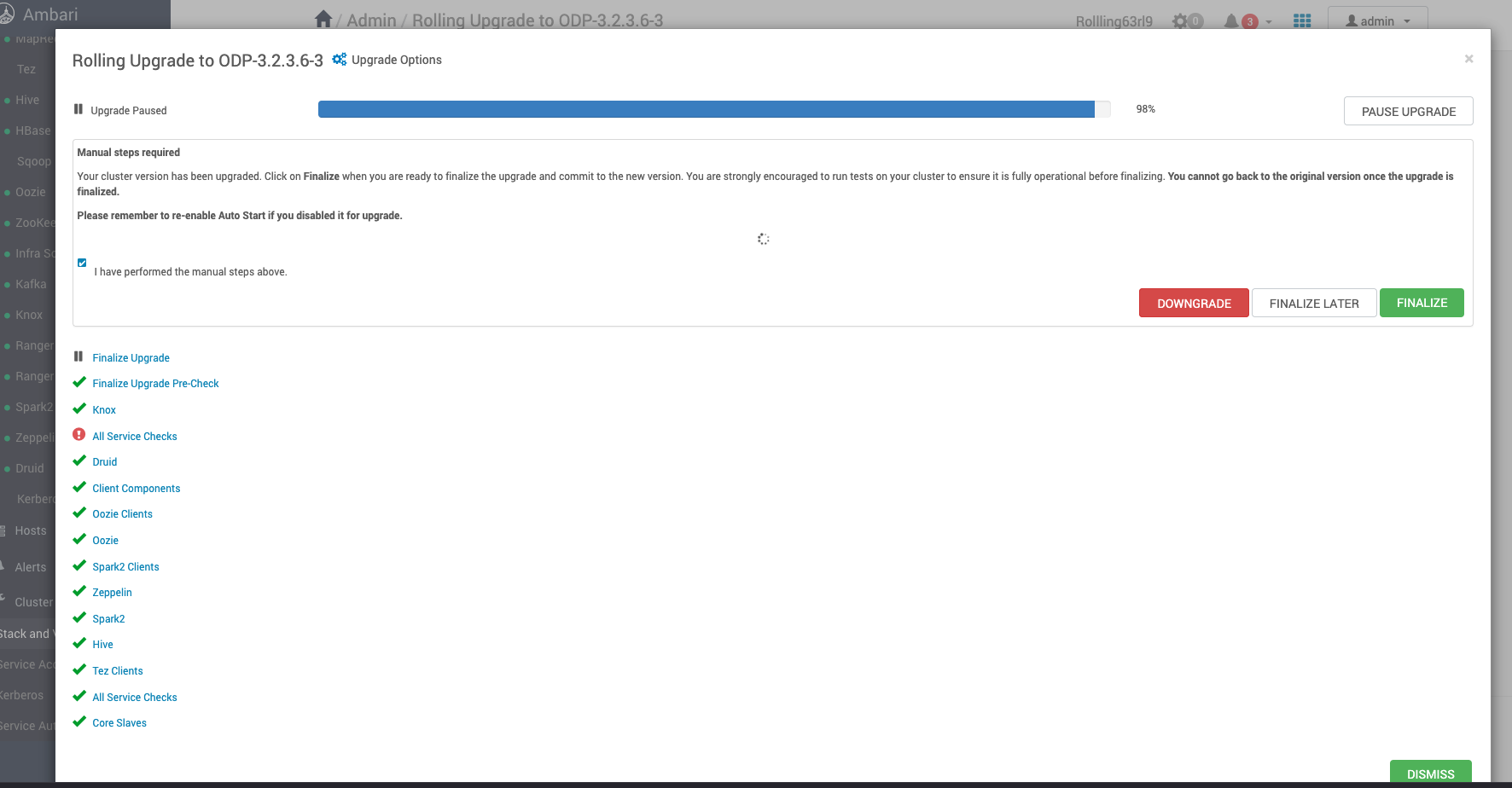
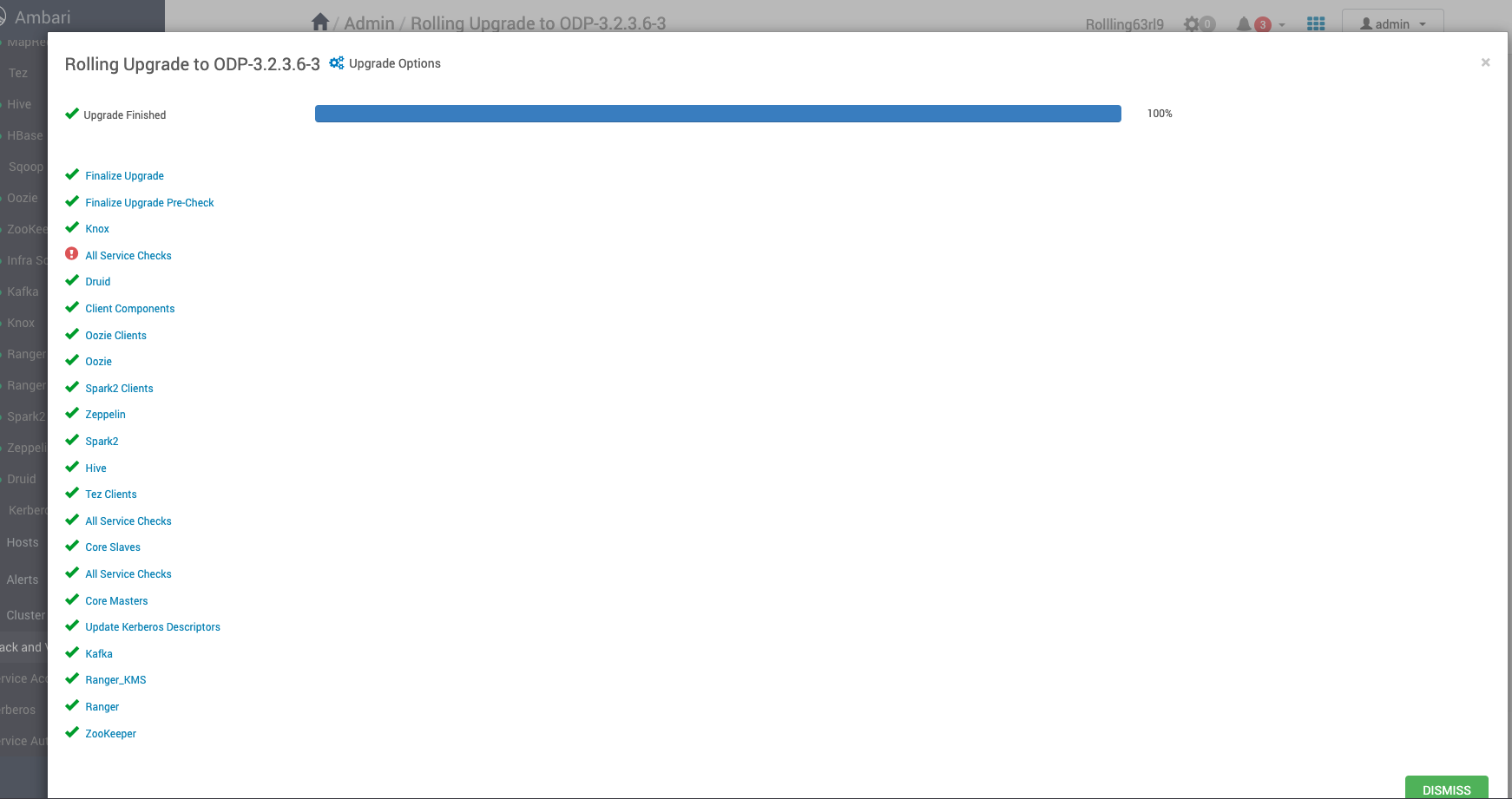
Verify the Upgrade
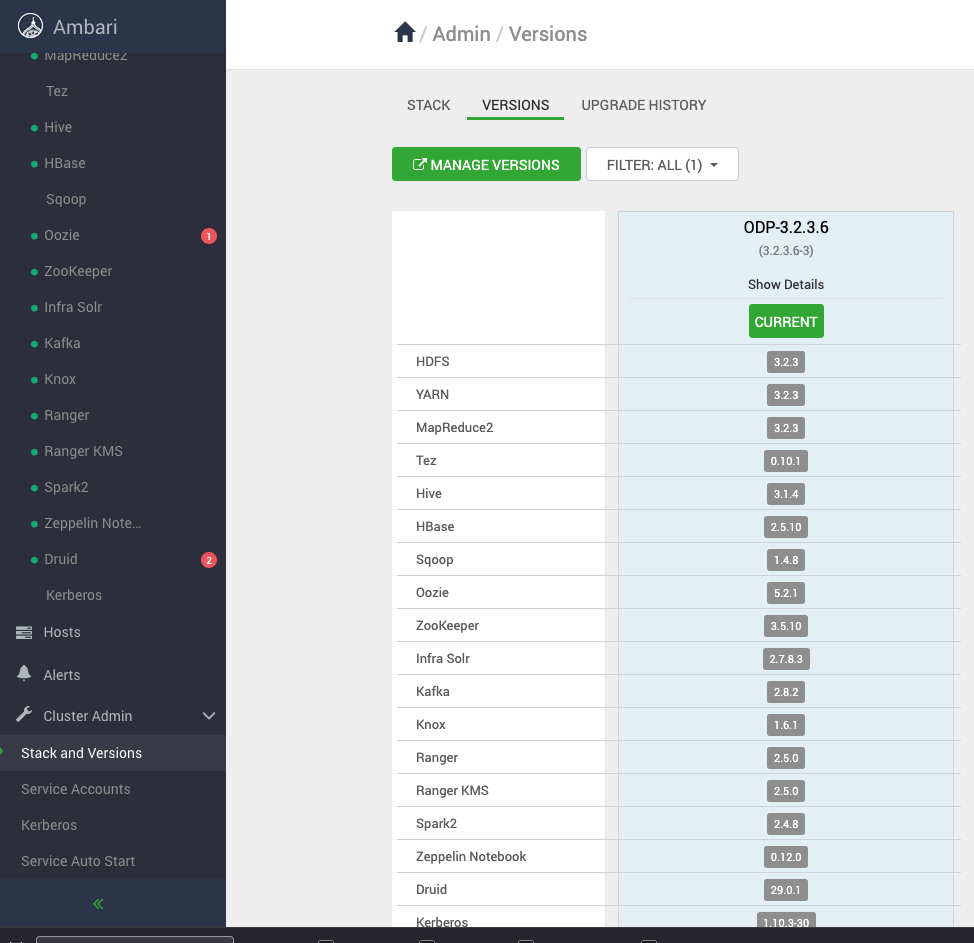
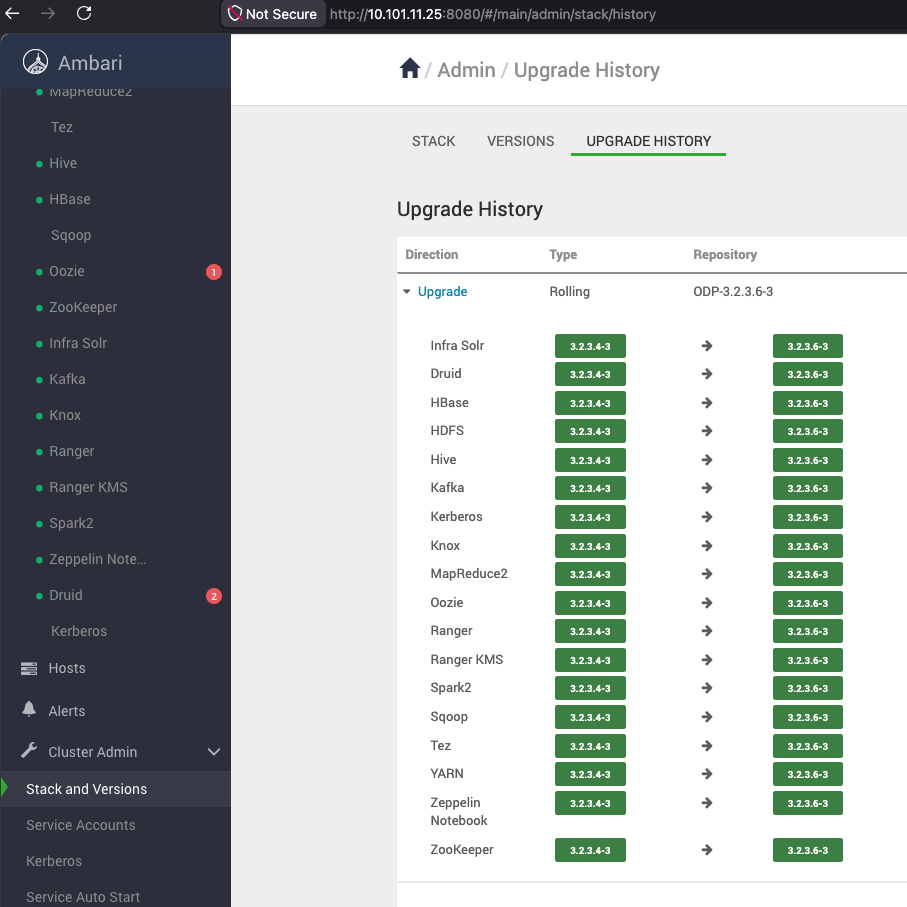
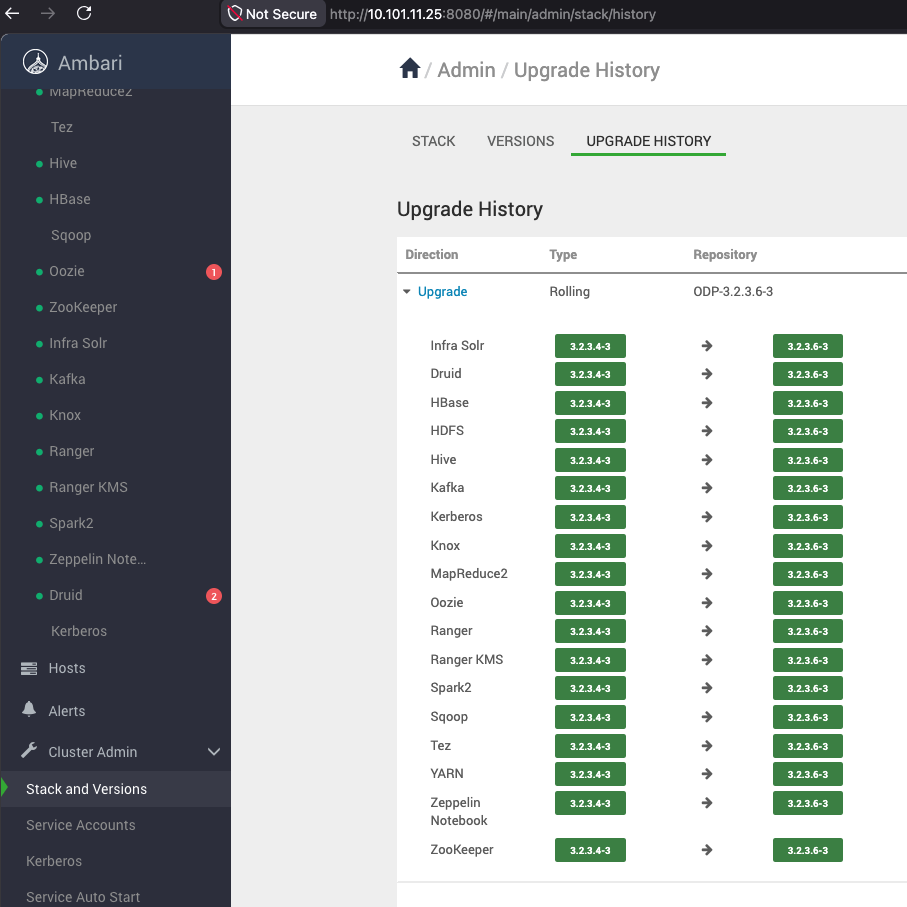
Verify the Upgrade History
Express Upgrade
If you want to select the Express upgrade, select the Express from the Upgrade Options and click Proceed.
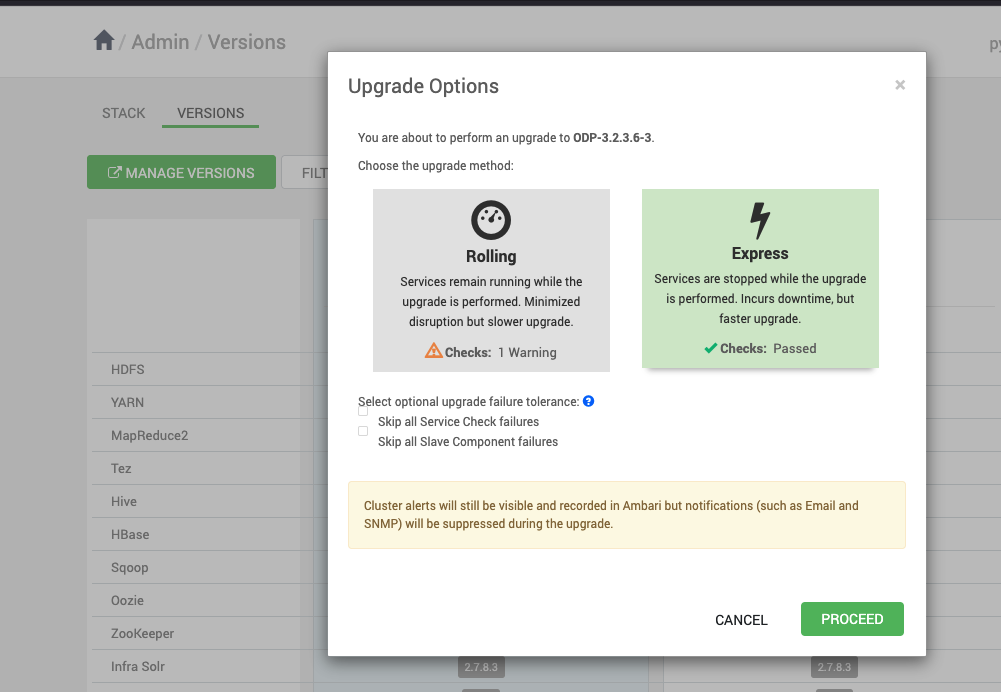
Click OK to proceed with the upgrade.
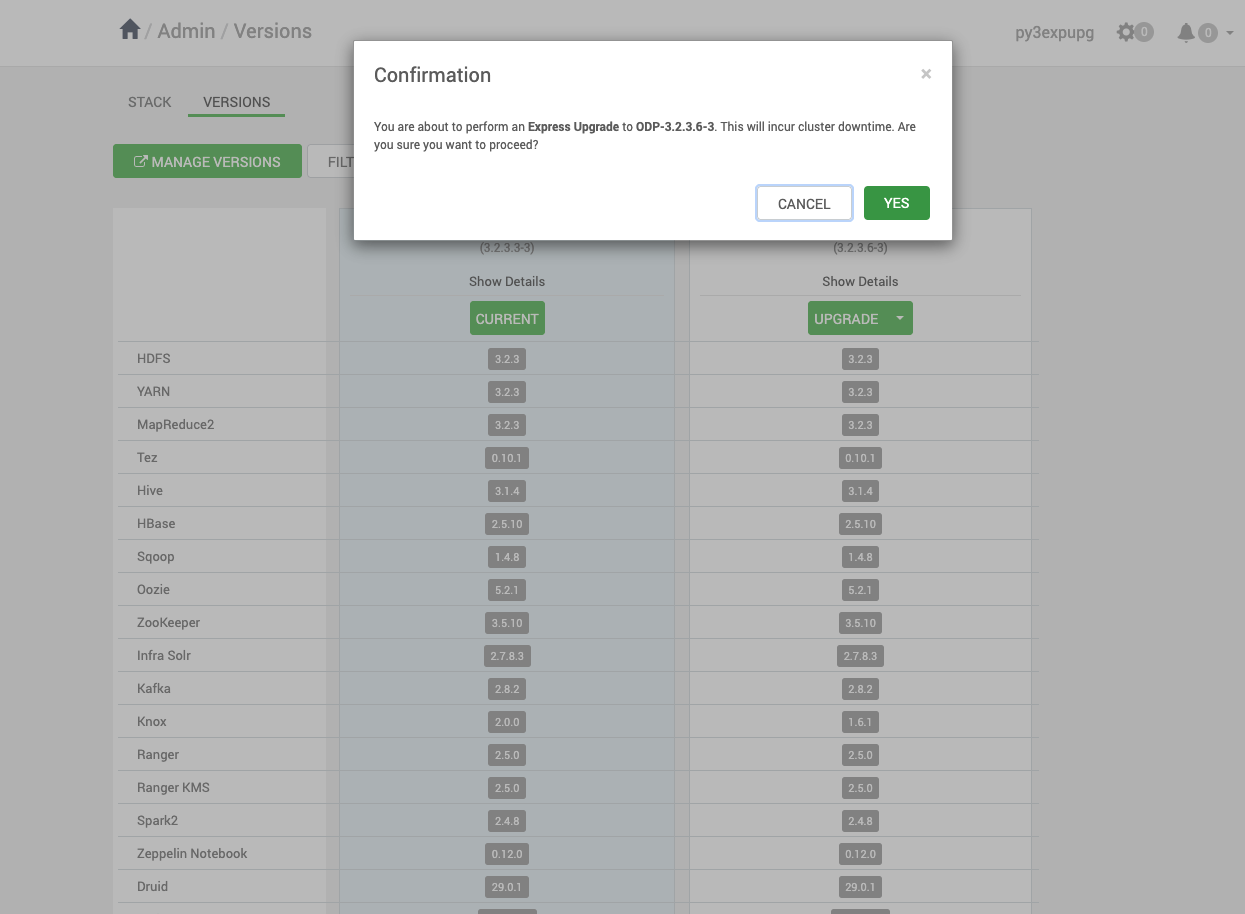
Database Backups
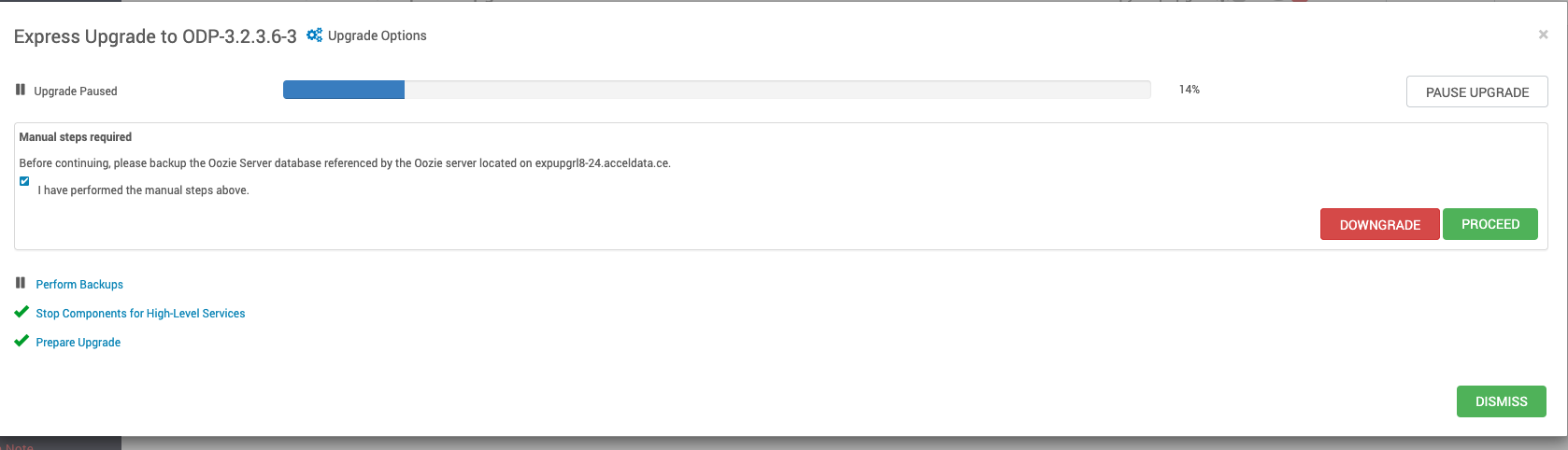
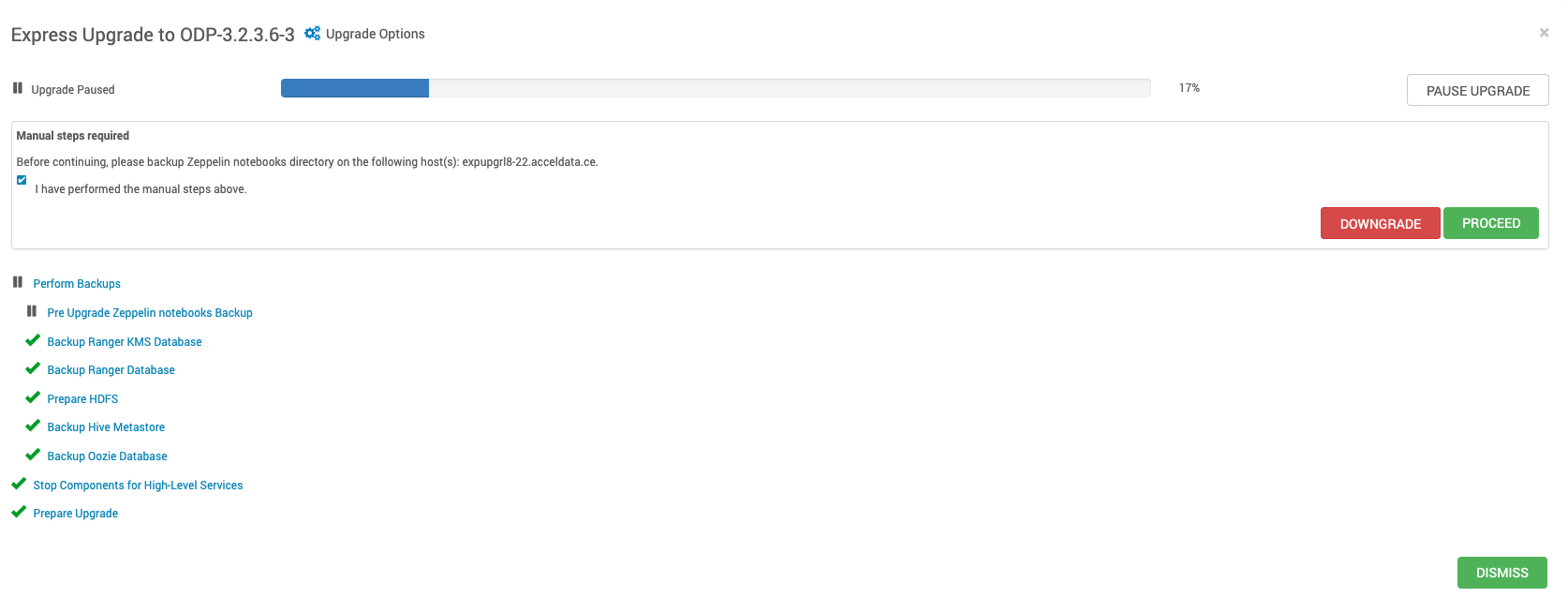
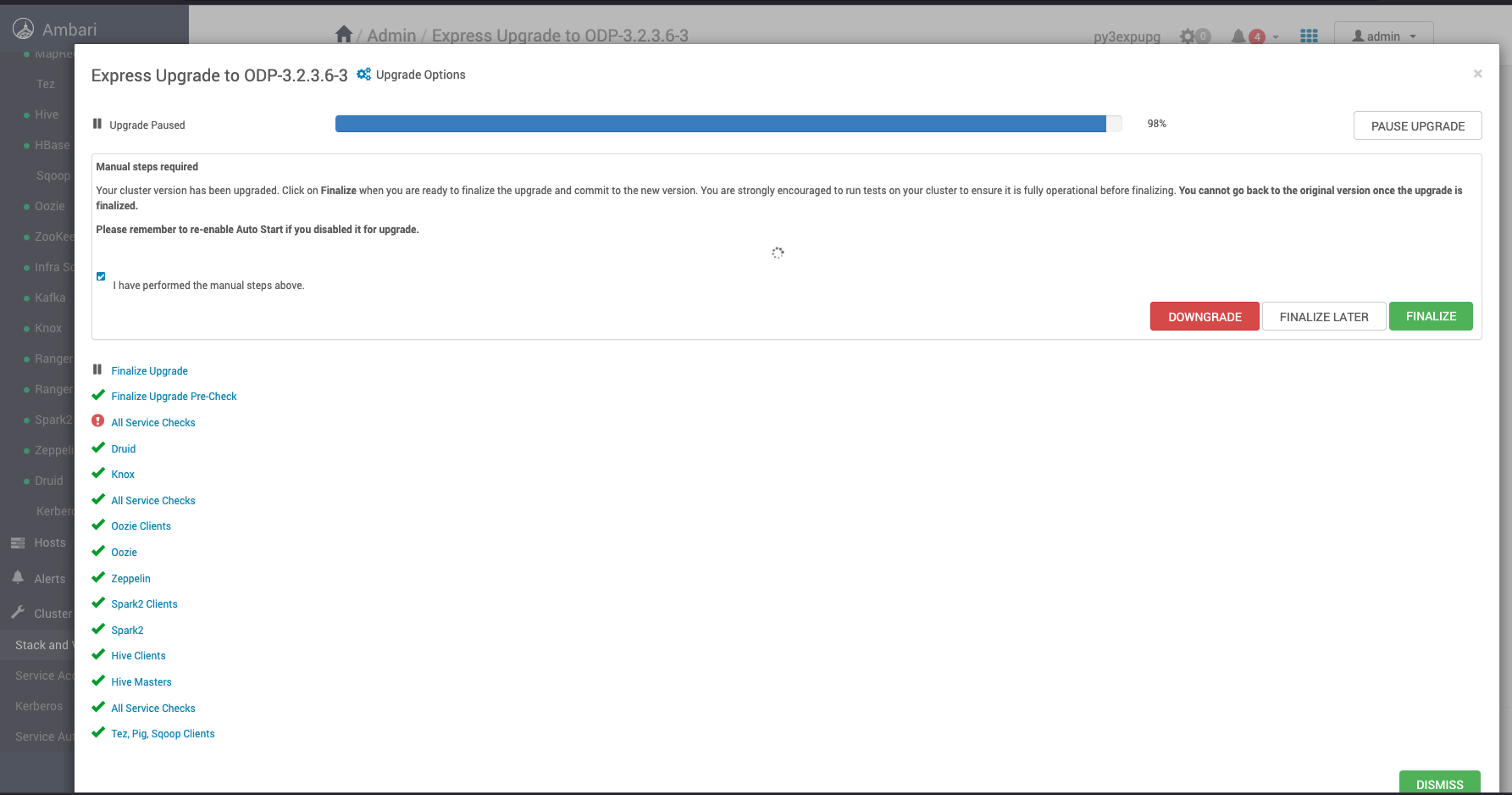
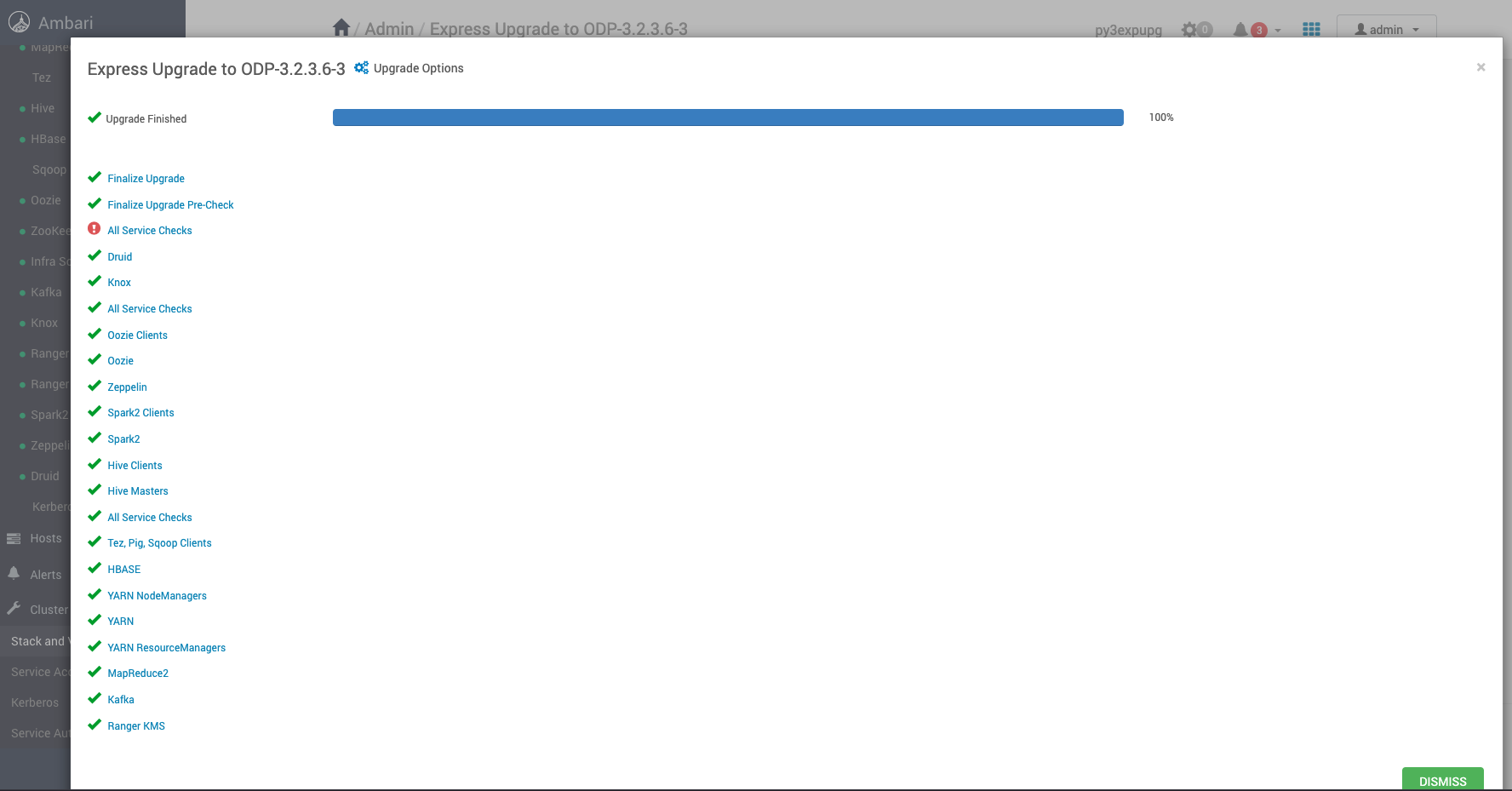
Verify the Upgrade
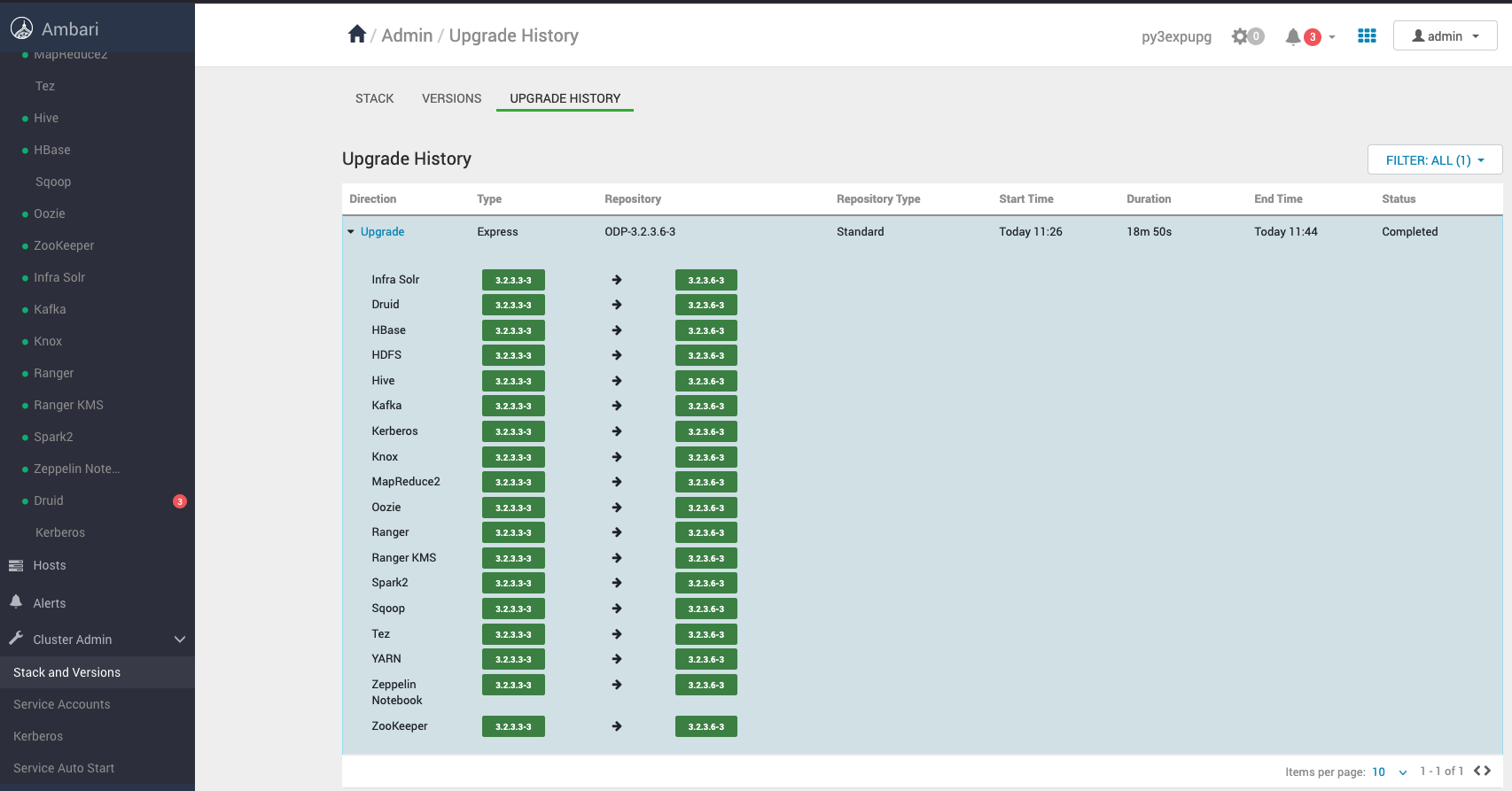
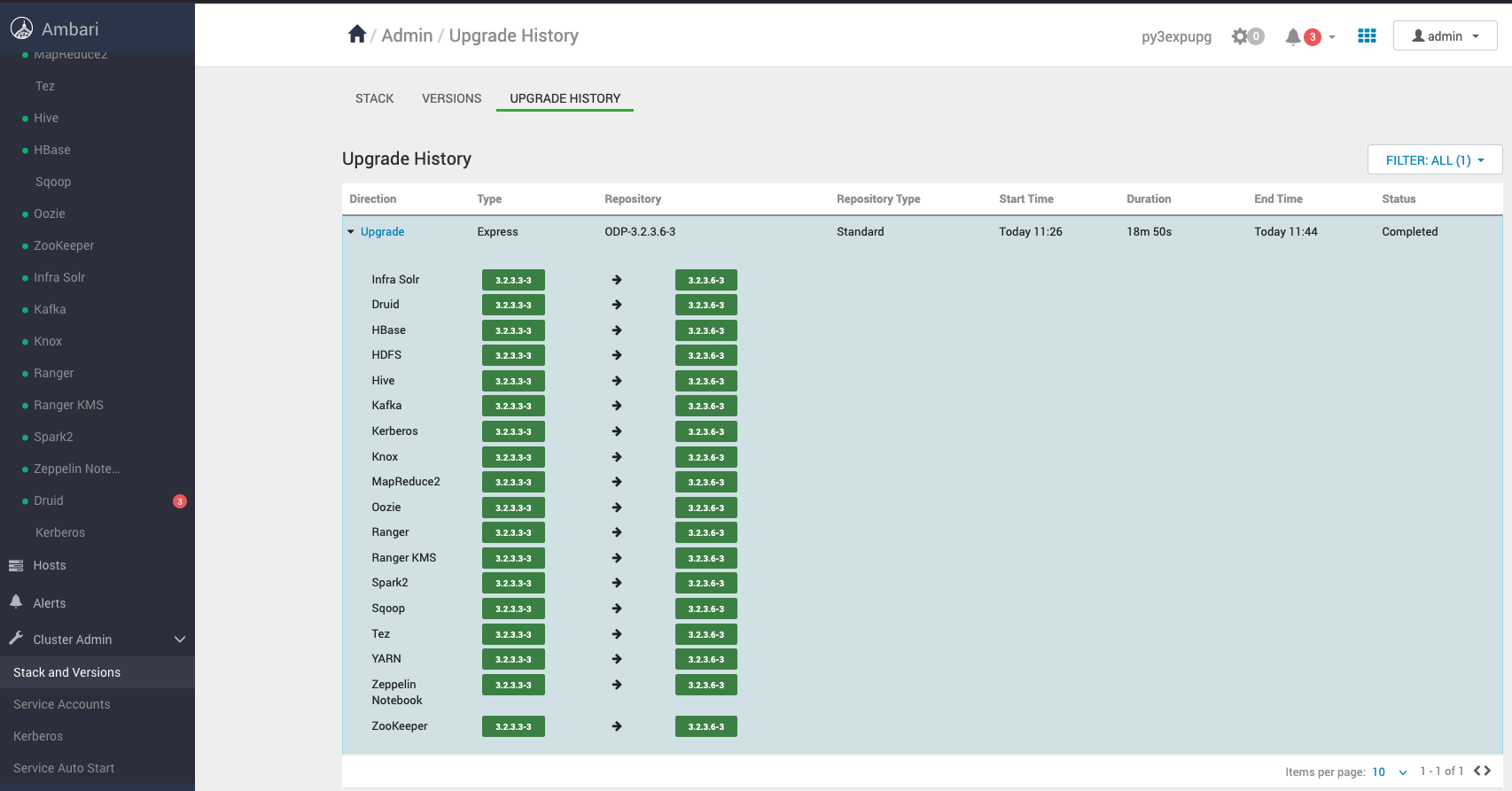
Upgrade History
You can see the two options post successful upgrade.
**Finalize Later—**Choosing this option preserves the ability to downgrade or roll back to the previous version.
**Finalize—**Once selected, version 3.2.3.6-3 becomes permanent, and rollback is no longer possible.
Consider the versions shown in the screenshot as a reference. During the upgrade, you can see the target version you’re upgrading to.
Navigate to the Ambari UI Home page and perform the Start All services from Actions.
If you are upgrading from ODP 3.2.3.3-x or lower versions and using Oracle as the backend DB, you may encounter the following issue.
Error 1
2026-01-29 12:08:45,018 [I] Patch 067-create-gds-tables.sql is being applied..
2026-01-29 12:08:45,018 [JISQL] /usr/lib/jvm/java-1.8.0-openjdk/bin/java -Djava.security.egd=file:///dev/urandom -cp /usr/odp/3.2.3.6-2/ranger-admin/ews/lib/ojdbc.jar:/usr/odp/3.2.3.6-2/ranger-admin/jisql/lib/* org.apache.util.sql.Jisql -driver oraclethin -cstring jdbc:oracle:thin:@//clnode02.acceldata.ce:1521/ORCLPDB1 -u 'ranger' -p ' ' -noheader -trim -input /usr/odp/3.2.3.6-2/ranger-admin/db/oracle/patches/067-create-gds-tables.sql -c ;
SQLException : SQL state: 42000 java.sql.SQLSyntaxErrorException: ORA-00901: invalid CREATE command ORA-06512: at line 18 ErrorCode: 901 SQLException : SQL state: 42000 java.sql.SQLSyntaxErrorException: ORA-00901: invalid CREATE command
You can follow the workaround below to fix the issue.
Replace the “/usr/odp/3.2.3.3-2/ranger-admin/db/oracle/patches/067-create-gds-tables.sql” with the below content.
Error 2
Exception [EclipseLink-4002] (Eclipse Persistence Services - 2.7.12.v20230209-e5c4074ef3): org.eclipse.persistence.exceptions.DatabaseException Internal Exception: java.sql.SQLSyntaxErrorException: ORA-00923: FROM keyword not found where expected
And similarly facing issues for files - 10060, 10061, may experincing for the same till 10070
Workaround:
Log in to the Oracle backend DB
For example:
Run the below from the Oracle's SQLPlus terminal.
and then continue with the upgrade process.

Verify the Upgrade History
Verify the Rolling Upgrade
Verify the Express Upgrade
Mpacks Restore
Perform the following steps to restore Mpacks.
Perform the following steps to restore Mpacks.
Install Mpacks on the Ambari Server node.
Install the services from Ambari.
Stop the Mpack services from ambari UI.
Restore the config at mysql DB.
Now restore the configuration backups for the mpacks that were taken during the upgrade prerequisites phase. For details, see upgrade-prerequisites.
Restore Airflow Config
Run the following script.
Response:
Restore Ozone Configs
Run the following script.
Response:
Restore Impala Configs
Run the following script.
Response:
Restore Kudu Configs
Run the following script.
Response:
Restore Spark3 Configs
Run the following script.
Response: