You can perform the following steps to upgrade the Ambari Server.
Info
The following steps have to be performed on the installed Ambari Server node.
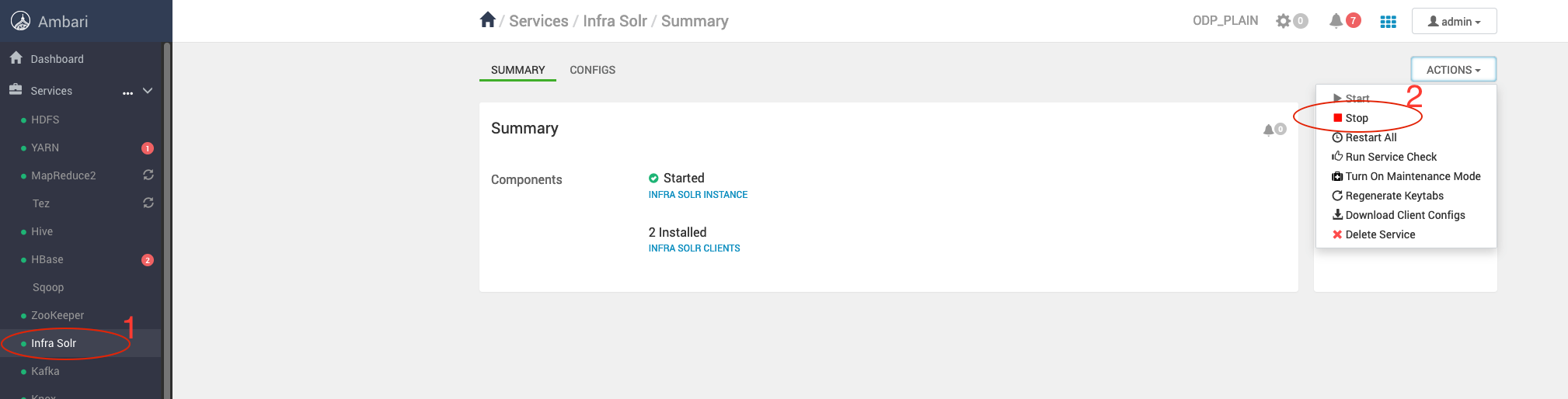
Stop the Infra-solr Service from the Ambari UI by navigating to Ambari > Infra Solr > Actions > Stop.
Stop the Ambari server and agents by running the following command.
ambari-server stop
ambari-agent stop
Warning Stop the Ambari Agents on all nodes in the cluster.
Take a backup of the Ambari-server configs.
cp -r /etc/ambari-server/config /etc/ambari-server/conf_bkp
mysqldump --databases ambari > /tmp/ambari-server_db_bckp/ambari_mysql_bckp.sql
For RHEL:
yum erase ambari-server -y
For Ubuntu:
apt remove ambari-server -y
For RHEL:
mv /etc/yum.repos.d/ambari.repo /tmp/
For Ubuntu:
mv /etc/apt/sources.list.d/ambari.list /tmp/
Retrieve the latest Ambari repository details from Ambari Repositories and add it to all the cluster nodes.
Update ambari.repo (RedHat) or ambari.list (Ubuntu).
For RHEL:
vim /etc/yum.repos.d/ambari.repo
[ambari]
async = 1
baseurl = https://mirror.odp.acceldata.dev/ODP/rhel/Ambari-2.7.9.2-1/
gpgcheck = 0
name = ambari Version - ambari-2.7.9.2-1
For Ubuntu:
vim /etc/apt/sources.list.d/ambari.list
deb https://mirror.odp.acceldata.dev/ODP/ubuntu20/Ambari-2.7.9.2-1/ ODP main
deb https://mirror.odp.acceldata.dev/ODP/ubuntu20/Ambari-2.7.9.2-1/ ODP-UTILS main
Verify the latest Ambari package for the version - 2.7.9.2-1.
For RHEL:
yum clean all
yum list ambari-*
For Ubuntu 20:
apt clean all
apt list ambari-*
For RHEL:
yum clean all
yum install ambari-server -y
For Ubuntu:
apt clean
apt install ambari-server -y
Copy ambari.properties and password.dat to /etc/ambari-server/conf/.
Once the installation is successful, make sure to set up the following versions.
Make sure to install and update the default Java version as 11 on all the cluster nodes.
For RHEL:
yum install java-11-openjdk.x86_64
yum install java-11-openjdk-devel.x86_64
For Ubuntu:
apt-get install openjdk-11-jdk openjdk-11-jdk-headless
Warning
Ensure not to remove the jdk8 packages at this state.
update-alternatives --config java
There are 2 choices for the alternative java (providing /usr/bin/java).
Selection Path Priority Status
------------------------------------------------------------
* 0 /usr/lib/jvm/java-11-openjdk-amd64/bin/java 1111 auto mode
1 /usr/lib/jvm/java-11-openjdk-amd64/bin/java 1111 manual mode
2 /usr/lib/jvm/java-8-openjdk-amd64/jre/bin/java 1081 manual mode
Press <enter> to keep the current choice[*], or type selection number: 1
Make sure to install and update the default Python version as 3.11 on all the cluster nodes.
update-alternatives --config python
There are 4 programs which provide 'python'.
Selection Command
-----------------------------------------------
* 1 /usr/libexec/no-python
2 /usr/bin/python3
3 /usr/bin/python2
+ 4 /usr/bin/python3.11
Enter to keep the current selection[+], or type selection number: 4
Make sure to Instal the latest version of the bigtop-jsvc-1.2.4 on all the cluster nodes.
For RHEL:
yum install bigtop-jsvc* -y
For Ubuntu:
Restore the ambari.properties and password.dat files, which are backed up at this step: Configuration Backup on this page.
cp /etc/ambari-server/conf_bkp/ambari.properties /etc/ambari-server/conf/
Please override the file by prompting 'y'.
cp /etc/ambari-server/conf_bkp/password.dat /etc/ambari-server/conf/
In this case, set JAVA_HOME to /usr/lib/jvm/java-11-openjdk
File path - /etc/ambari-server/conf/ambari.properties | grep -i java.home
java.home=/usr/lib/jvm/java-11-openjdk
stack.java.home=/usr/lib/jvm/java-11-openjdk
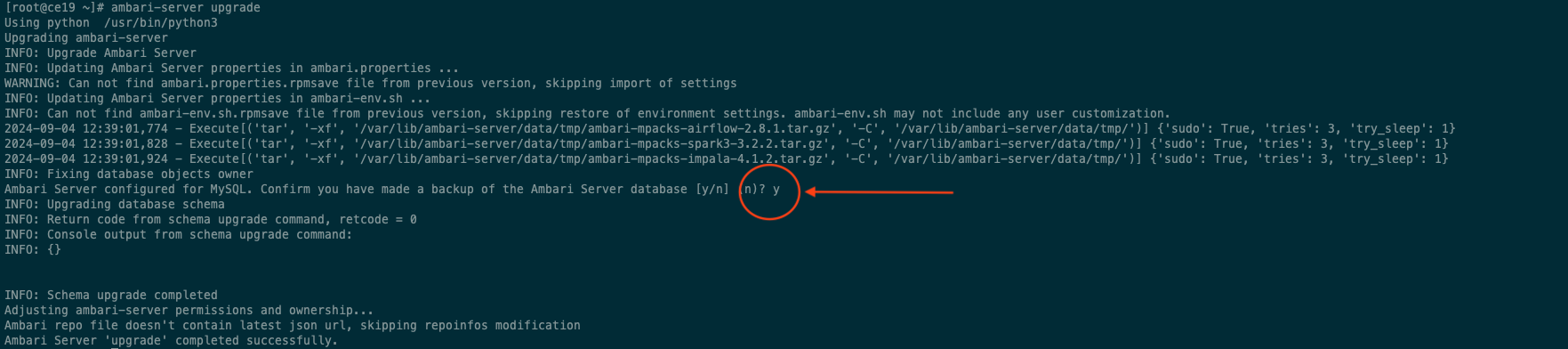
Upon running the command, the response will be as shown in the screenshot.
Make sure to take the database backup as mentioned earlier and enter 'y' here.
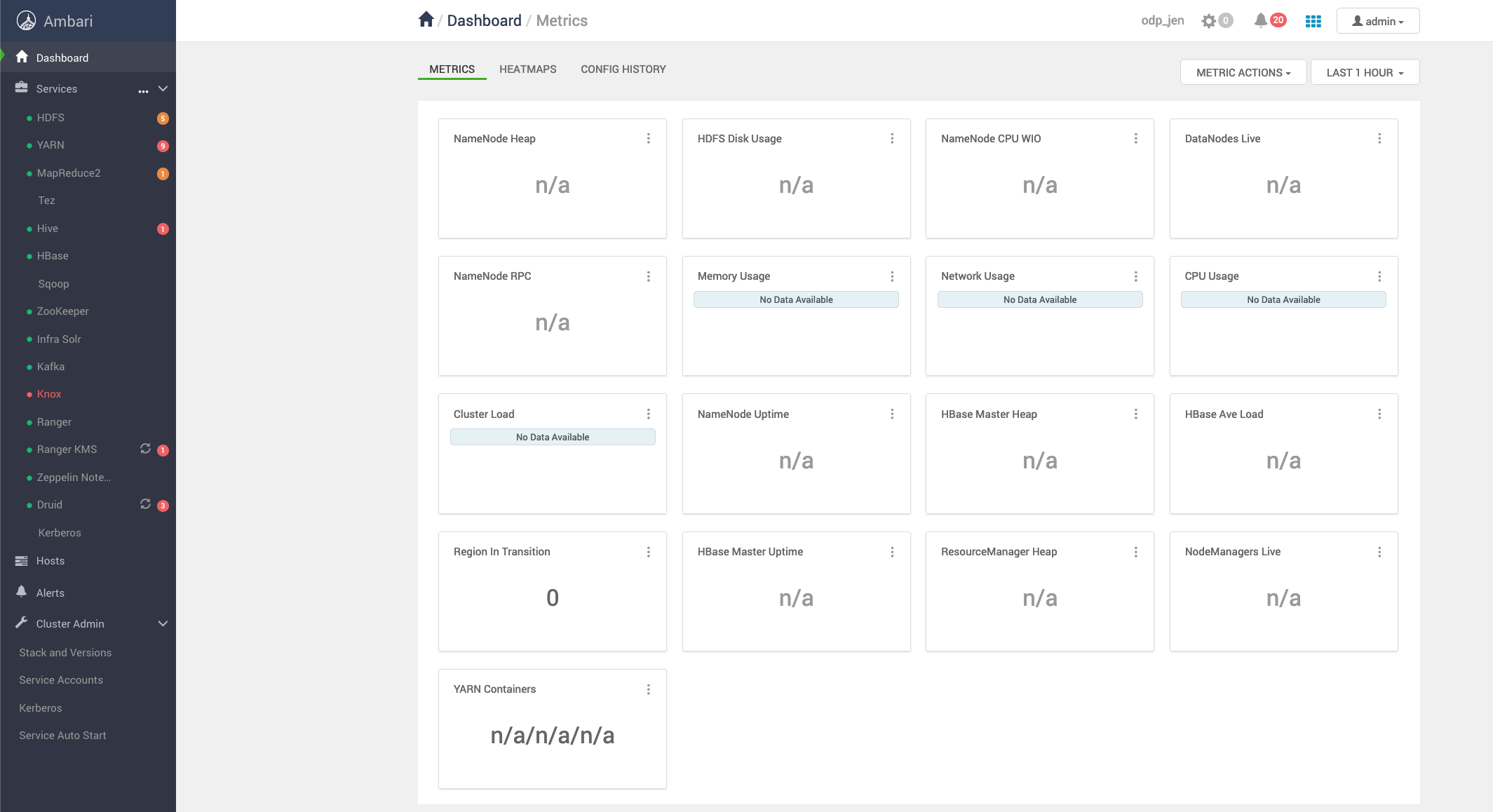
Once started, you are able to access the Ambari UI using the same url as it was earlier.
Use your browser to access the Ambari UI.
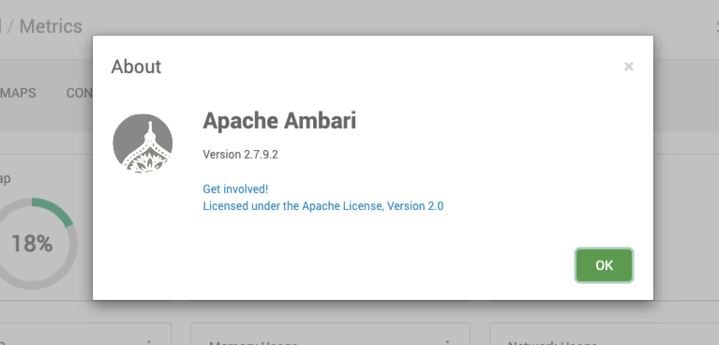
To verify the upgraded Ambari version, navigate to Admin → About in the top-right corner of the Ambari UI.
All the services also must be working normally without any downtime.
Follow the steps on the Guide for Management Packs page for installing mpacks and restoring configurations.
Error:
[root@ce19 ~]# ambari-server upgrade
Using python /usr/bin/python3
Upgrading ambari-server
Traceback (most recent call last):
File "/usr/sbin/ambari-server.py", line 28, in <module>
from ambari_commons.exceptions import FatalException, NonFatalException
File "/usr/lib/ambari-server/lib/ambari_commons/init.py", line 21, in <module>
from ambari_commons.os_check import OSCheck, OSConst
File "/usr/lib/ambari-server/lib/ambari_commons/os_check.py", line 25, in <module>
import distro
ModuleNotFoundError: No module named 'distro'
Workaround:
If still hitting the distro module not found error, follow the below steps:
Step 1:
Download the get-pip.py script:
curl https://bootstrap.pypa.io/get-pip.py -o get-pip.py
Install pip for Python 3.11:
/usr/bin/python3.11 get-pip.py
Step 2: Install the distro module using pip3.11
Once `pip` is installed for Python 3.11, you can now use it to install the missing `distro` module:
/usr/bin/python3.11 -m pip install distro
Step 3: Verify the installation.
After installing the distro module, verify that it’s correctly installed:
/usr/bin/python3.11 -c "import distro"
The ambari-server upgrade -v upgrade is successfully done.
Traceback (most recent call last):
File "/usr/lib/ambari-server/lib/ambari_simplejson/scanner.py", line 49, in _scan_once
nextchar = string[idx]
IndexError: string index out of range
During handling of the above exception, another exception occurred:
Traceback (most recent call last):
File "/usr/sbin/ambari-server.py", line 1083, in <module>
mainBody()
File "/usr/sbin/ambari-server.py", line 1053, in mainBody
main(options, args, parser)
File "/usr/sbin/ambari-server.py", line 999, in main
action_obj.execute()
File "/usr/sbin/ambari-server.py", line 78, in execute
self.fn(*self.args, **self.kwargs)
File "/usr/lib/ambari-server/lib/ambari_server/serverUpgrade.py", line 262, in upgrade
retcode = run_schema_upgrade(args)
File "/usr/lib/ambari-server/lib/ambari_server/serverUpgrade.py", line 162, in run_schema_upgrade
upgrade_response = json.loads(stdout)
File "/usr/lib/ambari-server/lib/ambari_simplejson/init.py", line 538, in loads
return _default_decoder.decode(s)
File "/usr/lib/ambari-server/lib/ambari_simplejson/decoder.py", line 378, in decode
obj, end = self.raw_decode(s)
File "/usr/lib/ambari-server/lib/ambari_simplejson/decoder.py", line 408, in raw_decode
return self.scan_once(s, idx=_w(s, idx).end())
File "/usr/lib/ambari-server/lib/ambari_simplejson/scanner.py", line 93, in scan_once
return _scan_once(string, idx)
File "/usr/lib/ambari-server/lib/ambari_simplejson/scanner.py", line 51, in _scan_once
raise JSONDecodeError(errmsg, string, idx)
ambari_simplejson.errors.JSONDecodeError: Expecting value: line 1 column 1 (char 0)
Workaround: Uninstall all the ambari-mpacks.
ambari-server uninstall-mpack --mpack-name=<installed mpack>