
Before invoking the Pulse APIs, authenticate with the Pulse server to obtain the credentials required for subsequent API requests.
Pulse uses JWT-based authentication for GraphQL APIs. After successful authentication, the login API returns:
A JWT session cookie used for authentication.
A Base64-encoded role token required by GraphQL APIs.
You must include both values in every GraphQL request.
Before You Begin
Ensure that you have:
The URL of your Pulse deployment.
A valid Pulse user account.
The user's password encoded in Base64 format.
A tool such as
curlto invoke the APIs.
Authentication Workflow
Authenticate with the Pulse APIs by completing the following steps:
Authenticate with the
/loginAPI.Save the JWT session cookie.
Extract the Base64-encoded role token.
Include both credentials in every GraphQL request.
The following diagram illustrates the authentication flow.
Obtain a JWT Token
Run the following command to authenticate with the Pulse server.
Replace the following placeholders.
Placeholder | Description |
|---|---|
<pulse_url> | URL of the Pulse deployment. |
<username> | Pulse user name or email address. |
<base64_encoded_password> | Base64-encoded password. |
Extract the Role Token
The login response contains the Base64-encoded role value required by GraphQL APIs.
Extract the role value using the following command.
If jq is installed, you can also use:
Login Response
A successful login returns:
A JWT session cookie stored in
cookies.txt.A Base64-encoded role value in the response body.
Copy the value of the JWT token and note down the role.
Example:
Every GraphQL request requires both of the following:
The JWT session cookie returned by the login API.
The
roleHTTP header containing the Base64-encoded role value.
If the role header is omitted, the GraphQL request fails with an HTTP 500 error.
JWT Token Validity
The JWT session is valid for approximately 15 minutes.
After the session expires, authenticate again to obtain a new JWT session cookie and role token.
Use the JWT Credentials
After authentication, include both the JWT session cookie and the role header in every GraphQL request.
Example:
The authentication credentials are reused by all GraphQL APIs documented in this guide.
Set Up the Cookie Modifier Plugin
To use the GraphQL interface, configure your browser with the JWT token.
Install a cookie modifier plugin (for example, EditThisCookie for Chrome or Cookie Manager+ for Firefox).
Add the following cookies:
jwt: Paste the JWT token obtained from the login response.Any additional cookies required for your Pulse setup.
Access the GraphQL Playground
The GraphQL Playground allows you to browse the available GraphQL schema and execute queries interactively.
Authenticate with the Pulse Login API.
Configure your browser to send the JWT session cookie.
Open:
If authentication succeeds, the GraphQL Playground opens.
You can:
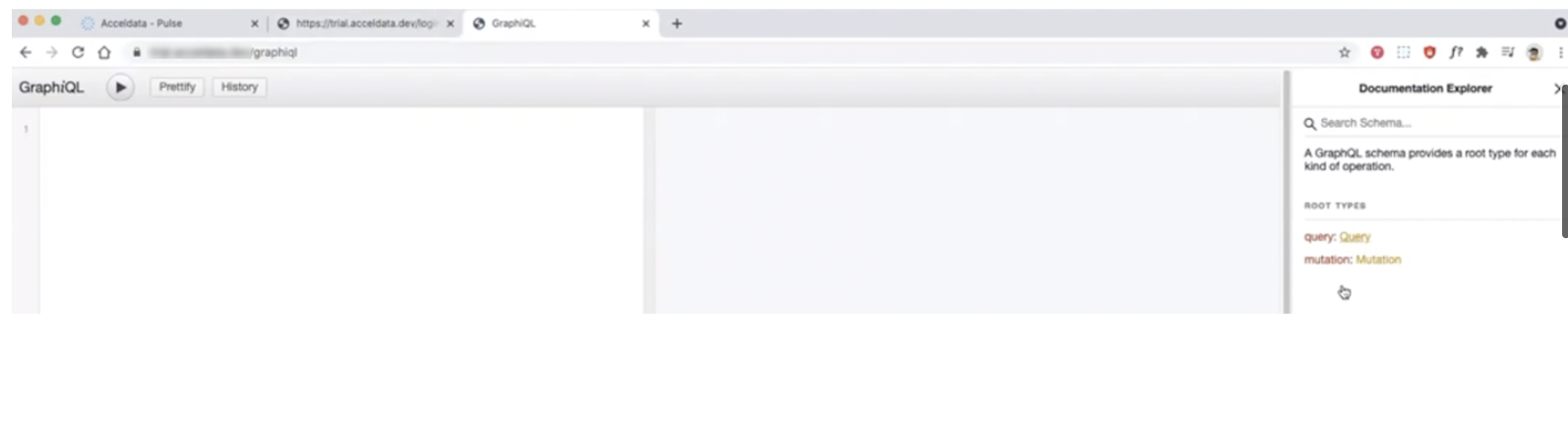
Browse the schema using the Documentation Explorer.
Search for available queries and mutations.
Execute GraphQL queries interactively.
Browser extensions such as EditThisCookie, Cookie Manager+, or ModHeader can be used to configure the required authentication cookies or headers.
Verify Access
If authentication is successful, you can interact with the Pulse APIs using GraphQL queries.
Keep your JWT token secure and avoid sharing it.
Tokens expire periodically; refresh them as required.
You can also use browser-based tools such as ModHeader or JWT Inspector to inject the token as a request header.
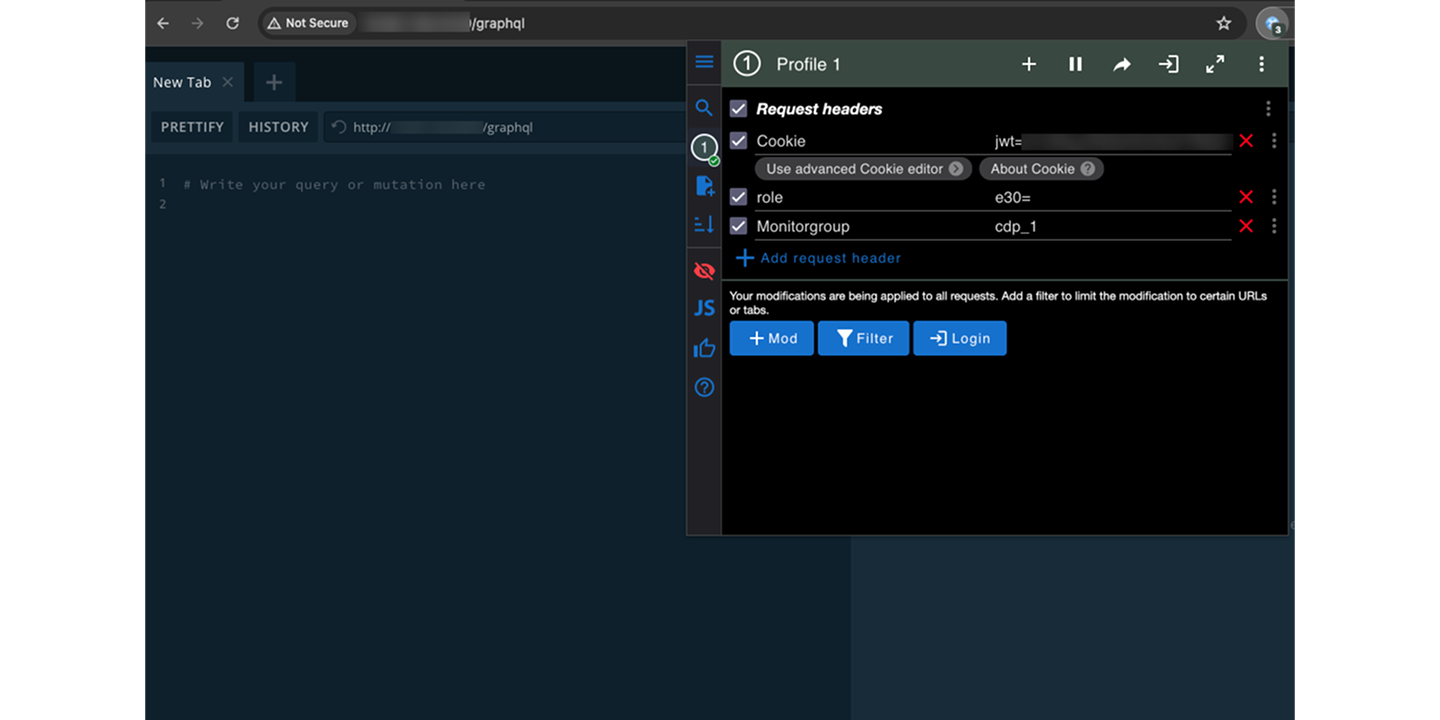
After adding or refreshing the JWT header, reload the page. The Documentation Explorer panel will appear.
Troubleshooting
Issue | Resolution |
|---|---|
Authentication fails | Verify the Pulse URL, user name, and Base64-encoded password. |
JWT expired | Authenticate again to obtain a new JWT session cookie. |
HTTP 500 when invoking GraphQL | Ensure that both the JWT cookie and the |
GraphQL Playground does not load | Verify that the browser is sending the JWT session cookie. |