
Use this page when deploying Pulse across multiple nodes to support larger environments, improve workload distribution, or provide high availability for data services.
Before you begin, install Pulse on the primary node. For instructions, see Install Pulse on Single Node (Docker/Podman-Based).
After the primary node installation is complete, use this page to install and configure Pulse on secondary nodes.
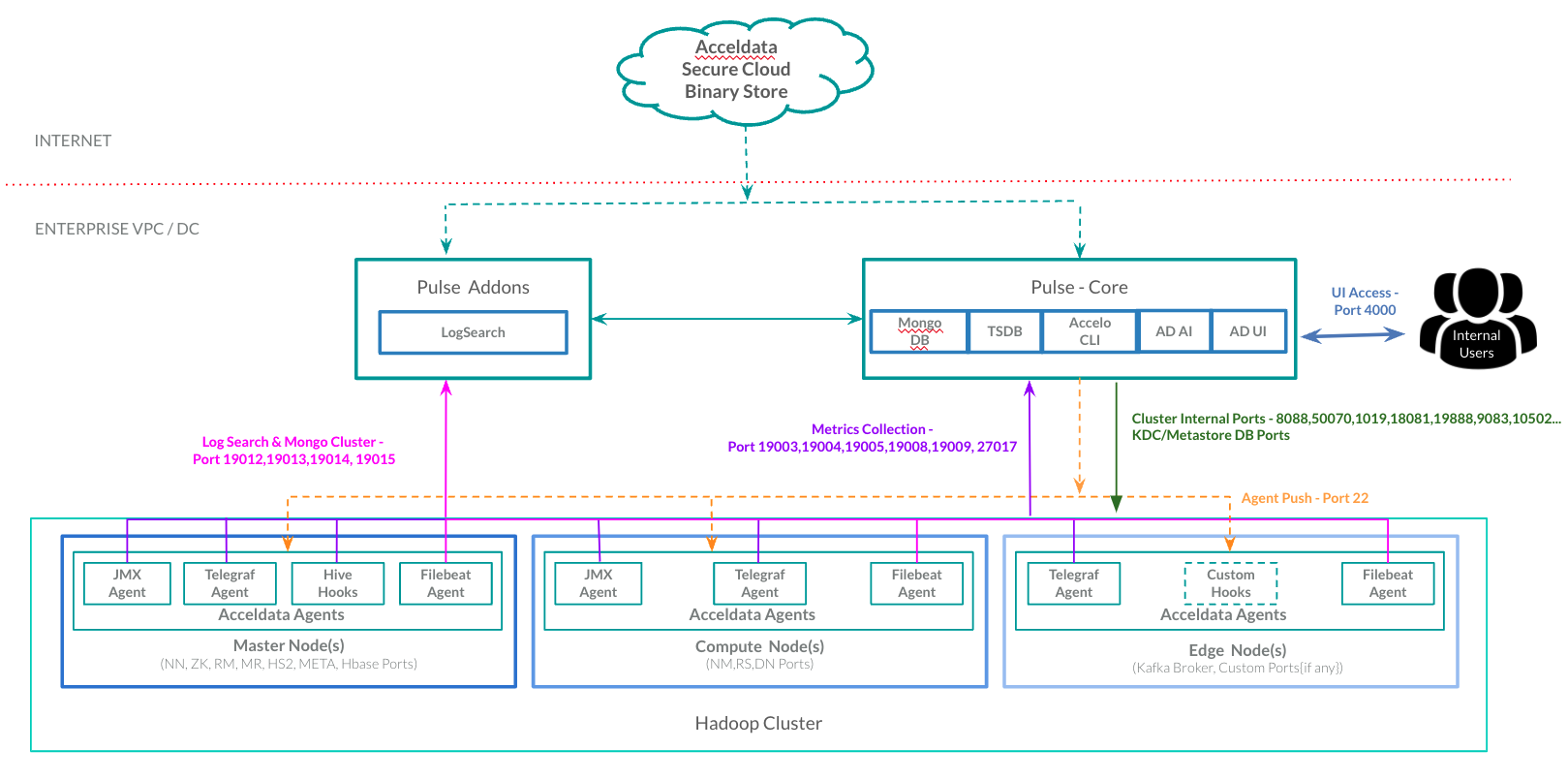
Pulse can scale horizontally as the number of monitored clusters and nodes increases. In multi-node deployments, the selected Pulse services can run on dedicated hosts to distribute resource consumption and improve overall performance.
In addition, MongoDB (
ad-db) and Elasticsearch (ad-elastic) can be deployed in clustered configurations to provide data replication and high availability.
When enabling Pulse UI High Availability (HA), the Pulse UI service must run on a secondary node.
Follow the steps on this page (Installing Pulse on Multiple Nodes) to configure the secondary node before enabling HA.
These steps are required for any node hosting additional Pulse services as part of a multi-node deployment.
Then, follow the steps in Enable High Availability for the Pulse UI (New UI) Service to enable Pulse UI HA.
When to Use This Procedure
Follow this procedure when:
Installing Pulse on more than one node (multiple nodes).
Deploying standalone Pulse services on dedicated hosts.
Configuring a highly available Pulse environment.
Components That Can Run in Standalone Mode
The following Pulse components can be deployed on separate nodes:
ad-dbad-tsdbad-logsearchad-fs-elasticad-pulse-ui(formerlyad-graphql)ad-ldap
Before You Begin
Complete the Pulse installation on the primary node before installing components on secondary nodes.
For details, see Install Pulse on Single Node (Docker/Podman-Based).
Configure Secondary Nodes
Perform the following steps on each node where standalone Pulse components will be installed.
Generate an Encrypted MongoDB URI.
Generate an encrypted string for the MongoDB connection URI.
When prompted, provide the MongoDB URI in the following format:
Copy the encrypted output returned by the command.
Configure Environment Variables
Add the following environment variables to /etc/profile.d/ad.sh.
Replace <encrypted_mongo_uri> with the encrypted value generated in the previous step.
Load the Environment Variables
Apply the configuration changes.
Next Steps
Install and configure the required standalone Pulse components on the node.
Repeat this procedure for each additional node participating in the Pulse deployment.