
The HDFS File Explorer enables you view the metadata of the files and folders in HDFS. By default, the HDFS displays the Home directory or the /user/username directory as saved on your cluster. You can see a list view of your files and folders.
Only directory paths containing files are listed in FS Explorer.
The HDFS File Explorer supports real-time synchronization, enabling administrators to monitor newly created and updated HDFS files without waiting for the daily FsImage processing cycle. For more information, see below.
You can view the following parameters of any file or folder:
Parameter | Description |
|---|---|
Name | The name of the folder. |
Permission | The set of access rights given to a file or directory owner, or members of a user group. |
Size | Displays the actual size of the file or directory. |
Replicated Size | Displays the total storage space consumed by a file, including all of its replicas across the cluster. |
Total Files | The total number of files in the directory. |
Small Files | The number of files smaller than the HDFS block size of 64MB. Note By default, the small file value is set to 1 MB. However, you can configure the HDFS small file threshold value, see Configure HDFS Small File Threshold. |
of Blocks | The total number of HDFS blocks into which a file is divided. |
User | The name of the user who can access the file or directory. |
Group | The name of the group to which the user belongs. |
Last Modified | The date and time at which the directory or file was last modified. |
Last Accessed | The date and time at which the directory or file was last accessed. For details about enabling the last time accessed information for directory or files. see Enable Last Accessed Updates. |
File Replication | The number of copies of a file stored across the cluster. |
Filters
The following table provides the description of the filters that you can apply for the files and folders in HDFS.
When you apply a filter, the total size of the directory gets updated automatically.
The HDFS File Explorer page works seamlessly with FSImage containing records up to 1.2 billion. The load time increases based on the number of filters selected.
Filter | Description |
|---|---|
Show Trash Only | Click the checkbox to view only the files and folders you have deleted. |
Show Files Only | Click the checkbox to view only the files and folders. |
File Size | Select the checkbox to view files in the specified size range. You can filter files by the following sizes. <1kb, 1-10kb, 10-128kb, 128kb-1Mb, 1-10 Mb, 10-128 Mb, 128 Mb-1Gb, 1-10Gb ,> 10Gb. To filter by specific file size, perform the following:
|
File Type | Displays the files based on the selected type: Avro, CSV, JSON, Text, or Parquet. |
File Temp | The file storage type that can be either of the following: Cold: Files that are no longer being used. Warm: Files accessed less frequently in the last one month. Hot: Files that are frequently in use or accessed more frequently. Click the checkbox to filter the type of file storage you want to view |
File Replication | Displays the file folders based on the selected file replication value for non-standard replication, that is, greater or less than 3. |
Last Modified | Displays the files that were last modified in the following timeframe: 1 Year+, 6 Months to 1 year, 30 days to 6 Months, 7 to 30 days, last 7 days. |
Last Accessed | Displays the files that were last accessed in the following timeframe: 1 Year+, 6 Months to 1 year, 30 days to 6 Months, 7 to 30 days, last 7 days. |
Users | Displays a list of users who have access to a file or directory. You can search for a user by typing the user name in the Search User text box. |
Features
Click the icon to hide the filter panel and click the icon to display the filter panel.
You can also check and access the path of the file or folder in the top left corner of the table. For more information, refer to the following illustration:
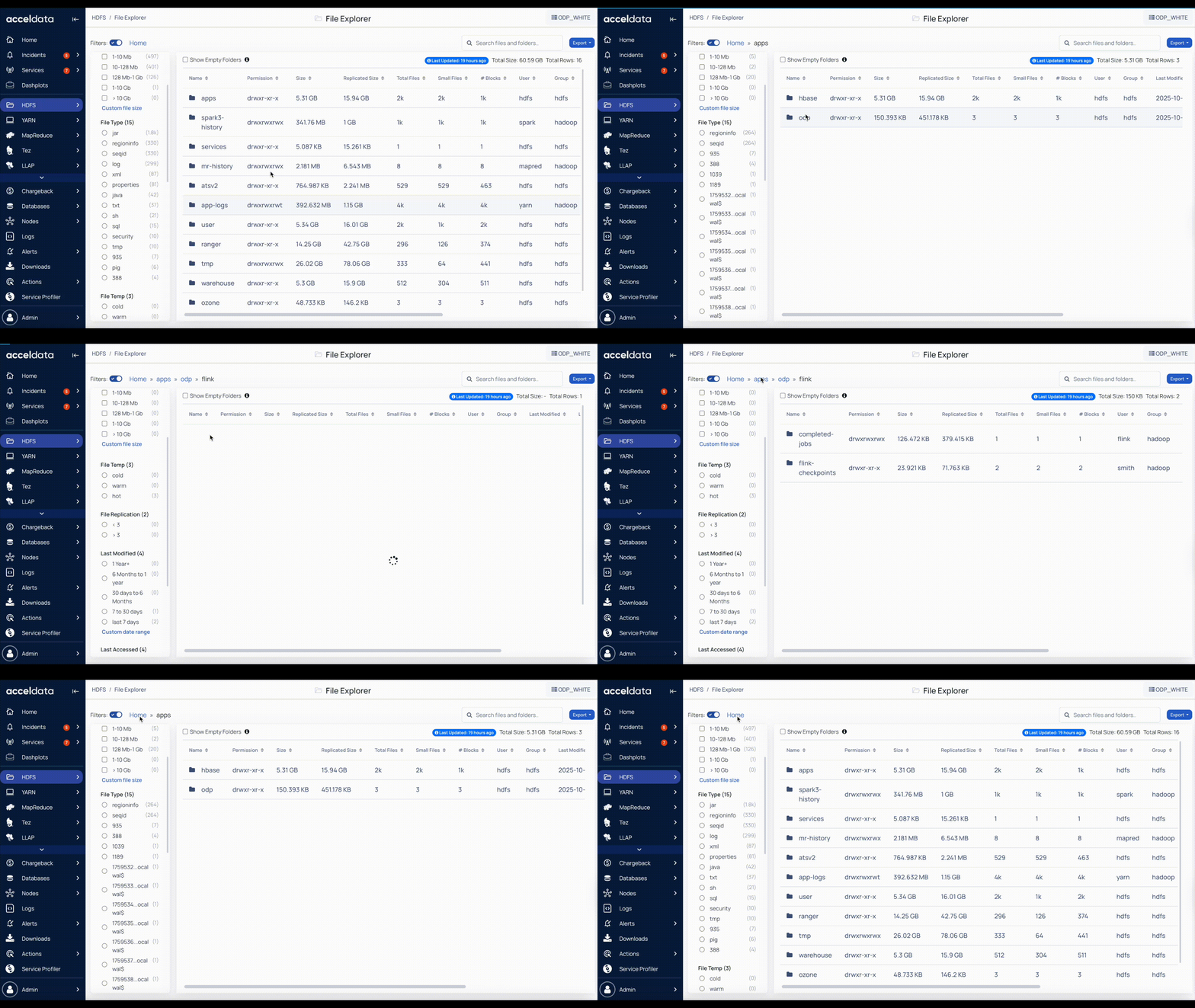
To export the data, perform the following:
Click the Export button on the top right corner of the table.
Select the data you want to export.
Click the type of export:
Click Export as CSV to export in .csv format.
Click Export as XLS to export in .xls format.
Click Export as TSV to export in .tsv format.
You can search and filter the files and folders for quick access.
The Last Updated option shows the most recent timestamp when HDFS File Explorer data was synced from Hadoop to the Pulse UI.
Refresh Rate Limitation
To ensure stable system performance, the Refresh option cannot be triggered repeatedly within a short period.
After initiating a refresh, you must wait before attempting another refresh. The default wait time is 10 seconds.
If a refresh is attempted before the wait time has elapsed, the system will prompt the user to try again after some time.