
The Queries page in Pulse provides an overview of all executed ClickHouse queries, displaying their status, performance metrics, resource usage, etc.
This capability enables you to:
Track query activity across users and nodes.
Identify failed or long-running queries for further analysis.
Monitor resource-intensive queries that may impact system performance.
Drill down into specific queries by clicking a Query ID to open the Query Details view for deeper insight.
Steps
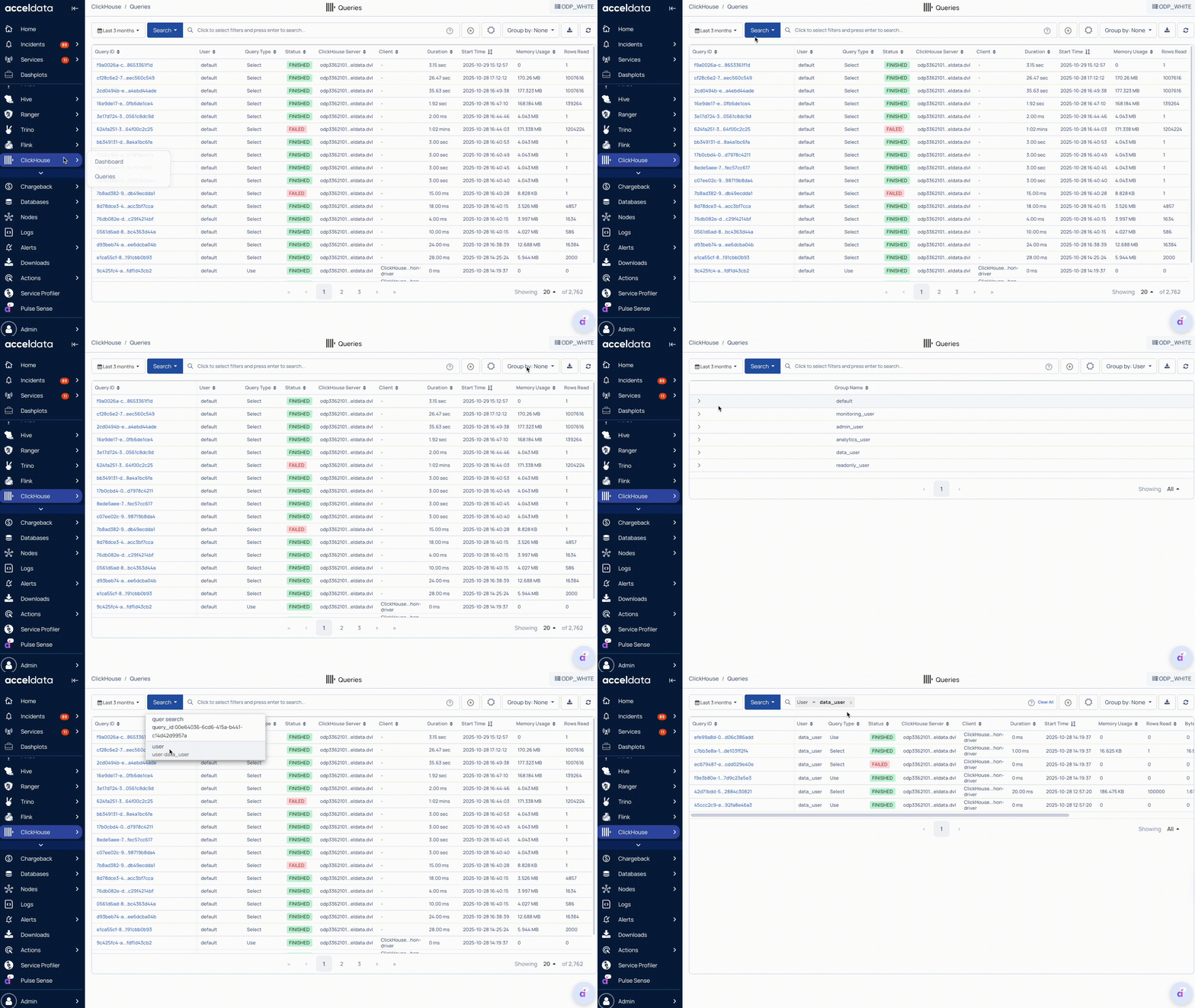
In the Pulse UI, go to ClickHouse > Queries.
On the Queries page, a list of executed ClickHouse queries appears.
Set a time range and data refresh interval (for example, 10 s, 20 m, 2 h, 4 d, or 1 w) to view up-to-date query data.
Pulse displays all executed queries with their summarized metrics.
Query-Level Summary
Query Identification
Query ID: Unique identifier for each executed query, used for tracing and debugging.
User: The ClickHouse user account that executed the query.
Query Type: Specifies the query type, such as SELECT, INSERT, ALTER, or DROP.
ClickHouse Server: Identifies the ClickHouse node or host where the query was processed.
Client: Displays the client or application that initiated the query.
Query Execution Details
Status: Displays the current query state — for example, RUNNING, FINISHED, or FAILED.
Duration (ms): The total time taken to complete the query, measured in milliseconds.
Start Time: The timestamp indicating when the query execution began.
Resource Utilization
Memory Usage: The total memory consumed during query execution. High values may indicate heavy workloads.
Rows Read: The number of rows scanned from tables to process the query.
Bytes Read: The total amount of data read from storage or memory.
Result Rows: The number of rows returned by the query.
Result Bytes: The total size of the query’s output data.
Error Handling
Exception Code: Displays an error or exception code if the query fails, helping identify and troubleshoot issues.
Key Features
Search: Filter and search queries by user, type, status, etc.
Save Search: Click + to save a query filter and reuse it later. Access saved searches using the Search button.
Group By: Group queries by User Type, User Status, User, Client, or Host for targeted analysis.
Download: Click Download to export the list of queries for reporting or review.
Query Details
For deeper analysis of a query, click its Query ID to open the Query Details view. For details, see Analyze ClickHouse Query Details.