
SQL Editor
Overview
The SQL Editor is a web-based interface for running SQL queries against your data sources using the Trino query engine. Use it for ad-hoc data exploration, federated queries across multiple data stores, and quick data validation — without moving data or building pipelines.
How to Open the SQL Editor
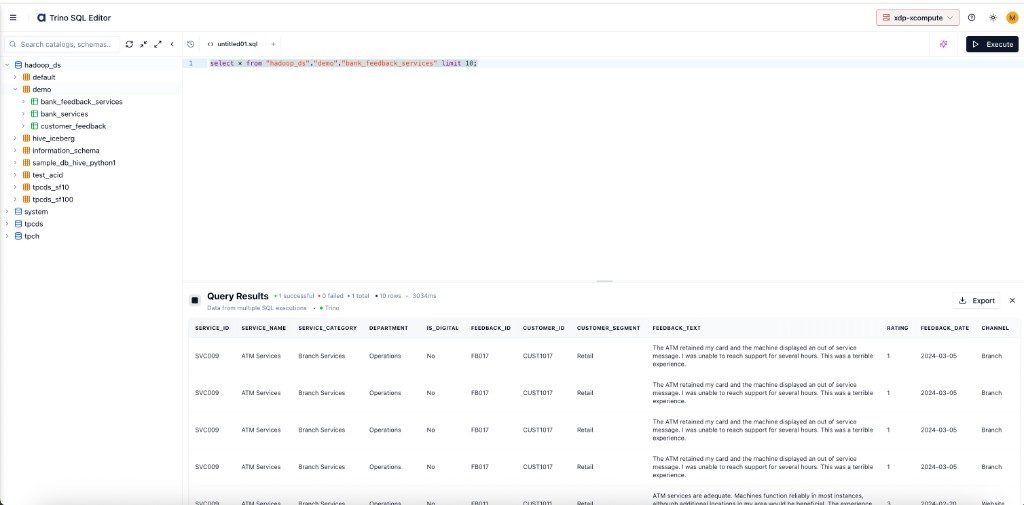
From the left navigation menu, under the Development section, click SQL Editor. The editor loads, displaying the available data catalogs in the explorer pane on the left.
Running a Query
Confirm the correct Compute Cluster is selected in the top-right header.
In the explorer pane on the left, expand a catalog (e.g.
hadoop_ds) and schema (e.g.demo) to browse available tables.Write a SQL statement in the editor pane. For example:
Click Execute. Results appear in the Query Results panel at the bottom.
Key Features
Feature | Description |
|---|---|
Catalog Explorer | Browse and search all Trino catalogs, schemas, and tables. Click the copy icon on any item to paste its fully qualified name into your query. |
Multi-tab Editing | Open multiple query tabs using the + button. Highlight a single statement and click the execute-selection icon to run only that part. |
Query History | Click the clock icon to view previously executed queries. Click any entry to reload it into the editor. |
Export | Download results as CSV, JSON, or Excel from the results panel. |
Best Practices
Always use LIMIT when exploring. Prevents accidental full-table scans on large datasets.
Use fully qualified names. Write
catalog.schema.tableto avoid ambiguity, especially when saving queries or building pipelines.Refresh metadata when needed. The explorer caches catalog metadata. Click Refresh Catalogs if newly created tables don't appear.