
Migrate the LDAP bind/manager password from plain text / file-based storage to the Ambari Credential Store (JCEKS) to ensure secure password handling.
Scope
Ambari with LDAP authentication enabled
Applies to Ambari 3.x
Backend DB: MySQL (applies similarly to other supported DBs)
Covers JDK 8 and JDK 11
Background
Ambari stores LDAP configuration in the backend DB (
ambari_configurationtable).The LDAP bind password is stored in a plain-text file (e.g.
/etc/ambari-server/conf/ldap-password.dat) and referenced directly in DB.This file is readable in plain text, which is a security risk.
Ambari supports secure storage via Credential Store (JCEKS), which must be used instead.
Prerequisites
Ambari Server access (root)
Ambari Server stopped during security setup
LDAP connectivity verified
Master key decision made (persist or non-persist)
Step 1: LDAP Setup (Reference)
Example LDAP setup command:
Step 2: Import LDAP SSL Certificate (If Using LDAPS)
2.1 Extract certificate
Copy the last certificate and save it as:
2.2 Import into Java truststore
Java 8
Java 11
Cross-check the changes made: cat /etc/ambari-server/conf/ldap-password.dat
Step 3: Enable Ambari Credential Store
You might get options similar to the following snippet:
Choose option: [2] Encrypt passwords stored in ambari.properties file
You will then be prompted for aMaster key, it’s like setting up a password:
If you haven’t set a Master key, create one (and remember it! You will need it in the future, and also during the setup).
For the Persist Master Key, choose
y(yes) otherwise you have to provide this password every time you restart ambari-server. Else you can choose not to persist the same.
Result
Credential store created:
The passwords referenced in ambari.properties are obfuscated.
Step 4: Obfuscate LDAP Bind Password
You need to keep your Master key handy for this.
4.1 Import password into Credential Store
You are prompted to enter the Master key here.
Verify import:
Again, you need to give your storepass, i.e., Master key, when prompted
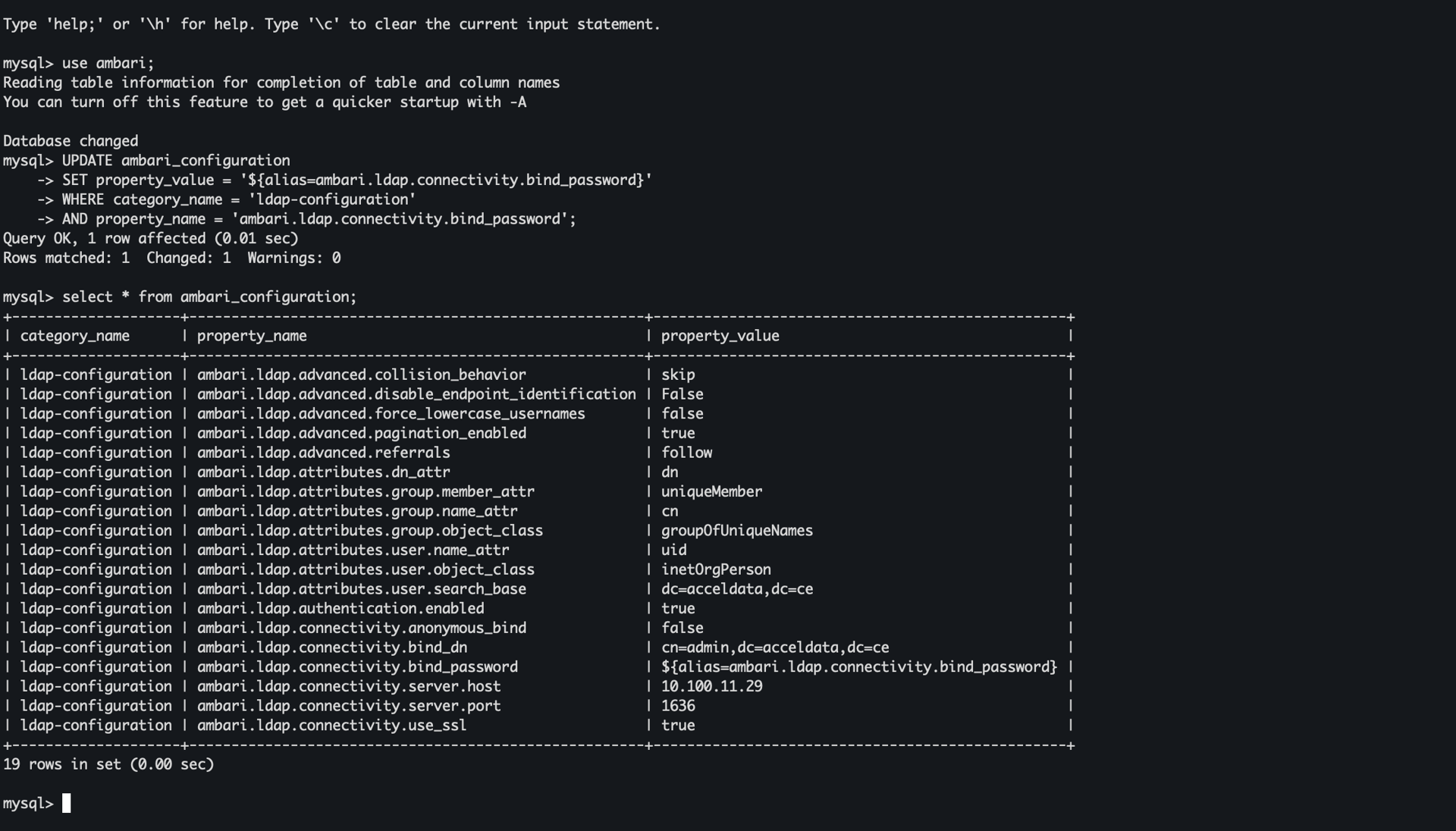
Step 5: Update Ambari DB Configuration
Log in to mysql shell on your node, and then run the following command:
Result:
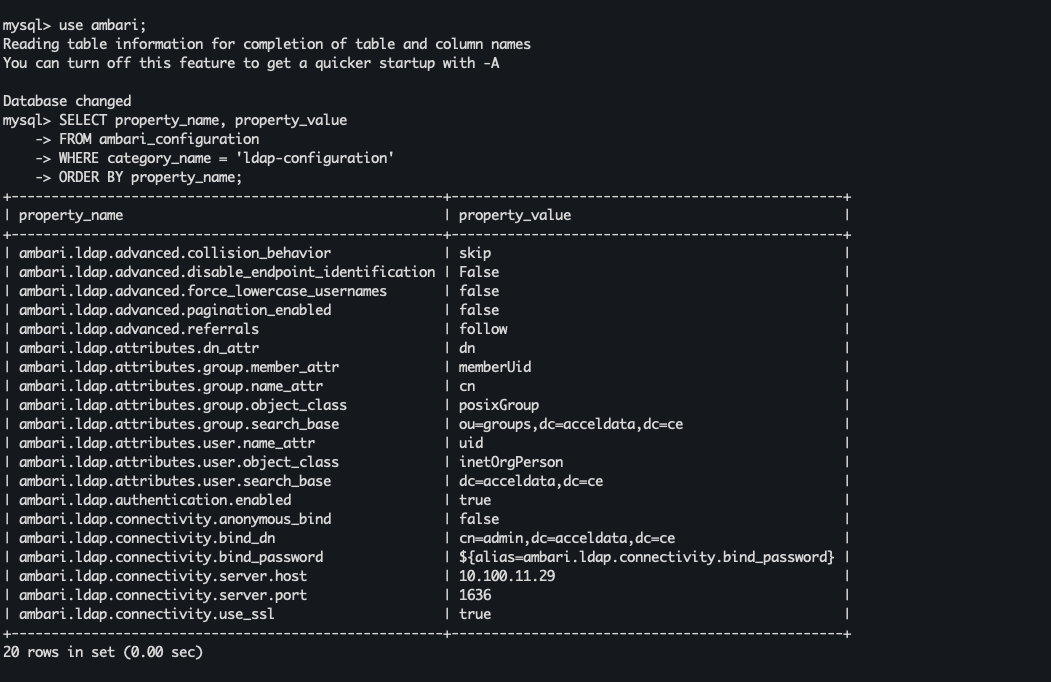
Plain-text password reference replaced with credential alias
You can see an updated alias in the bind password value. Here is a similar overview of what your table might look like:
OR as below (depends on your setup, TLDR: your bind address' property_value is changed to an alias that references it from credentials.jceks file)
Step 6: Cleanup & Restart
Remove the plain text file, and restart the server.
Step 7: Validation
For validation, log in to the Ambari UI, followed by running the command on your host node:
Verify:
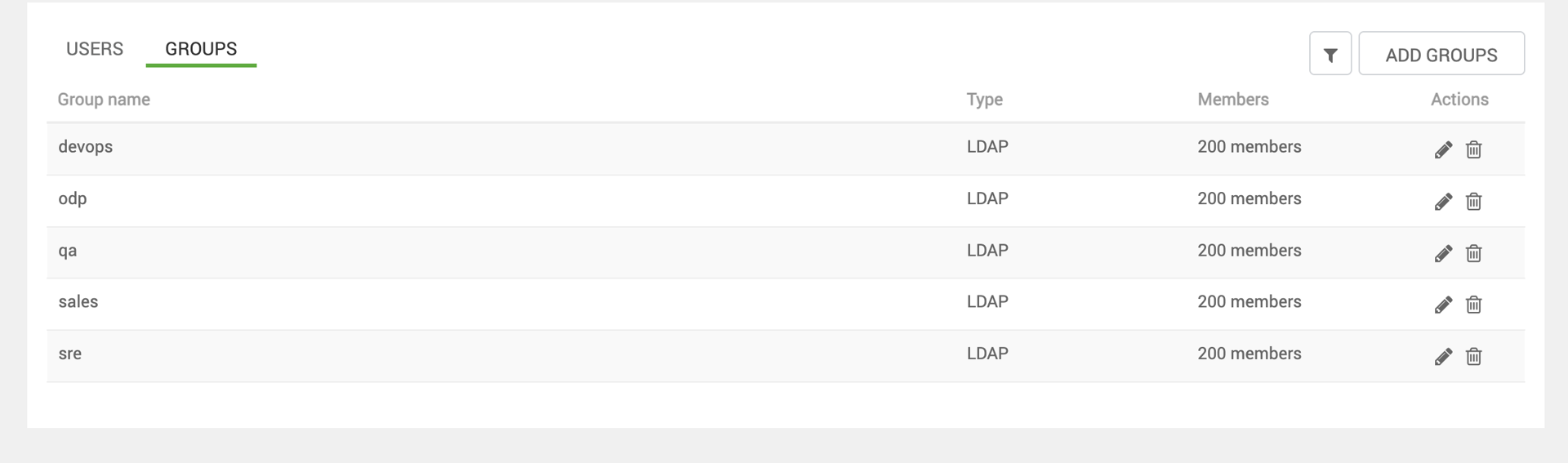
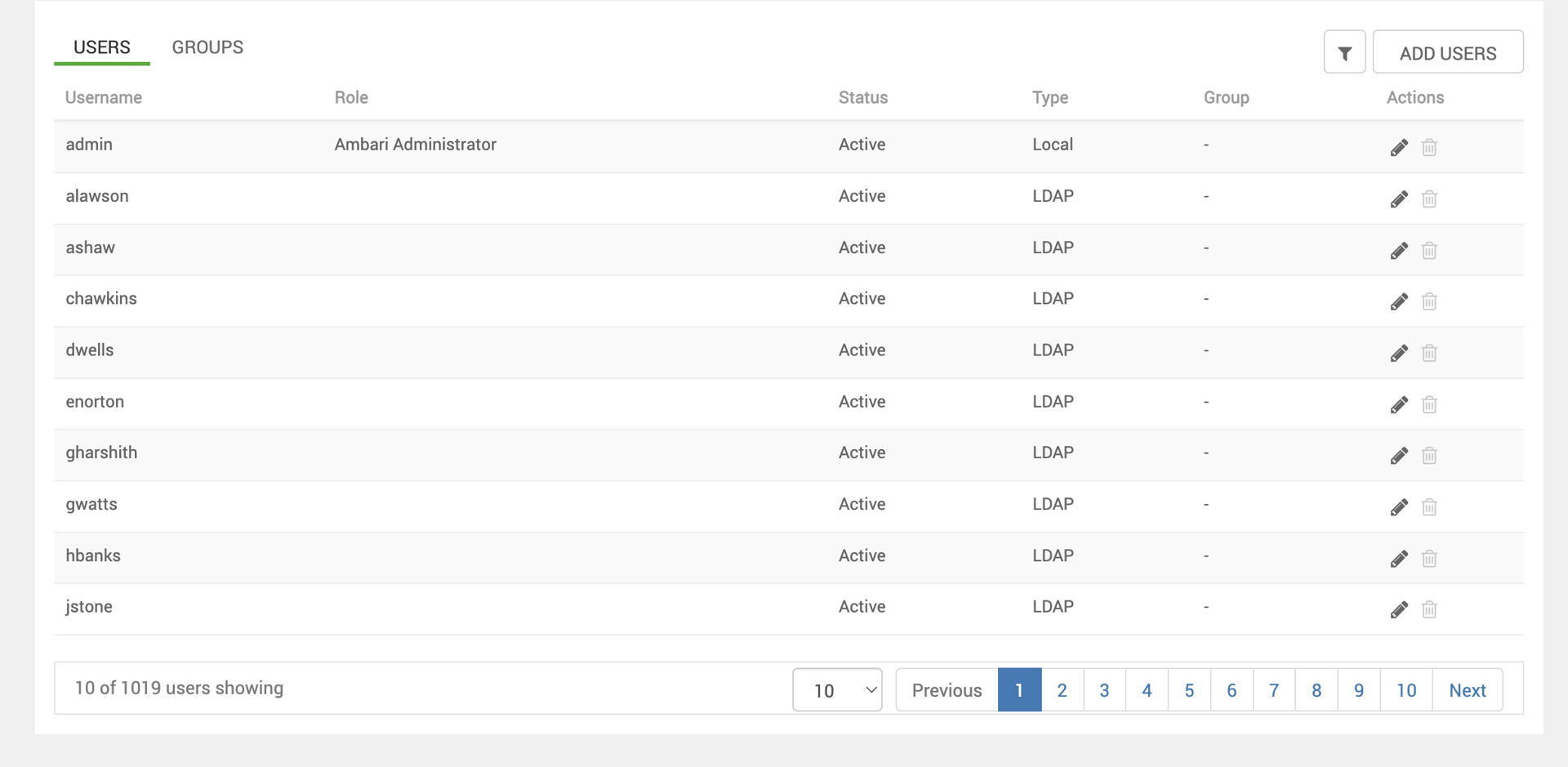
If you see no errors, and cross-check in
/var/log/ambari-server/ambari-server.logfor a successful sync. And check if your users/groups are syncedUsers and groups sync successfully in Ambari UI
Outcome
LDAP bind password no longer stored in plain text
Password securely managed via Ambari Credential Store (JCEKS)
Fully aligned with Ambari security best practices