Installation Guide
Pulse 4.1.x
Overview
Prerequisites
Installation
Advanced Installation
Pulse Administration
Upgrade
Advanced Feature Integrations
Developer Tools
Troubleshooting
Title
Message
Create new category
What is the title of your new category?
Edit page index title
What is the title of the page index?
Edit category
What is the new title of your category?
Edit link
What is the new title and URL of your link?
Access the Pulse Admin UI Console
Summarize Page
Copy Markdown
Open in ChatGPT
Open in Claude
Connect to Cursor
Connect to VS Code
After you complete the Pulse deployment, sign in to the Pulse Admin Console to configure monitored clusters.
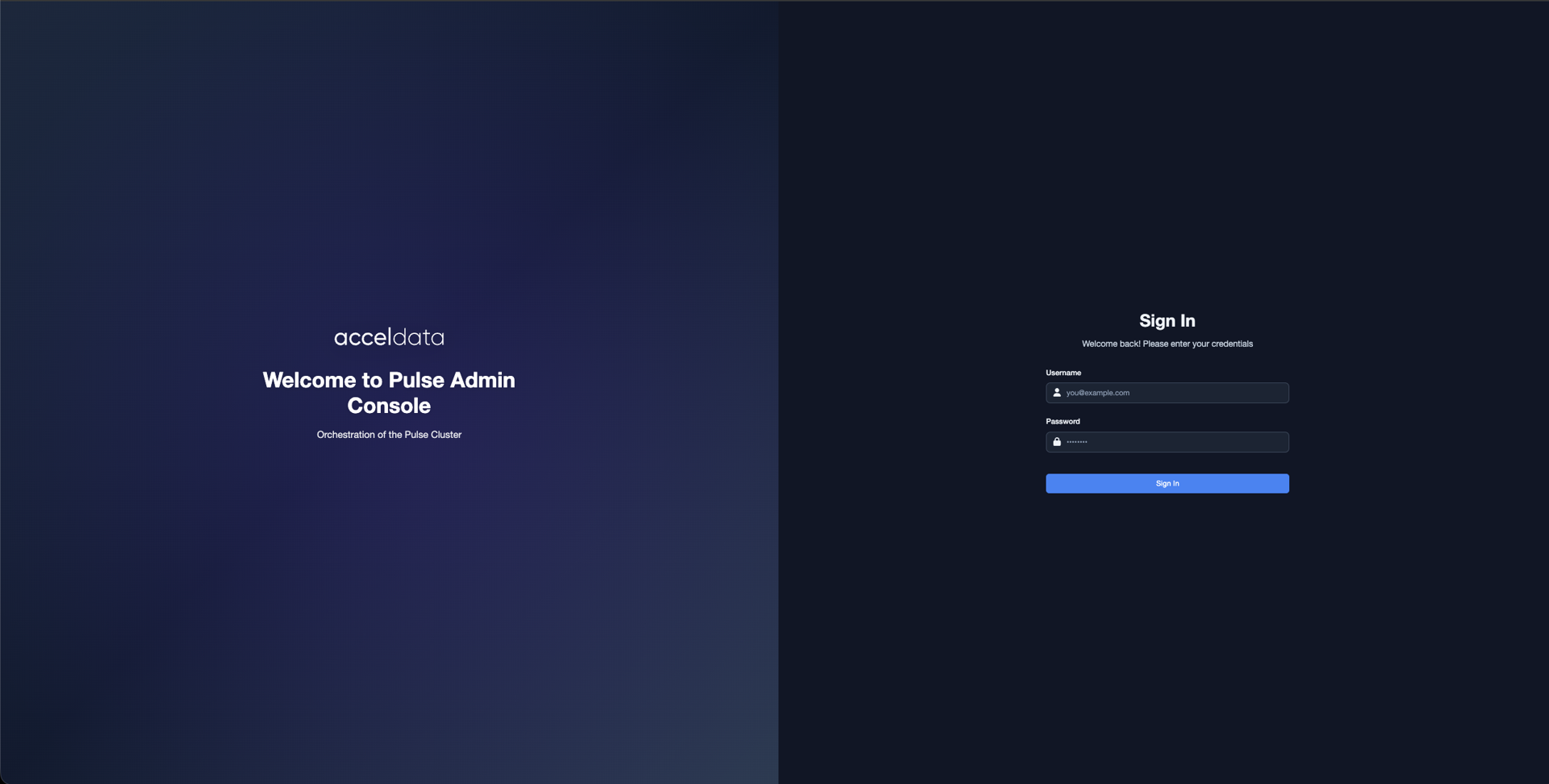
Sign in to the Admin UI Console
- Open the Pulse Admin Console by using the Accelo Manager route.
- Sign in with the default credentials:
- Username:
admin - Password:
admin_password
- Username:

- When prompted, change the default password.
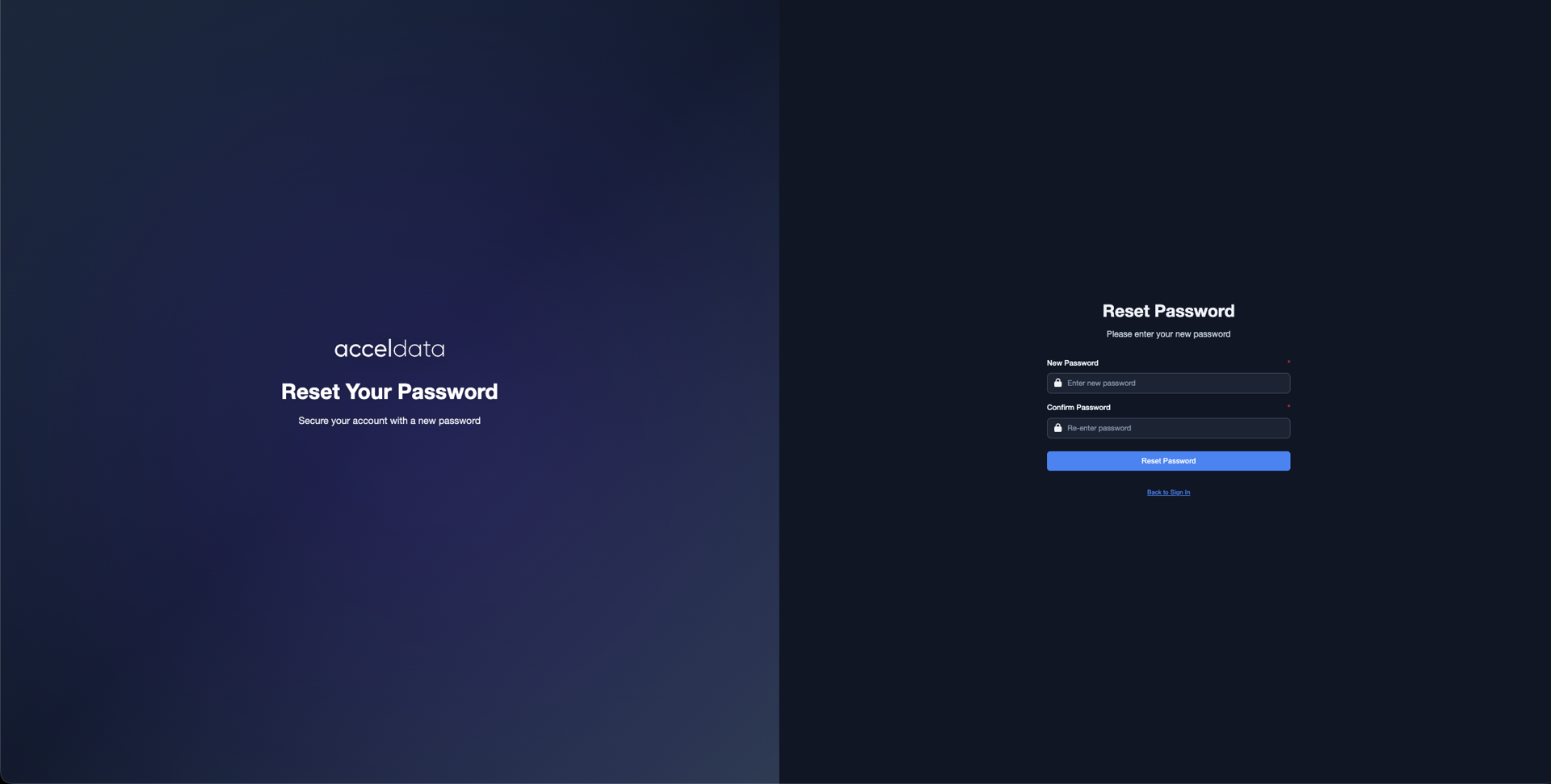
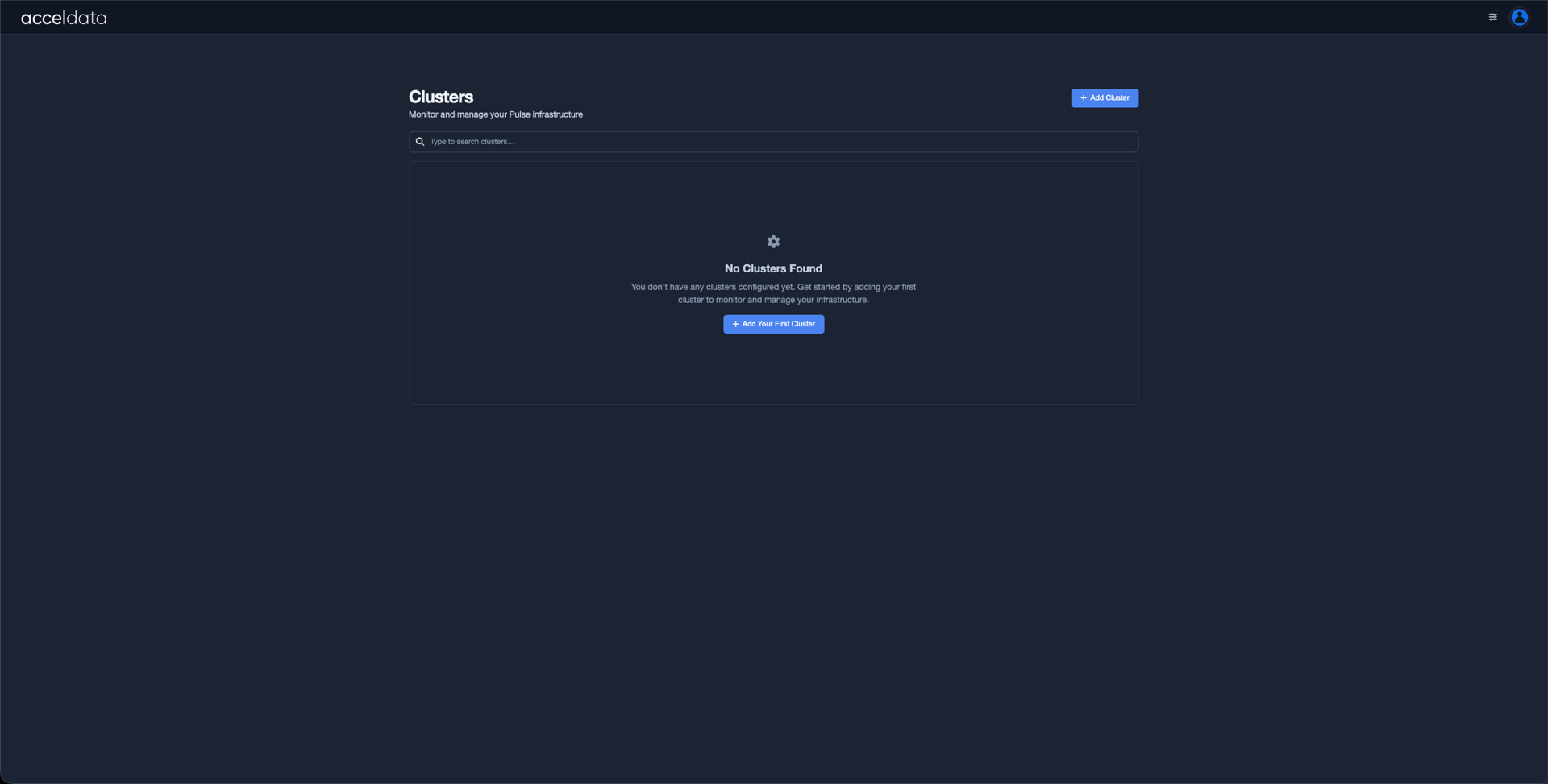
After you update the password, the Admin Console redirects you to the Cluster List page.
If no clusters have been configured, the list is empty. From this page, you can add and manage clusters monitored by Pulse.
- Before configuring a cluster, ensure that all required host entries have been added as extra hosts. For details, see Configure Extra Hosts.
VariableType to search · ESC to discard
GlossaryType to search · ESC to discard
InsertType to search · ESC to discard
No matches
Last updated on
Was this page helpful?
Next to read:
Configure Extra HostsFor additional help, contact www.acceldata.force.com OR call our service desk +1 844 9433282
Copyright © 2026
Discard Changes
Do you want to discard your current changes and overwrite with the template?
Archive Synced Block
Message
Create new Template
What is this template's title?
Delete Template
Message