
This page explains how to set up NiFi in Pulse by installing the Acceldata NAR, configuring the reporting task, verifying data collection, and completing cluster setup in Pulse.
The steps on this page apply to NiFi deployments on Ambari, Cloudera, Standalone, and other supported cluster types.
Configure NiFi Changes on NiFi Node and UI
Prerequisites
Obtain the ad-nifi-1.0.nar download link from the Acceldata team using the provided credentials.
Add NiFi NAR Files
On each NiFi node, copy the
ad-nifi-1.0.narfile.Place the file in the NiFi library classpath.
For example: /usr/odp/current/nifi/lib/
Verify the NiFi library location to confirm where the Acceldata NAR file must be placed.
Restart NiFi Services
Restart all NiFi services to load the NAR file.
Configure Acceldata Reporting Task
In the NiFi UI, navigate to Controller Settings > AccelDataReportingTask.
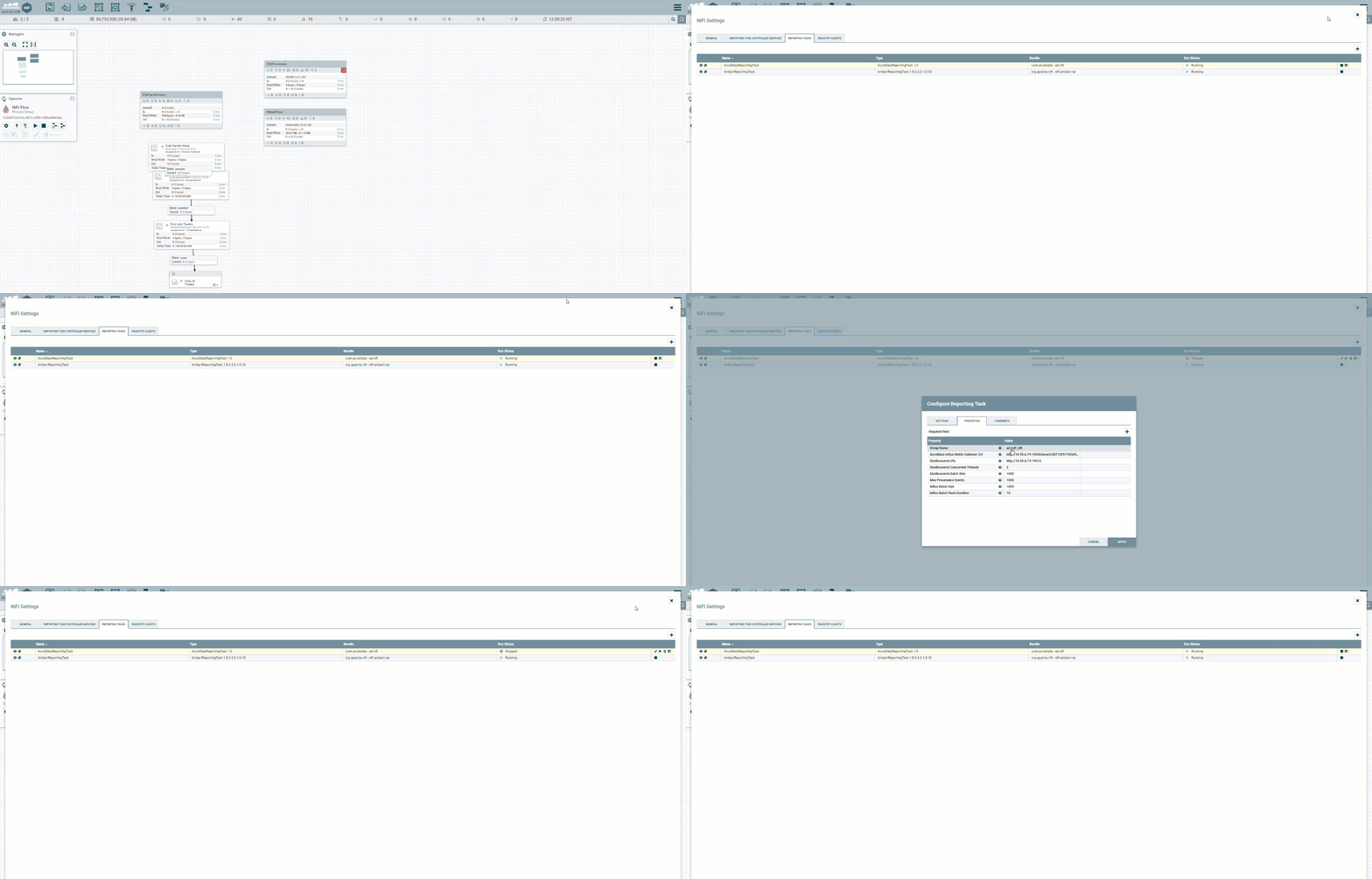
Set the property values as described below.
Field | Description |
|---|---|
Monitor Group Name | Enter the cluster name as defined during Pulse installation. |
Acceldata Influx Metric Collector URL | Add the VictoriaMetrics insert URL of the Acceldata NiFi Metric Collector. |
Elasticsearch Concurrent Threads | Enter the number of threads to push data to Elasticsearch. |
Elasticsearch Batch Size | Enter the Elasticsearch batch size per thread. |
Max Provenance Events | Enter the number of events that trigger data collection. |
Influx Batch Size | Enter the Influx batch size. |
Influx Batch Flush Duration | Enter the flush duration for Influx batches, in milliseconds. |
Verify Configuration
Check that VictoriaMetrics is updated with the prefix <groupname>.
Verify that Elasticsearch contains an index with the name <groupname>.
The prefix must correspond to the cluster name you added in Pulse, located under the Pulse node: $AcceloHome/work/<clustername>.
Configure NiFi in Pulse
Create a NiFi Hosts File
This step applies only to NiFi on Standalone Clusters. > > Manually creating the NiFi hosts file applies only to standalone clusters. On ODP/HDP (Ambari) and CDP/CDH (CM), Pulse fetches host details automatically.
On the Pulse Node, create a nifihosts file in the directory /data01/acceldata/.
In the nifihosts file, add one NiFi IP or host per line with port details.
For example:
Note If the port is not specified, Pulse uses the default port (for example, 9090 for alerts endpoints).
Enter the
/data01/acceldata/nifihostspath when asked during the Pulse configuration.
Configure Pulse Core Component
Run
accelo config clusterSelect the distribution and enter the NiFi details when asked during the configuration.