
The HBase Region Server provides you with a table describing the basic statistics of the existing Region Servers in a cluster.
The statistics displayed are from the last 24 hours by default. To view statistics from a custom date range, click the Timeframe icon in the top-right corner of the page and select the required time frame and timezone.
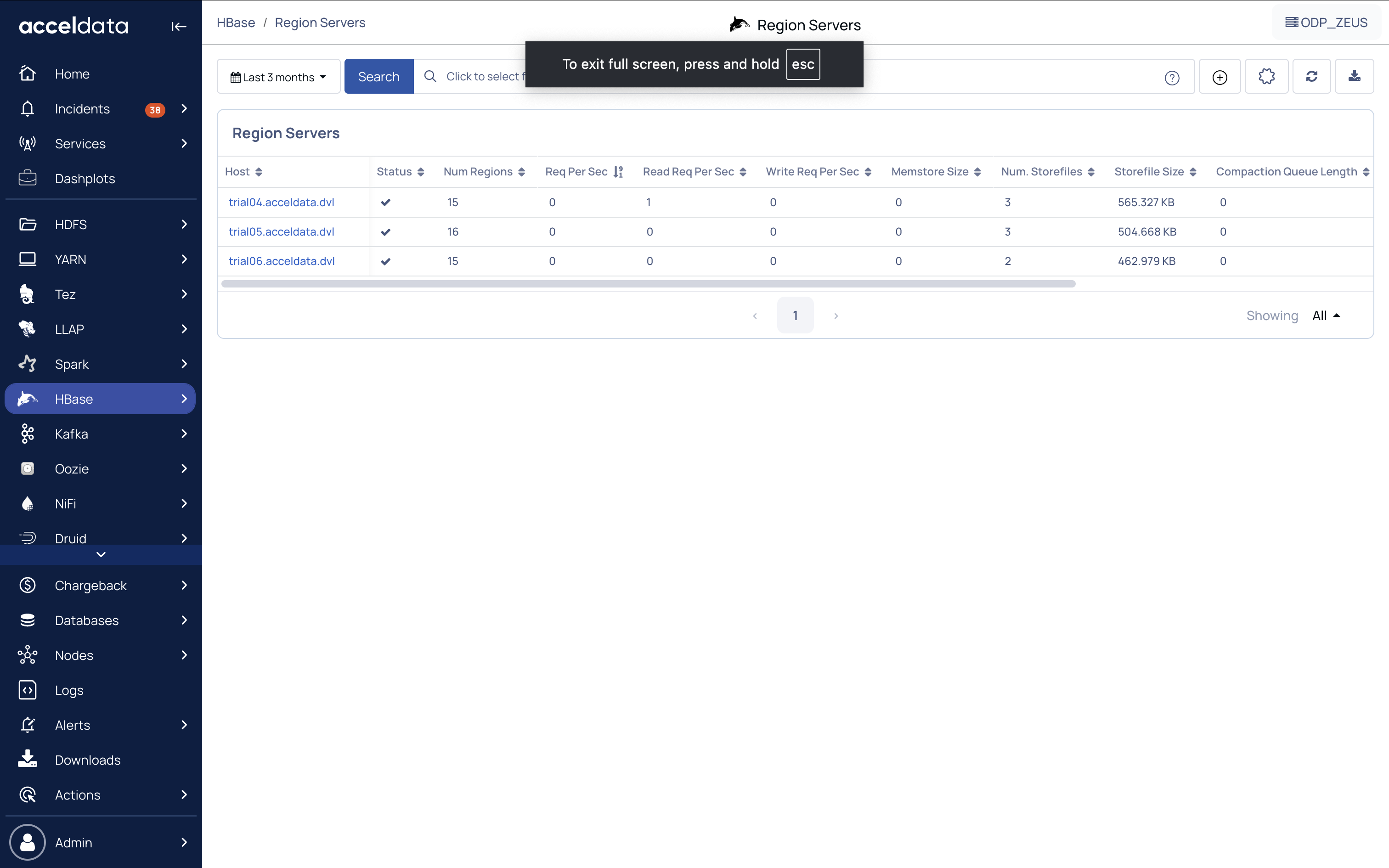
The following table describes the metrics of a region server in HBase:
Metrics | Description |
|---|---|
Status | A in the Status column indicates that the region server is up and running. |
Host | The name of the host region server. |
Num Regions | The number of regions in the region server. |
Req Per Sec | The number of requests sent to the region server every second. |
Read Req Per Sec | The number of read requests sent to the region server every second. |
Write Req Per Sec | The number of write requests sent to the region server every second. |
Memstore Size | The size of the memory store in the region server. |
Num. Store files | The number of store files in the region server. |
Store File Size | The size of store files in the regions server. |
Compaction Queue Length | The number of stores in the regions that have been targeted for compaction. |
Size of Log Queue | The capacity of the Log Queue in the region server |
Shipped Opps | The number of operations that were shipped. |
Num. Log Edits Read | The number of log edits that were read. |
Age of last shipped Opps | The elapsed time since the operation's most recent shipment. |
Click the host in the table to view more details of the HBase Region Server Details page.
Applying Filter
You can apply a filter to the name of the host. To apply the filter, perform the following:
Click Host, drop-down list is displayed with the list of hosts.
Select the host from the list. The details for the selected host are displayed.
(Optional) You can search for the name of the host using the search box in the drop-down list.
(Optional) Click Reset to clear the applied filter.
Search Option
Perform the following steps to search for a record in the search bar.
Select a search parameter. Pulse provides you multiple search parameters.
Select a suitable operator for your parameter.
Enter the search term and hit the enter key.
Important
For String Data type fields, you can use the =~ operator. This operator allows you to search strings by entering partial string. You can also use regular expressions to search a required value.