
Remove the plain-text LDAP bind password from common.runtime.properties and replace it with a secure lookup mechanism using the Hadoop Credential Provider (JCEKS) and environment variables.
Scope
Ambari-managed Druid
LDAP authentication enabled for Druid
Hadoop Credential Provider (JCEKS)
Applies to production and non-production clusters
Prerequisites
Root Access: Required to create keystores and manage file permissions
Ambari Admin Access: Required to update Druid configurations
Service Status: Ambari and Druid services must be running
Hadoop CLI: Available on the node used to create credentials
Step 1: Create the Secure Keystore (JCEKS)
Store the LDAP bind password securely in an encrypted keystore.
1.1 Create the keystore directory (if missing)
1.2 Create credential alias
Alias Name:
druid.ldap.bind.passwordProvider Path:
jceks://file/etc/security/credential/druid.jceks
1.3 Verify credential creation
Expected output (example):
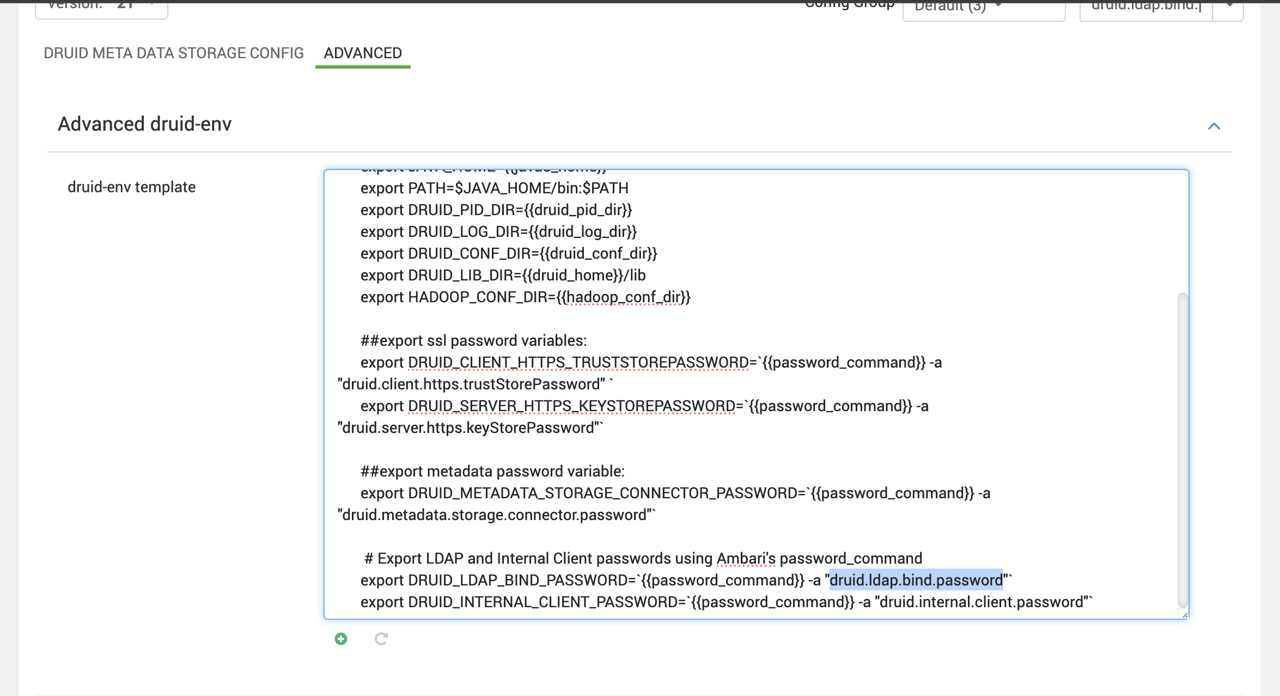
Step 2: Configure Ambari druid-env (Critical)
This step ensures Druid can securely retrieve the password at startup and expose it as an environment variable.
Log in to Ambari UI
Navigate to Druid → Configs → Advanced → Advanced druid-env
Scroll to the druid-env template
Add the following line at the end:
Save the configuration
Here is a screenshot for your reference:
Step 3: Update Druid Runtime Properties
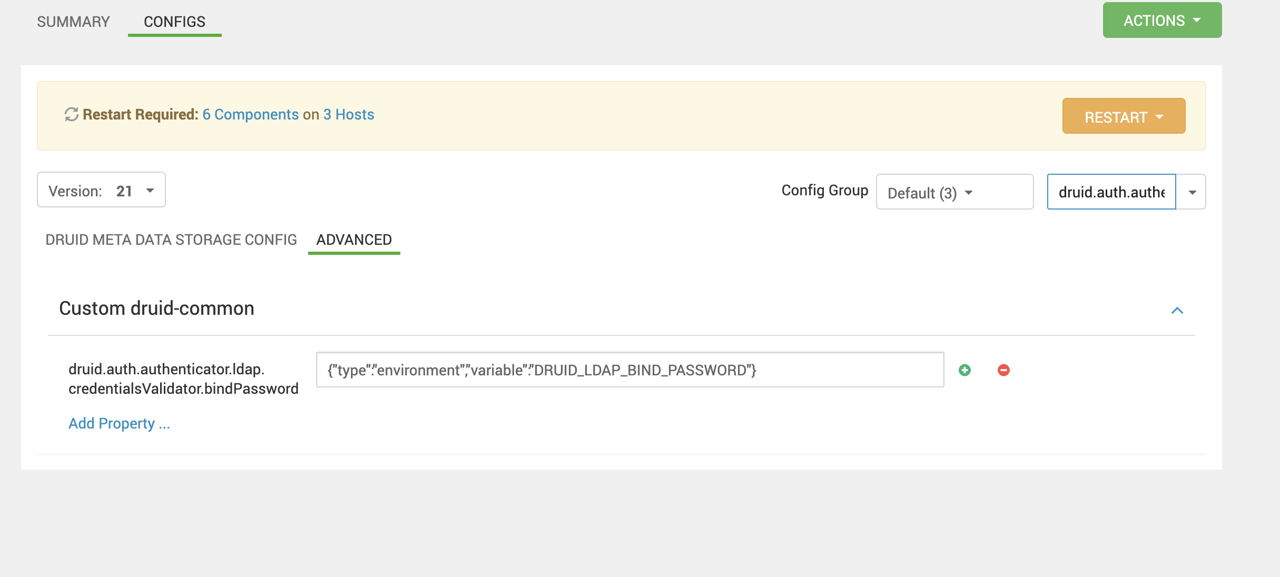
Configure Druid to use the environment variable instead of a plain-text password.
Navigate to Druid → Configs → Advanced → Advanced druid-common-security.
Locate the property:
Replace the existing plain-text value with:
Here is a screenshot for your reference:
Step 4: Restart and Verify
4.1 Restart Services
Restart all Druid components via Ambari:
Broker
Coordinator
Historical
Overlord (if applicable)
4.2 Validation
Log in to Druid UI using an LDAP user
Confirm successful authentication
Verify no plain-text password exists in:
common.runtime.propertiesAmbari configs
Check logs for errors:
Outcome
LDAP bind password removed from all plain-text configurations
Password securely stored in Hadoop Credential Store (JCEKS)
Druid retrieves the password securely at runtime
Fully compliant with MSTP security hardening standards