
Enabling Kerberos in an ODP Cluster

Ubuntu

Package Installation

apt-get install krb5-kdc krb5-admin-server krb5-config -y

Firstly, you must install the Kerberos server package on the server machine.

During the installation, you have to provide the Kerberos realm and hostnames of your Kerberos servers.

You must also enter the name of the administrative Kerberos server.

Generate Password for Kerberos Realm

Generate a password for the Kerberos Realm by using the command below:

krb5_newrealm This script should be run on the master KDC/admin server to initialize a Kerberos realm. It will ask you to type in a master key password. This password will be used to generate a key that is stored in /etc/krb5kdc/stash. You should try to remember this password, but it is much more important that it be a strong password than that it be remembered. However, if you lose the password and /etc/krb5kdc/stash, you cannot decrypt your Kerberos database. Loading random data Initializing database '/var/lib/krb5kdc/principal' for realm 'myexample.com', master key name 'K/M@myexample.com' You will be prompted for the database Master Password. It is important that you NOT FORGET this password. Enter KDC database master key: Re-enter KDC database master key to verify: Now that your realm is set up you may wish to create an administrative principal using the addprinc subcommand of the kadmin.local program. Then, this principal can be added to /etc/krb5kdc/kadm5.acl so that you can use the kadmin program on other computers. Kerberos admin principals usually belong to a single user and end in /admin. For example, if jruser is a Kerberos administrator, then in addition to the normal jruser principal, a jruser/admin principal should be created. Don't forget to set up DNS information so your clients can find your KDC and admin servers. Doing so is documented in the administration guide.

Configure kadm5.acl

Add the admin user principle to the access control by editing the following file:

vi /etc/krb5kdc/kadm5.acl

Content in the data:

*/admin * */admin@ADSRE.COM *

Add the admin principal to the Kerberos database using the command below:

kadmin.local -q "addprinc admin/admin@ADSRE.COM"
systemctl restart krb5-admin-server systemctl status krb5-admin-server

Kerberos Client Installation

Install the Kerberos clients on the client machines using the command below:

apt-get install krb5-user -y

Authenticate using our principal and see if it works.

kinit <princ> klist

Enable Kerberos on Ambari UI.

Modify Below Changes on the Ambari UI

Info

Navigate Ambari UI → Kerberos → Advances kerberos-env → Encryption Types and change value from aes des3-cbc-sha1 rc4 des-cbc-md5 to aes

After making the edits, it should look as shown below:


Rhel 8 / Centos7

Package Installation

yum install krb5-server krb5-libs krb5-workstation vi /etc/krb5.conf kdb5_util create -s -P Welcome systemctl start krb5kdc systemctl start kadmin systemctl status krb5kdc systemctl status kadmin systemctl enable krb5kdc systemctl enable kadmin kadmin.local -q “addprinc admin/admin@ADSRE.COM” systemctl restart kadmin

Configure kadm5.acl

After adding the principal, you must edit the acl for krb5kdc.

vi /var/kerberos/krb5kdc/kadm5.acl */admin@ADSRE.COM * systemctl restart kadmin

Enable Kerberos on Ambari UI

Modify Below Changes on the Ambari UI

Info

Machines with OpenJDK8u392 onwards do not support certain encryption types. Navigate to Ambari UI → Kerberos → Advances kerberos-env → Encryption Types and change value from aes des3-cbc-sha1 rc4 des-cbc-md5 to aes

Enabling UI Access after Enabling Kerberos

Info

After installing Kerberos, it is necessary to adjust the cluster configuration to access component UIs from the browser; otherwise, a 401 error will be encountered during browser access.
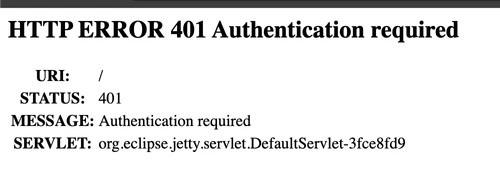

Change the following two configurations:

hadoop.http.authentication.simple.anonymous.allowed = true hadoop.http.authentication.type = simple


  Last updated