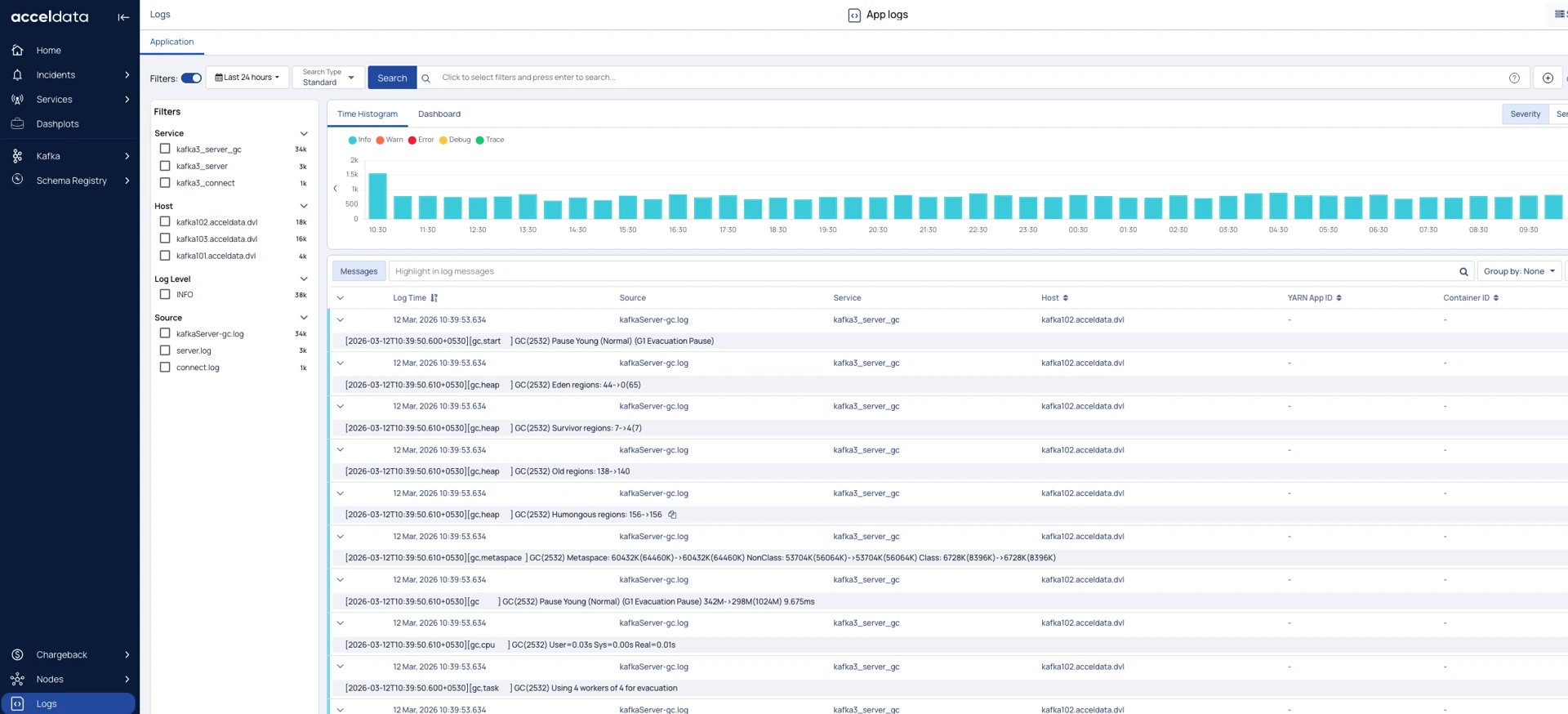
This page describes how to configure Pulse to monitor a standalone Kafka 3 deployment secured with Kerberos and SSL/TLS.
This configuration enables Pulse to:
Discover Kafka brokers
Collect Kafka metrics
Monitor broker health
Monitor Kafka logs
Display Kafka observability metrics in the Pulse UI
This procedure supports Kafka 3 deployments running in KRaft mode.
Before You Begin
Ensure that the following files are available on the Pulse node:
Kerberos Files
krb5.confKafka client keytab
Example:
/home/acceldata/krb5.conf /home/acceldata/client.keytab
SSL/TLS Files
Kafka truststore
Example:
/home/acceldata/kafka.truststore.jks
Verify that the Kafka bootstrap server is reachable from the Pulse node.
Configure Deployment Settings
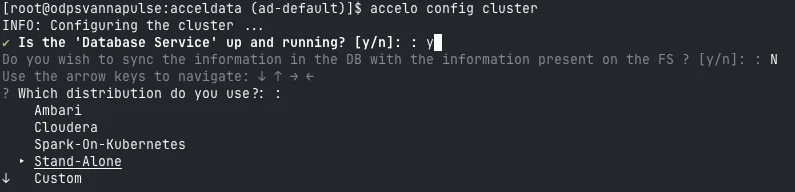
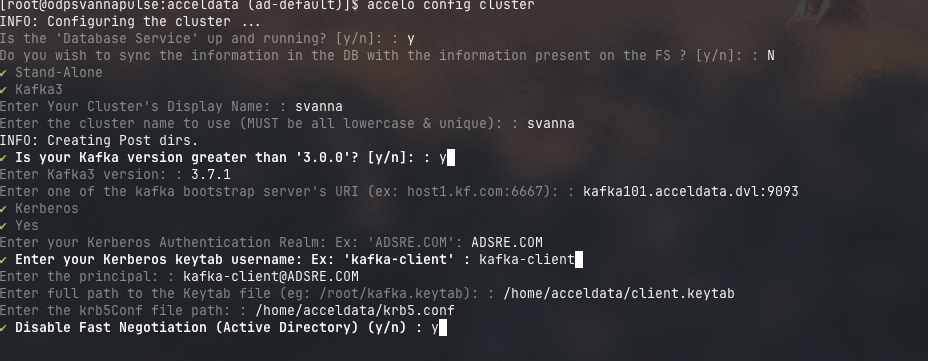
On a Pulse node, run
accelo config cluster.Select
Stand-Alonedeployment during deployment type.
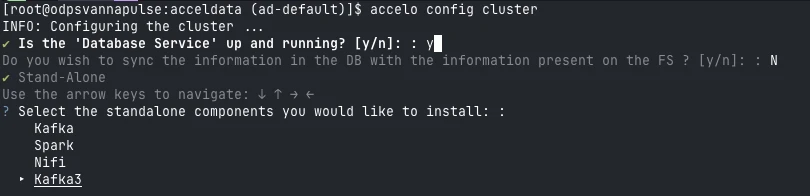
Select
Kafka3Standalone component.
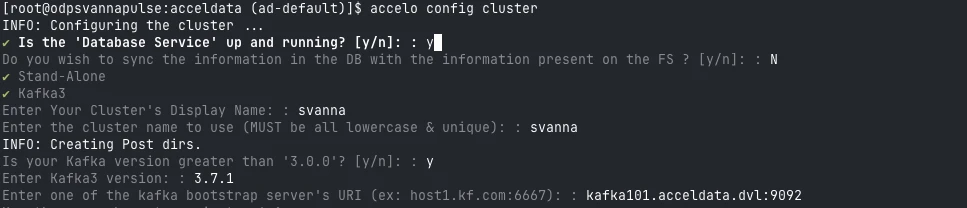
Enter Cluster Name.

Enter
Kafkabootstrap server’s URI.
Select Kerberos as the security type.
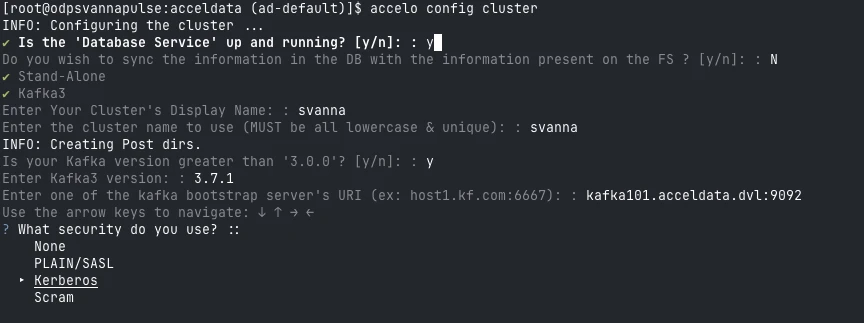
Select
Yesfor Do you use TLS?
Configure Kerberos Authentication
Enter
Kerberos Authentication Realm.

Enter
Kerberos keytab username.
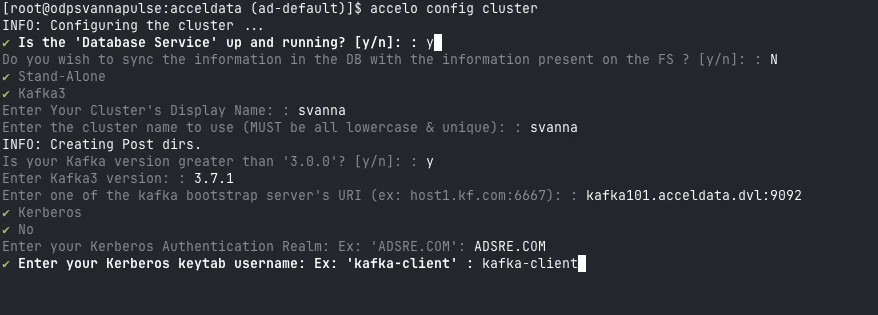
Enter
Principalfor the kafka client.
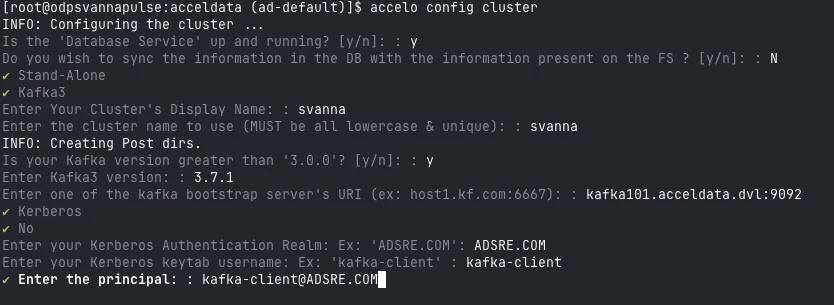
Enter the full path to the
Client Keytabfile.
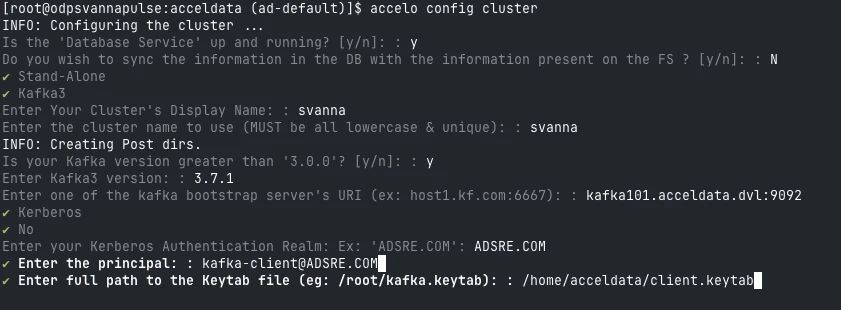
Enter full path to the
krb5.conffile.

Set
Yesfor Disabling Active Directory Fast Negotiation.
In Windows-based Kerberos Active Directory environments, FAST (Flexible Authentication Secure Tunneling) negotiation is disabled by default. To maintain consistent authentication behavior, disable FAST negotiation in Pulse during the configuration.
Configure TLS Settings
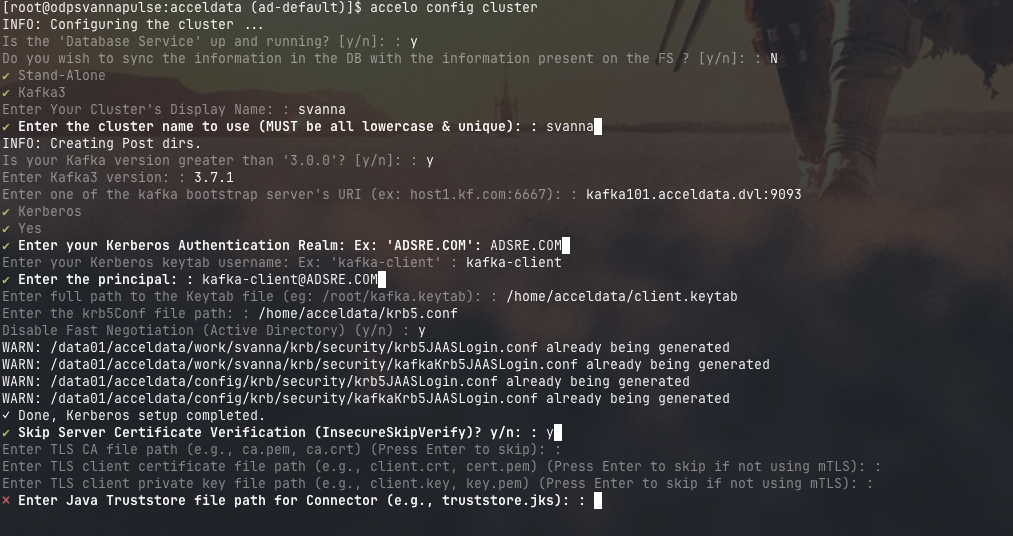
When prompted to skip server certificate verification, select Yes.
When both Kerberos and TLS are enabled for a Kafka cluster, Kerberos is used for client and broker authentication, while TLS is primarily used to encrypt data transmitted between Accelo and the Kafka brokers.
Since Kerberos provides mutual authentication, server certificate validation is not mandatory for establishing trust between Accelo and the Kafka brokers. To simplify the configuration and avoid issues related to certificate validation, it is recommended to enable Skip Server Certificate Verification (InsecureSkipVerify) during the setup process.
Continue with the truststore configuration.
Configure Truststore
Enter the path to the Kafka truststore file and provide the corresponding truststore password. Pulse securely stores the encrypted password in the local configuration directory for future use.
Enter the Java truststore file path for the connector.
Enter the truststore password.
Pulse stores the encrypted password in the following location:
After the truststore configuration is completed, Pulse validates the Kerberos configuration and automatically generates the required JAAS files.
If JAAS files already exist, warning messages similar to the following may be displayed:
If the configuration is successful, the CLI automatically discovers and displays the Kafka broker list.
Verify the broker list and enter y to continue.
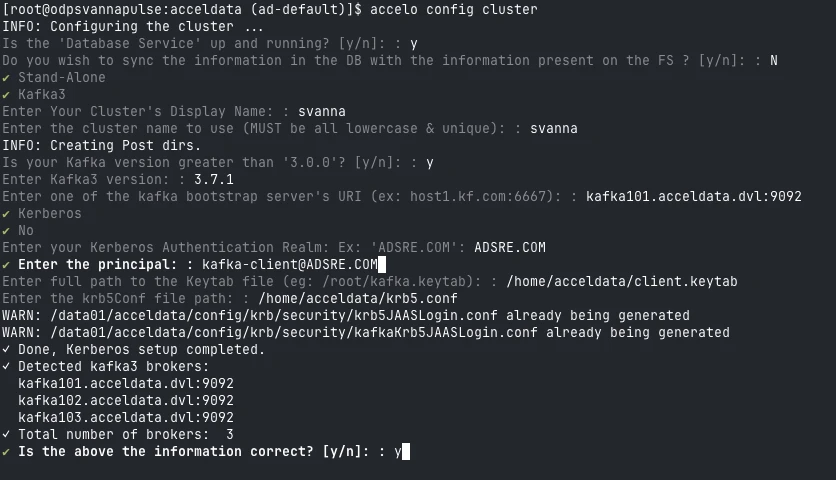
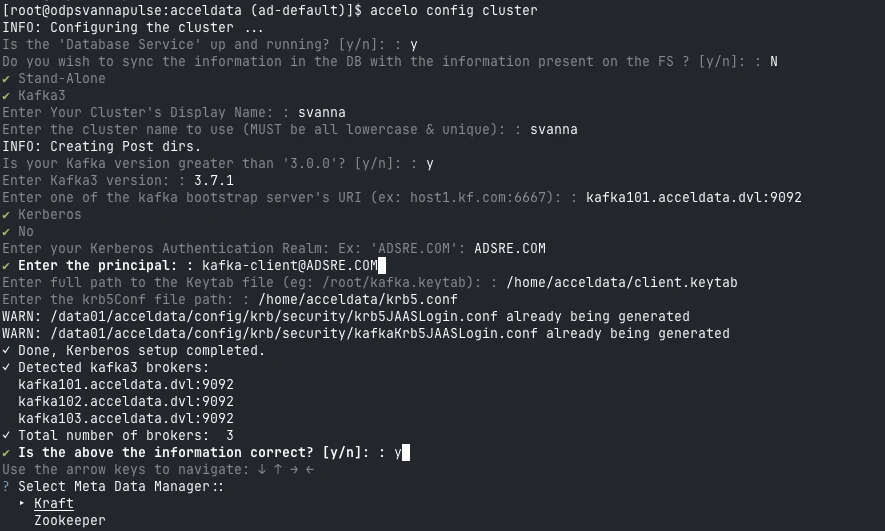
Select Metadata Manager → Zookeeper / KRaft.
Configure Optional Kafka Services
Enable only the services deployed in your environment.
Enter
Cruise Controlhostname and port.
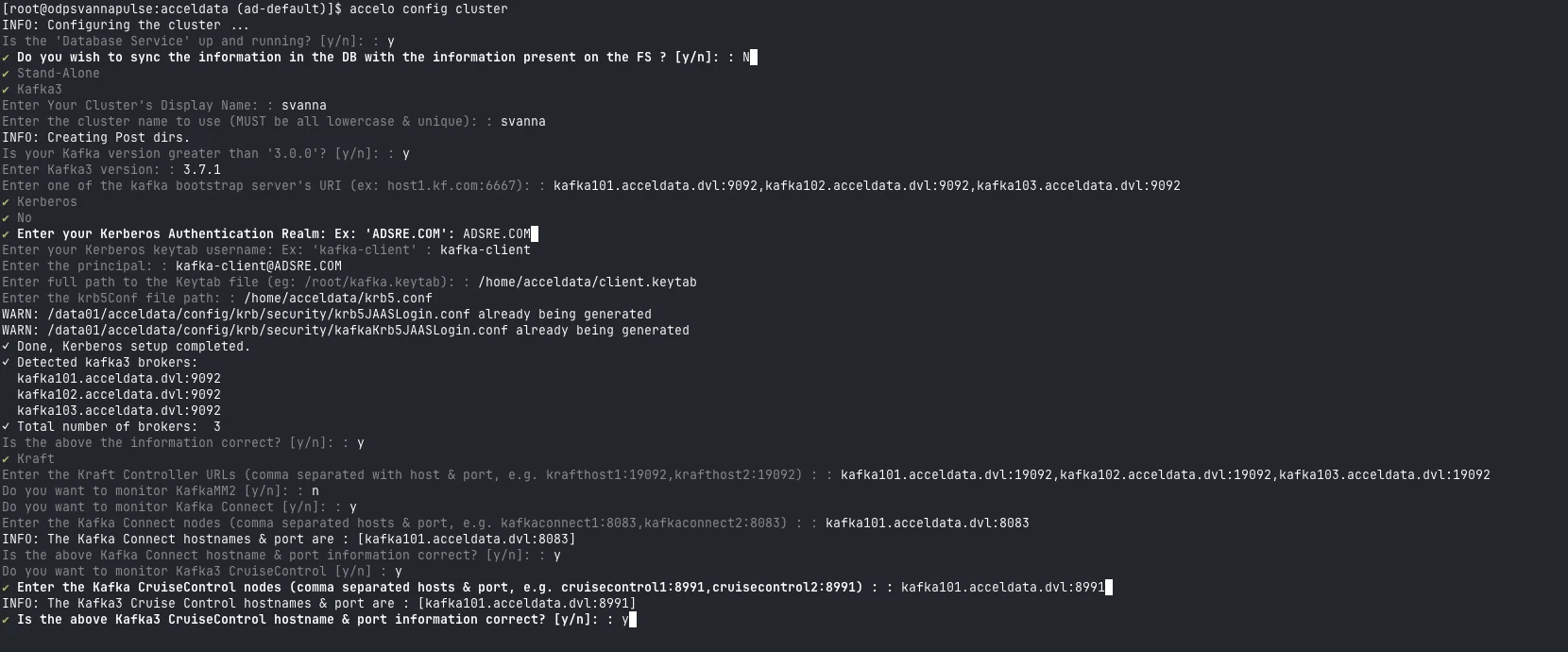
Enter
Schema Registryhostname and port.
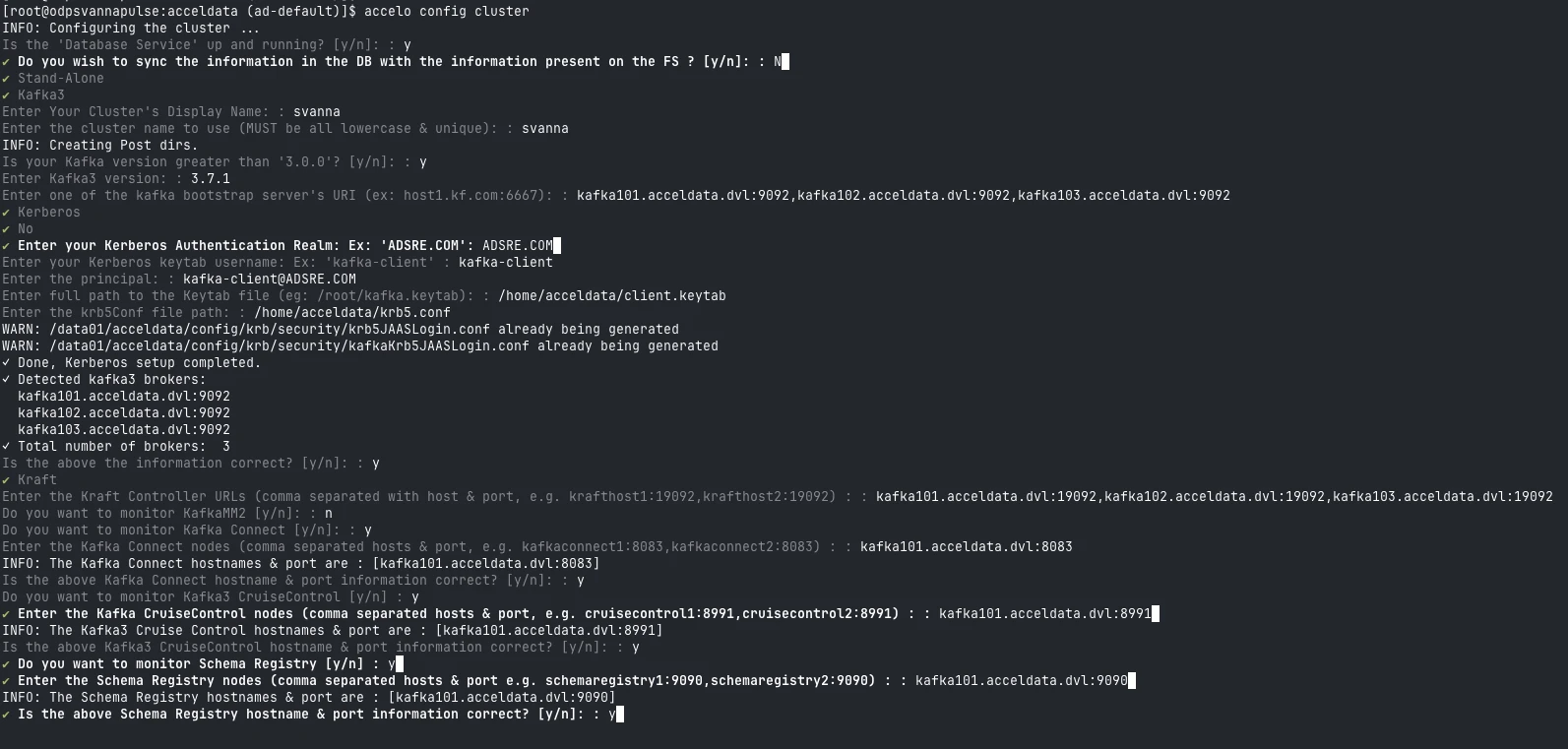
Enter the
ssh userdetails.
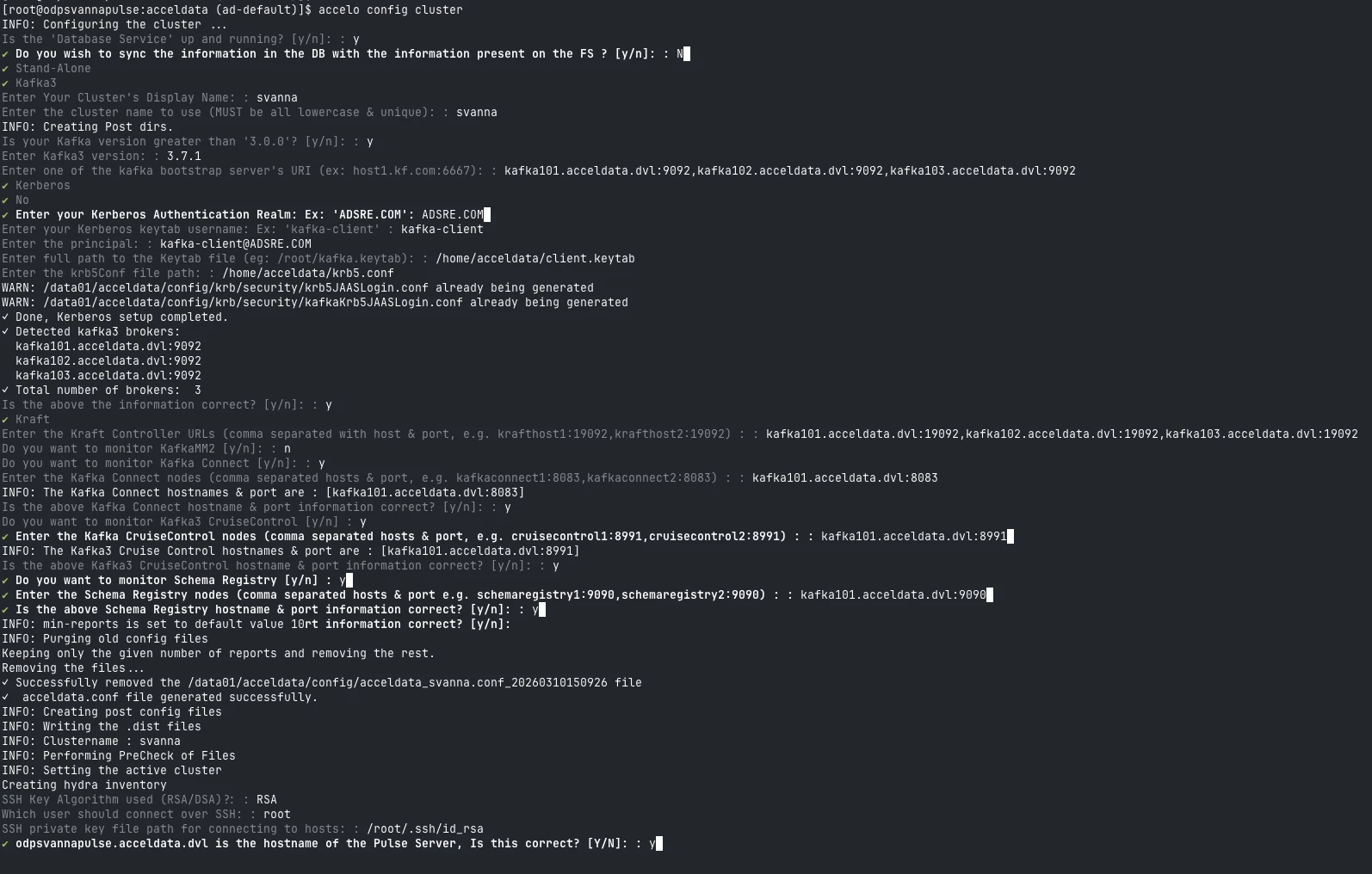
Enter all the required JMX ports and LogSearch configurations.

Once the above configuration is done, you can proceed with
accelo deploy core.
Kafka Data in Pulse
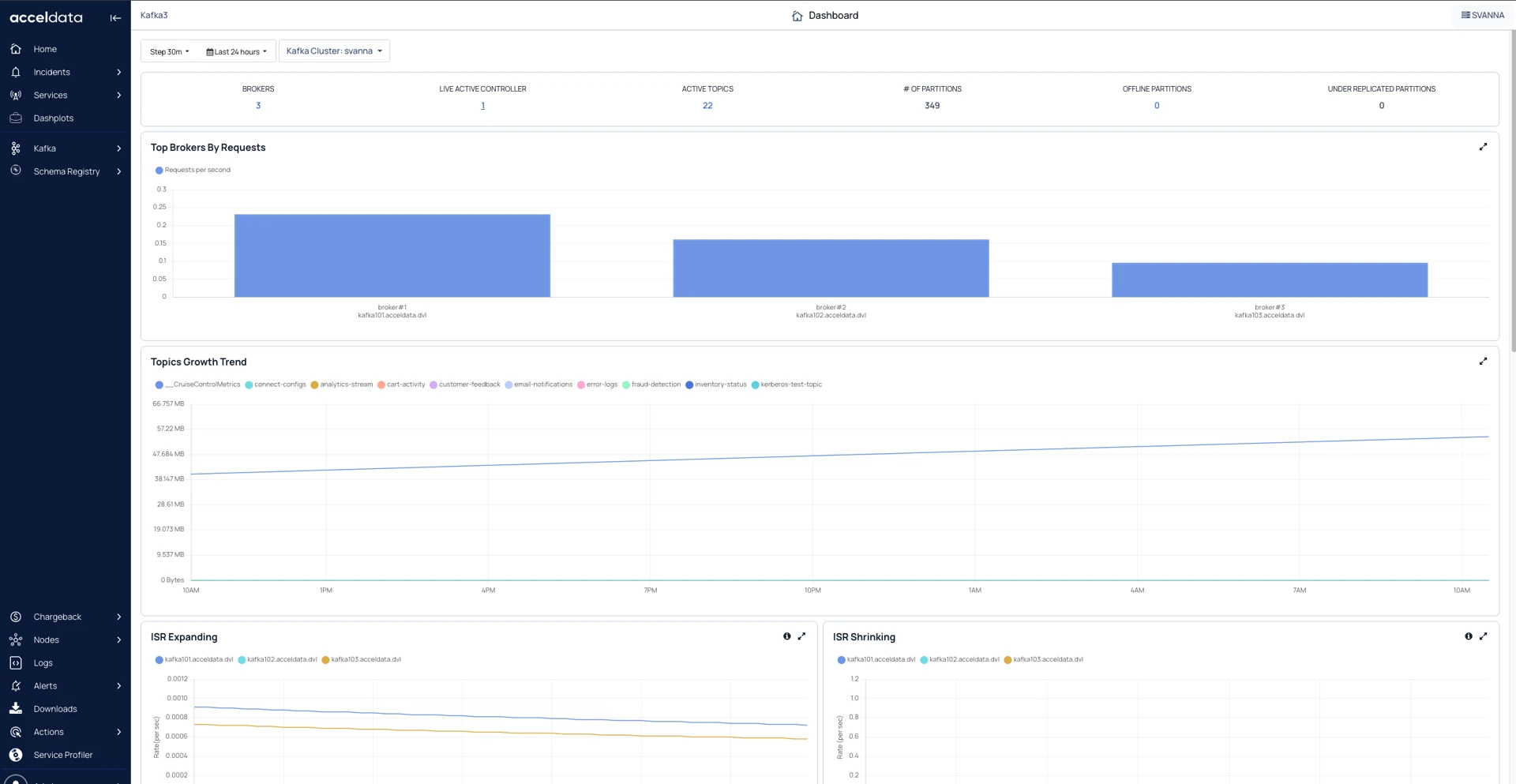
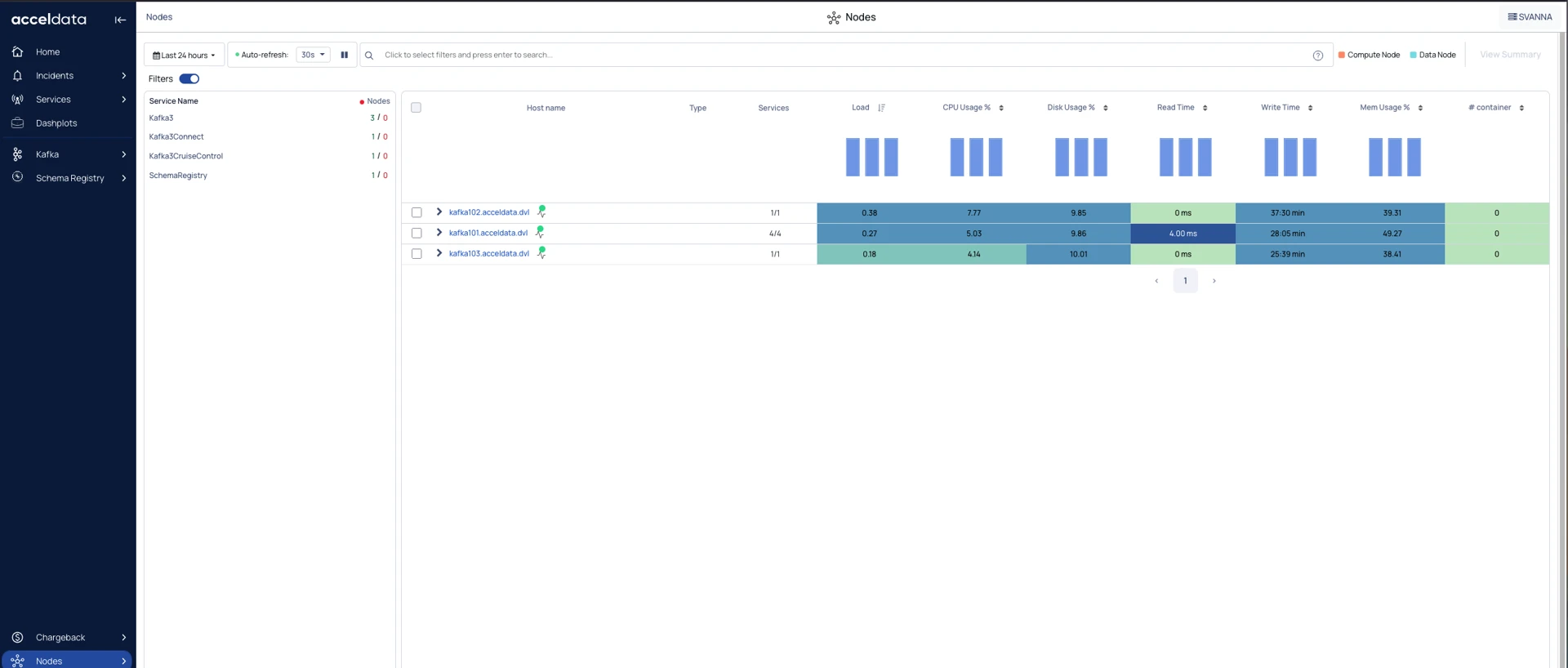
After the complete configuration, you can see the Kafka data in Pulse.
Kafka Dashboard
Kafka Nodes
Kafka Logs