
This page describes configuring a channel to send notifications about the execution of the actions.
Steps:
In Pulse UI, go to Actions > Actions.
On the Actions page, click Create Action.
On the Create Action page, go to the Notifications section.
In Notifications, select the channel and enter the details as stated below to notify about the execution.
Configure Channels
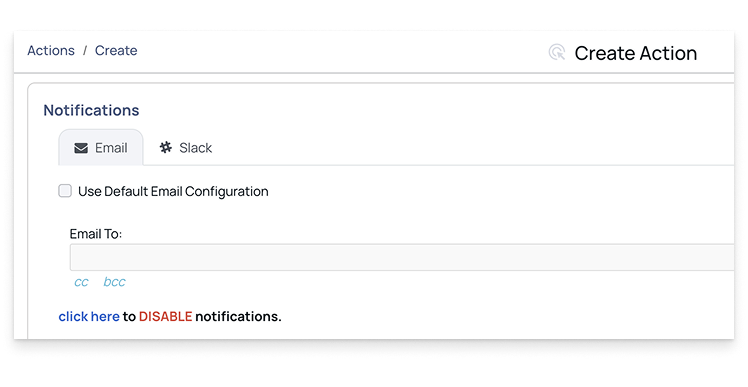
Enable the Use Default Email Configuration option to use the default email configuration to send notifications.
Type an Email address(es) in the Email To box.
(Optional) You can CC and BCC the notifications to others as well.
Slack
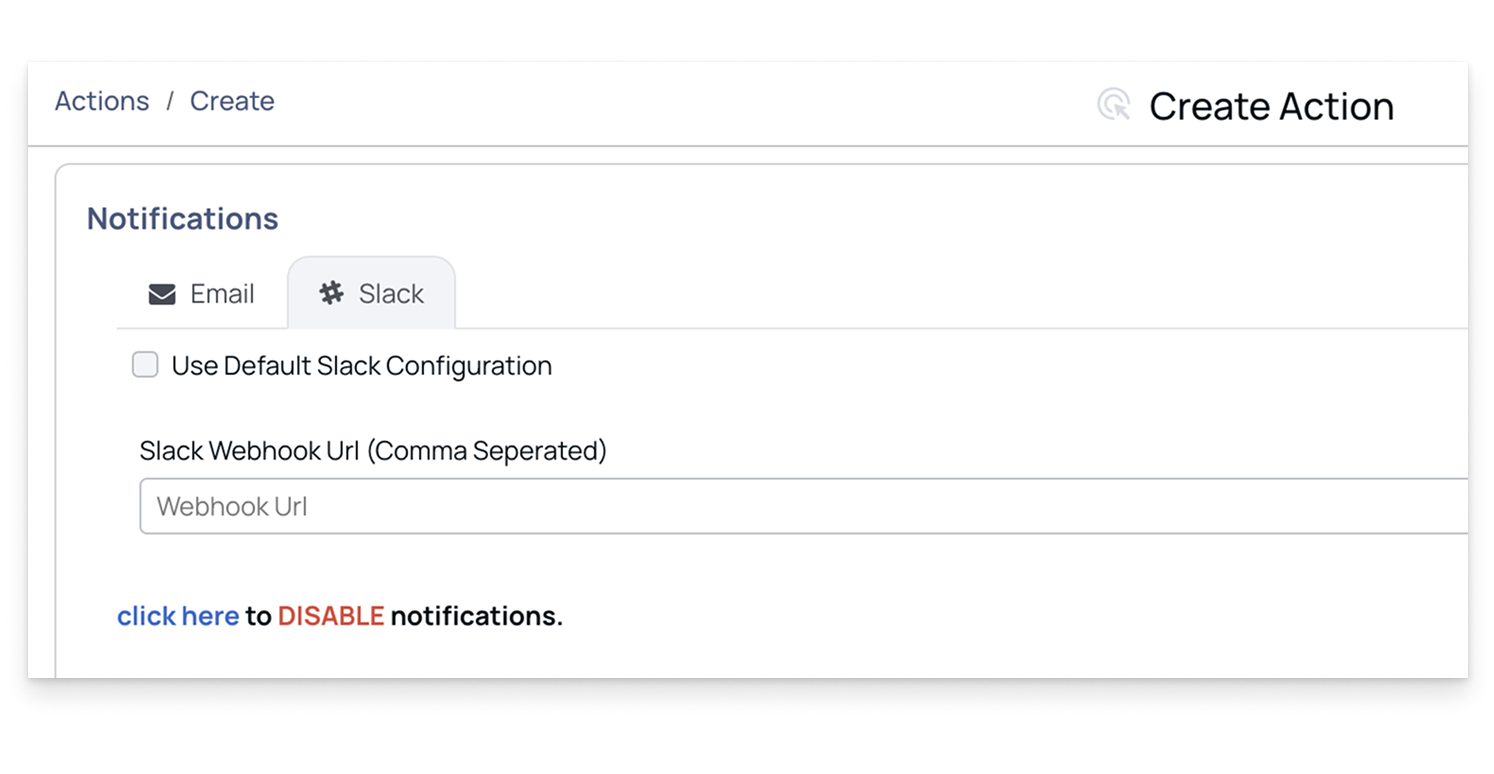
Enable the Use Default Slack Configuration option to use the default Slack configuration to send notifications.
Enter the Slack Webhook URL to get notifications on a Slack channel. You can specify multiple Slack Webhook URLs for different groups or channels by adding commas to separate them.
JIRA
Enable the Use Default Slack Configuration option to use the default JIRA configuration to send notifications.
Project Key: Enter the project key in which you want to create the JIRA.
Issue Type: Enter the issue type for JIRA.
Labels: Enter labels for the JIRA.
Priority: Enter a priority for the JIRA.
When configuring the default notifications for JIRA, you need to mention the REST API JIRA URL.