
Pulse enables you can create an action plan to automate operational tasks across your data ecosystem using one or more action runbooks. Each action plan defines a workflow that executes a sequence of runbooks — such as performing HDFS operations, running scripts, making API calls, or terminating jobs, etc., without manual intervention.
With Pulse, you can:
Automate repetitive data and system tasks to save time and reduce errors.
Simplify HDFS management and maintenance with predefined runbooks.
Execute scripts and commands across multiple hosts with output control.
Manage Kerberos authentication for secure, seamless operations.
Rotate and retain logs to maintain cluster health.
Perform secure API requests directly from the Pulse UI.
Copy files and directories with consistent ownership and permissions.
Terminate long-running or unresponsive jobs and queries efficiently.
Move pending YARN applications to optimize resource usage.
Control Ambari services by starting, stopping, or restarting them with minimal effort.
Combine multiple runbooks into automated workflows for reliability and consistency.
Before You Begin
To view the action runbooks in the Pulse UI, you must deploy the Actions Service add-on. For details, see Deploy the Actions Add-on Service.
Once deployed, you can see the action runbooks on the Actions > Create Actions page.
Actions Overview
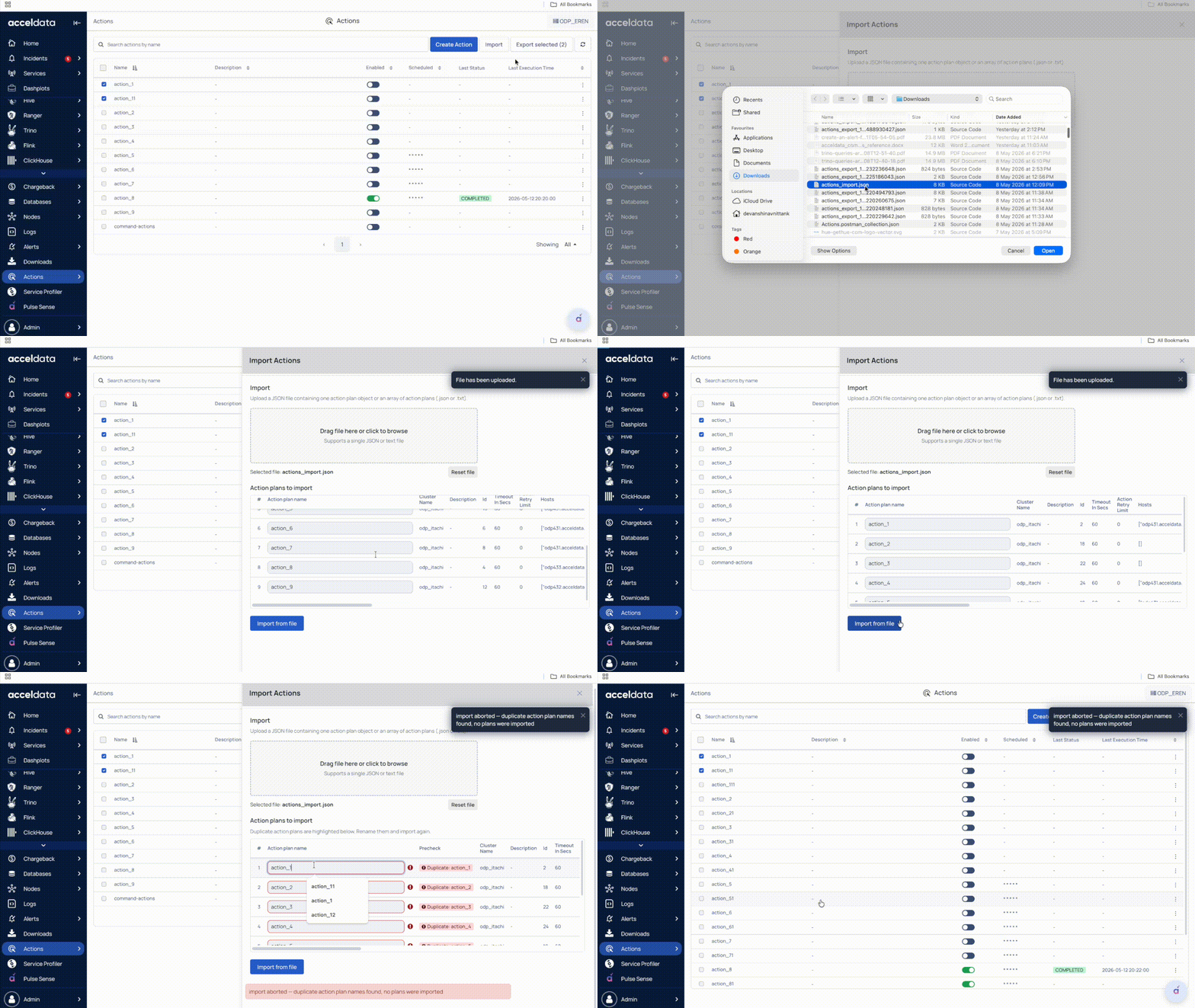
The Actions page provides the following options:
Name: Displays the name of the created action plan.
Description: Displays the description of the action plan.
Enabled: Enables the action plan for execution.
Scheduled: Indicates whether the action plan is scheduled.
Search: Allows you to search for existing action plans.
Import/Export: Enables you to import or export action plans.
Last Status: Displays the status as Completed, Failed, etc.
Last Execution Time: Displays the last execution time.
Action Plan Setup
You can create an action plan and then configure the hosts to run it on, enable notifications, schedule the plan, and set a timeout.
Action Plan Options
You can select or hover over any action plan name, click the More options (three dots) menu, and perform the following actions:
Execute: Runs the action plan immediately.
View Executions: Opens the list of past executions. The page displays:
Name: Name of the executed action plan.
Scheduled: Indicates whether the action was scheduled.
Status: Shows the execution status, such as Running or Completed.
Start Time: Execution start time.
End Time: Execution end time.
Delete: Removes the action plan from the list.
Executions
To view the executions of an action, click Actions > Executions from the left navigation menu. For details, see Executions.