
You can download records from any Pulse UI page for offline analysis. For example, you can download records from pages such as Impala Queries, YARN Applications, Spark Jobs, etc.
File Format
In Pulse versions earlier than 3.8.7 and in 4.0.x, records can be downloaded in .xlsx or .csv format.
Starting with Pulse 3.8.7 (excluding 4.0.x) and 4.1.0, records are downloaded by default in .csv format because it is lighter and more efficient for large datasets.
Download Behavior Based on Record Count
The download behavior depends on the number of records, when you click Download on any of the Pulse UI pages where there are number of records.
Records fewer than 10K
If the number of records is less than 10,000, the download starts immediately and the file is downloaded instantly.
Records more than 10K
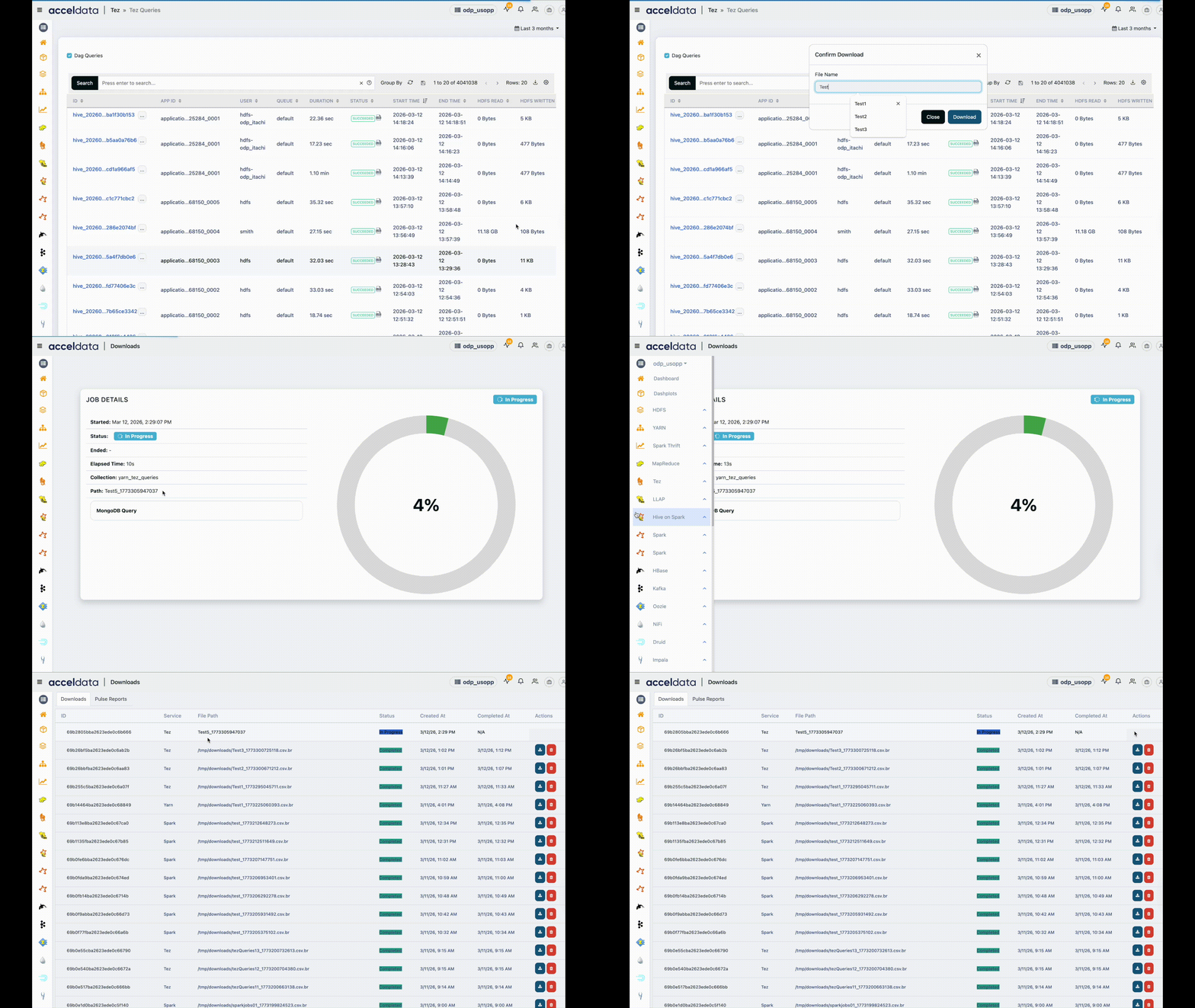
If the number of records is greater than 10,000, follow these steps:
A dialog box appears prompting you to enter a file name.
Enter the file name and click Download.
You are redirected to the Job Details page, where you can view the progress of the download job.
The export might take several minutes, depending on the number of records.
After the job completes, click Download to download the report.
You can also download the report later from the Downloads page in the left pane. This page also displays the storage path of the file on the Pulse node.
System Limitations for Downloads Exceeding 10K Records
Starting with Pulse 4.1.0, Pulse introduces system limits to improve stability during large export jobs. These limits help reduce memory and CPU usage and improve recovery from stalled jobs.
Description | Value |
|---|---|
The maximum number of download job records stored in the database. When the count exceeds this limit, the system automatically deletes the oldest records to keep the database size manageable. | 50 |
The maximum number of Agenda jobs running at the same time across all job types. | 2 |
Default number of concurrent executions allowed per job type. | 1 |
Time (in milliseconds) that a job stays locked by a worker. If the worker crashes or doesn't complete within this period, Agenda considers the job stalled and unlocks it so another worker can retry it. | 1800000 (30 minutes) |
Compression quality level for Brotli compression. Range is 0–11. Higher values produce smaller files but require more CPU time. Level 6 is a balanced default between compression ratio and performance. | 6 |