
JupyterHub Installation
Explanation (Core Concepts)
What is JupyterHub Installation?
JupyterHub Installation in xDP deploys a multi-user, production-ready Jupyter notebook environment directly onto one of your xDP compute clusters. It gives data science and analytics teams a secure, scalable, pre-configured workspace for interactive exploration and machine learning — without anyone hand-assembling Spark, kernels, and storage connectivity. You install it once from the xDP Apps catalog, and every notebook session inherits the cluster's compute and data access.
Under the hood, JupyterHub is a long-running app installed via a Helm chart on the target compute cluster. The control plane orchestrates the deployment and stores the rendered configuration; the cluster runs the hub, the proxy, and an optional observability connector. JupyterHub does not wire up data sources at install time — it configures Spark, catalog, and storage access at notebook start time, so each user session gets its own pod with the right configuration.
Prerequisite: JupyterHub requires Apache Spark to be installed on the same cluster first — its Install action stays disabled until Spark is present. See App Spark.
Key Concepts
Apps Catalog — The Apps page where curated tools (JupyterHub, Spark, Trino, Airflow, NiFi) install onto a compute cluster with a guided wizard.
Compute Cluster — The target cluster (selected in the top-right switcher) where JupyterHub deploys and where notebook workloads run.
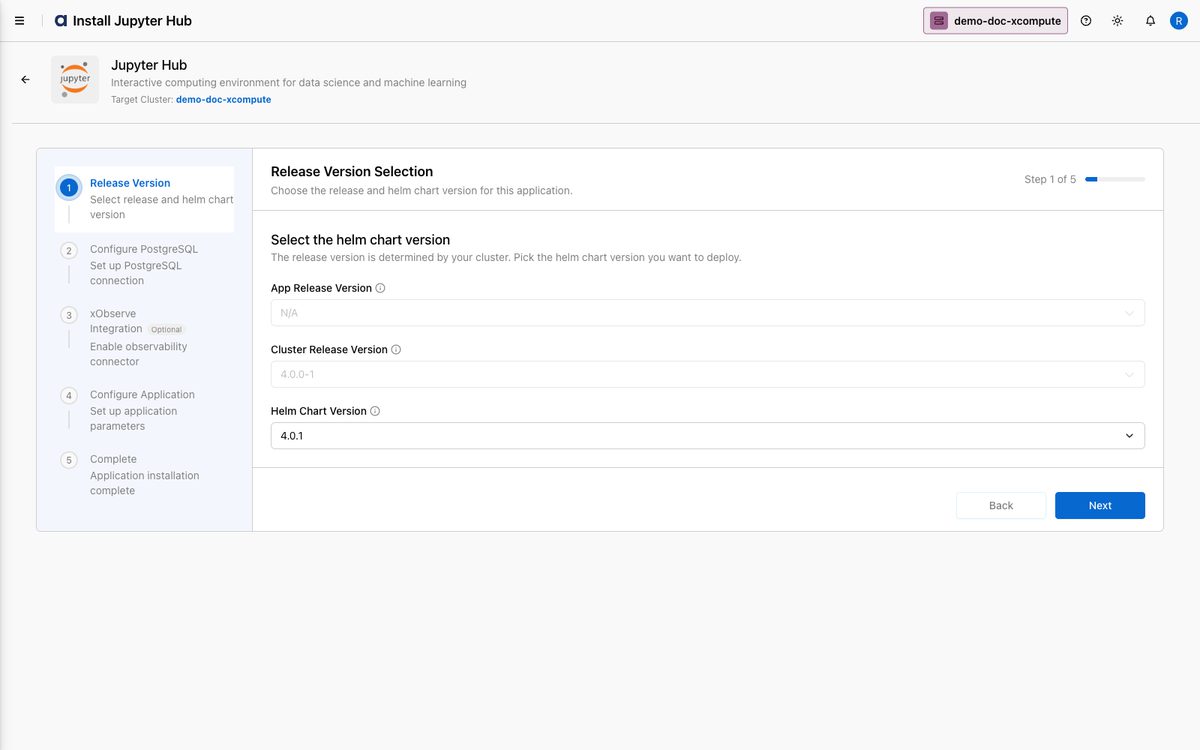
Helm Chart Version — The packaged version you install; constrained by your cluster's release version.
Internal vs External PostgreSQL — JupyterHub needs PostgreSQL for hub metadata (users, server state, sessions). Let xDP deploy and manage one automatically (internal), or point it at your own managed instance (external, recommended for production).
xObserve Connector — An optional
xo-jupyter-connectorthat streams Jupyter and Spark telemetry into xObserve; requires xObserve on the linked xCentral.Deployment Configuration — The Helm values (editable YAML) controlling culling, base URL, named servers, ECR credential refresh, and more.
Capabilities
Guided provisioning — A five-step wizard takes you from version selection to a running JupyterHub server.
Flexible metadata storage — Zero-config internal PostgreSQL for development, or an enterprise-managed external database for production. The choice is locked once an installation exists.
Optional observability — Enable the
xo-jupyter-connectorto feed metrics into xObserve; skippable and disabled until xObserve exists on xCentral.YAML-level customization with validation — Edit Helm values via Form or raw YAML; you must Validate before continuing.
Notebook-time data access — Data and catalog access resolves when a notebook starts, not at install.
Tutorial (Getting Started)
This tutorial installs JupyterHub using the internal PostgreSQL database (recommended external is shown too).
Prerequisites
Apache Spark already installed on the target cluster.
An active compute cluster selected in the switcher, and permission to install applications on it.
For an external database (optional): a reachable PostgreSQL instance, its JDBC URL, and credentials, with egress allowed from the cluster.
To enable observability (optional): xObserve installed on the linked xCentral.
Note: The Apps page shows "No Clusters Available" until you select a compute cluster.
Your First Workflow
Confirm the correct cluster is selected, open Apps, locate the Jupyter Hub card, and click Install.
On Step 1 — Release Version, review the App Release Version and Cluster Release Version, choose the Helm Chart Version, and click Next.
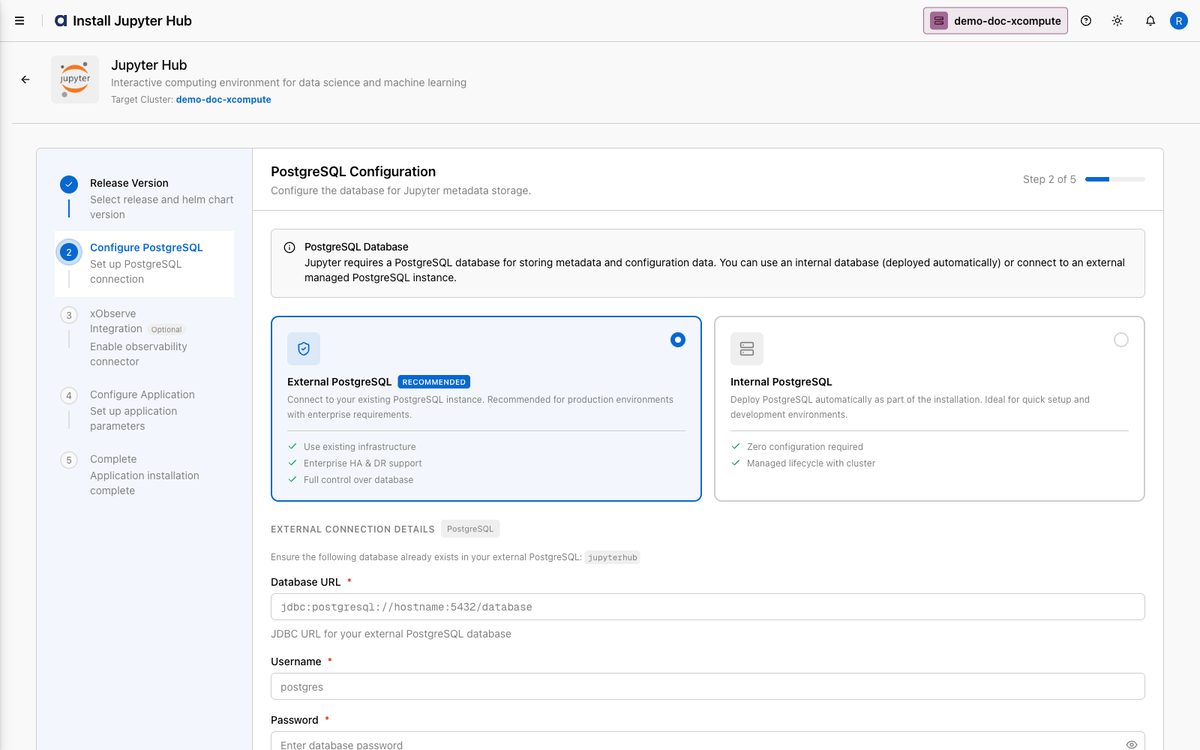
On Step 2 — Configure PostgreSQL, choose the metadata database:
External PostgreSQL (Recommended) — provide the Database URL (JDBC), Username, and Password of your managed instance.
Internal PostgreSQL — xDP provisions and manages a dedicated database automatically. This guide selects Internal.
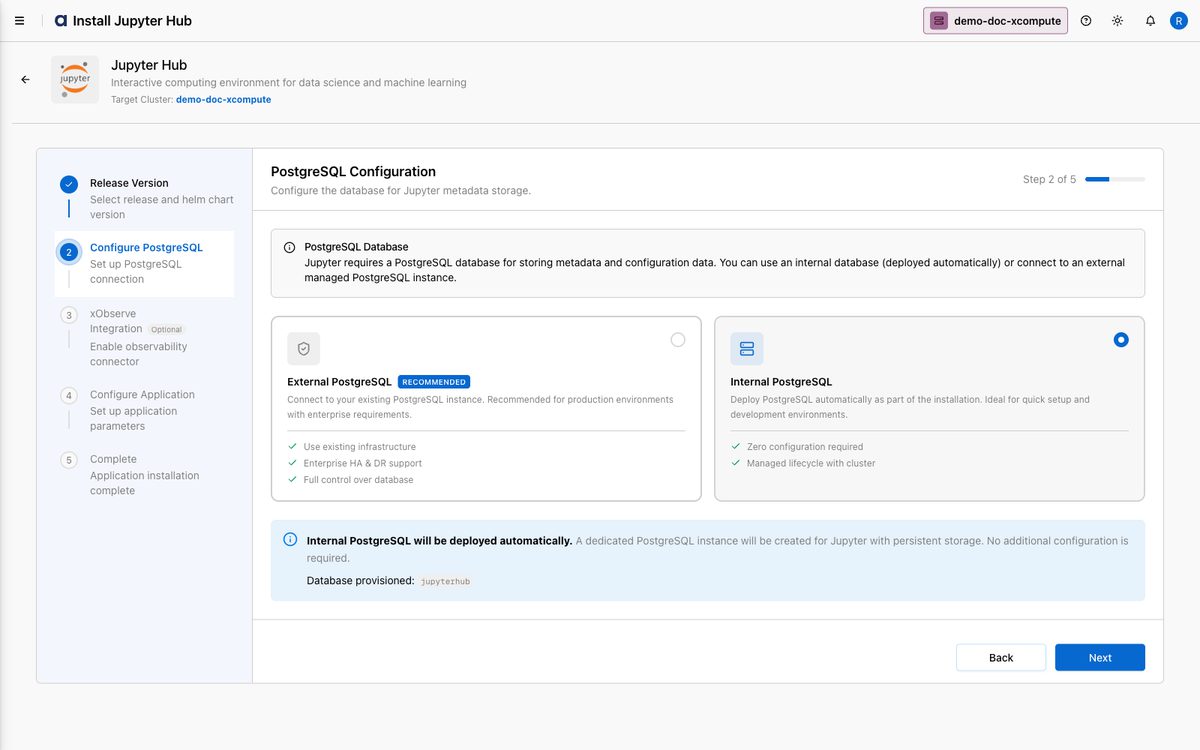
Click Next.
On Step 3 — xObserve Integration (optional), leave the connector off if xObserve is not installed, then click Next (or Skip This Step).
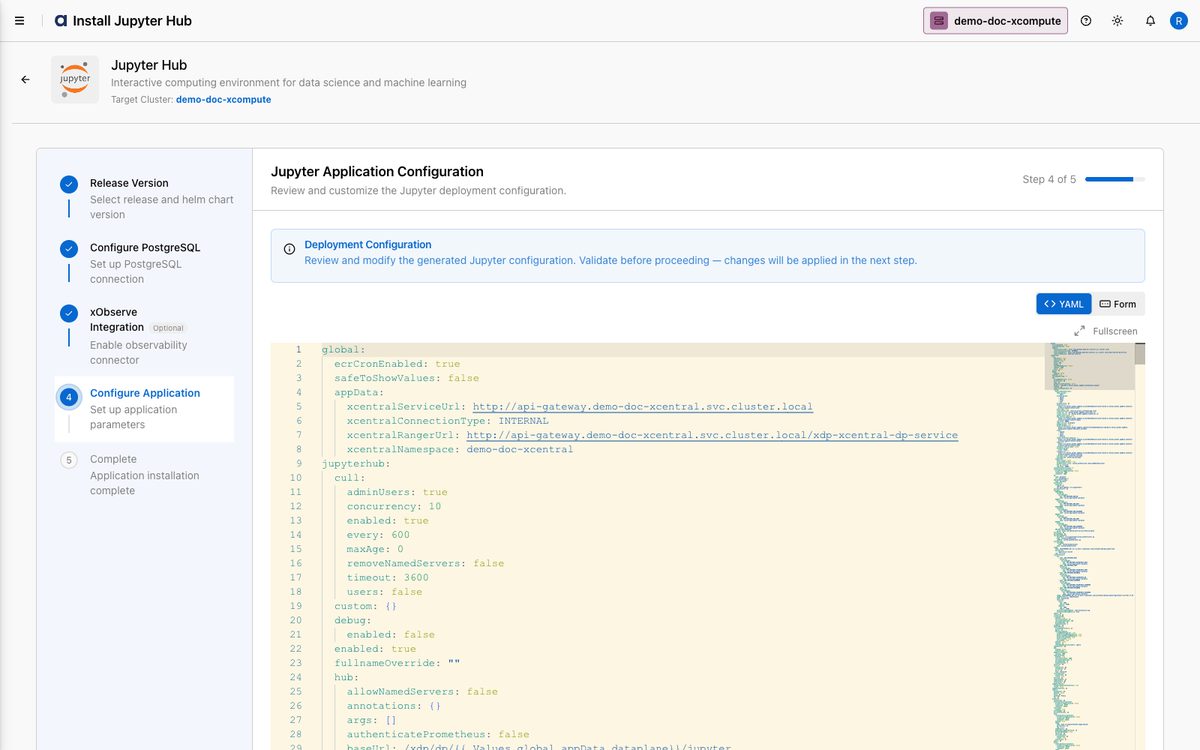
On Step 4 — Configure Application, review the generated Deployment Configuration. Click Validate (defaults are sufficient for a standard install), then Next.
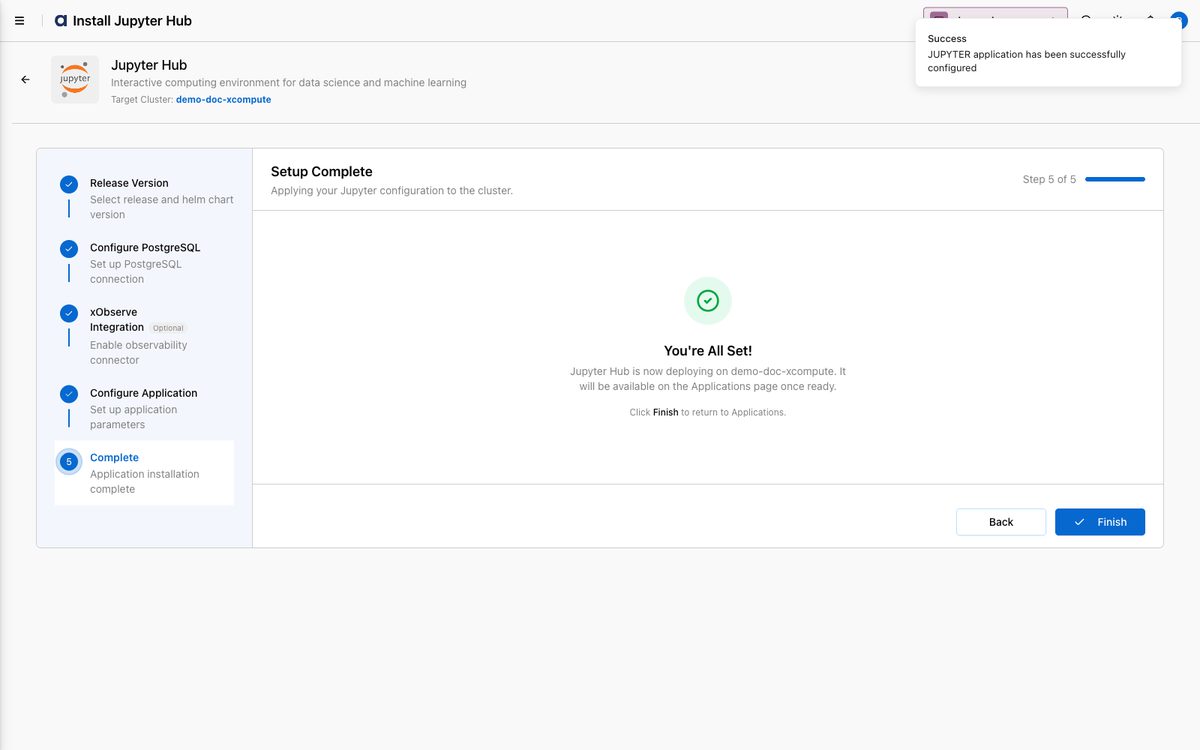
On Step 5 — Complete, xDP applies the configuration and deploys JupyterHub. Click Finish to return to Apps.
The Jupyter Hub card now shows Installed, with xObserve, Edit, and Uninstall controls. The hub becomes usable once deployment finishes.
How-to Guides
Use an external PostgreSQL database
On Configure PostgreSQL, select the External PostgreSQL card.
Enter the Database URL (
jdbc:postgresql://hostname:5432/database), Username, and Password.Ensure the cluster has network egress to the database host, then click Next.
The database type (internal vs external) is fixed for an installation — the selector is disabled when you later edit an installed app. Choose external up front if you need it for production.
Customize the deployment with the YAML editor
On Configure Application, use the YAML view (toggle between Form and YAML).
For example, tune idle culling:
Click Validate and resolve any
TO_BE_UPDATEDplaceholders (or Skip & Validate to bypass warnings), then Next.
Tip: Use Copy to grab the full YAML before editing, and Reset to revert to defaults.
Enable xObserve observability for JupyterHub
Ensure xObserve is installed on the linked xCentral; until then the toggle stays disabled.
Edit the app and, on xObserve Integration, enable the connector, then complete the wizard.
Reference
Configuration options
Parameter | Description | Default |
|---|---|---|
| Cron job that refreshes ECR image-pull credentials. |
|
| Shut down idle notebook servers/kernels. |
|
| Idle seconds before a server is culled. |
|
| Seconds between culling checks. |
|
| Max concurrent culling requests. |
|
| Base URL path the hub is served under. | cluster-derived |
| Allow multiple named notebook servers per user. |
|
Services
Service | Role |
|---|---|
| The JupyterHub control process (auth, spawning, routing). |
| Routes user traffic to the hub and per-user servers. |
| Optional observability connector (present when xObserve is enabled). |
Best Practices
Install Spark first — Jupyter's Install stays disabled until Spark is present on the cluster.
Use an external database in production — managed PostgreSQL with backup/HA/DR, decided before the first install.
Validate before you continue and clear
TO_BE_UPDATEDplaceholders.Version-control your YAML to review, roll back, and reproduce deployments.
Install xObserve first if you want observability — the connector stays disabled until it exists on xCentral.
Tune idle culling so abandoned notebooks don't hold cluster CPU/memory.