
App Spark
Explanation (Core Concepts)
What is App Spark?
App Spark is the one-click way to deploy and operate Apache Spark on an xDP compute cluster. Instead of hand-assembling a Spark Operator, a scheduler, an event-log store, and a history UI, you install a single, pre-integrated Spark application from the xDP Apps catalog and xDP manages its full lifecycle — install, configure, upgrade, and uninstall. The result is a production-ready, observable, and governed Spark runtime your jobs can target immediately.
Under the hood, App Spark deploys a Kubernetes-native Spark stack onto your compute cluster's namespace: a Spark Operator that turns each job into a SparkApplication custom resource, a YuniKorn scheduler for resource queuing, a Spark UI proxy for live driver UIs, and an optional Spark History Server for completed-run inspection. The application is packaged as a Helm chart whose values you can review and tune as YAML before they are applied, so every deployment is reproducible and auditable.
Key Concepts
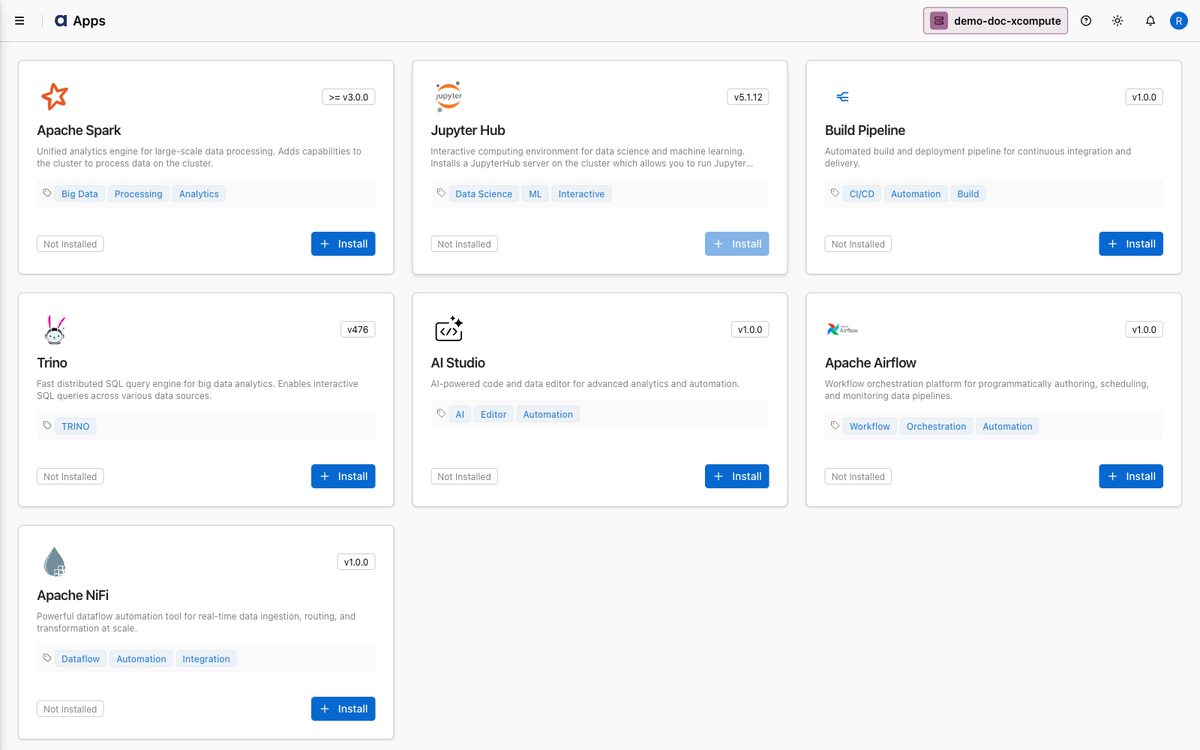
Apps Catalog — The registry of installable xDP applications (Spark, Trino, JupyterHub, Airflow, NiFi, AI Studio, Build Pipeline) that deploy onto a compute cluster with managed lifecycle.
Compute Cluster — The target Kubernetes environment (an xCompute dataplane) where Spark is installed and where its jobs run. Apps install against the cluster selected in the top-right switcher (here
demo-doc-xcompute).Spark Operator — The controller that watches
SparkApplicationresources and launches driver and executor pods for each submitted job.Spark History Server — An optional plugin that serves a web UI of completed and running Spark applications from event logs, giving you a queryable operational history for debugging and tuning.
Shuffle Strategy — A plugin that pre-configures one or more shuffle storage backends at install time, so each job can select how its intermediate shuffle data is stored during execution.
Gluten-Velox Accelerator — An optional native execution engine that offloads Spark SQL operators to a vectorized Velox C++ runtime for faster analytical and ETL workloads.
xObserve Connector — An optional sidecar (
xo-spark-connector) that streams Spark runtime metrics and events into xObserve for centralized observability.Helm Chart Version — The packaged version of the Spark deployment you install; it is selected per install/upgrade against your cluster's release version.
Capabilities
App Spark is organized as a guided five-step install wizard, where each step maps to a distinct operational concern.
Automated provisioning — Deploy a fully configured Spark stack (operator, scheduler, UI proxy) to any compute cluster without manual Helm work.
History & event logging — Enable the Spark History Server against an S3, GCS, ADLS, or HDFS data store, with event-log rolling to keep long-running jobs inspectable.
Shuffle storage management — Pre-enable Kubernetes-native shuffle backends (emptyDir, hostPath, PVC, NFS, Vast, CSI) or an external Apache Celeborn service.
SQL acceleration — Optionally route Spark SQL execution through the Gluten-Velox native engine for vectorized throughput.
Integrated observability — Attach the
xo-spark-connectorso job metrics and events flow into xObserve (requires xObserve on the linked xCentral).Configuration as code — Review and edit the generated Helm values as YAML (or via the Form view), validate before applying, and version-control the result.
Tutorial (Getting Started)
This tutorial walks you through installing the Apache Spark application on a compute cluster using the five-step wizard.
Prerequisites
An xDP role with privileges to install and configure applications.
A compute cluster selected in the cluster switcher and its BASE platform running, so the Apps catalog is populated.
For the Spark History Server: a data store of type S3, GCS, ADLS, or HADOOP/HDFS already registered on the cluster, and the event-log path (e.g.
s3a://my-bucket/spark-events/).For xObserve integration: xObserve installed on the linked xCentral cluster.
For Gluten-Velox: the Gluten-Velox bundle JAR baked into the Spark container image or its jars path.
Note: If the Apps page shows "No Clusters Available," create or select a compute cluster first — applications can only be installed onto an existing cluster.
Your First Installation
From the sidebar, open Apps to view the catalog for your selected cluster. Locate the Apache Spark card and click Install. (If Spark is already installed, click Edit to change its configuration.)
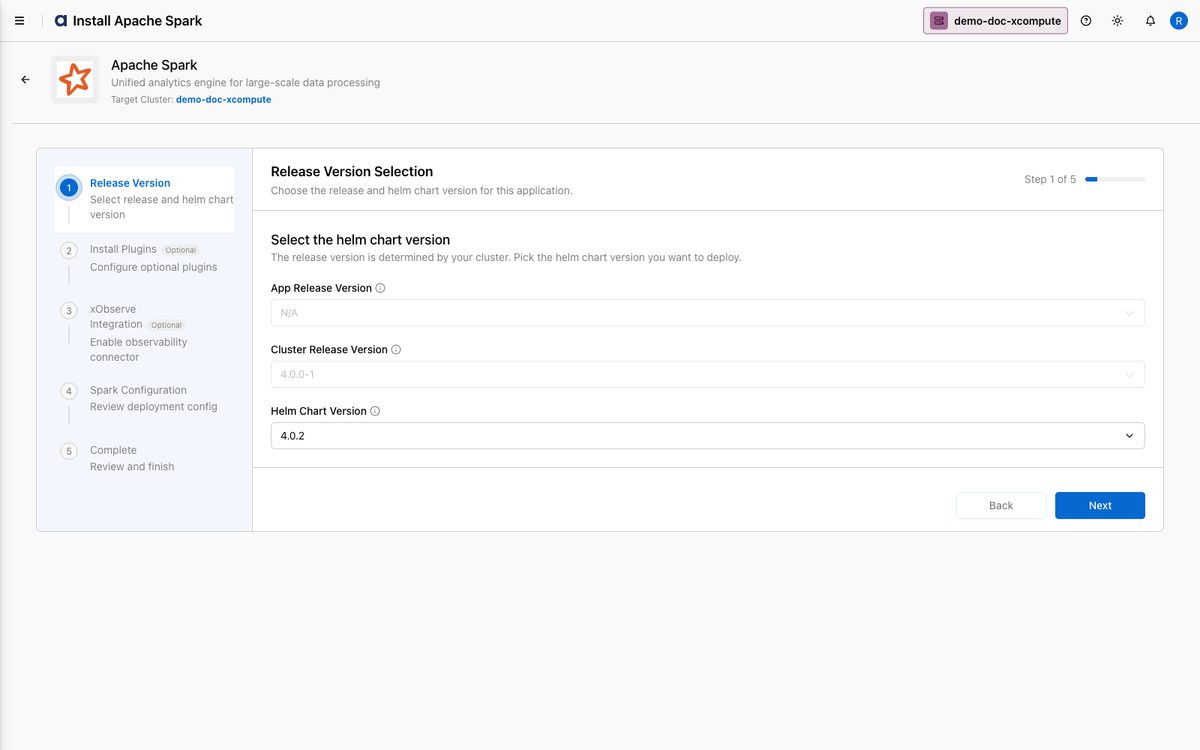
On Step 1 — Release Version, confirm the App Release Version and Cluster Release Version (both fixed by your cluster), then choose a Helm Chart Version to deploy. Click Next.
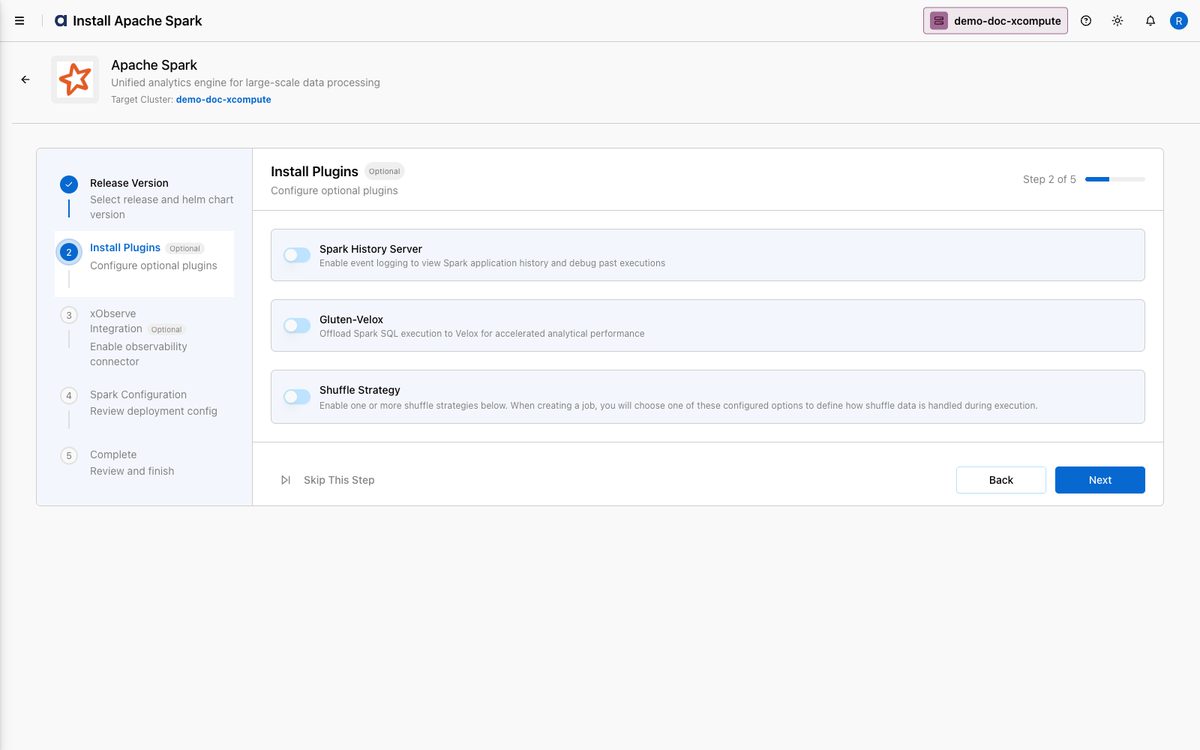
On Step 2 — Install Plugins, optionally enable Spark History Server, Gluten-Velox, and Shuffle Strategy. For the History Server, select a Data Store and set the Log Directory to your event-log path. Click Next.
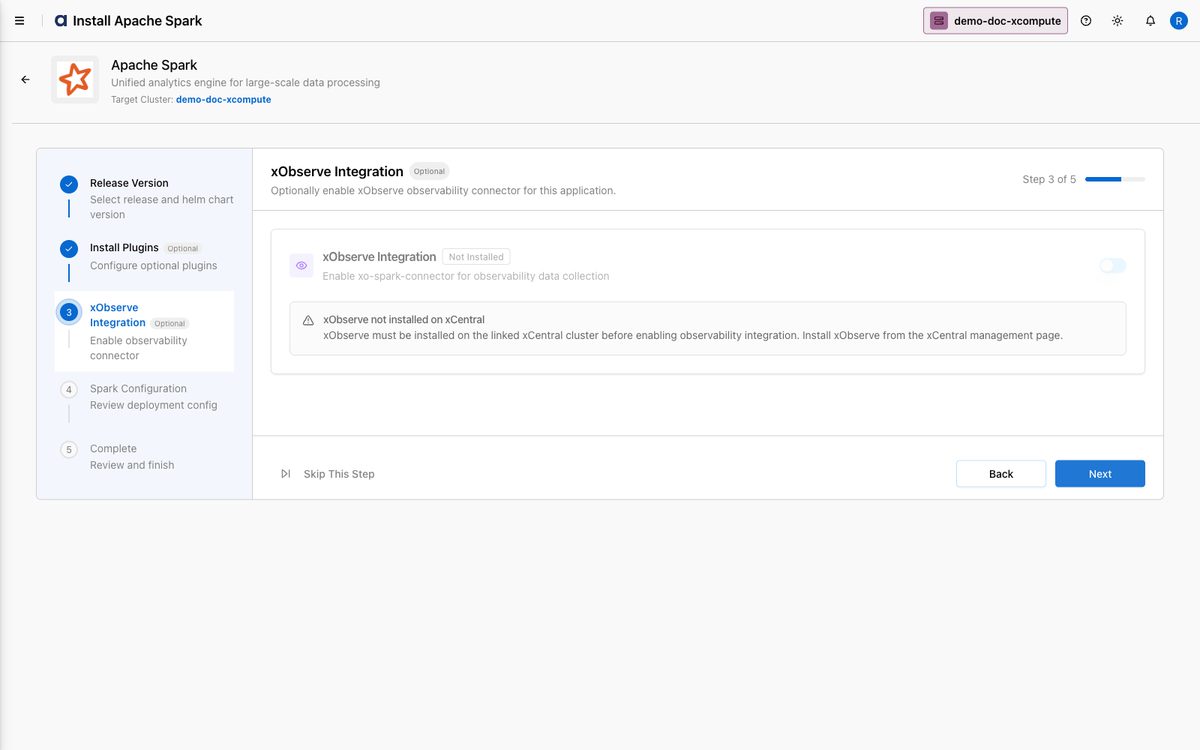
On Step 3 — xObserve Integration, enable the observability connector if xObserve is available on your xCentral, then click Next. If xObserve is not installed, the toggle is disabled and you can continue.
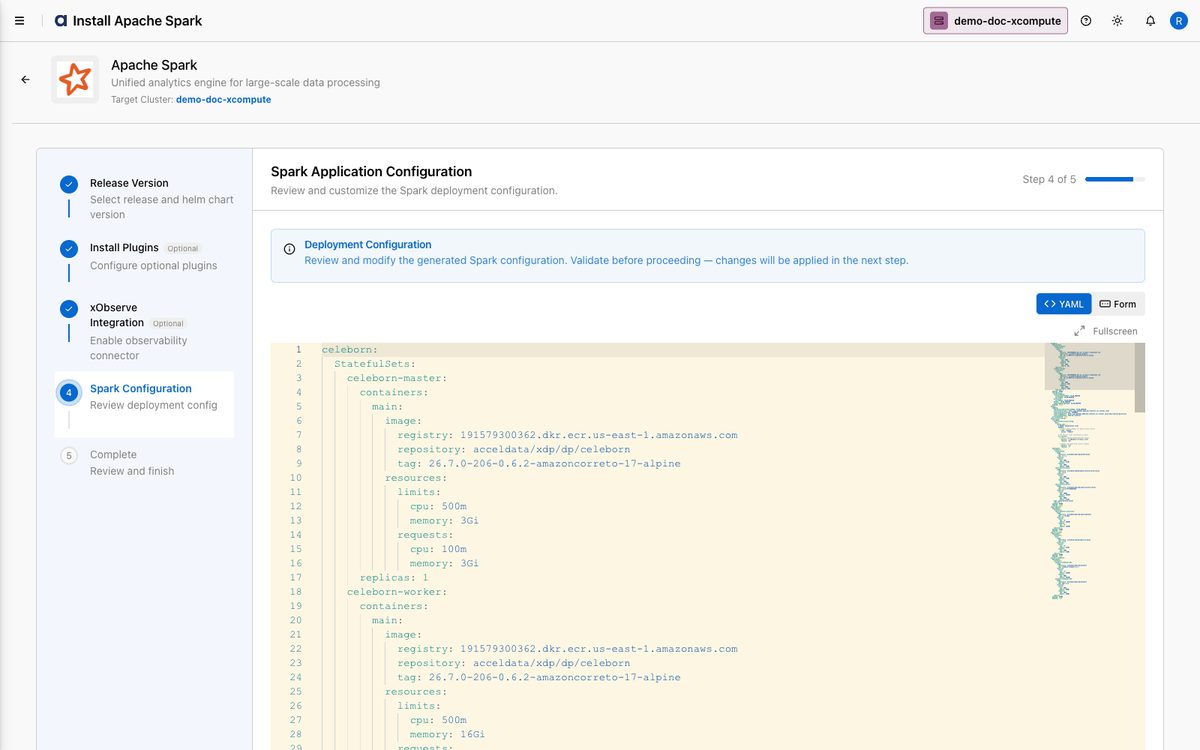
On Step 4 — Spark Configuration, review the generated Helm values in the YAML editor (or switch to the Form view). Click Validate; if placeholder fields remain, click Skip & Validate to proceed. Click Next.
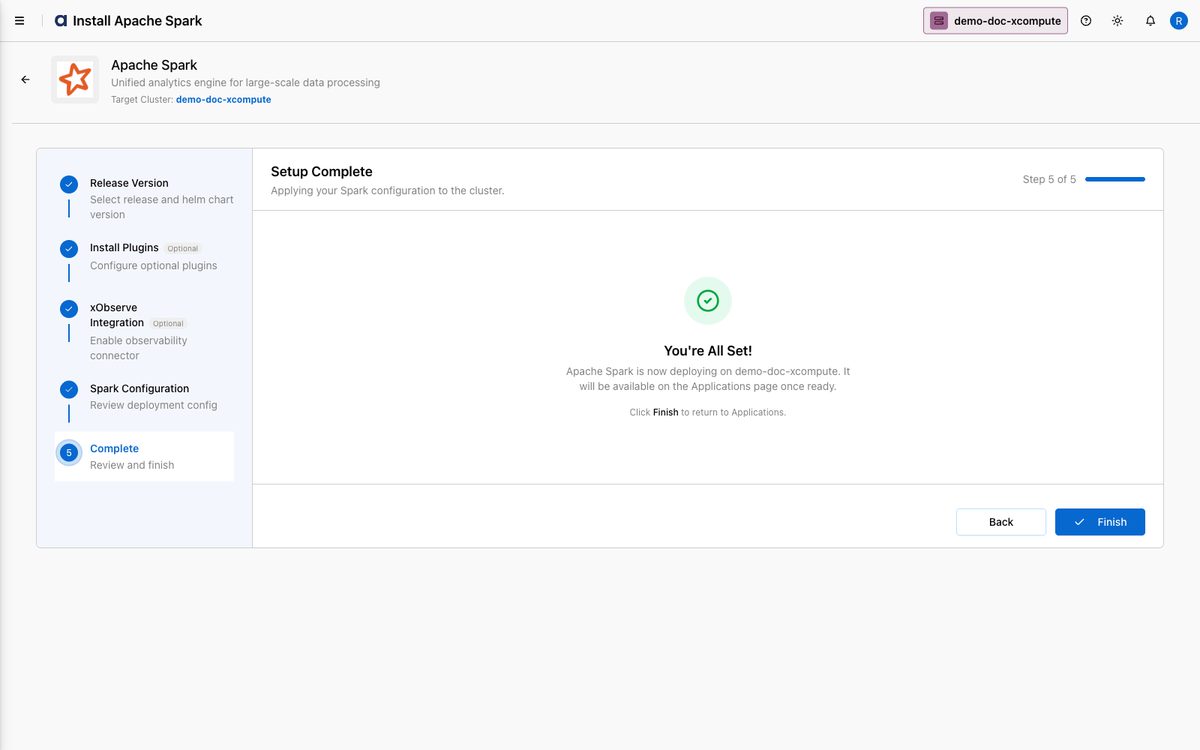
On Step 5 — Complete, xDP applies your configuration and starts the Helm install. Click Finish to return to Apps, where the Apache Spark card shows Installed.
How-to Guides
These procedures assume Spark is already installed (open the Apache Spark card and click Edit).
Enable the Spark History Server after installation
Open Apps → Apache Spark → Edit, and go to Install Plugins.
Toggle Spark History Server on, select a Data Store, and enter the Log Directory in that store's URI scheme (
s3a://…,gs://…,abfss://…, orhdfs:///…).Optionally adjust Enable Event Log Rolling and Max File Size per Roll.
Continue through xObserve Integration and Spark Configuration, then Complete to apply.
Tip: Match the log directory scheme to the data store type — the wizard validates the prefix and rejects mismatches.
Configure a shuffle strategy
In Edit → Install Plugins, toggle Shuffle Strategy on.
Enable one or more of emptyDir, hostPath, PVC, NFS, Vast Storage, or CSI Volume, filling in required fields; or enable Apache Celeborn under External Shuffle Service.
Mark one enabled backend as the default, then continue to Complete.
Warning: CSI volume shuffle requires ODP Spark 3.5+ or Apache Spark 4.2+ (SPARK-47010). At least one backend must be enabled once Shuffle Strategy is on.
Accelerate Spark SQL with Gluten-Velox
Confirm the Gluten-Velox bundle JAR is present in your Spark image or jars path.
In Edit → Install Plugins, toggle Gluten-Velox on and continue to Complete.
Customize Spark properties via YAML
In Edit, advance to Spark Configuration.
Edit the YAML directly (resources, node selectors, replicas, Spark defaults). Replace any
TO_BE_UPDATEDplaceholders.Click Validate, then Next and Complete. Use Reset to revert or Copy to save externally.
Upgrade the Spark application
From the Apache Spark card, open Edit.
On Release Version, select a newer Helm Chart Version, step through the wizard (plugins/config preserved), and Complete to run the Helm upgrade.
Reference
Install-plugin options
Parameter | Description | Default |
|---|---|---|
| Web UI for completed/running apps from event logs in a selected data store. Requires a data store + log directory. | Disabled |
| Splits event logs by size (Max File Size per Roll) for better History Server performance. | Enabled ( |
| Pre-enables one or more shuffle backends; jobs pick one at submission. | Disabled |
| Routes Spark SQL through the Velox native engine. Requires the bundle JAR. | Disabled (feature-flagged) |
| Adds | Disabled when xObserve absent |
Shuffle strategy backends
Backend | Type | Key inputs |
|---|---|---|
| Local disk | — (pod-local |
| Local disk | Host path |
| Local disk | PVC name |
| Local disk | NFS server, NFS path |
| Local disk | Vast storage path |
| Local disk | CSI driver, share, secret (Spark 3.5+/4.2+) |
| External service | Optional Local/Hadoop/S3 data store |
Installed components
Service | Role |
|---|---|
| Watches |
| Resource queuing and gang scheduling. |
| Web access to live Spark driver UIs. |
| (Optional) UI for completed/running applications. |
| (Optional) Streams metrics/events to xObserve. |
Best Practices
Enable the Spark History Server in every environment — the debugging insight from event logs usually outweighs the storage cost.
Pin the data store scheme to the store type (
s3a://,gs://,abfss://,hdfs:///).Pre-stage shuffle backends deliberately and set a sensible default.
Validate YAML before applying and resolve
TO_BE_UPDATEDplaceholders.Manage production config as code — keep the YAML in version control.
Confirm accelerator prerequisites first — Gluten-Velox needs the bundle JAR; CSI shuffle needs Spark 3.5+/4.2+.
What's Next
Register Data Stores for History Server event logs — see Data Store.
Install Jupyter Hub (depends on Spark) to run notebooks against this Spark runtime — see App Jupyter.
Install Trino for federated SQL — see App Trino.