
Trino Installation
The Trino application in xDP deploys, configures, and manages a production-ready Trino cluster on your compute infrastructure with a wizard-driven workflow. It automates the setup of the distributed SQL query engine so analytics teams can run fast, interactive, federated queries across data lakes, warehouses, and relational databases — without the operational overhead of a manual Trino deployment.
Key Concepts
Federated Query — A single SQL query that accesses and joins data from multiple distinct sources. Trino acts as a universal query layer, eliminating data movement for analytical workloads.
Catalog — A Trino configuration that defines how to connect to a data source. In xDP you populate catalogs from two sources (see below): xStore catalogs and Data Store connections.
Coordinator & Workers — The Trino cluster components. The Coordinator parses, plans, and schedules queries; Workers execute them. xDP deploys both as scalable services.
Metadata Database — Trino requires a relational database (PostgreSQL) for internal metadata. xDP lets you use a managed internal PostgreSQL for simplicity, or connect your own external instance for control and compliance.
Catalog sources: xStore vs Data Store
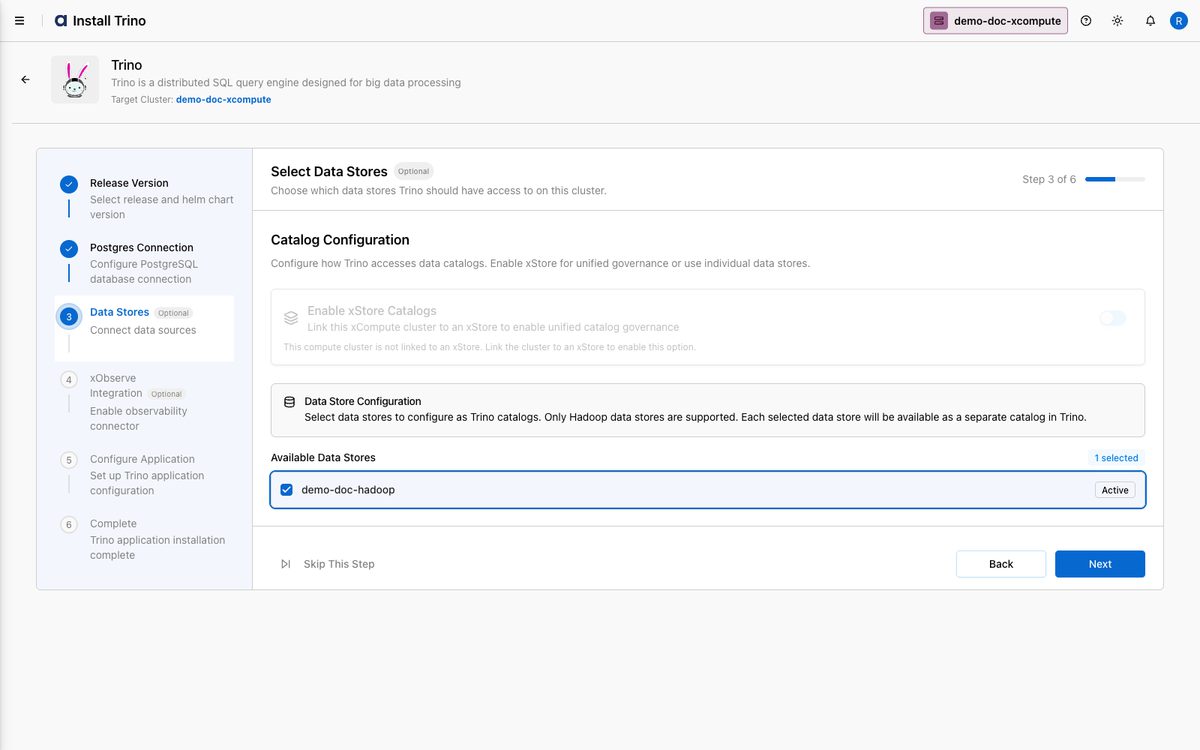
The Select Data Stores step offers two independent ways to expose data to Trino:
xStore Catalogs — Surface the catalogs of an xStore (metalake) the compute cluster is linked to. This option is enabled only when the cluster is linked to an xStore; otherwise the toggle is disabled with a prompt to link one.
Data Store connections — Select tenant-level Data Store connections to expose as Trino catalogs. Only Hadoop data stores are supported here; each selected store becomes a separate catalog.
Capabilities
Automated provisioning — Deploy a fully configured Trino cluster (coordinator + workers) in minutes.
Simplified configuration — Manage settings, resources, and catalogs through a Form editor or a YAML editor.
Dual catalog sources — Expose xStore catalogs and/or Hadoop Data Store connections.
Lifecycle management — Update, scale, or uninstall Trino from the xDP interface.
Tutorial (Getting Started)
This tutorial installs Trino with the internal PostgreSQL database for a quick start, and points out the recommended external option for production.
Prerequisites
An active, healthy Compute Cluster selected in the cluster switcher.
Permission to install applications on the cluster.
(Recommended) At least one Data Store connection or an xStore-linked cluster to query.
Supported version: Trino
476.
Your First Workflow
From the sidebar, open Apps, locate the Trino card, and click Install.
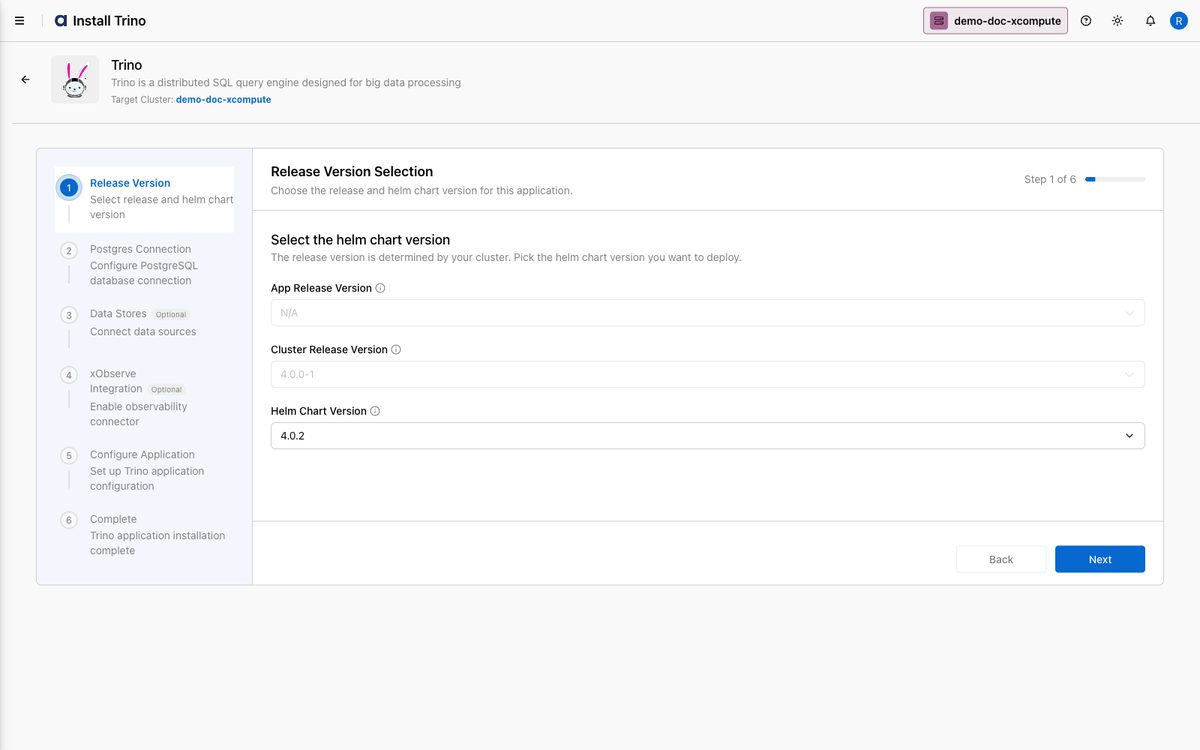
On Step 1 — Release Version, pick the Helm Chart Version (the release version is fixed by your cluster). Click Next.
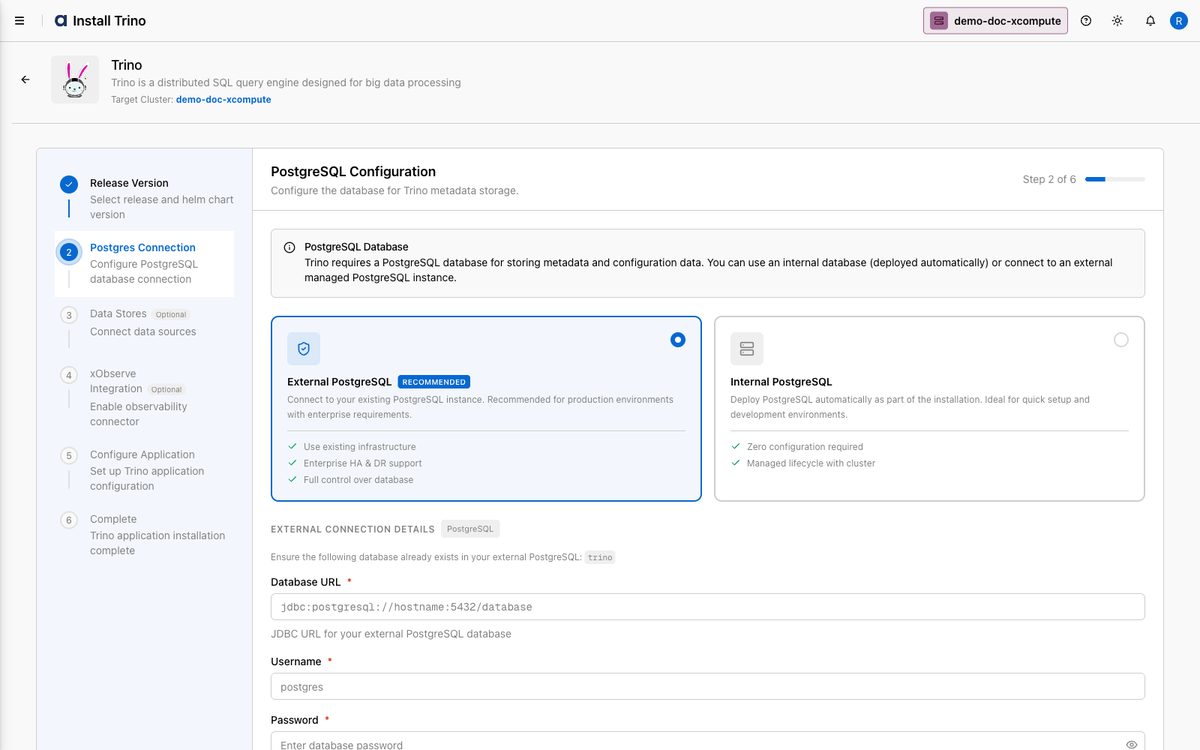
On Step 2 — PostgreSQL Configuration, choose where Trino stores its metadata:
External PostgreSQL (Recommended) — for production. Provide the Database URL (JDBC), Username, and Password of your managed instance. Recommended for enterprise HA/DR and full control.
Internal PostgreSQL — for a quick start. xDP deploys and manages a dedicated database automatically (zero configuration). This guide selects Internal.
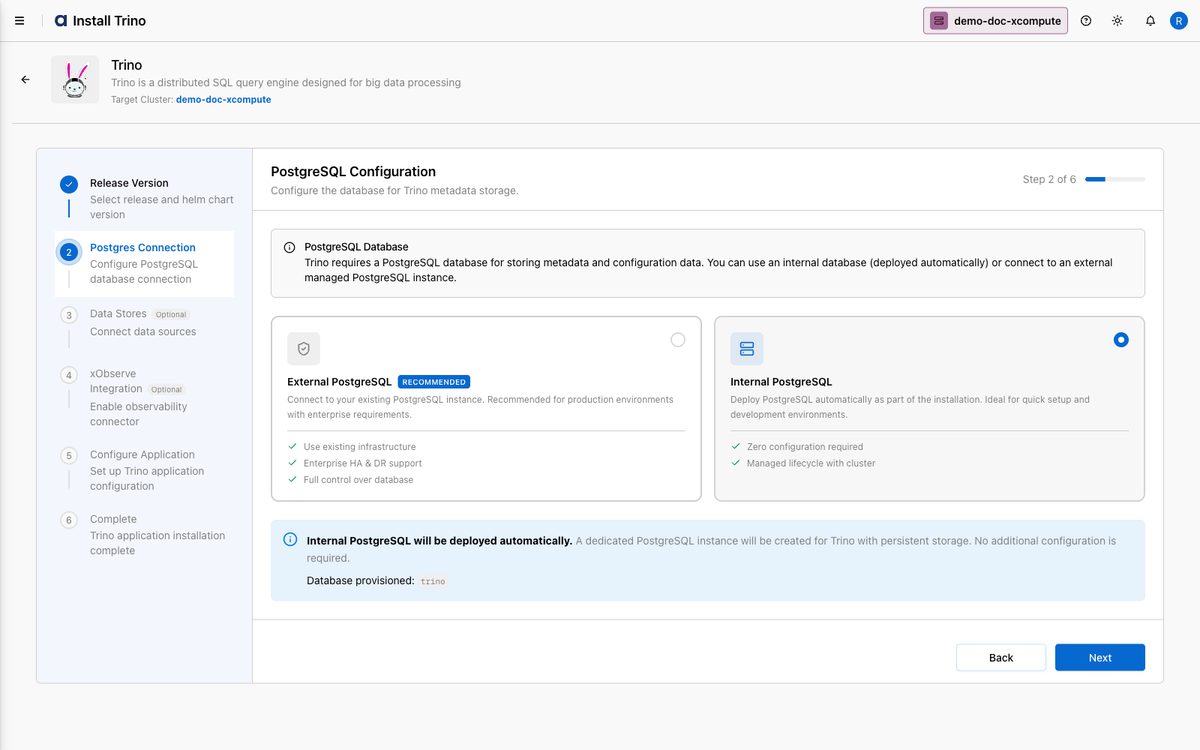
Click Next.
On Step 3 — Select Data Stores, configure catalogs from either or both sources:
Enable xStore Catalogs if the cluster is linked to an xStore.
Under Data Store Configuration, select the Hadoop data stores to expose as catalogs (e.g.
demo-doc-hadoop).
Click Next (or Skip This Step to add catalogs later).
On Step 4 — xObserve Integration, enable the connector if xObserve is installed on the linked xCentral; otherwise the toggle is disabled. Click Next.
On Step 5 — Trino Application Configuration, review the Server Configuration and the Deployment Configuration YAML (or use the Form view). Click Validate, then Next.
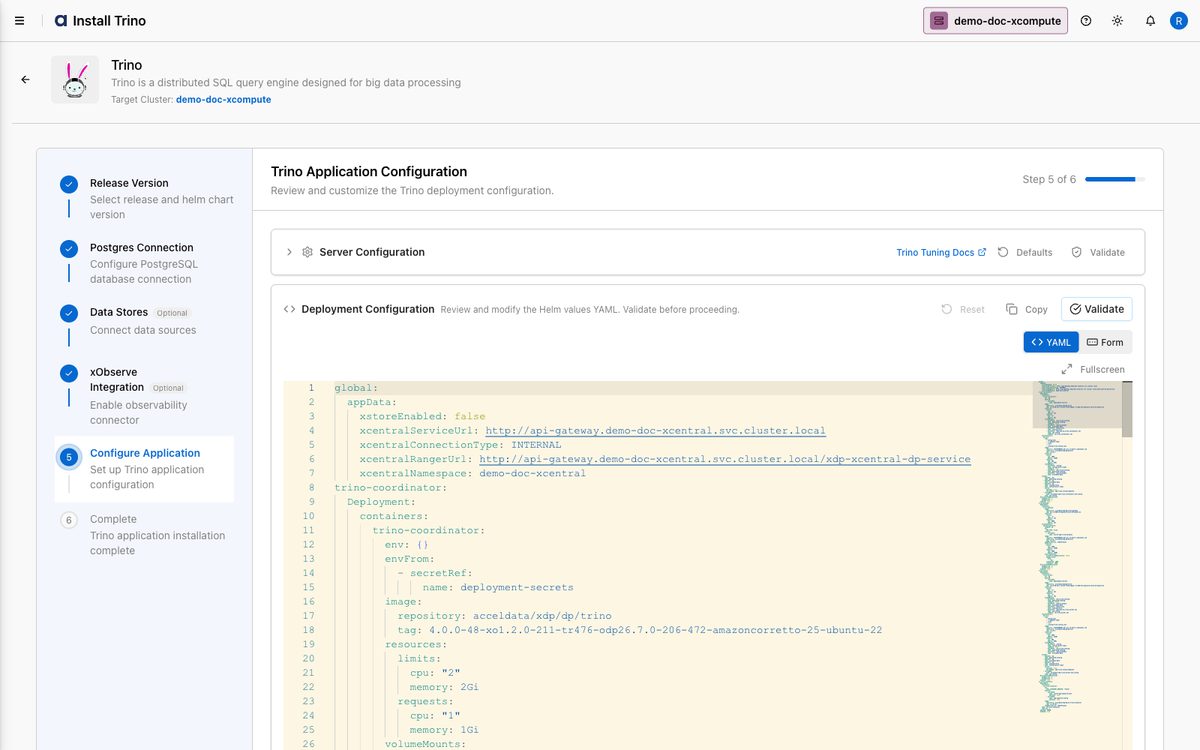
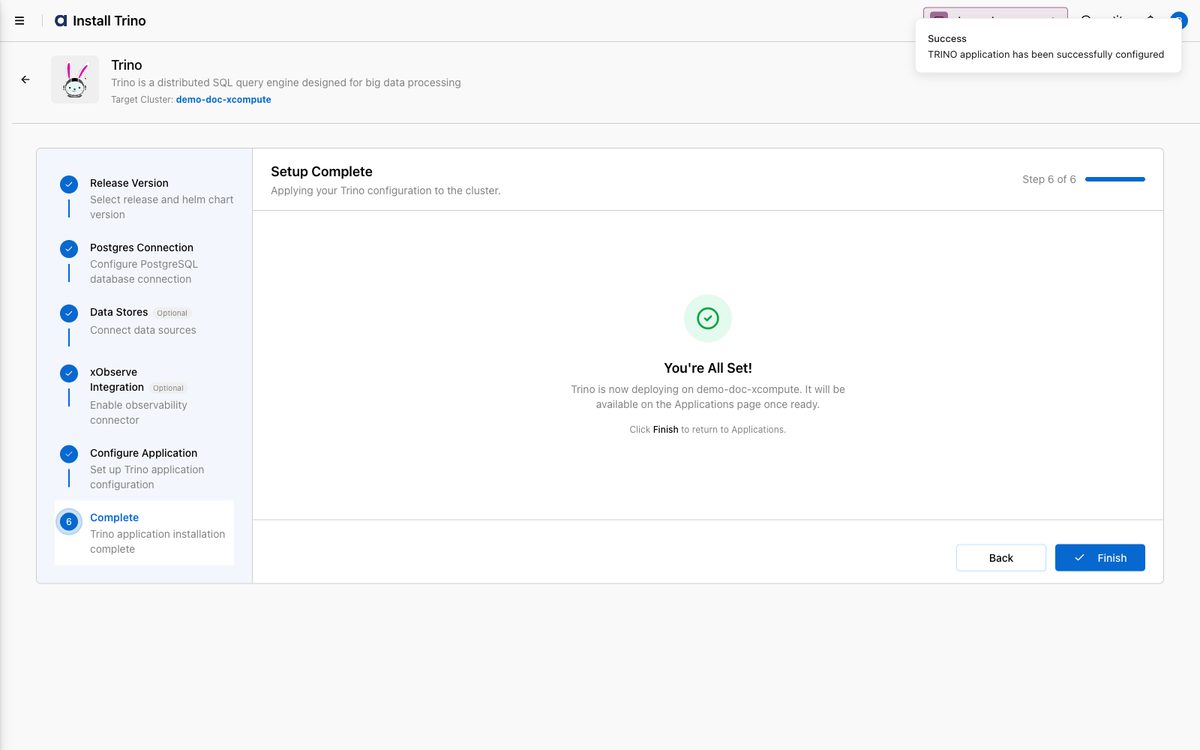
On Step 6 — Complete, xDP deploys the Trino cluster. Click Finish to return to Apps, where the Trino card shows Installed.
How-to Guides
Use an external PostgreSQL database (production)
On Step 2 — PostgreSQL Configuration, select the External PostgreSQL card.
Enter the Database URL (
jdbc:postgresql://hostname:5432/database), Username, and Password for an existing database.Ensure the cluster has network egress to the database host, then click Next.
The database type (internal vs external) is fixed for an installation — choose external up front if you need it for production.
Add a catalog after installation
Open Apps → Trino → Edit, and go to Select Data Stores.
Enable xStore Catalogs (if the cluster is xStore-linked) and/or select additional Hadoop Data Store connections.
Proceed through the wizard and Finish to apply the new catalogs.
Customize Trino resources via YAML
Open Apps → Trino → Edit, advance to Trino Application Configuration.
Adjust coordinator/worker CPU and memory in the YAML (or Form) view.
Click Validate, then Next and Finish.
Reference
Wizard steps
Step | Purpose |
|---|---|
| Pick the Helm chart version. |
| Internal (managed) or External (recommended) metadata DB. |
| Enable xStore catalogs and/or select Hadoop Data Store catalogs. |
| Optional observability connector. |
| Server config + deployment YAML (validate before continuing). |
| Deploy the Trino cluster. |
Catalog sources
Source | Requirement | Notes |
|---|---|---|
xStore Catalogs | Cluster linked to an xStore (metalake) | Surfaces the metalake's catalogs in Trino. |
Data Store connections | A registered Hadoop Data Store | Each selected store becomes a separate Trino catalog. |
Best Practices
Use external PostgreSQL in production for HA/DR and lifecycle independence; decide before the first install.
Expose only the catalogs you need — select specific Data Stores or xStore catalogs rather than everything.
Right-size coordinator and workers in the configuration step and tune after observing real query load.
Manage config as code — keep the deployment YAML in version control.
What's Next
Register Hadoop connections to use as catalogs — see Data Store.
Link the cluster to an xStore to enable xStore catalogs.
Install Jupyter Hub or Airflow for notebooks and orchestration.