
1. What is Data Store?
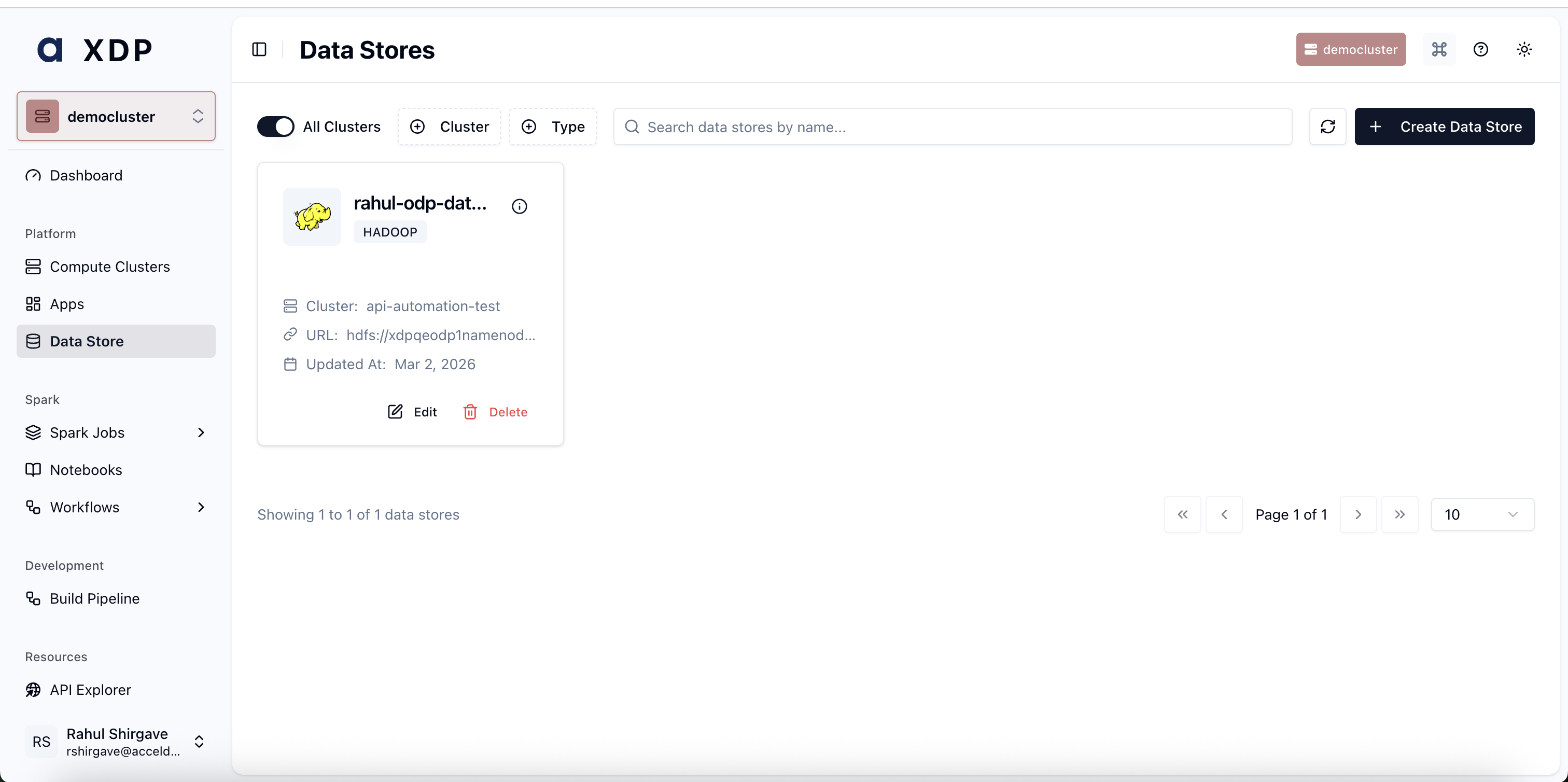
A Data Store in Acceldata xDP provides a centralized registry for all external data storage systems your applications interact with, such as HDFS, object stores (like Amazon S3), or relational databases. It solves the critical operational challenge of managing distributed data source configurations by creating a single source of truth. For platform administrators and data engineers, this simplifies data access, enhances security by abstracting connection credentials, and improves the reliability of data pipelines.
2. Key Concepts
Data Store: A logical connection object within xDP that represents a physical data storage system. It contains the necessary metadata, such as the connection URL and type (e.g., HADOOP), required for xDP services to access data.
Compute Cluster: The execution environment (e.g., a Spark or Kubernetes cluster) where data processing jobs run. Data Stores are explicitly associated with one or more compute clusters, ensuring that jobs have the correct access permissions and configurations for the data they need.
3. Capabilities
Centralize Data Source Connections: Register and manage all your organization's data sources in a single, unified repository. This eliminates configuration drift and provides a reliable catalog for all data pipelines.
Abstract Connection Details: Decouple your applications from physical infrastructure by allowing jobs to reference a logical data store name instead of hardcoding URLs and endpoints. This simplifies application development and makes infrastructure changes seamless.
Scope Access by Cluster: Enhance security and governance by associating data stores with specific compute clusters. This ensures that only authorized applications running on designated clusters can access sensitive data.
Streamline Lifecycle Management: Easily create, edit, and decommission data store connections through an intuitive interface. This allows you to manage your data ecosystem efficiently as it evolves.
4. Getting Started
This guide walks you through the process of registering and managing your data sources within xDP.
Prerequisites
You must have a user role with permissions to create and manage Data Stores.
At least one Compute Clusters must be configured in xDP.
You need the connection URL and any other required details for the external data system you wish to register.
End-to-End Workflow
Register the Data Store: Begin by navigating to the Data Store page and creating a new data store. You will provide a unique name, select its type (e.g., HADOOP), and enter the connection URL.
Associate with a Cluster: Link the new data store to the specific compute cluster(s) that will use it for running jobs. This step is crucial for defining the data access scope.
Utilize in Applications: Once registered, you can reference the data store by its logical name when configuring data processing tasks in other xDP modules.
Your team needs to run a nightly ETL job that reads raw data from an HDFS cluster and writes curated data to a different HDFS cluster. A platform administrator first registers both HDFS endpoints as two distinct Data Stores: raw-hdfs-prod and curated-hdfs-prod. They then associate both with the etl-spark-cluster. The data engineer can now build a Spark job that reads from raw-hdfs-prod and writes to curated-hdfs-prod without ever needing to know the underlying NameNode URLs.
5. Common Workflows
Here are common tasks you will perform when managing data stores.
Create a New HDFS Data Store
From the Data Stores page, click Create Data Store.
Select
HADOOPas the Data Store Type.Enter a unique, descriptive Name, such as
finance-hdfs-landing.Provide the HDFS URL, which is the address of your NameNode (e.g.,
hdfs://namenode.example.com:8020).Select the Compute Cluster that will access this HDFS instance.
Click Save to complete the registration.
Update a Data Store's Configuration
When infrastructure changes, such as a NameNode failover or migration, you can update the connection details without modifying any downstream jobs.
Locate the data store you need to update in the list.
Click the Edit button on the data store's card.
Modify the URL or other configuration details as needed.
Click Save. All applications referencing this data store will automatically use the updated configuration on their next run.
Decommission a Data Store
Before removing a data store, ensure it is no longer referenced by any active jobs or workflows to avoid pipeline failures.
Identify the data store you wish to remove.
Click the Delete button on its card.
Confirm the action when prompted. The data store configuration will be permanently removed from xDP.
6. Best Practices
Use a Standard Naming Convention: Name your data stores consistently to reflect their environment, type, and purpose (e.g.,
dev-s3-raw,prod-hdfs-curated). This improves clarity and makes management easier at scale.Isolate Environments: Do not share data stores between development and production compute clusters. Create separate data store entries for each environment to maintain strict isolation.
Principle of Least Privilege: Only associate a data store with the compute clusters that absolutely require access. This minimizes the potential impact of misconfigurations and strengthens your security posture.
Perform Regular Audits: Periodically review the data stores to identify and remove stale or unused entries. This keeps your xDP environment clean and reduces configuration clutter.