
What is a GCS Data Store?
The GCS Data Store registers a connection to a Google Cloud Storage bucket as a tenant-level file storage connection in xDP. Once registered, it is a governed, reusable path for applications and pipelines — without hardcoding credentials in each job — and you can browse its contents from the File Explorer.
New to file storage connections? See Data Store for the shared model (tenant scope, the create wizard, browsing, and lifecycle).
Key Concepts
Bucket Name — the GCS bucket the connection points to.
GCP Project ID — the Google Cloud project that owns the bucket.
Authentication Type — xDP supports:
Service Account Key — a JSON key file for a GCP service account. Recommended for most cases; the key is uploaded as a file and stored as a secret (its contents never appear on screen).
Attached Service Account (GCE) — use the service account attached to the Compute Engine VM.
Workload Identity (GKE) — use a GKE workload identity, with no static key to manage.
Capabilities
Centralized connection management — register GCS buckets once and reuse them across the tenant.
Flexible authentication — a uploaded service-account key, an attached GCE service account, or GKE workload identity.
Browse in place — open the bucket in the File Explorer to list and search objects.
Tutorial (Getting Started)
Prerequisites
Permission to create and manage file storage connections in xDP.
A GCS bucket and its project ID.
Credentials for your chosen method — for Service Account Key, a service-account JSON key with the role below.
Minimum GCS permissions
Grant the service account a Cloud Storage IAM role on the bucket. Reference: Google Cloud — Cloud Storage IAM roles.
Read-only:
roles/storage.objectViewer.Read-write:
roles/storage.objectAdmin.
Use a dedicated service account scoped to the bucket; avoid roles/storage.admin at the project level.
Create a GCS Data Store
From the left navigation, open File Explorer and click Create connection.
On Select File Storage Type, choose GCS and click Next.
On Connection Details, fill in:
File Storage Name — a unique name (e.g.
demo-doc-gcs).Bucket Name — your GCS bucket (e.g.
xdpqeteam).GCP Project ID — the owning project (e.g.
acceldata-demo).Authentication Type — select Service Account Key, then upload your service-account JSON key file (only the filename is shown; the key content is not displayed).
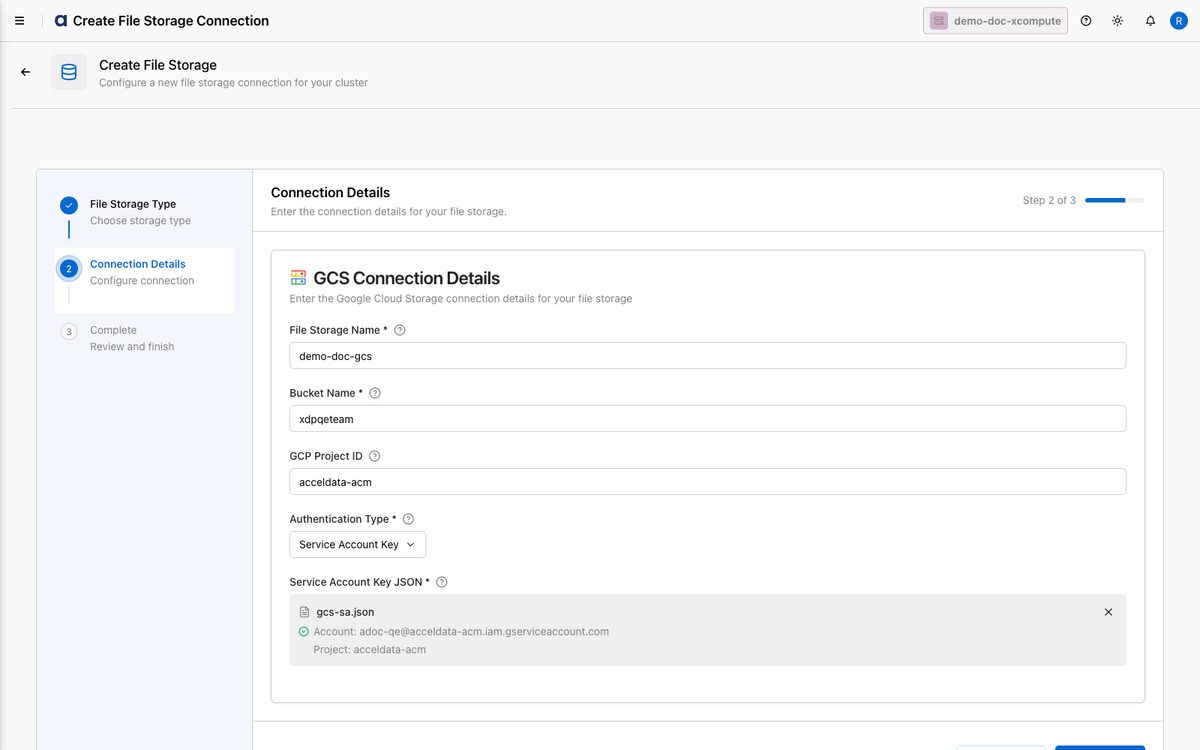
Click Next. The connection is created.
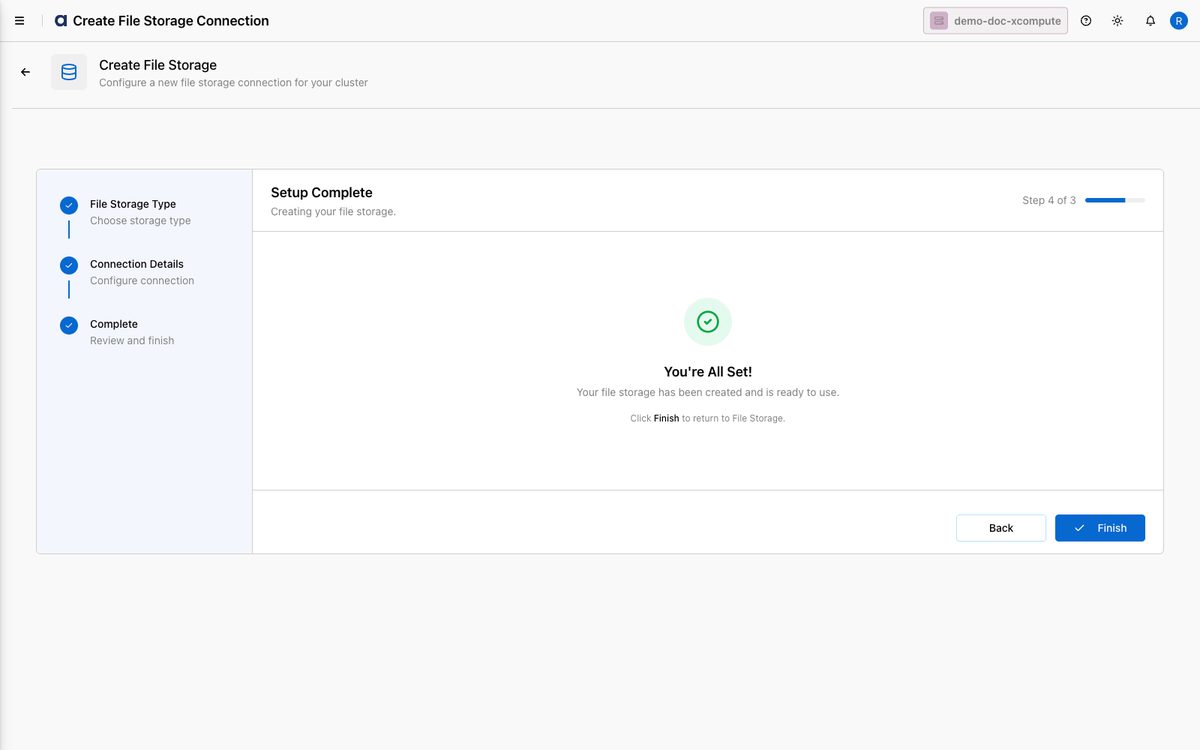
Click Finish to return to File Explorer.
How-to Guides
Use a keyless method (GCE / GKE)
Start the Create connection wizard and select GCS.
Fill in the name, bucket, and project ID.
From Authentication Type, choose Attached Service Account (GCE) or Workload Identity (GKE) — no key upload is needed.
Click Next to create the connection.
Keyless methods avoid long-lived static keys. Ensure the attached/bound identity has the storage role above on the bucket.
Best Practices
Prefer keyless auth where possible (GCE attached SA or GKE workload identity) to avoid managing static keys.
Apply least privilege — grant
roles/storage.objectViewerfor read-only androles/storage.objectAdminfor read/write, scoped to the bucket.Rotate service-account keys and re-upload them via Edit when they change.
Use descriptive names like
<env>-gcs-<purpose>.Protect the key file — xDP stores it as a secret; never share the JSON.