
What is a Hadoop Data Store?
A Hadoop Data Store registers a connection to an on-premises or cloud-hosted HDFS cluster as a tenant-level file storage connection in xDP. Once registered, it is a governed, reusable data source for Spark jobs, Trino queries, and pipelines — no need to hardcode the NameNode URL, Hadoop config, or Kerberos credentials in each job — and you can browse its contents from the File Explorer.
New to file storage connections? See Data Store for the shared model (tenant scope, the create wizard, browsing, and lifecycle).
Key Concepts
Connection URL — the HDFS NameNode address,
hdfs://<namenode-host>:<port>(default port8020), reachable from the dataplane.Hadoop configuration files —
core-site.xml,hdfs-site.xml, andhive-site.xml. xDP uses these to configure the connection automatically. All three are required by the Hadoop connection wizard.Kerberos authentication — for secured clusters, provide a Kerberos Principal (
user@REALM), akrb5.conffile, and a keytab. With Kerberos disabled, the connection uses simple auth.KeyTab file — a binary credential containing a principal and its key; xDP stores it as a secret and never displays its contents.
Capabilities
Governed connection registry — register one HDFS connection that all tenant workloads share.
Kerberos-secured access — upload
krb5.confand a keytab through the UI; xDP stores them as secrets.Configuration file upload — provide
core-site.xml,hdfs-site.xml, andhive-site.xmlso connectors pick up your cluster's exact settings.Browse in place — open the connection in the File Explorer to list and search HDFS paths.
Tutorial (Getting Started)
Prerequisites
Permission to create and manage file storage connections in xDP.
A reachable HDFS NameNode (
hdfs://<host>:<port>).The configuration files
core-site.xml,hdfs-site.xml, andhive-site.xml.For Kerberos: the
krb5.conffile, a Kerberos principal (e.g.<principal>@<REALM>), and the.keytabfor that principal.
Minimum HDFS permissions
Access is enforced by HDFS (and Ranger, if deployed) for the Kerberos principal the connection authenticates as. References: Apache Ranger · HDFS Permissions Guide.
Mode | HDFS access (for the principal) |
|---|---|
Read-only |
|
Read-write |
|
The principal must exist in the KDC and the keytab must be valid. Prefer HDFS ACLs or a scoped Ranger policy over broad permission bits.
Create a Hadoop Data Store
From the left navigation, open File Explorer and click Create connection.
On Select File Storage Type, choose HADOOP and click Next.
On Connection Details, enter:
File Storage Name — a unique name (e.g.
demo-doc-hadoop).Connection URL — the NameNode address,
hdfs://<namenode-host>:8020/.
Click Next. 4. On Advanced Configuration, upload the Hadoop config files and (optionally) enable Kerberos:
Upload Core Site XML (
core-site.xml), HDFS Site XML (hdfs-site.xml), and Hive Site XML (hive-site.xml).Toggle Enable Kerberos Authentication on, then enter the Kerberos Principal and upload the Kerberos Configuration (
krb5.conf) and KeyTab files. (Uploaded files show only their filenames; contents are never displayed.)
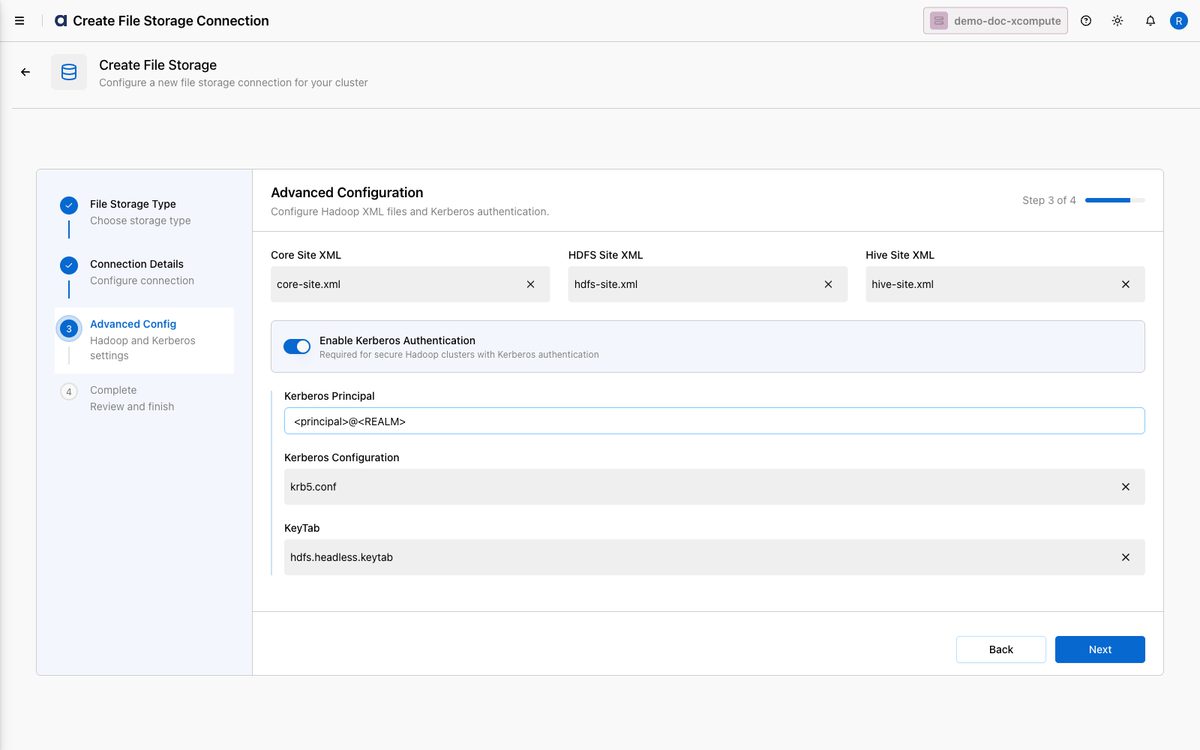
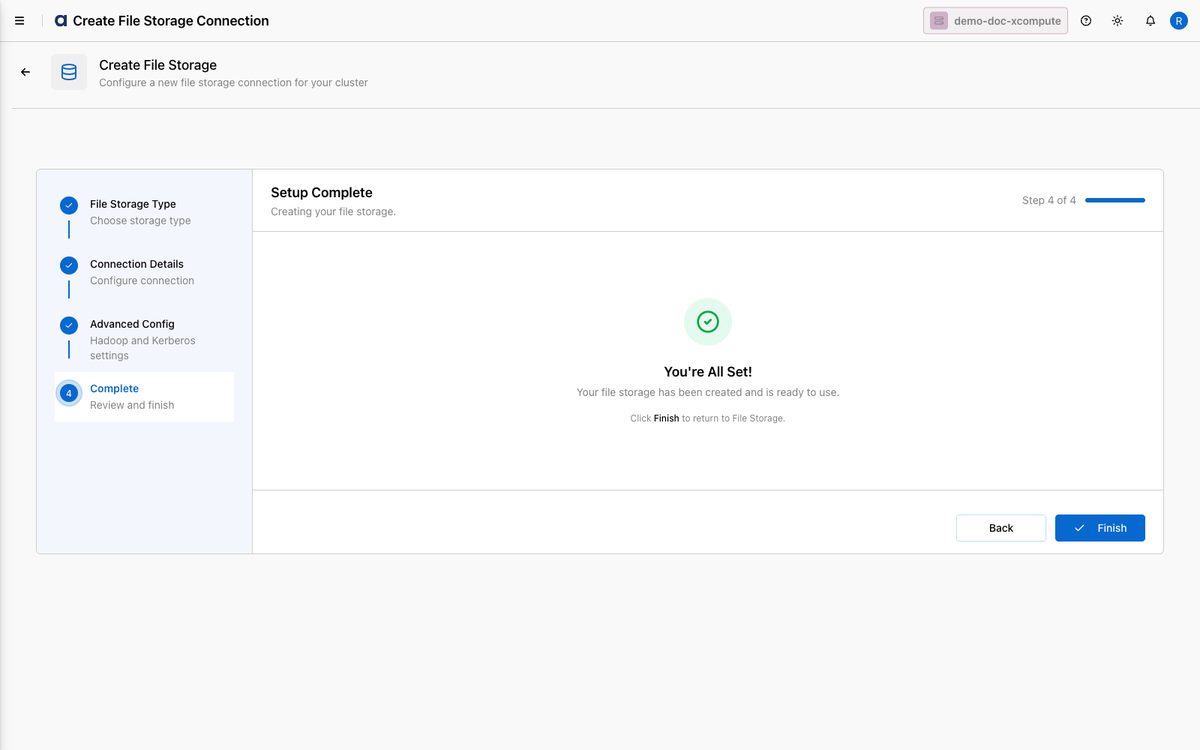
Click Next. 5. The connection is created. Click Finish to return to File Explorer.
Hive Site XML is required. If it is missing, the save fails with "Hadoop Datastore configurations missing [ Hive Site XML ]". Upload all three XML files before finishing.
How-to Guides
Edit a Hadoop Data Store
In File Explorer, click the Edit (pencil) icon on the connection row.
Update the fields — for example, upload a new
krb5.confafter a Kerberos change, or change the Connection URL if the NameNode moved.Save to apply.
Delete a Hadoop Data Store
Click the Delete (trash) icon on the row and confirm.
Deleting is irreversible. Any Spark jobs, Trino catalogs, or pipelines referencing the connection will fail — pause or update them first.
Best Practices
Set host aliases for the NameNode/DataNode hostnames your config files reference, so the dataplane can resolve them.
Scope HDFS/Ranger access to the directories you expose, for the connection's principal.
Rotate keytabs proactively — renew and re-upload before the KDC expiry to avoid job failures.
Verify reachability — confirm the NameNode host and port are reachable from the dataplane before creating the connection.
Protect the keytab — xDP stores it as a secret; never share it.