
What is an ADLS Data Store?
The ADLS Data Store registers a connection to a Microsoft Azure Data Lake Storage Gen2 account as a tenant-level file storage connection in xDP. Once registered, it is a governed, reusable path for applications and pipelines, and you can browse its contents from the File Explorer.
New to file storage connections? See Data Store for the shared model (tenant scope, the create wizard, browsing, and lifecycle).
Key Concepts
Storage Account — the ADLS Gen2 account that holds your data.
Container — a logical grouping of data within the storage account (and an optional Container Path to scope the connection).
Authentication Type — xDP supports:
Service Principal (OAuth 2.0) — an Azure AD application identity (Tenant ID, Client ID, Client Secret). Recommended for production; supports granular, revocable access.
Storage Account Key — a single key granting full access to the account.
Capabilities
Centralized access — a single governed connection to ADLS data for tenant workloads.
Granular auth — use a service principal with scoped RBAC roles, or an account key.
Browse in place — open the container in the File Explorer to list and search blobs.
Tutorial (Getting Started)
Prerequisites
Permission to create and manage file storage connections in xDP.
An ADLS Gen2 storage account and container.
Credentials for your chosen method:
Service Principal: Tenant ID, Client ID, and Client Secret for an Azure AD app with the role below.
Storage Account Key: the access key for the account.
Minimum ADLS permissions
Assign the service principal (or the identity behind the account key) a built-in RBAC role on the storage account or container. Reference: Azure — Storage built-in roles.
Read-only: Storage Blob Data Reader.
Read-write: Storage Blob Data Contributor.
Scope the role to the specific container or path rather than the subscription, and avoid broad roles like Owner/Contributor.
Create an ADLS Data Store
From the left navigation, open File Explorer and click Create connection.
On Select File Storage Type, choose ADLS and click Next.
On Connection Details, fill in:
File Storage Name — a unique name (e.g.
demo-doc-adls).Storage Account Name — your ADLS Gen2 account.
Container Name — the container to connect to.
Container Path (optional) — a path within the container to scope the connection.
Authentication Type — select Service Principal (OAuth 2.0) and enter the Tenant ID, Client ID, and Client Secret (or choose Storage Account Key and enter the key).
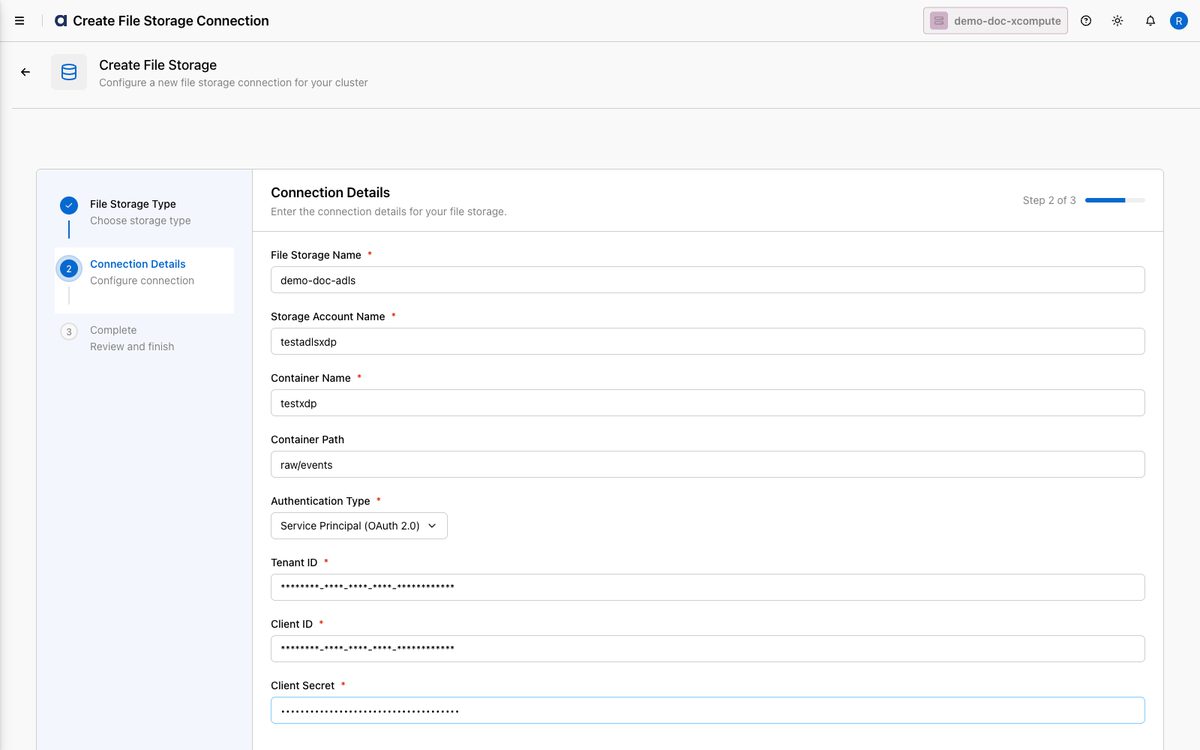
Click Next. The connection is created.
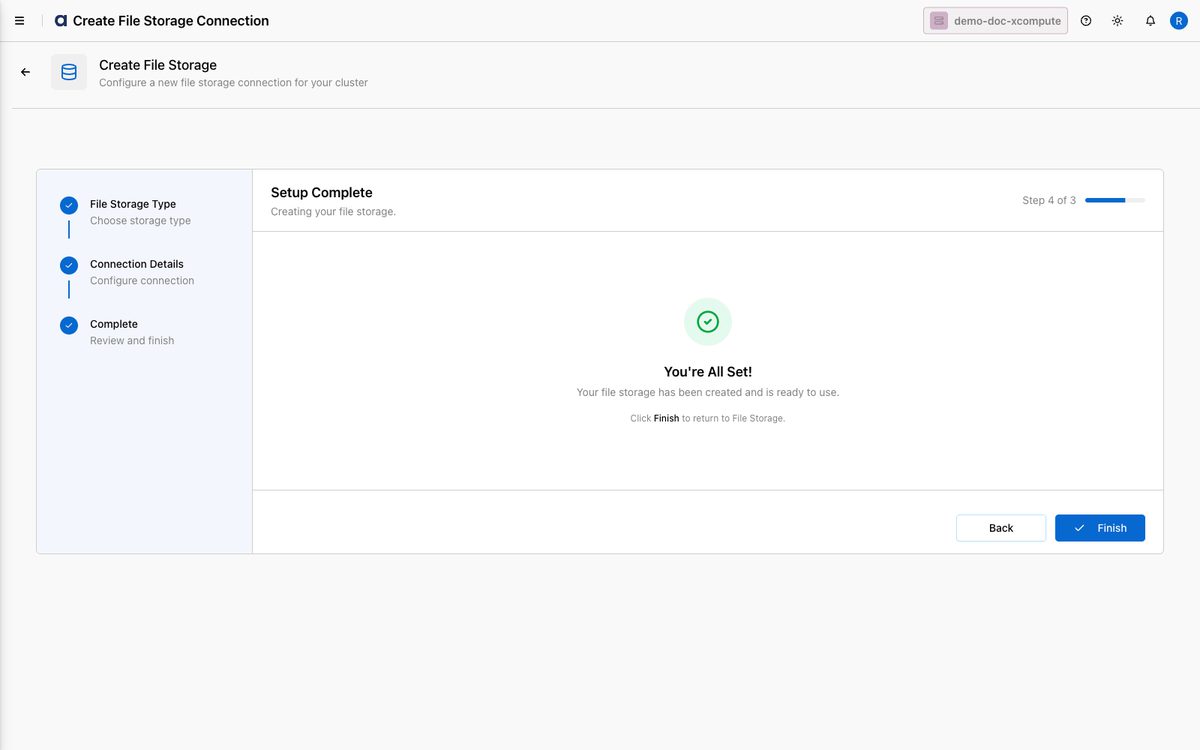
Click Finish to return to File Explorer.
How-to Guides
Use a Storage Account Key
Start the Create connection wizard and select ADLS.
Fill in the name, account, container, and optional path.
From Authentication Type, select Storage Account Key and enter the key.
Click Next to create the connection.
Account keys grant full account access and cannot be scoped. Prefer a service principal with a scoped role in production.
Best Practices
Use a service principal in production with a container-scoped RBAC role for least privilege and easy revocation.
Scope permissions tightly to the container or path the connection needs.
Rotate credentials (client secrets or account keys) on a schedule and re-enter them via Edit.
Use consistent names like
<env>-adls-<purpose>.