This document covers how to configure ODP to use Ceph RGW Object Storage via Hadoop S3A connector for Hadoop, Hive, Spark3, Impala, and Trino, and how to troubleshoot common issues.
Integrate the ODP with Ceph RGW Object Storage over the S3A protocol to optimize data management on open-source object storage. This setup uses Hadoop’s native S3A connector and requires no additional plugins.
This is applicable only to ODP version 3.3.6.3-101 and not applicable to version 3.3.6.3-1.
For Ceph erasure coding (EC), Ceph uses Jerasure by default, but also allows other accelerator plugins such as ISA-L. Choose the accelerator that best fits your EC deployment.
For details, see the pages below:
- Prerequisites
- Create Ceph/IAM User
- Configuration
- Ceph with Ranger S3 Plugin
- Quick Connection Test
- Troubleshooting
Prerequisites
- Ceph RGW endpoint URL and valid access/secret keys.
- Network connectivity from ODP components to the Ceph RGW endpoint (HTTP/HTTPS).
- Administrative access to Hadoop, Hive, and Trino configuration directories.
Create Ceph/IAM User
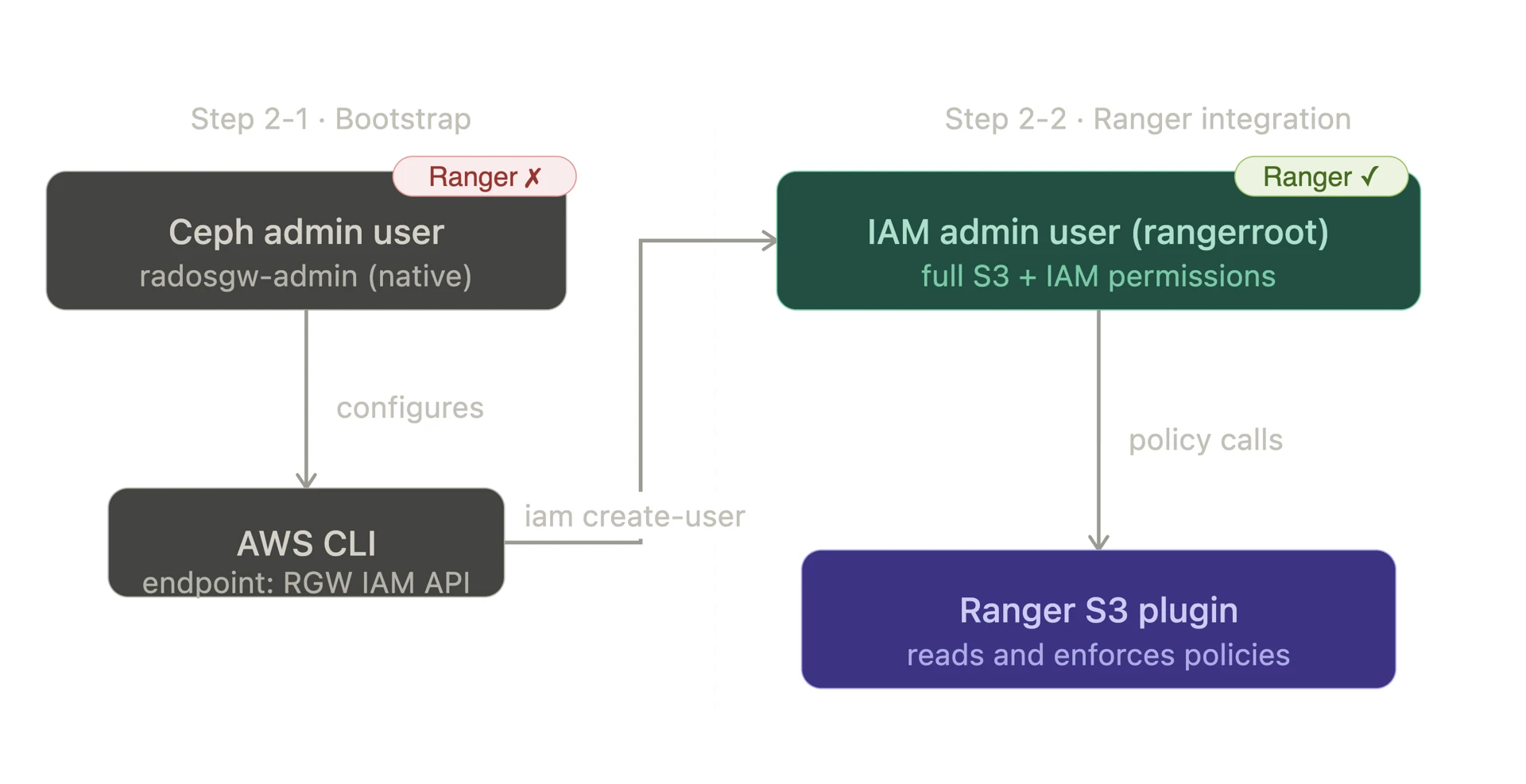
For ODP-Ceph integration, we have two distinct user types - Ceph native user and IAM user.
Both user types are required:
- The Ceph native user bootstraps access
- The IAM user enables Ranger policy enforcement
Understanding the difference is important before proceeding.
| User Type | Created via | Used to | Recognized by Ranger |
|---|---|---|---|
| Ceph Native User | radosgw-admin user create | Bootstrap initial IAM API access | ❌ No |
| IAM User | iam create-user (AWS CLI) | Ranger policy enforcement via RGW IAM API | ✅ Yes |
Create Ceph RGW Admin User
- Create a new IAM account
xxxxxxxxxxcephadm shell -- radosgw-admin account create --account-name=ranger-account # Result:{ "id": "RGW14102304245748501", ...}- Create a Ceph admin user with IAM account
xxxxxxxxxxcephadm shell -- radosgw-admin user create \ --uid=admin \ --display-name="Admin-User" \ # Spaces not allowed in display name, use hyphens --account-id=RGW14102304245748501 \ # Use id generated from the previous step --account-root \ --gen-access-key \ --gen-secret # Result:{ "keys": [ { "user": "admin", "access_key": "Q2Z4NJ0JM3T97OQ9RYEW", "secret_key": "8dIT59a2nFBVvOW416WkLDkkjOx2cEAWbApdWpqs", ... } ], ...}Make sure to copy and store both the Access Key ID and Secret Access Key in a secure location.
- Register the Ceph admin user to the AWS CLI.
xxxxxxxxxx# Exit from Cephadmexit aws configureAWS Access Key ID [None]: Q2Z4NJ0JM3T97OQ9RYEW # access-keyAWS Secret Access Key [None]: 8dIT59a2nFBVvOW416WkLDkkjOx2cEAWbApdWpqs # secret-keyDefault region name [None]: us-east-1Default output format [None]: jsonCreate IAM Admin User
- Create IAM admin user in AWS CLI
xxxxxxxxxx# 1. Create IAM admin useraws --endpoint-url http://10.100.11.14:8070 iam create-user --user-name rangerroot{ "User": { "Path": "/", "UserName": "rangerroot", "UserId": "e0d8051e-9880-493f-ba44-65872d9faad9", "Arn": "arn:aws:iam::RGW14102304245748501:user/rangerroot", "CreateDate": "2026-02-23T22:03:52.632461Z" }} # 2. Generate access/secret key for IAM account root useraws --endpoint-url http://10.100.11.14:8070 iam create-access-key --user-name rangerroot{ "AccessKey": { "UserName": "rangerroot", "AccessKeyId": "OVOMP7METUAZD371QZER", "Status": "Active", "SecretAccessKey": "tsjjA06L54xVUDzaCDZm4pMUEFFOgithi6GzbXZV", "CreateDate": "2026-02-23T22:04:30.444562Z" }} # 3. Verify the list of IAM usersaws --endpoint-url http://10.100.11.14:8070 iam list-usersMake sure to copy and store both the Access Key ID and Secret Access Key in a secure location.
- Assign S3/IAM permissions to IAM admin user
xxxxxxxxxx# 1. Create a policy JSON file (allowing both s3/iam all permissions)cat > /tmp/s3-full-policy.json << 'EOF'{ "Version": "2012-10-17", "Statement": [ { "Effect": "Allow", "Action": "s3:*", "Resource": "*" }, { "Effect": "Allow", "Action": "iam:*", "Resource": "*" } ]}EOF # 2. Assign the policy to the IAM account admin useraws --endpoint-url http://<ip-address>:<rgw-port> iam put-user-policy \ --user-name <iam-username> \ --policy-name S3FullAccess \ --policy-document file:///tmp/s3-full-policy.jsonConfiguration
To access data in a Ceph S3 bucket, apply the following configuration changes.
Hadoop Configuration for HDFS/Spark3/Impala
- Add configurations in HDFS → Configs → Advanced → Custom core-site
| Property | Value |
|---|---|
| fs.s3a.access.key | <AWS-access-key> |
| fs.s3a.secret.key | <AWS-secret-key> |
| fs.s3a.endpoint | http://10.100.11.65:8070 |
| fs.s3a.aws.credentials.provider | org.apache.hadoop.fs.s3a.SimpleAWSCredentialsProvider |
| fs.s3a.impl | org.apache.hadoop.fs.s3a.S3AFileSystem |
| fs.s3a.path.style.access | true |
| fs.s3a.connection.ssl.enabled | false |
- Add configurations in MapReduce → Configs → Advanced → Custom mapred-site
| Property | Value |
|---|---|
| fs.s3a.impl | org.apache.hadoop.fs.s3a.S3AFileSystem |
Hive Configuration
- Reference: Configure Apache Hive with S3A (applies only to 3.3.6.1-101) - Acceldata Open Source Data Platform
- Create
.jcekscredentials using access/secret keys
xxxxxxxxxxhadoop credential create fs.s3a.access.key \ -value <access_key> \ -provider jceks://hdfs@<ActiveNameNode>:<port>/user/backup/s3.jcekshadoop credential create fs.s3a.secret.key \ -value <secret_key> \ -provider jceks://hdfs@<ActiveNameNode>:<port>/user/backup/s3.jceks- Add the following property at Hive → Config → Custom hive-site
hive.security.authorization.sqlstd.confwhitelist.append=fs\.s3a\.endpoint|fs\.s3a\.path\.style\.access|fs\.s3a\.security\.credential\.provider\.path|fs\.s3a\.bucket\..*\.security\.credential\.provider\.path- Set the session-level configurations on CLI
xxxxxxxxxxbeelineset fs.s3a.security.credential.provider.path=jceks://hdfs@<ActiveNameNode>:<port>/user/backup/s3.jceks;set metaconf:fs.s3a.security.credential.provider.path=jceks://hdfs@<ActiveNameNode>:<port>/user/backup/s3.jceks;Trino Configuration
- Add configurations in Trino → Configs → Advanced → Advanced trino-hive → Hive Config
xxxxxxxxxxhive.s3.aws-access-key=<AWS_ACCESS_KEY_ID>hive.s3.aws-secret-key=<AWS_SECRET_KEY_ID>hive.s3.endpoint=<CEPH_RGW_ENDPOINT>hive.s3.path-style-access=truehive.s3.ssl.enabled=falseTrino uses its own S3 client (TrinoS3FileSystem), not Hadoop S3A (S3AFileSystem). The S3 credentials and endpoint must be configured in hive.properties to configure Trino.
Ceph with Ranger S3 Plugin
- The ODP Ranger S3 plugin manages policies through IAM; create required IAM users before setting up the plugin.
- Create an IAM admin user and grant Ceph S3 access permissions.
- For detailed setup instructions, see: https://docs.acceldata.io/odp/documentation/ranger-implementation
Quick Connection Test
- Create a test bucket.
xxxxxxxxxxaws --endpoint-url <CEPH_RGW_ENDPOINT> s3 mb s3://test-bucket- Upload a test file to the bucket via HDFS.
xxxxxxxxxxhdfs dfs -put /tmp/test.txt s3a://test-bucket/hdfs/test.txt- Check the test file uploaded on the Ceph cluster.
xxxxxxxxxxaws --endpoint-url <CEPH_RGW_ENDPOINT> s3 ls s3://test-bucket/hdfs/You should be able to see the test.txt file in the Ceph bucket
Troubleshooting
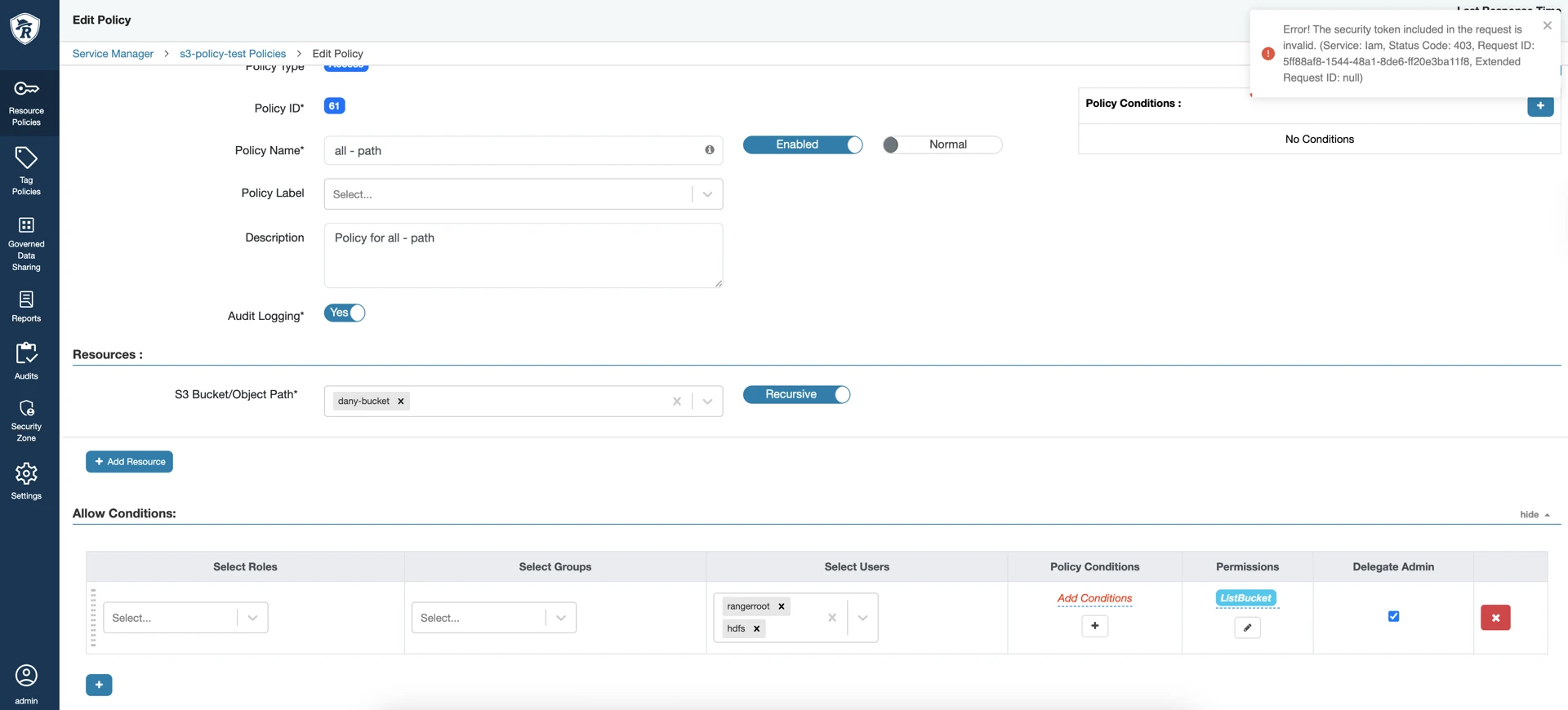
If Ranger policy creation against Ceph fails with an IAM token error, verify the following settings.
Ranger Policy Creation for Ceph Fails with “IAM Invalid Token” Error