Begin by installing the Superset mpack on the Ambari management node.
Download the Superset mpack from the Mpacks Link.
Use the following command to install the mpack:
and restart ambari server.
Configure Service Installation and Metadata Database
After the mpack is available or installed in ambari, add the Superset service from Ambari and continue through the service installation workflow.
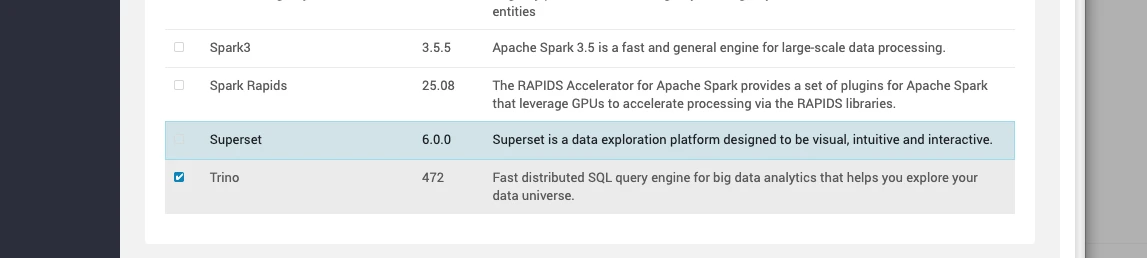
And select the node on which you want the superset to run.
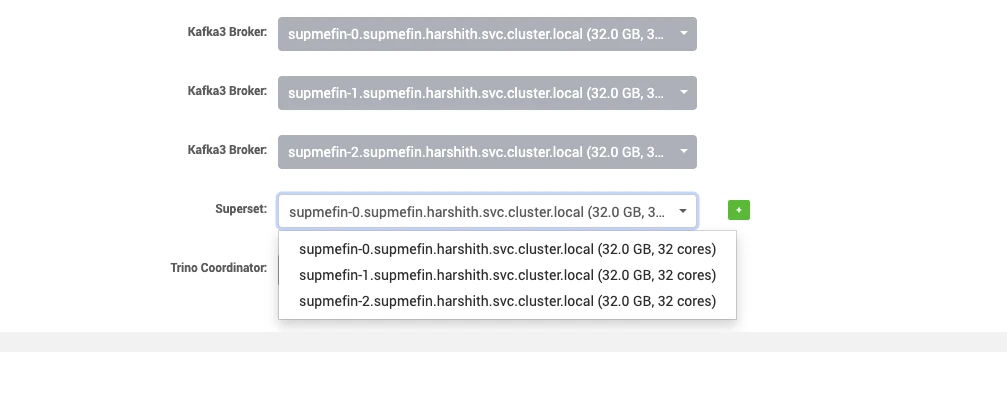
During the service setup, configure the Superset metadata database using a supported production database such as PostgreSQL or MySQL.
For example, you can create the metadata database and a user with commands such as the following.
For MySQL:
Equivalent PostgreSQL commands:
Configure the metadata database as follows:
Provide the metadata database host, port, database name, username, and password
Ensure the selected metadata database is reachable from the Superset service hosts
Review the Ambari configuration fields for the metadata connection and service credentials before finalizing installation
Also, fill in the Superset secret key using a securely generated value such as:
The secret key is used by Superset to securely sign session data and protect sensitive application metadata. Use a unique value for each deployment and store it securely.
And in Advanced > Advanced superset-env, set Superset Admin Password and update Superset Admin Username if required for your deployment.
You can also configure SSL, LDAP, or role mappings in this stage if required by your environment and access model.
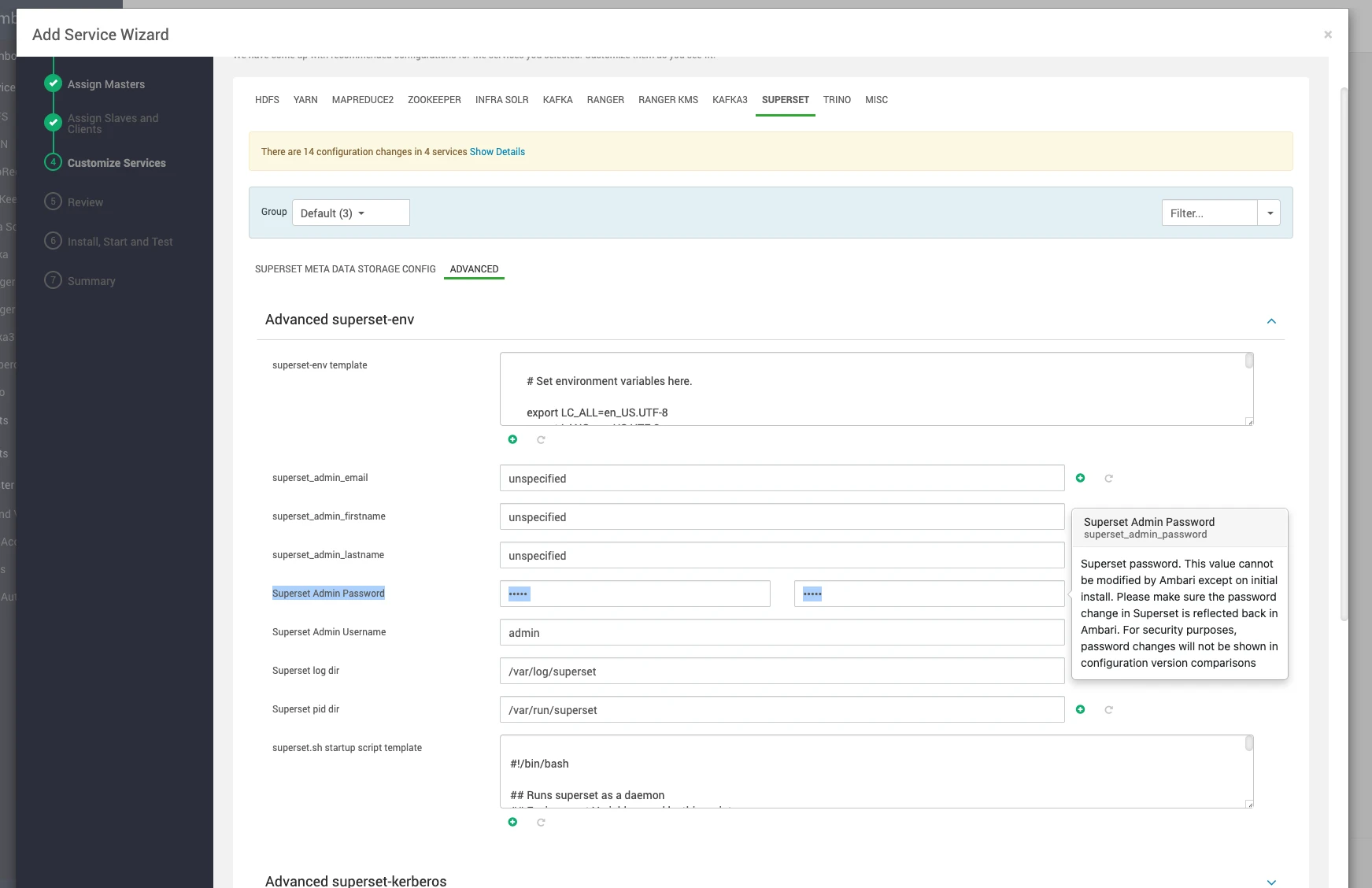
Hit Next in the bottom right and then Deploy.
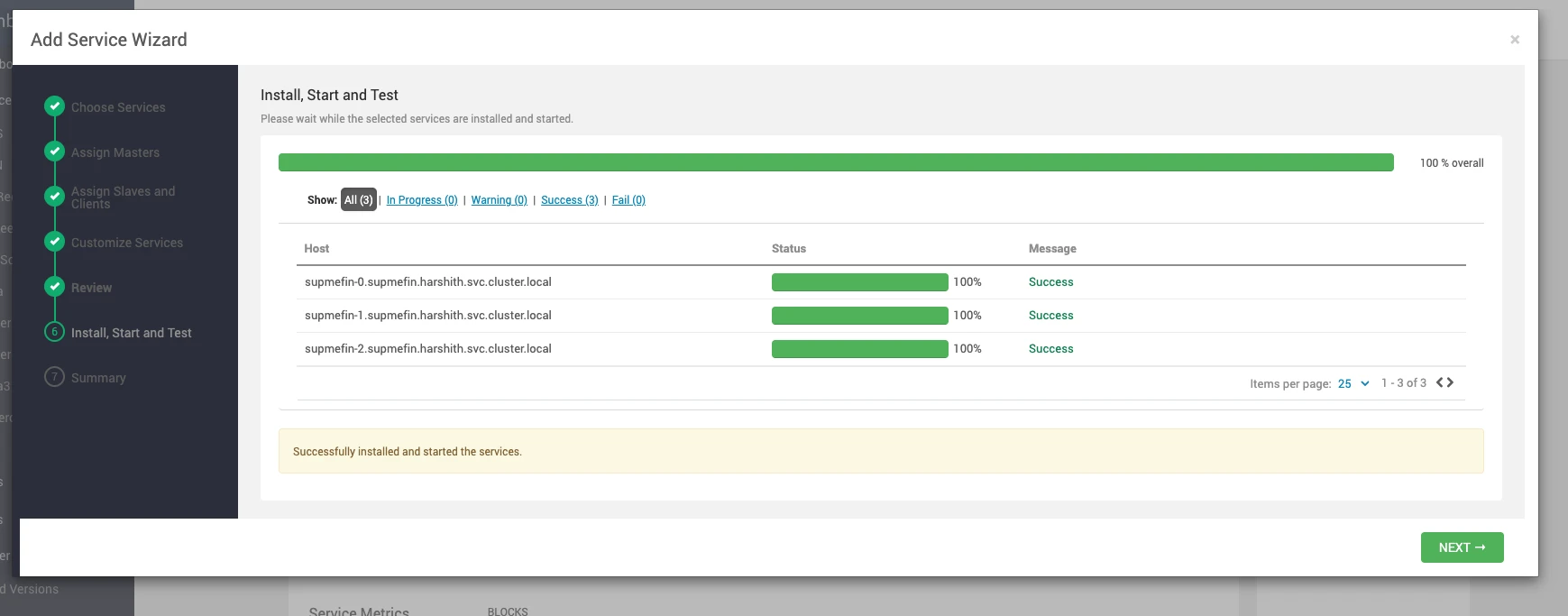
After Successful installation, hit next and go to Superset in ambari.
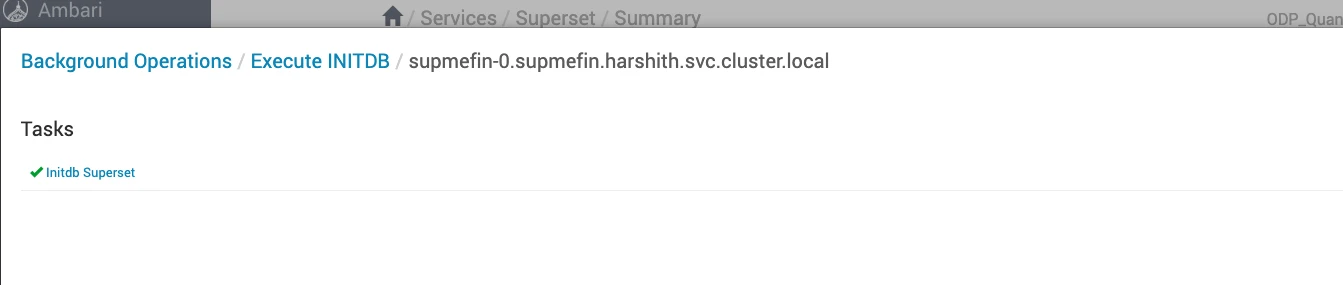
Before accessing the Superset UI for the first time, run
Actions>initdbfrom the service actions menu in Ambari.
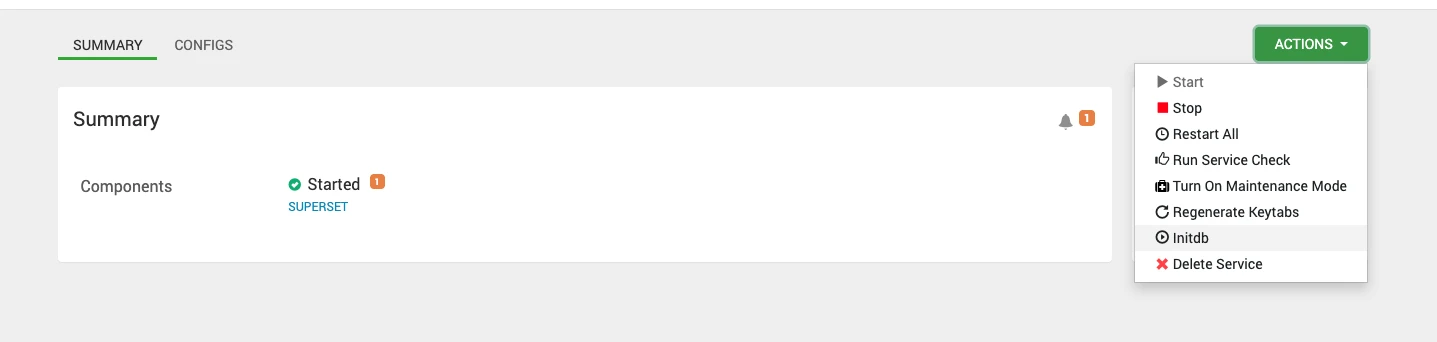
This step initializes the Superset metadata database and prepares the application state required for login, configuration, and regular UI usage.
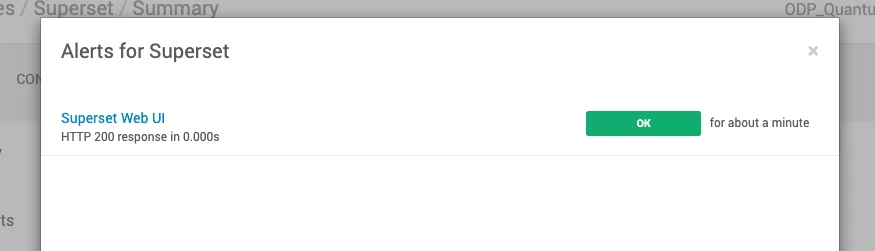
Otherwise, you may see an alert similar to the following:
HTTP 500 response from <superset-service-url> in 0.000s (HTTP Error 500: INTERNAL SERVER ERROR)
After initdb, above alert should get resolved