
Upload and Configure Kerberos Keytabs After Cluster Configuration
Use this page to upload and apply Kerberos configuration files after a cluster has been configured.
Before You Begin
Ensure that you have the following files:
- Kerberos keytab file
krb5.conf
Upload Kerberos Files
- In the Pulse Admin UI, select the cluster for which you want to configure Kerberos authentication.
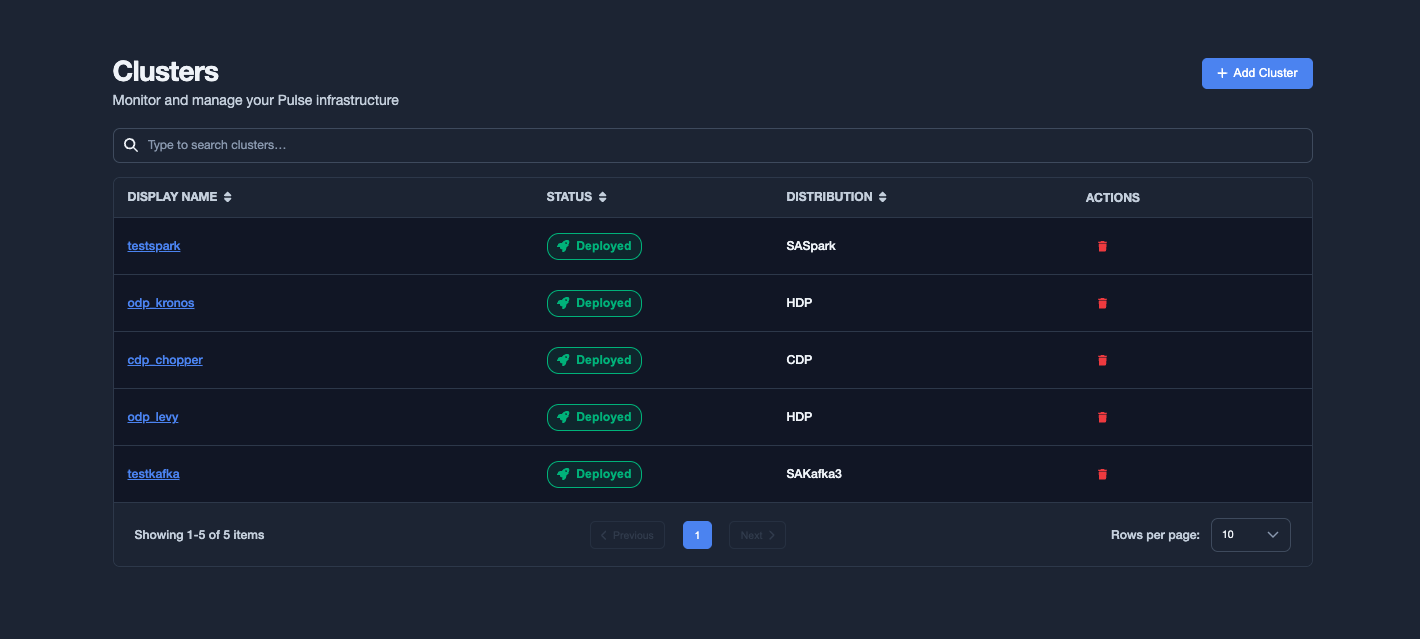
- Click Upload.
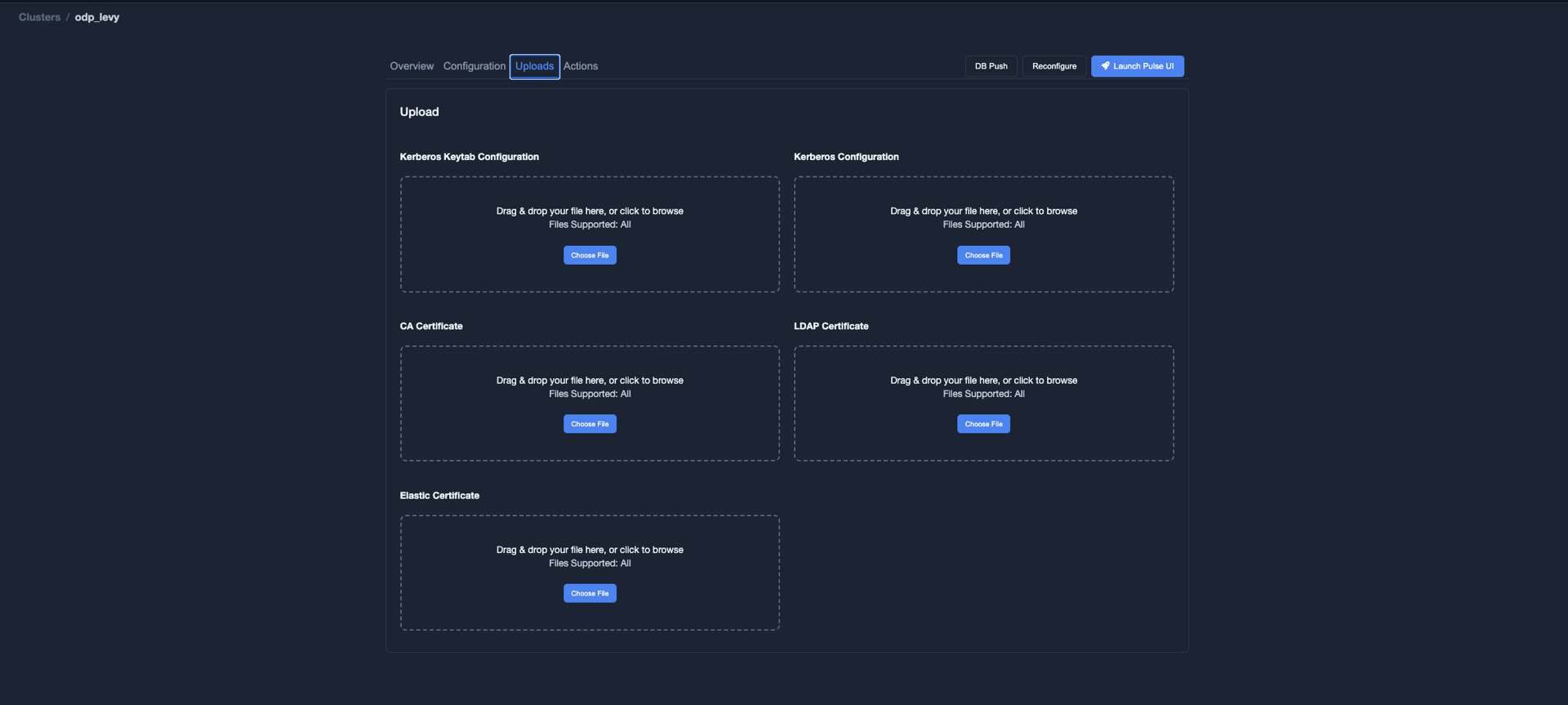
- Upload the Kerberos keytab file and the
krb5.conf
Apply the Kerberos Configuration
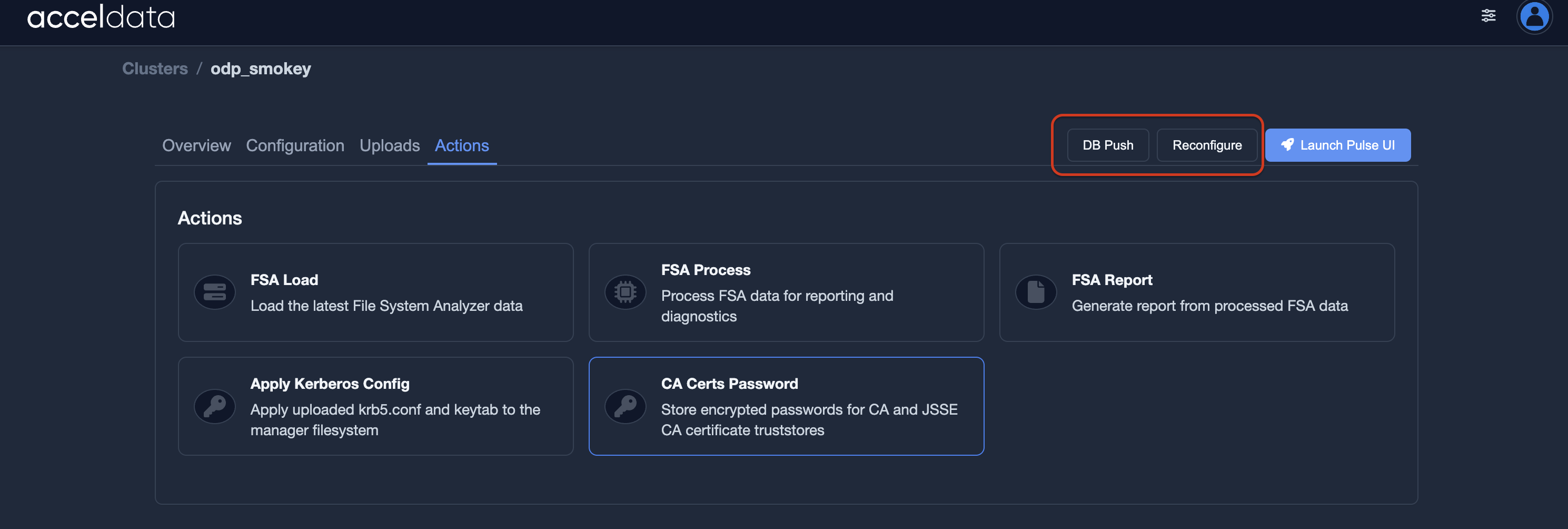
- Click Actions.

- Select Apply Kerberos Config.
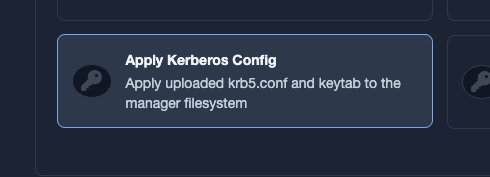
- Wait for the operation to complete successfully.
Push the Configuration to the Database and Agents
- Click DB Push to update the configuration in databases.
- Click Reconfigure to propagate the updated Kerberos configuration to agents.
Restart Add-on Services
- Navigate to Overview.
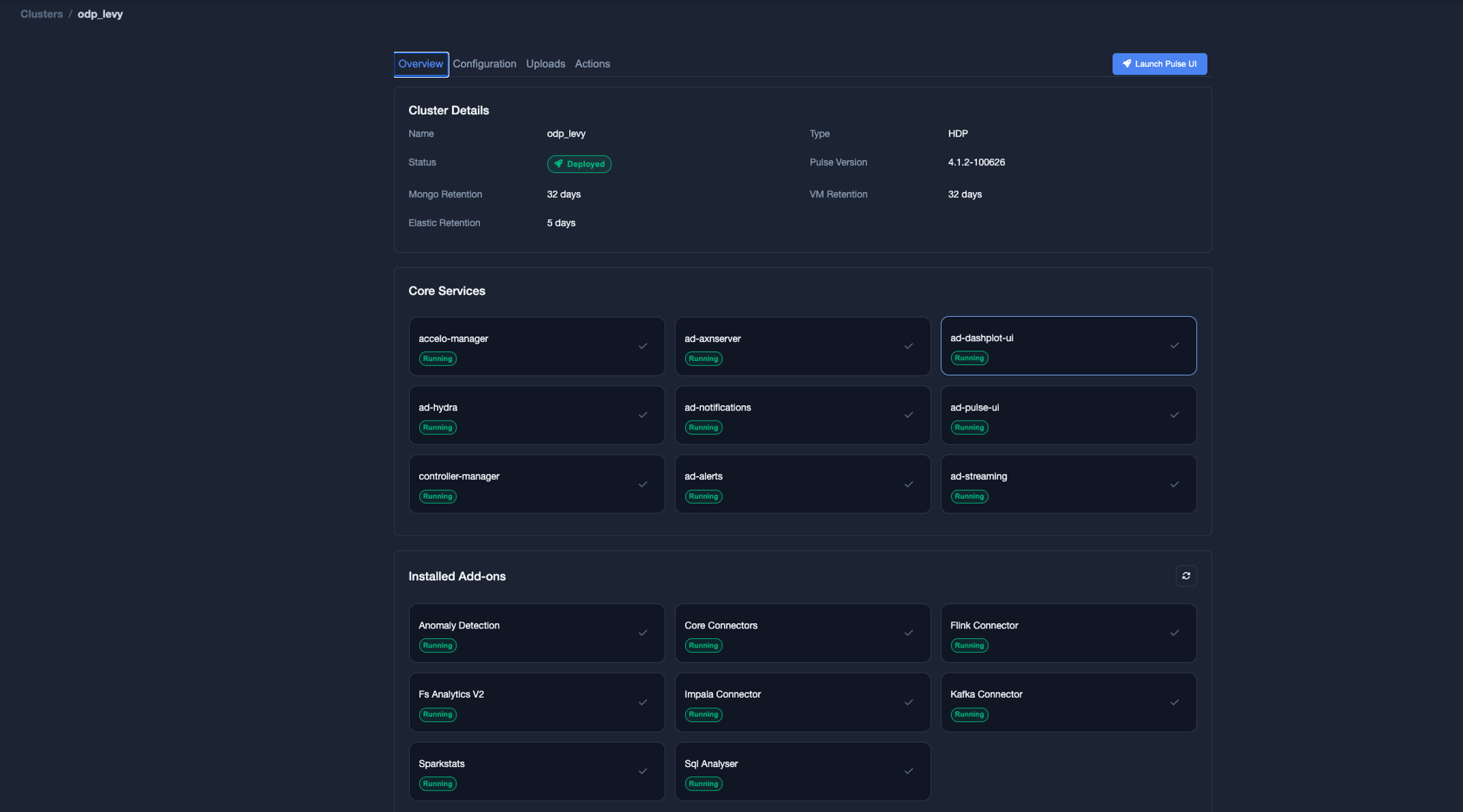
- In the Installed Addons list, select the add-on services that require the updated Kerberos configuration.
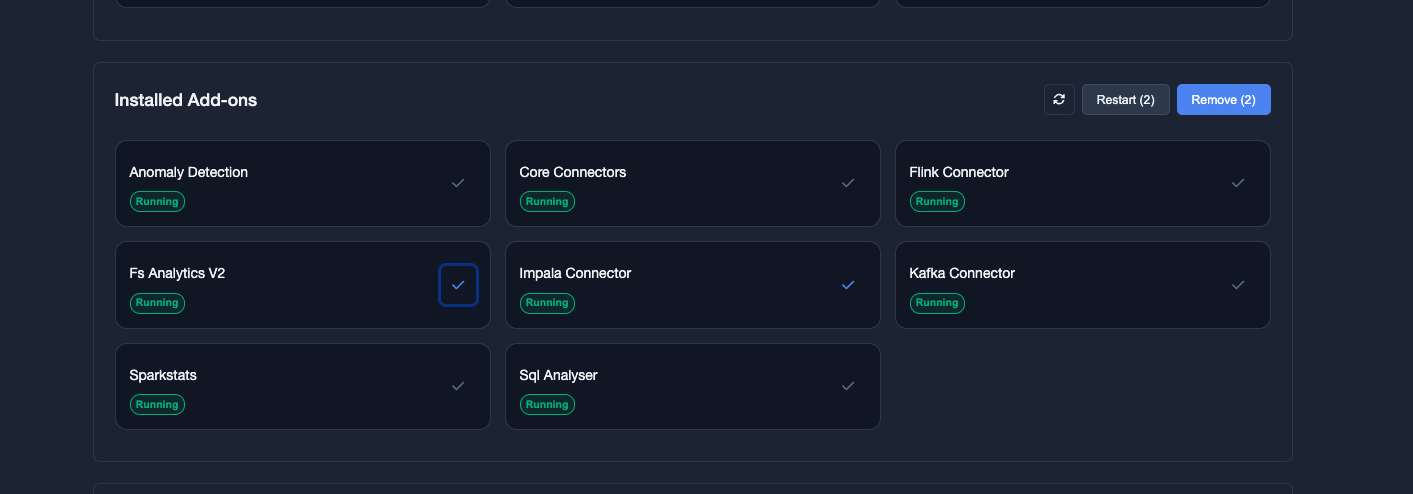
- Click Restart.
The restarted services load the updated Kerberos keytab and configuration files.
Have a suggestion?