
Install xObserve from the xDP UI to enable observability and AI-powered diagnostics for your xDP deployment.
Before You Begin
Ensure that:
xCentral is installed and accessible.
You have the required permissions to manage infrastructure components.
External PostgreSQL and VictoriaMetrics connection details are available if you plan to use externally managed services.
An API key is available if you plan to configure an AI/LLM provider during installation.
Steps
In the xDP UI, go to Infrastructure.
Select xCentral.
Click Install xObserve. The Install xObserve page opens.
Configure the required settings and complete the installation workflow.
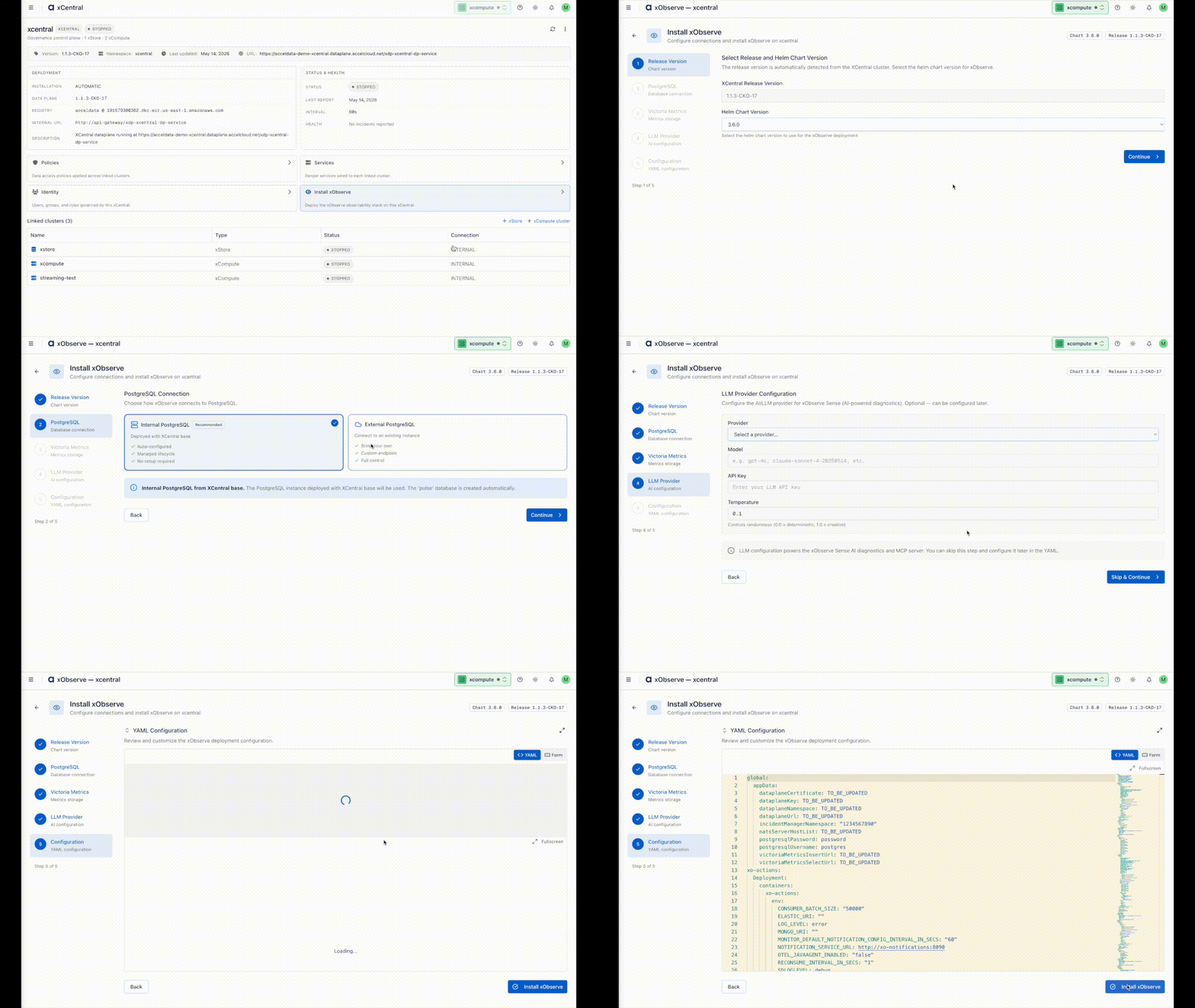
Configure Release Information
Review the release information.
xCentral Release Version – Automatically detected from the selected xCentral cluster.
Helm Chart Version – Select the Helm chart version to deploy.
Click Continue.
Configure PostgreSQL Connection
xObserve uses PostgreSQL to store configuration and application metadata.
On the PostgreSQL Connection page, select one of the following options:
Internal PostgreSQL – Deploys PostgreSQL as part of the xCentral installation.
External PostgreSQL – Connects to an existing PostgreSQL instance.
If you select External PostgreSQL, provide the following information:
URL: JDBC connection URL for the PostgreSQL database
Username: Database user name
Password: Database password
Click Continue.
Configure VictoriaMetrics Connection
xObserve uses VictoriaMetrics for storing metrics and logs.
On the VictoriaMetrics Connection page, select one of the following options:
Internal VictoriaMetrics – Deploy VictoriaMetrics as part of the xCentral installation.
External VictoriaMetrics – Connect to an existing VictoriaMetrics deployment.
If you select External VictoriaMetrics, provide the following information:
Select URL: VictoriaMetrics query endpoint URL
Insert URL: VictoriaMetrics ingestion endpoint URL
Victoria Logs URL: VictoriaLogs query endpoint URL
Username: User name for authentication
Password: Password for authentication
Click Continue.
Configure LLM Provider (Optional)
Configure an AI/LLM provider to enable xObserve Sense AI-powered diagnostics and MCP server capabilities.
This step is optional. You can configure the LLM provider later by updating the deployment YAML.
On the LLM Provider Configuration page, enter the following details:
Provider: Select an LLM provider such as OpenAI, Anthropic, Google AI (Gemini), or AWS Bedrock
Model: Enter the model name, for example
gpt-4oorclaude-sonnet-4-20250514API Key: API key for the selected provider
Temperature: Value between
0.1and1.0that controls response randomness
Click Skip and Continue to proceed without configuring an LLM provider.
Review Deployment Configuration
On the YAML Configuration page, review the generated deployment configuration.
Switch between YAML and Form views as needed.
Modify configuration values if required.
Click Save and Apply.
Verify Installation
After the installation completes:
Click Open xObserve.
Verify that the xObserve UI opens successfully in a new browser window.
After installation, you can manage and update xObserve settings from the Manage xObserve section in xCentral. Use this page to modify deployment configurations, update connection details, review integration settings, and perform post-installation administration tasks without reinstalling xObserve.
Next Steps
After installation, you can:
Configure observability for xCompute, xStore, and supported applications.
Configure xObserve Sense for AI-powered diagnostics.
Monitor metrics, logs, and platform health from the xObserve UI dashboard.