
The Incidents page provides a centralized view of all active and historical incidents generated by alerts. Use this page to search, filter, investigate, and clear incidents.
Incidents are created when an alert condition is met and remain available for review until they are resolved or manually cleared.
Navigation
To access incident management:
In the xObserve UI, go to Alerts in the left pane.
Alerts > Incidents.
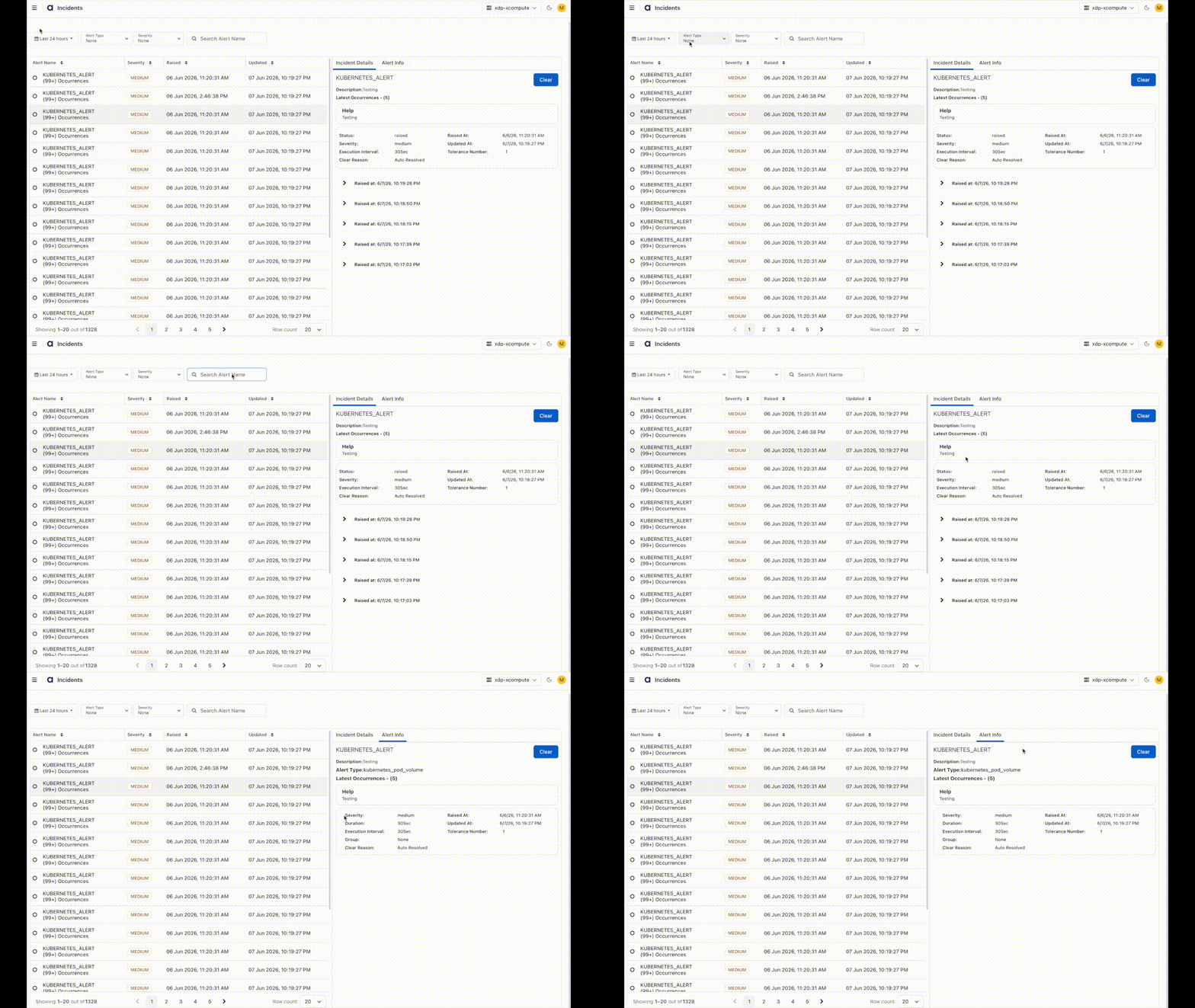
The Incidents page displays all incidents generated by configured alerts.
View Incidents
The left panel displays a list of incidents and their current status.
Each incident record includes:
Alert Name – Name of the alert that generated the incident.
Severity – Severity assigned to the alert.
Raised – Date and time when the incident was first raised.
Updated – Most recent update timestamp for the incident.
Occurrences – Number of times the alert condition has been triggered.
Use the pagination controls at the bottom of the page to navigate through incident records.
Filter Incidents
Use the filters at the top of the page to narrow the incident list and quickly locate relevant incidents.
Available filters include:
Time Range – Filter incidents by a predefined time window.
Alert Type – View incidents associated with a specific alert type.
Severity – Filter incidents by severity level.
Alert Name Search – Search for incidents using the alert name.
The incident list is updated automatically based on the selected filter criteria.
View Incident Details
Select an incident from the list to view detailed information in the Incident Details panel.
The Incident Details panel provides information about the selected incident, including:
Alert Name – Name of the alert associated with the incident.
Description – Description configured for the alert.
Latest Occurrences – Number of recent occurrences recorded for the incident.
Status – Current incident status.
Severity – Assigned severity level.
Execution Interval – Alert evaluation interval.
Raised At – Timestamp when the incident was first created.
Updated At – Most recent update timestamp.
Tolerance Number – Number of tolerated evaluation failures before triggering the incident.
Clear Reason – Resolution or clear reason associated with the incident.
This information helps operators understand the incident's current state and history.
Review Incident Occurrences
An incident can contain multiple occurrences generated by repeated alert evaluations.
Expand an occurrence entry to review additional details.
Occurrence information may include:
Time the occurrence was raised.
Time the alert was evaluated.
Metric values associated with the alert.
Resource metadata captured during evaluation.
Depending on the alert type, metadata can include:
Cluster Name
Host
Namespace
Node Name
Pod Name
Volume Name
Additional resource-specific dimensions
Reviewing occurrence details helps identify patterns, determine impact, and troubleshoot the root cause of an incident.
View Alert Information
Select the Alert Info tab to review the alert configuration associated with the selected incident.
The Alert Info tab provides detailed information about the alert definition that generated the incident, helping users understand the alert configuration, evaluation settings, and resolution status.
The following information is displayed:
Alert Name – Name of the alert associated with the incident.
Description – Description configured for the alert.
Alert Type – Type of alert that generated the incident.
Latest Occurrences – Number of recent occurrences recorded for the incident.
Help – Additional guidance or documentation associated with the alert.
Alert Configuration Details
The configuration section includes:
Severity – Severity level assigned to the alert.
Duration – Time period for which the alert condition must remain true before triggering.
Execution Interval – Frequency at which the alert is evaluated.
Group – Alert grouping configuration, if applicable.
Tolerance Number – Number of tolerated evaluation failures before the alert triggers.
Alert Lifecycle Information
The Alert Info tab also displays lifecycle details for the incident:
Raised At – Date and time when the incident was created.
Updated At – Most recent update timestamp for the incident.
Clear Reason – Reason the incident was cleared or resolved.
Clear an Incident
To manually resolve an incident:
Select the incident from the incident list.
Review the incident details and occurrence history.
Click Clear.
When an incident is cleared:
The incident status is updated.
The clear timestamp is recorded.
The clear reason is displayed in the incident details.
The incident remains available for historical review and auditing.
Clear an incident only after confirming that the underlying issue has been resolved or acknowledged.
Incident Lifecycle
An incident typically progresses through the following stages:
An alert condition is met.
The system creates an incident.
Additional occurrences may be recorded as the alert continues to trigger.
Operators review incident details and occurrence history.
The incident is resolved automatically or cleared manually.
Historical information is retained for auditing and investigation.
Best Practices
Prioritize incidents using severity filters.
Review occurrence history before clearing an incident.
Use resource metadata to identify affected infrastructure components.
Review alert configuration in the Alert Info tab when investigating recurring incidents.
Verify that the root cause has been addressed before clearing an incident.
Use time-range filters to focus on recent incidents during active investigations.