
Fileset Catalogs
Overview
Fileset catalogs connect xStore to object stores and distributed file systems — AWS S3, Google Cloud Storage, Azure Data Lake, and Hadoop HDFS. Rather than browsing individual files, a fileset catalog organizes access through named Filesets: registered storage paths that your compute engines can read and write.
The hierarchy for fileset catalogs is: Metalake → Catalog → Schema → Fileset.
This page covers the parts that are common to every fileset provider — creating the catalog, creating a schema, and creating a fileset. For the provider-specific connection settings, credentials, and minimum storage permissions, open the dedicated guide for your provider (linked in the matrix below).
When to Use
You need to register and organize access to files on S3, GCS, ADLS, or HDFS within the Catalog Browser.
You want to expose named storage paths (filesets) to compute engines without per-cluster path configuration.
You are building a data lake and want relational catalogs (Hive, Iceberg) and file-based catalogs managed in one place.
Core Concepts
Metalake → Catalog → Schema → Fileset: A fileset catalog holds schemas, and each schema holds filesets. A fileset is a named pointer to a storage path.
Fileset type — Managed vs External: A Managed fileset has its path managed by xStore (derived from the schema root); an External fileset points to an existing storage path you supply.
Provider: The storage backend — AWS S3, Google Cloud Storage, Azure Data Lake, or Hadoop (HDFS).
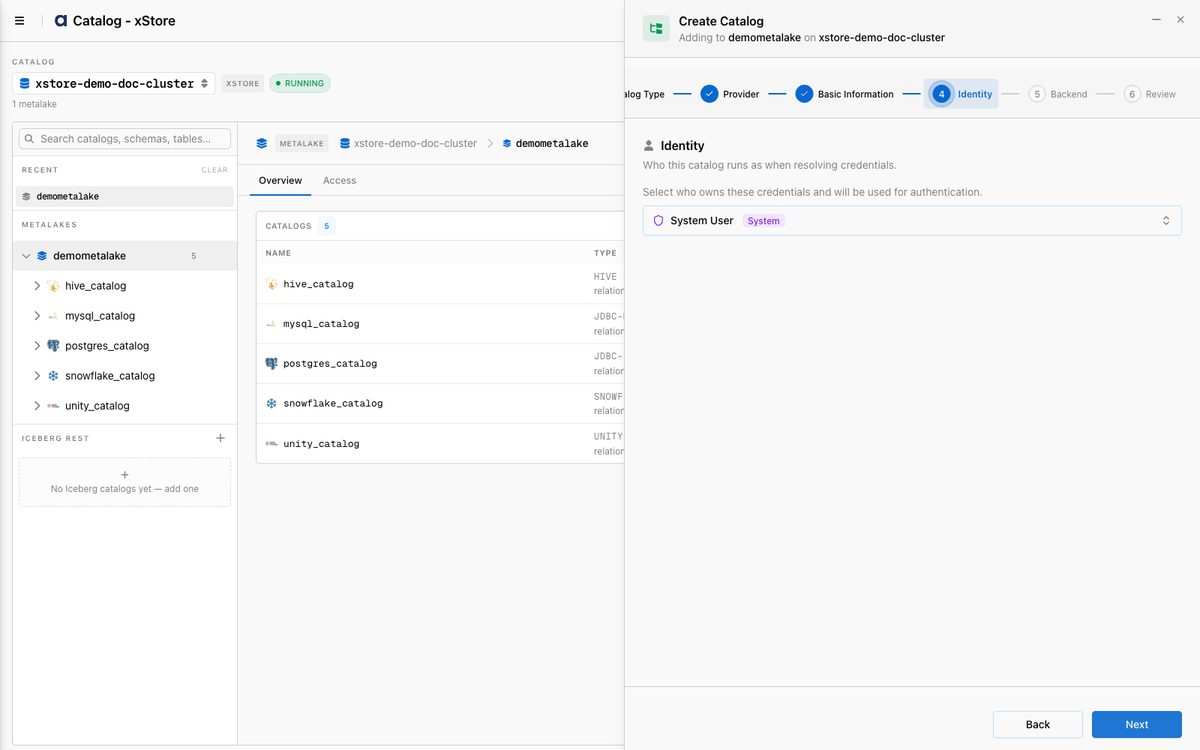
Identity / Run-as: The default System User owns the catalog's stored credentials and runs the catalog as
xstore-system-user. Compute-engine queries run as the requesting user, governed by xCentral/Ranger.
Prerequisites
A running xStore cluster. See xStore Clusters.
A metalake. See xStore Catalogs.
Access credentials for the target storage system, and the minimum storage permissions granted before onboarding — see the provider guide (matrix below) for the exact read-only and read-write permissions.
Creating a Fileset Catalog
The Create Catalog wizard is the same for every provider; only the Provider choice and the Backend step differ.
Navigate to Data catalog → Browse and select your xStore, then open your metalake and click Add Catalog.
Catalog Type — select Fileset.
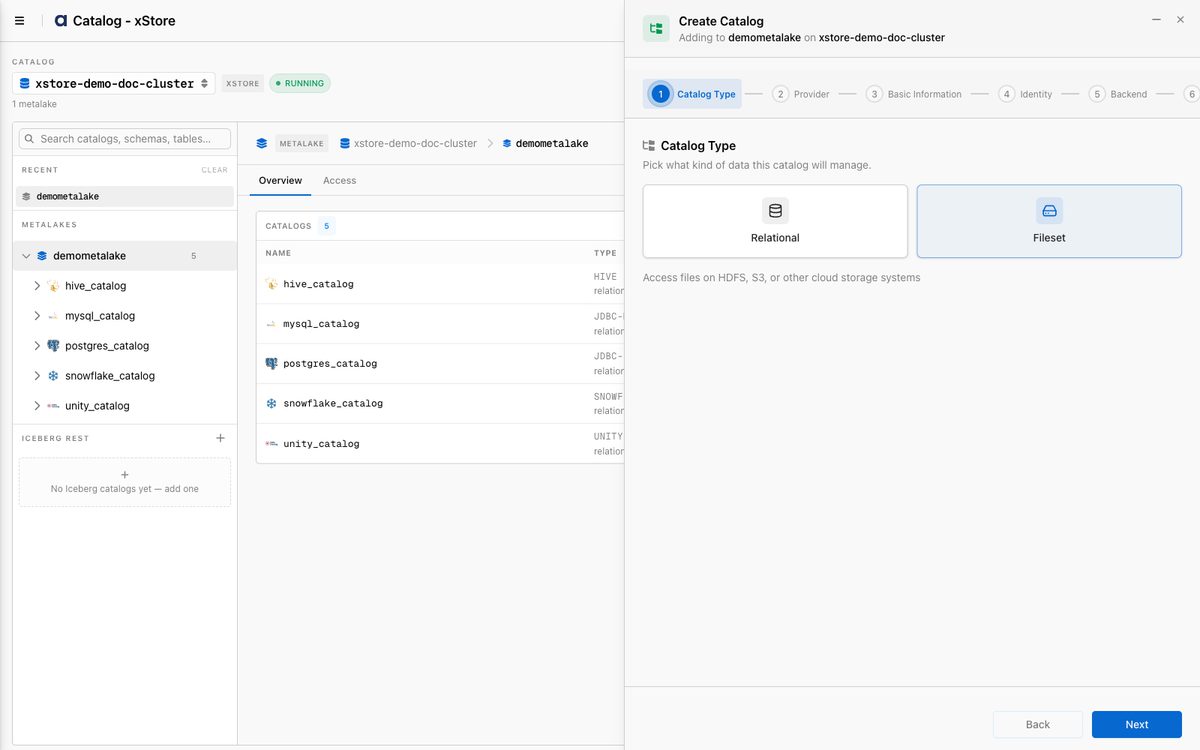
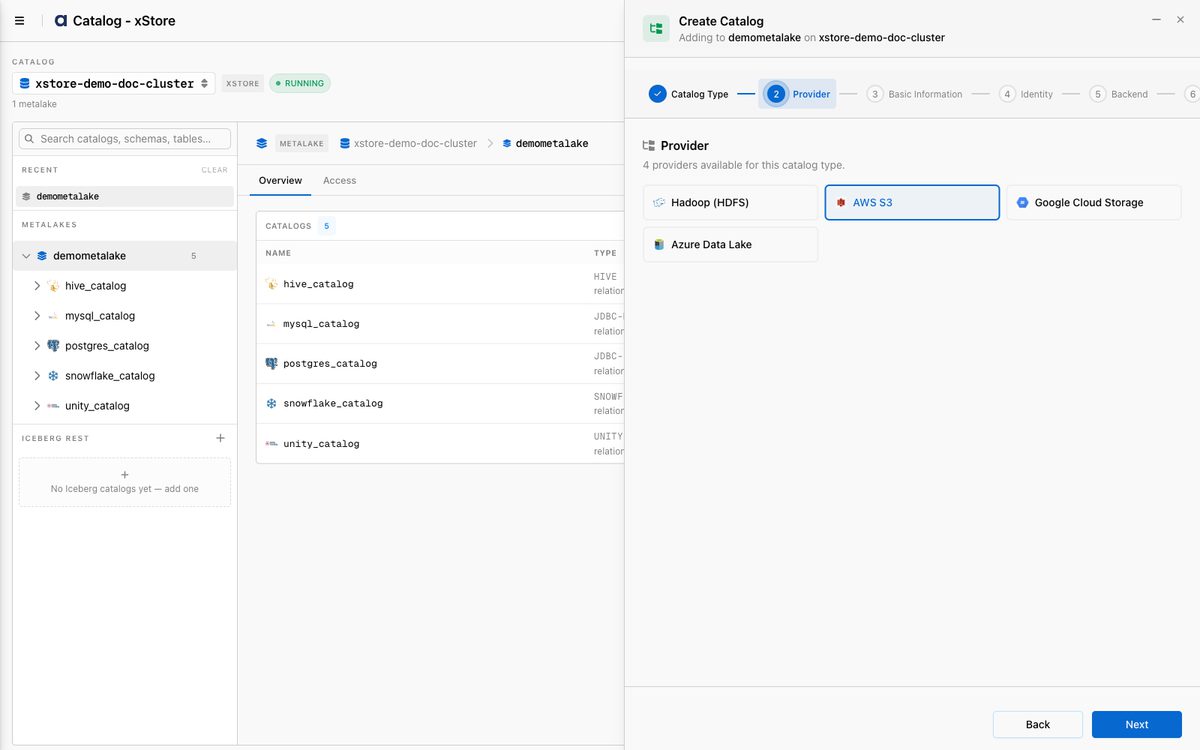
Provider — choose your storage backend: Hadoop (HDFS), AWS S3, Google Cloud Storage, or Azure Data Lake.
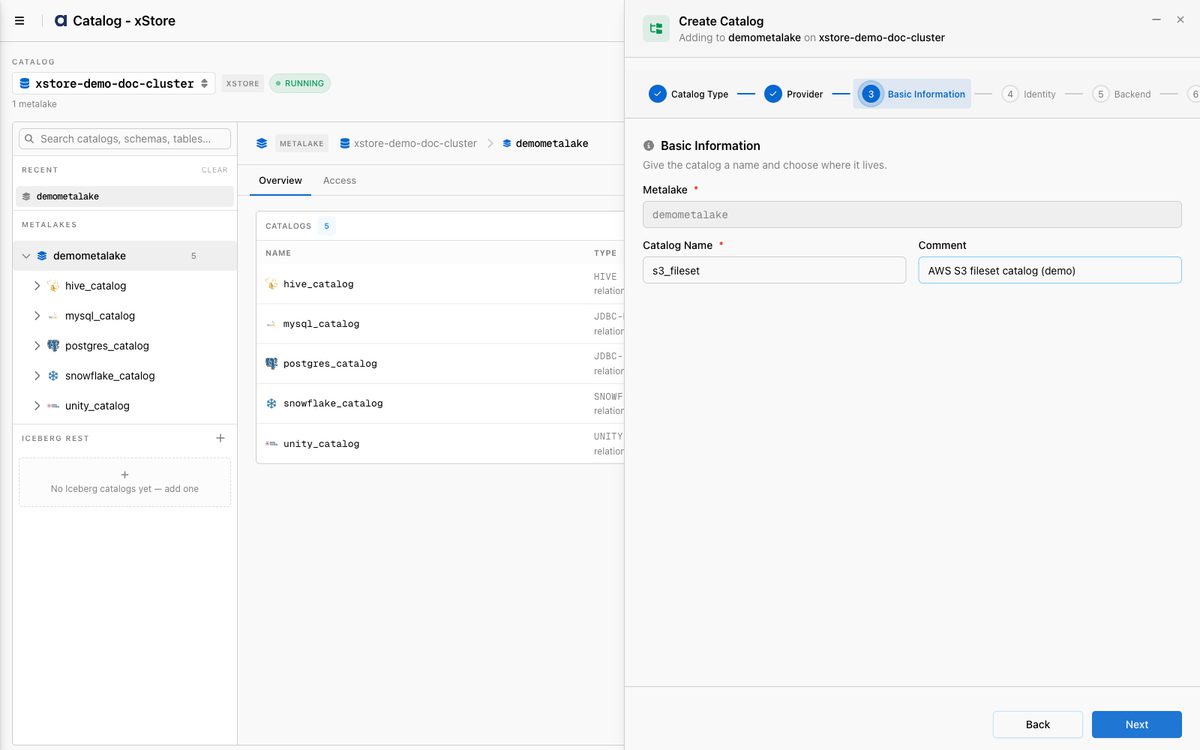
Basic Information — set the Catalog Name (e.g.
s3_fileset) and an optional comment.
Identity — choose which identity owns the credentials (default: System User →
xstore-system-user).
Backend — enter the provider-specific connection (location) and credentials. This step is different for each provider — follow the dedicated guide:
Provider | Location scheme | Authentication | Guide |
|---|---|---|---|
AWS S3 |
| Access key / IAM role | |
Azure Data Lake |
| Account key / SAS / service principal | |
Google Cloud Storage |
| Service-account JSON | |
Hadoop (HDFS) |
| Simple / Kerberos (+ config files) |
Review the summary (credentials are masked) and click Create Catalog. The catalog appears in the metalake with a fileset type badge and an In use status.
Note (HDFS): so the xStore pods can resolve the namenode/datanode hostnames referenced in your core-site.xml / hdfs-site.xml, add the corresponding host aliases (IP → hostname) on the xStore cluster's Network Settings — host aliases are a cluster-level setting, not part of the catalog wizard.
Creating a Schema
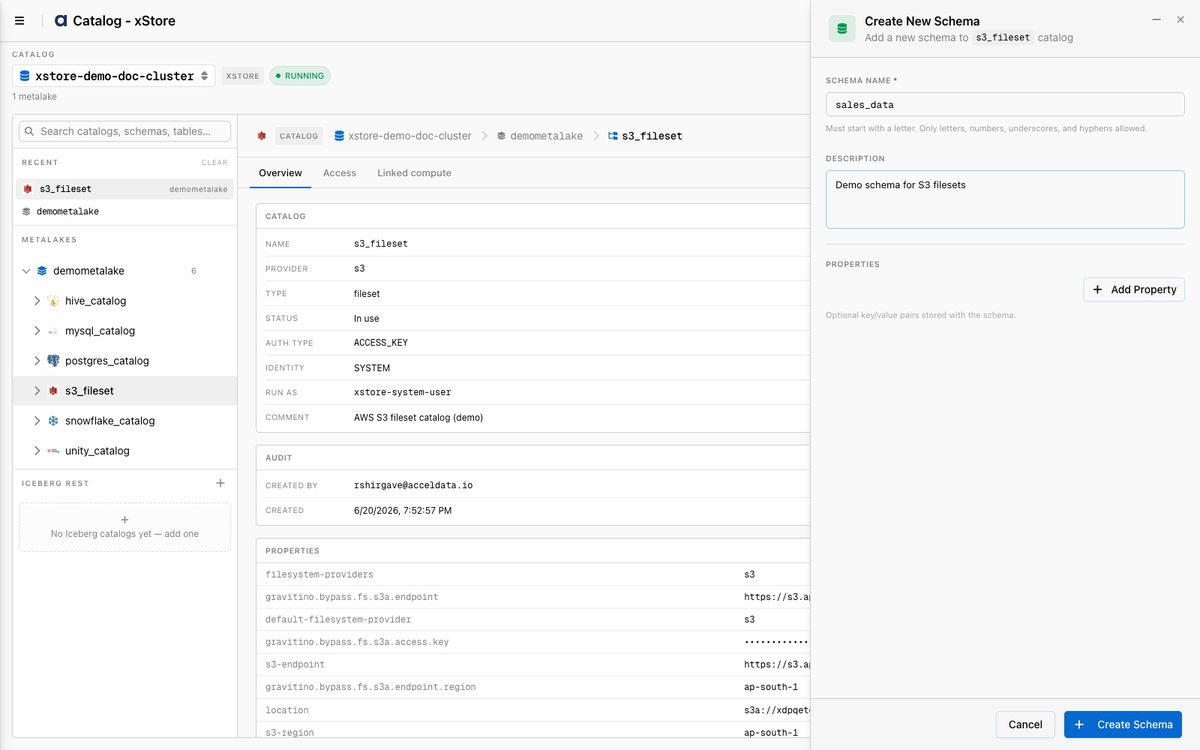
A fileset catalog starts empty — create a schema before adding filesets. (This is the same for every provider.)
Open the catalog and click New schema.
Enter a Schema Name (e.g.
sales_data) and an optional description, then click Create Schema.
Creating a Fileset
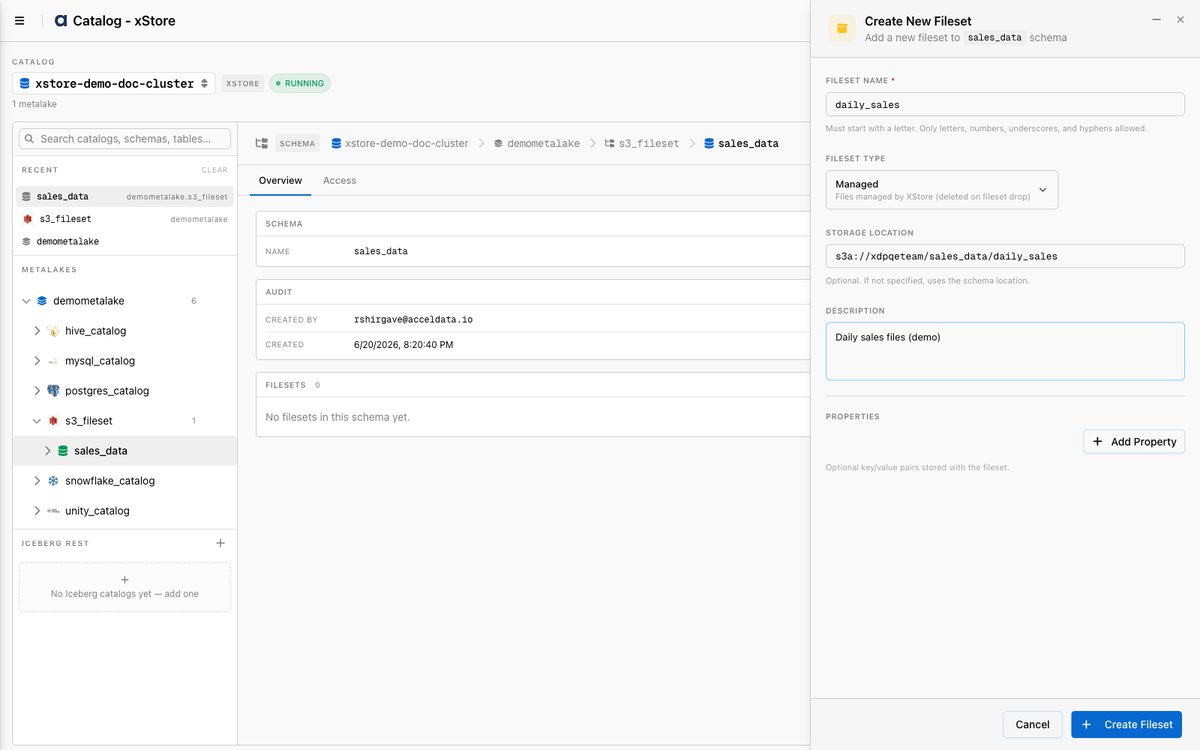
Open the schema and click New fileset.
Fill in the form:
Fileset Name (required) — a short, lowercase name (e.g.
daily_sales).Fileset Type — Managed (xStore derives the path from the schema root) or External (points to an existing path you supply).
Storage Location — required for External, optional for Managed (e.g.
s3a://my-bucket/data/events).Description (optional).
Click Create Fileset.
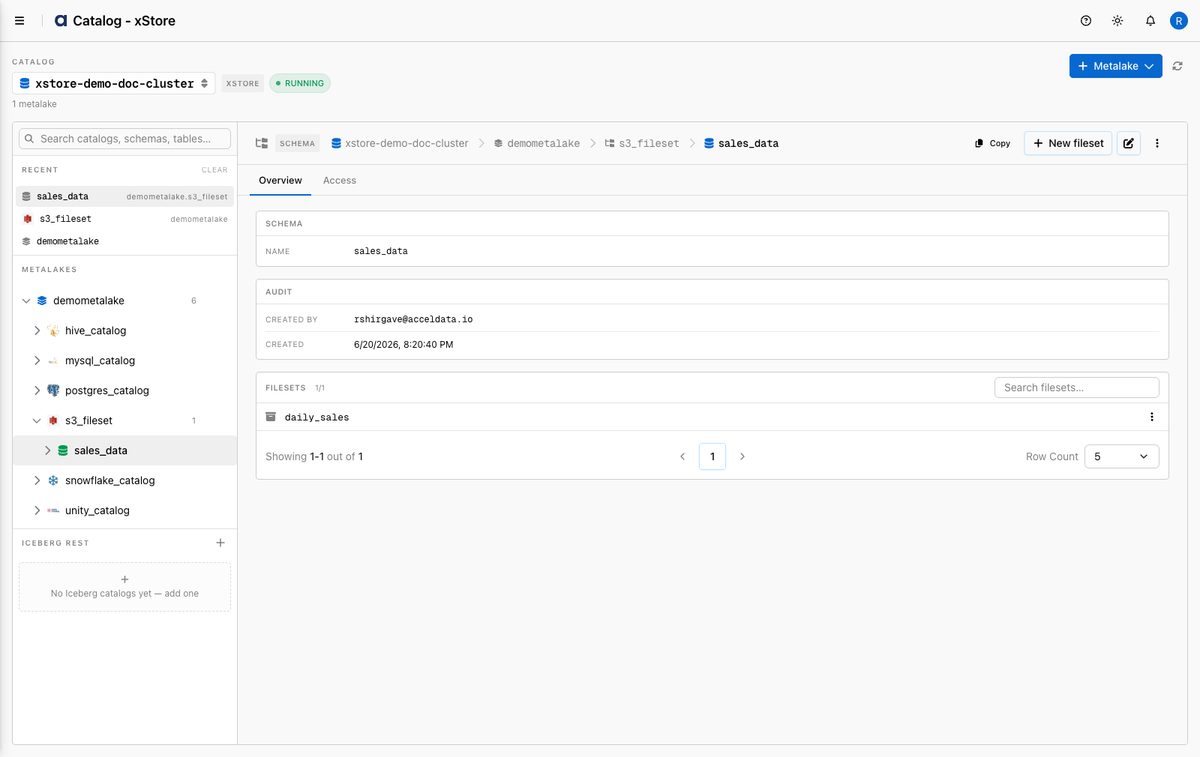
The new fileset appears in the schema's Filesets list with its type and storage location.
Browsing Filesets
Expand the catalog in the Catalog Browser tree and click a schema.
The Filesets list shows all registered filesets, each with its Name, Type (Managed/External), and Storage Location.
Common Issues
Catalog creation fails with a connection error
HDFS: verify the namenode address/port in Location, confirm the xStore cluster can reach HDFS, and that host aliases for the namenode/datanode hostnames are set on the cluster.
S3: verify the endpoint and that the bucket exists.
GCS/ADLS: verify the storage path format and that the bucket/container exists.
No filesets or schemas appear
Fileset catalogs do not auto-discover content. Create a schema first, then create filesets within it.
Permission denied when accessing filesets
Confirm the catalog identity has the minimum storage permissions from the provider guide — S3 (
s3:GetObject/s3:ListBucket), GCS (Storage Object Viewer), ADLS (Storage Blob Data Reader), or HDFS (Kerberos principal with path access). Read-write needs the corresponding write permissions.