
What is xStore Iceberg REST?
xStore includes a built-in Iceberg REST catalog service that lets you create and manage Apache Iceberg namespaces and tables directly from the xDP portal. The service conforms to the Apache Iceberg REST Catalog Specification, so any Iceberg-native client (Spark, Trino, PyIceberg) can connect to it using a standard REST URL.
When you register an Iceberg REST catalog you choose a metadata backend (Hive Metastore, JDBC, or REST) and a storage layer (HDFS, S3, GCS, or ADLS), each with its own authentication. This guide walks through registering a catalog with a Hive Metastore backend on Kerberos and HDFS storage, then managing its namespaces and tables.
Key Concepts
Catalog backend — where Iceberg table metadata is tracked: Hive (a Hive Metastore over Thrift), JDBC (a relational DB), or REST (an external Iceberg REST server). The UI shows the authentication options valid for the chosen backend.
Storage — where table data files live: HDFS, S3, GCS, or ADLS. The backend and storage authenticate independently (dual-auth) — e.g. a Kerberos Hive backend with Kerberos HDFS storage.
Warehouse — the root path under which table data is written (e.g.
hdfs://<namenode>:8020/warehouse/iceberg).Namespace — a logical grouping of Iceberg tables (equivalent to a schema/database). A namespace can have a default storage location.
Table — an Apache Iceberg table with a schema, optional partitioning and sort order, and table properties. Iceberg manages snapshot history and schema evolution independently of the data files.
Security note: All screenshots mask connection details — the Hive Metastore host, HDFS namenode host, realm, and Kerberos principal are masked; uploaded files show only their filenames. Use your real values when you follow these steps.
Creating an Iceberg REST Catalog
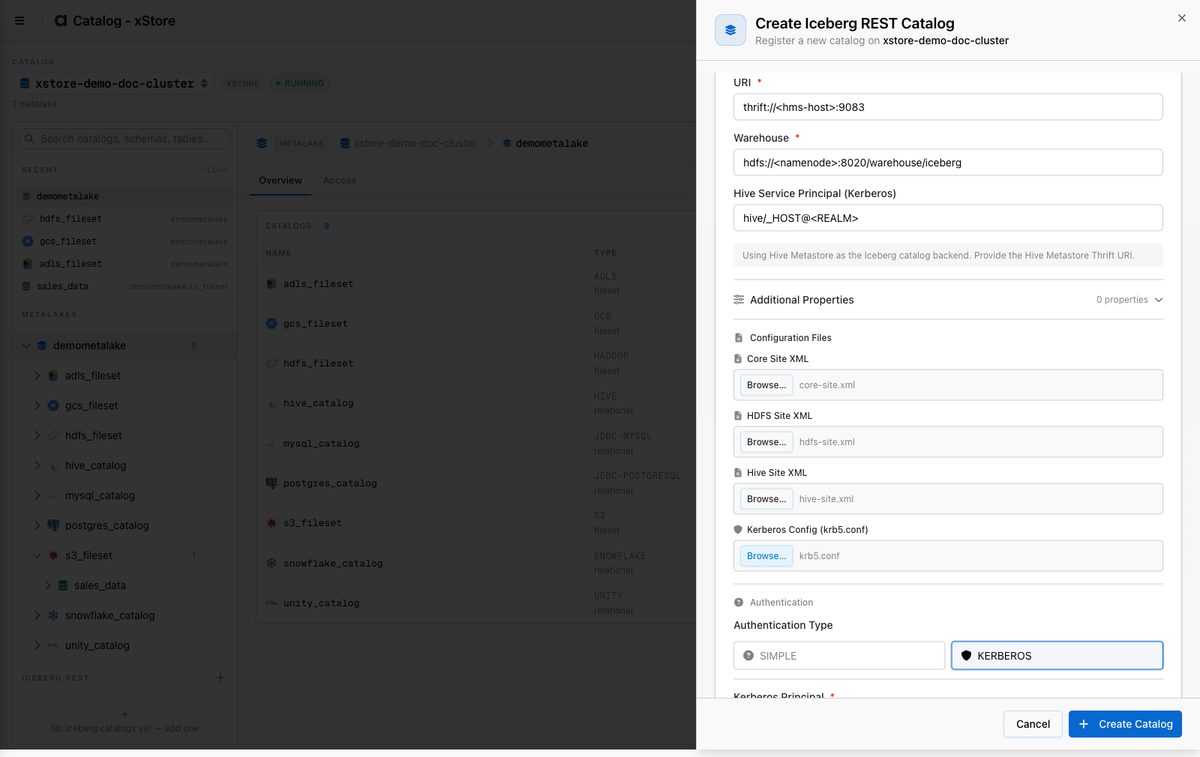
In the left sidebar, expand Data catalog → Browse and select your xStore. In the Iceberg REST section of the catalog tree, click Add Iceberg REST catalog. The Create Iceberg REST Catalog panel opens.
Basic Information — set a Catalog Name (e.g.
iceberg_rest) and an optional description. Identity defaults to the System User (xstore-system-user).Backend — configure the metadata backend:
Catalog Backend: hive (Hive Metastore). (JDBC and REST are also available.)
URI: the Hive Metastore Thrift URI, e.g.
thrift://<hms-host>:9083.Warehouse: the data root, e.g.
hdfs://<namenode>:8020/warehouse/iceberg.Hive Service Principal (Kerberos): e.g.
hive/_HOST@<REALM>.Configuration Files: upload
core-site.xml,hdfs-site.xml,hive-site.xml, andkrb5.conf.Authentication: select KERBEROS, then provide the Kerberos Principal and upload the Kerberos Keytab.
Storage — select HDFS as the storage type. For HDFS the storage uses the same Hadoop/Kerberos configuration as the backend (SIMPLE storage auth — no extra credentials).
Click Create Catalog.
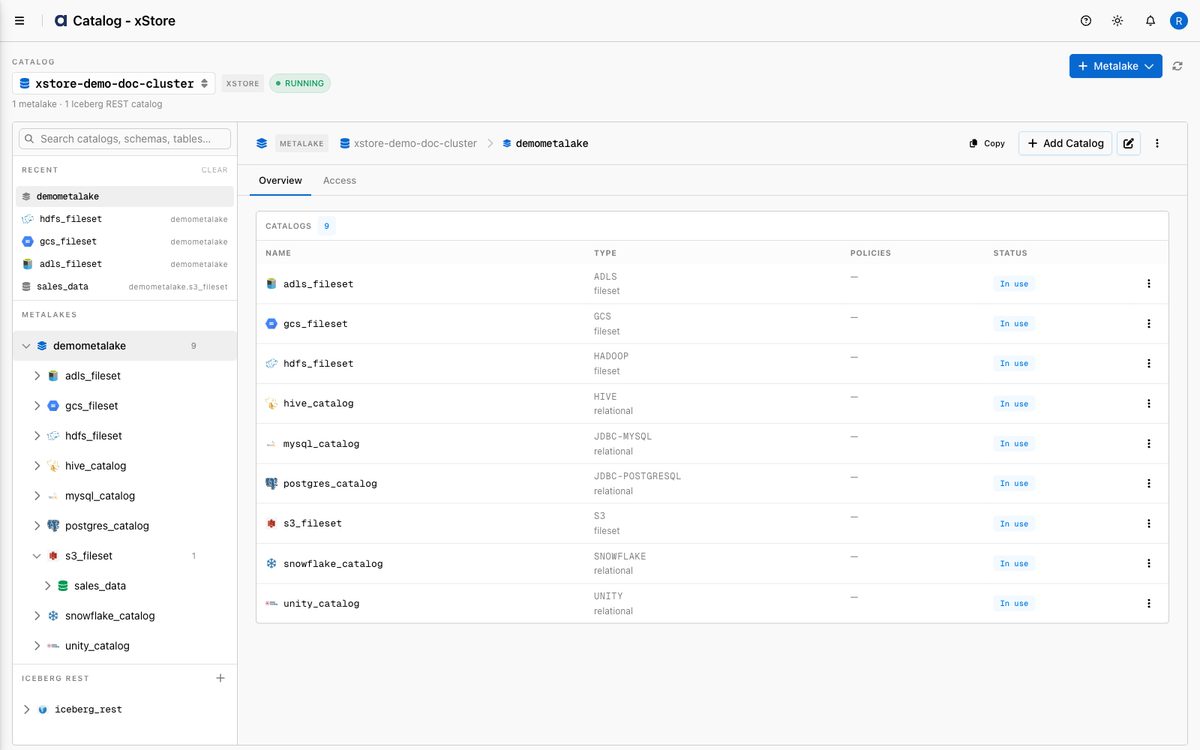
The catalog is registered and appears under Iceberg REST in the catalog tree. Setup runs in the background and typically takes 2–3 minutes to become available.
Note (Kerberos/HDFS): the config files reference the namenode/Hive-metastore hostnames, so the xStore pods must resolve them — add the corresponding host aliases (IP → hostname) on the xStore cluster's Network Settings.
Backend & storage options
Backend | Authentication | Typical URI |
|---|---|---|
Hive | SIMPLE or KERBEROS (principal + keytab) |
|
JDBC | PASSWORD (jdbc-user / jdbc-password) |
|
REST | SIMPLE |
|
Storage | Authentication |
|---|---|
HDFS | SIMPLE or KERBEROS |
S3 | Access key (ID + secret) |
GCS | Service-account JSON |
ADLS | Account key |
Navigating to Iceberg REST
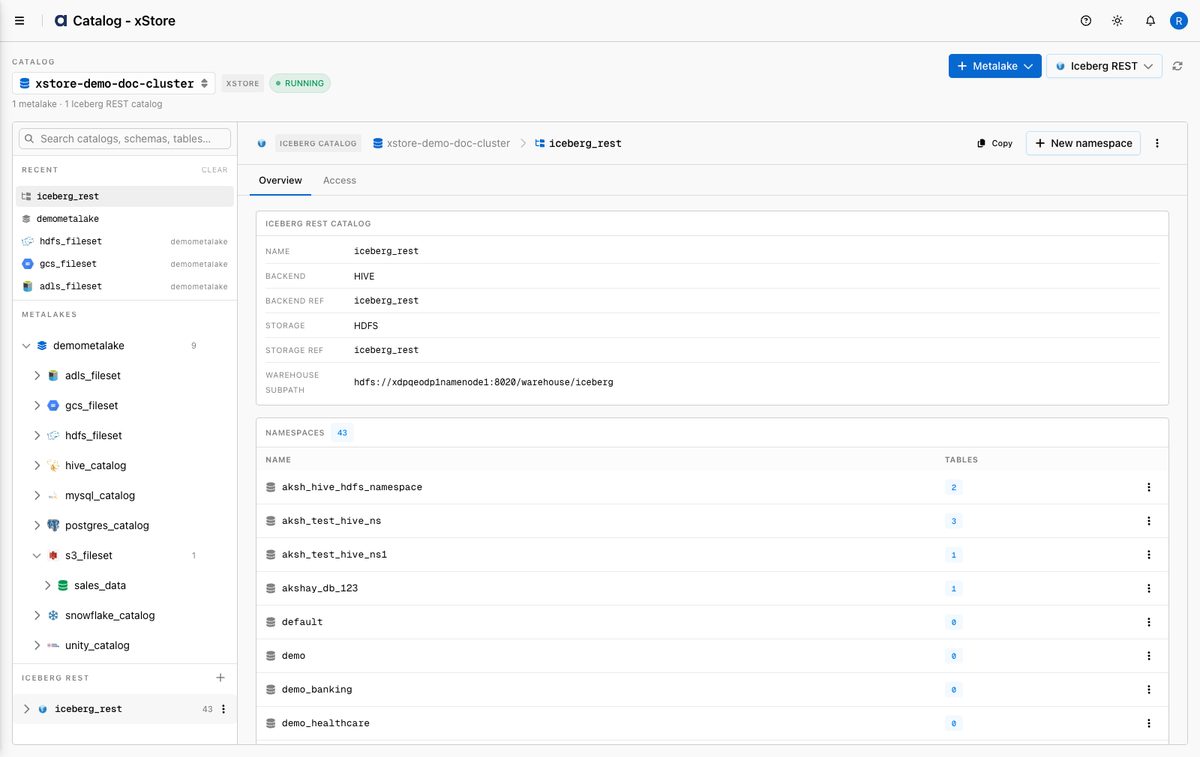
In the left sidebar, expand Data catalog → Browse and click your Iceberg REST catalog (here iceberg_rest). Select your xStore cluster from the selector at the top. The interface opens on the Namespaces list.
Managing Namespaces
Viewing Namespaces
The main panel lists all namespaces in the catalog — for a Hive-backed catalog these are the databases discovered in the Hive Metastore. Each row shows the Namespace name; the left sidebar mirrors the list.
Creating a Namespace
Click New namespace in the top-right.
Fill in the form and click Create Namespace.
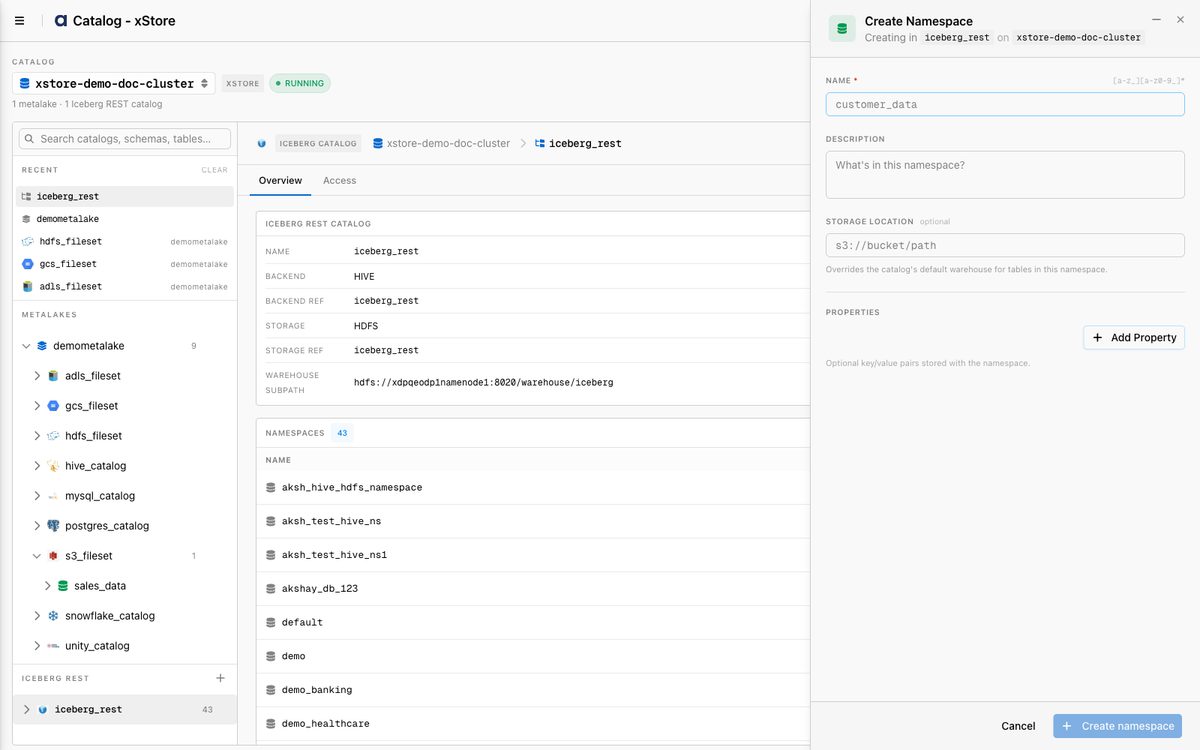
Field | Required | Description |
|---|---|---|
Namespace Name | Yes | Unique identifier (e.g. |
Description | No | Optional description. |
Location | No | Default storage path for tables in this namespace (e.g. |
Custom Properties | No | Key-value metadata. |
Editing a Namespace
Click the ⋯ actions menu on a namespace row and select Edit Properties.
Update the description or custom properties (the name cannot be changed), then Save.
Deleting a Namespace
Click the ⋯ actions menu and select Delete.
Confirm. The namespace must be empty (delete its tables first).
Managing Tables
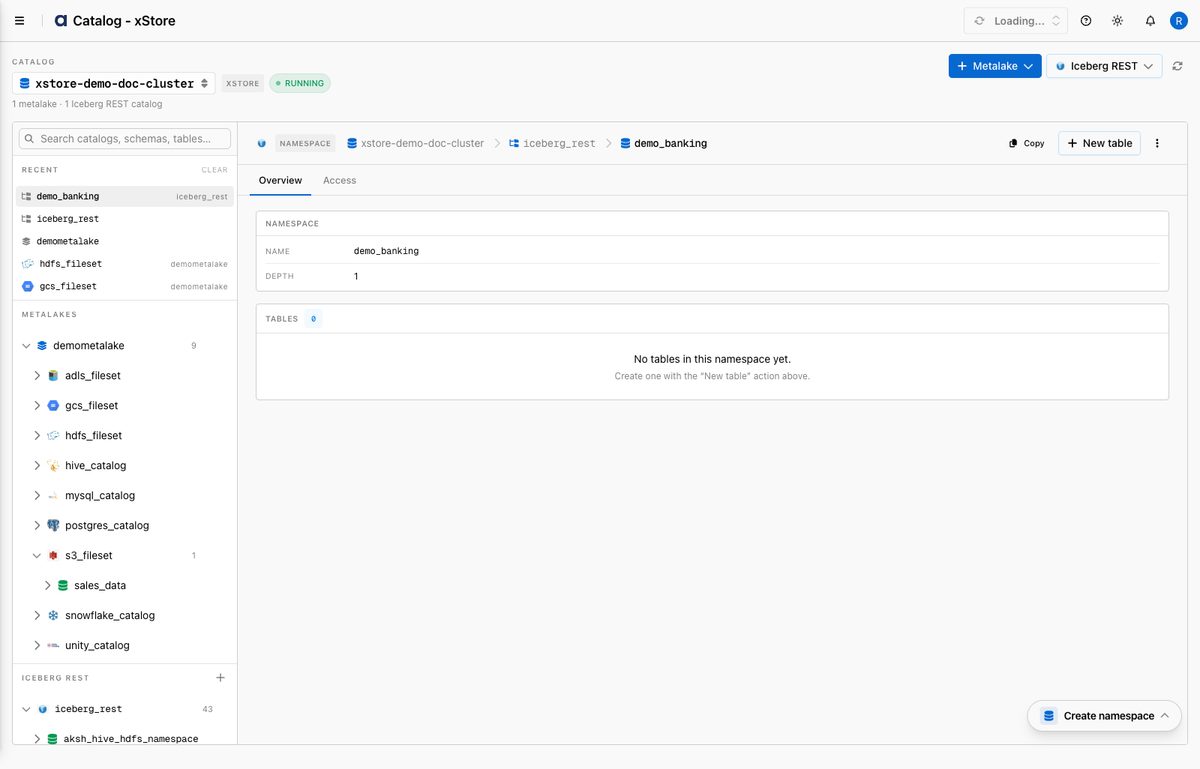
Viewing Tables in a Namespace
Click a namespace to open the Tables view, which lists all tables in that namespace.
Creating a Table
With a namespace selected, click New table. The Create Iceberg Table form opens.
Set the Table Name (lowercase, e.g.
employee_records) and, optionally, a Data Location to override the namespace path.Define the Schema using one of four modes:
Mode | When to use |
|---|---|
Builder | Define columns interactively (name, type, Required toggle, comment). |
JSON | Paste a raw Iceberg schema in JSON. |
Upload | Upload a schema file (previewed before submit). |
Path | Register an existing table from its Iceberg metadata location. |
(Builder) Under Partitioning, add partitions with a source column and transform (
identity,year/month/day/hour,bucket(N),truncate(W)).Under Table Properties, add key-values such as
write.format.default = parquetandwrite.parquet.compression-codec = snappy.Click Create Table.
Reference
Configuration files (Kerberos backends)
File | Purpose |
|---|---|
| Hadoop core configuration. |
| HDFS configuration (namenode addresses, HA). |
| Hive Metastore configuration (Thrift URI, HMS Kerberos principal). |
| Kerberos realm configuration. |
keytab | The keytab for the catalog's Kerberos principal. |
Minimum permissions
Hive Metastore backend: the Kerberos principal must read/manage metadata (and, for writes, create/alter tables). Compute-engine queries run as the per-user identity, governed by xCentral/Ranger.
HDFS storage:
r-x/r--on the warehouse paths for read;rwx/rw-for write. The principal must exist in the KDC and the keytab must be valid.
Best Practices
Set host aliases on the cluster for every Hive-metastore/namenode hostname your config files reference, or the catalog cannot connect.
Define your schema before writing data. Creating the table in xStore Iceberg REST first ensures it is registered with the correct metadata and discoverable by all compute engines.
Use the namespace Location field to keep data organized by namespace under a predictable warehouse path.
Choose Parquet with Snappy or Zstd — set
write.format.default = parquetandwrite.parquet.compression-codec = snappy(orzstd).Partition by time for event data — e.g.
day(event_timestamp); Iceberg hidden partitioning means queries don't filter on the partition column directly.Configure snapshot expiration for high-write tables to prevent unbounded metadata growth.
Protect credentials — the keytab and config files are stored as secrets; never share them.