
Relational Database Catalogs
Overview
Relational database catalogs let you register an existing database in the xStore Catalog Browser. Once registered, schemas and tables from that database are immediately visible in the catalog tree, and you can sync the catalog to an xCompute Compute Cluster to query it with Trino or Spark.
This guide covers three relational database providers:
PostgreSQL
MySQL
Snowflake
For other relational providers (Apache Hive, Apache Iceberg), see their dedicated guides:
Prerequisites
Before creating a relational catalog, ensure:
You have a running xStore cluster.
You have a metalake to add the catalog to.
The xStore cluster can reach your database host on the appropriate port. Test network connectivity from within your Kubernetes cluster if you are unsure.
You have database credentials with at least read access (SELECT privilege on the schemas and tables you want to browse).
PostgreSQL
When to Use
Use the PostgreSQL catalog to register an existing PostgreSQL database. After syncing to a Compute Cluster, all schemas and tables in that database are queryable via Trino using standard SQL.
Creating a PostgreSQL Catalog
Navigate to Data Catalog → Browse → Catalog in the sidebar.
Select your metalake in the Catalog Browser tree. If the metalake has no catalogs yet, you will see the empty state below. Click + New Catalog (top-right of the main panel) or + Create Catalog in the empty state.
The Create Catalog form opens. Under Catalog Type, select Relational. Then for Provider, choose PostgreSQL.
Under Basic Information, set:
Catalog Name — for example,
analytics_pg. This becomes the Trino catalog identifier after sync.Description (optional)
Under Backend, fill in the connection fields:
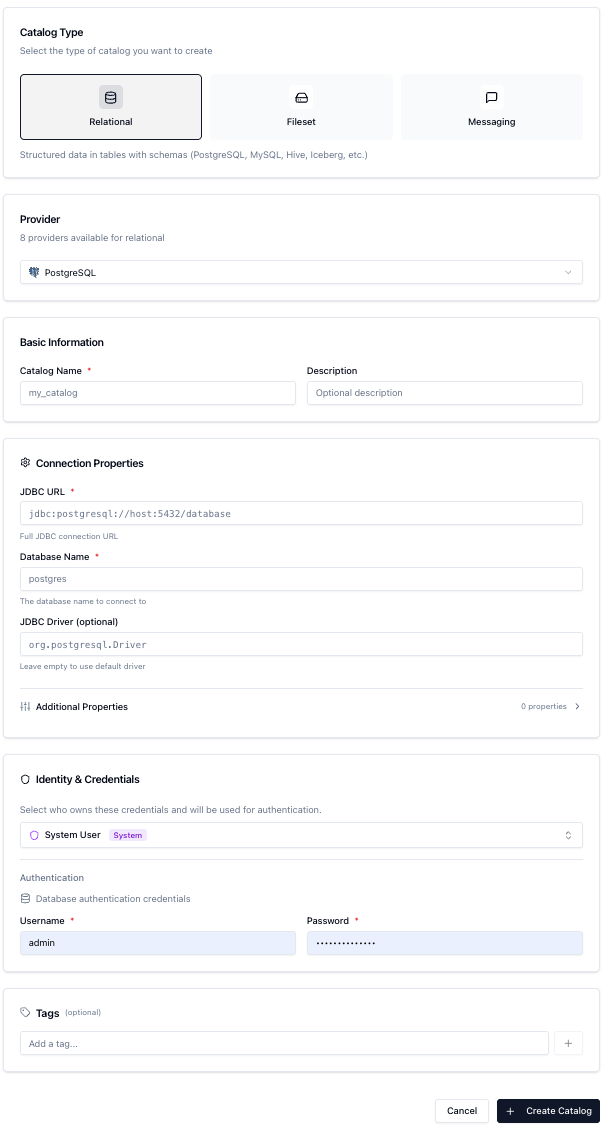
Field | Required | Description |
|---|---|---|
JDBC URL | Yes | Full JDBC connection string (e.g. |
Database Name | Yes | The PostgreSQL database to connect to (e.g. |
JDBC Driver | No | Pre-filled as |
Under Authentication, provide:
Username — database user with at least read access
Password — password for that user
The screenshot below shows a completed form ready to submit:
Click Create Catalog.
Verifying the Connection
After creation, expand the catalog in the Catalog Browser tree. If the connection is successful, your PostgreSQL schemas appear as children of the catalog. Click any schema to see its tables.
Querying with Trino
Sync the catalog to your Compute Cluster (see Sync to a Compute Cluster), then run:
MySQL
When to Use
Use the MySQL catalog to register an existing MySQL database. The setup is identical in structure to PostgreSQL — only the JDBC URL format and default driver differ.
Creating a MySQL Catalog
In the Catalog Browser, select your metalake and click New Catalog.
Set a Catalog Name (for example,
ops_mysql).For Provider, select MySQL.
Fill in the connection fields:
Field | Required | Description |
|---|---|---|
JDBC URL | Yes | Full JDBC connection string (e.g. |
Database Name | Yes | The MySQL database to connect to (e.g. |
JDBC Driver | No | Pre-filled as |
Username | Yes | Database user with read access |
Password | Yes | Password for the database user |
Click Create Catalog.
Verifying the Connection
Expand the catalog in the tree. MySQL schemas appear as children if the connection succeeds. Click a schema to view its tables.
Querying with Trino
After syncing to a Compute Cluster:
Snowflake
When to Use
Use the Snowflake catalog to register a Snowflake database. xStore connects using the Snowflake JDBC driver and supports both password-based login and key-pair authentication for service accounts and programmatic access.
Creating a Snowflake Catalog
In the Catalog Browser, select your metalake and click New Catalog.
Under Catalog Type, select Relational. For Provider, choose Snowflake.
Under Basic Information, set the Catalog Name (for example,
warehouse_sf) and an optional Description.Under Backend, fill in the connection fields:
Field | Required | Description |
|---|---|---|
JDBC URL | Yes | Snowflake JDBC URL (e.g. |
JDBC Database | Yes | The Snowflake database name (e.g. |
Warehouse | No | The Snowflake virtual warehouse to use for queries (e.g. |
Under Authentication, choose the authentication type. The form shows a PASSWORD / KEYPAIR toggle:
Password authentication:
Field | Required | Description |
|---|---|---|
JDBC User | Yes | Snowflake username |
JDBC Password | Yes | Password for the Snowflake user |
Key Pair authentication (recommended for service accounts and automation):
Field | Required | Description |
|---|---|---|
JDBC User | Yes | Snowflake username associated with the key pair |
Private Key | Yes | RSA private key (PEM format, without passphrase if unencrypted) |
Private Key Passphrase | No | Passphrase to decrypt the private key, if the key is encrypted |
The screenshot below shows a completed Snowflake form with the JDBC URL, Warehouse, and credentials filled in:
Click Create Catalog.
Verifying the Connection
Expand the catalog in the tree. Snowflake schemas appear if the connection succeeds. For Snowflake, schemas correspond to Snowflake schemas within the database you specified.
Querying with Trino
After syncing:
Note: Snowflake identifiers are case-insensitive by default but stored in uppercase. If you get "schema not found" errors, try referencing schema and table names in uppercase (e.g. warehousesf.PUBLIC.CUSTOMERDIM).
Common Issues
Catalog shows no schemas after creation
Verify that the JDBC URL is correct and the database host is reachable from the xStore cluster's network.
Check that the database user has permission to list schemas (
INFORMATION_SCHEMAaccess for PostgreSQL/MySQL,SHOW SCHEMASprivilege for Snowflake).Review the xStore cluster logs for connection error messages.
Authentication failure
For PostgreSQL and MySQL, confirm the username and password are correct and the user is allowed to connect from the xStore cluster's IP address (check
pg_hba.conffor PostgreSQL, user host grants for MySQL).For Snowflake Key Pair authentication, ensure the public key has been uploaded to the Snowflake user profile (
ALTER USER SET RSA_PUBLIC_KEY = ...).
Changes not visible in Trino after editing
Always trigger a Sync after updating a catalog's credentials or connection details. The Compute Cluster does not automatically pick up changes