
Explanation (Core Concepts)
What is a GCS Fileset Catalog?
A GCS fileset catalog registers a Google Cloud Storage location in xStore as a governed fileset catalog. After onboarding, you create schemas and filesets that point at paths under the bucket, and linked compute engines read/write them. This guide covers the GCS-specific backend and permissions; the shared steps live in Fileset Catalogs.
This guide is written for the Platform Administrator. It assumes a running xStore (xstore-demo-doc-cluster) with a metalake (demometalake).
Security note: the service-account key is provided as a JSON file upload, so its private key never appears on screen. The bucket and project ID are not secrets and are shown.
Key Concepts
New to xStore catalogs? See Fileset Catalogs — Core Concepts for the shared model and the create-schema / create-fileset steps.
Concepts specific to GCS:
Location: GCS root path,
gs://bucket/path.GCP Project ID: the project that owns the bucket.
Authentication: upload a Service Account Key (JSON). The service account needs the storage role below on the bucket.
Tutorial (Getting Started)
Prerequisites
A running xStore cluster and a metalake.
A GCS bucket, its project ID, and a service-account JSON key with the role below.
Administrative permissions on the xDP platform.
Minimum GCS permissions
Grant the service account a Cloud Storage IAM role on the bucket (and, because compute queries run as the per-user identity, the principal those users map to). Reference: Google Cloud — Cloud Storage IAM roles.
Read-only:
roles/storage.objectViewer.Read-write:
roles/storage.objectAdmin.
Steps
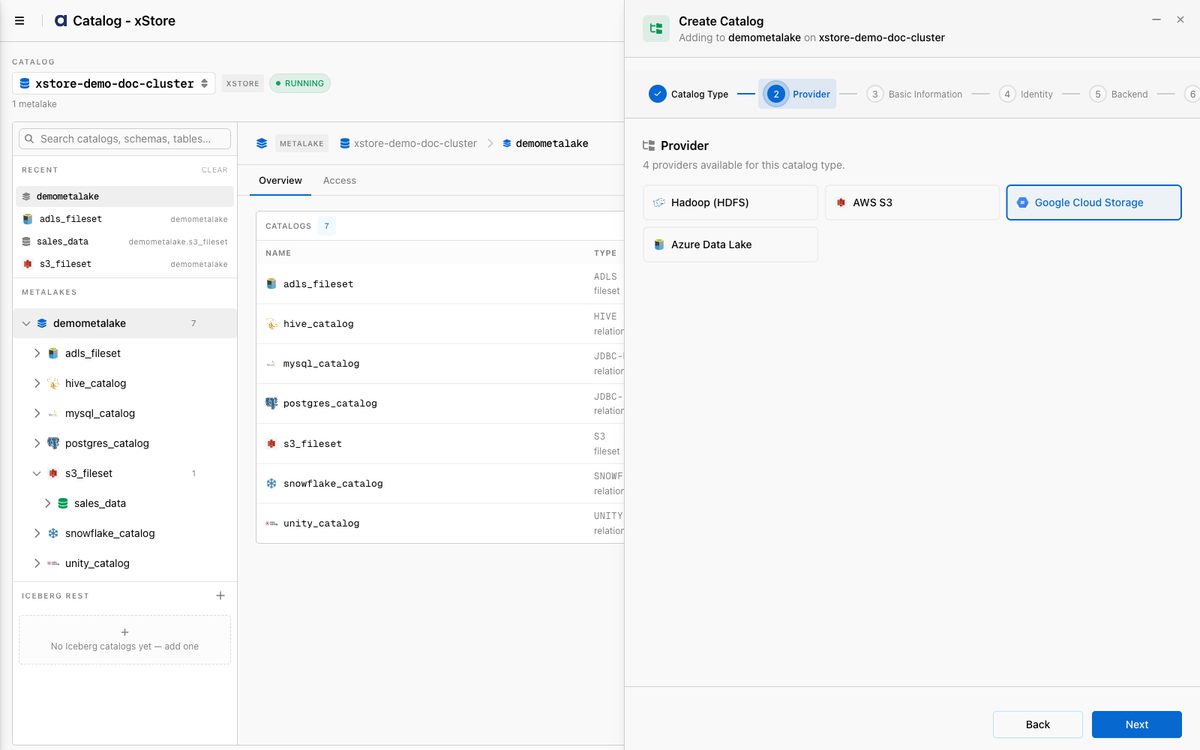
Follow the shared Create a Fileset Catalog wizard. Select Fileset → Google Cloud Storage as the provider:
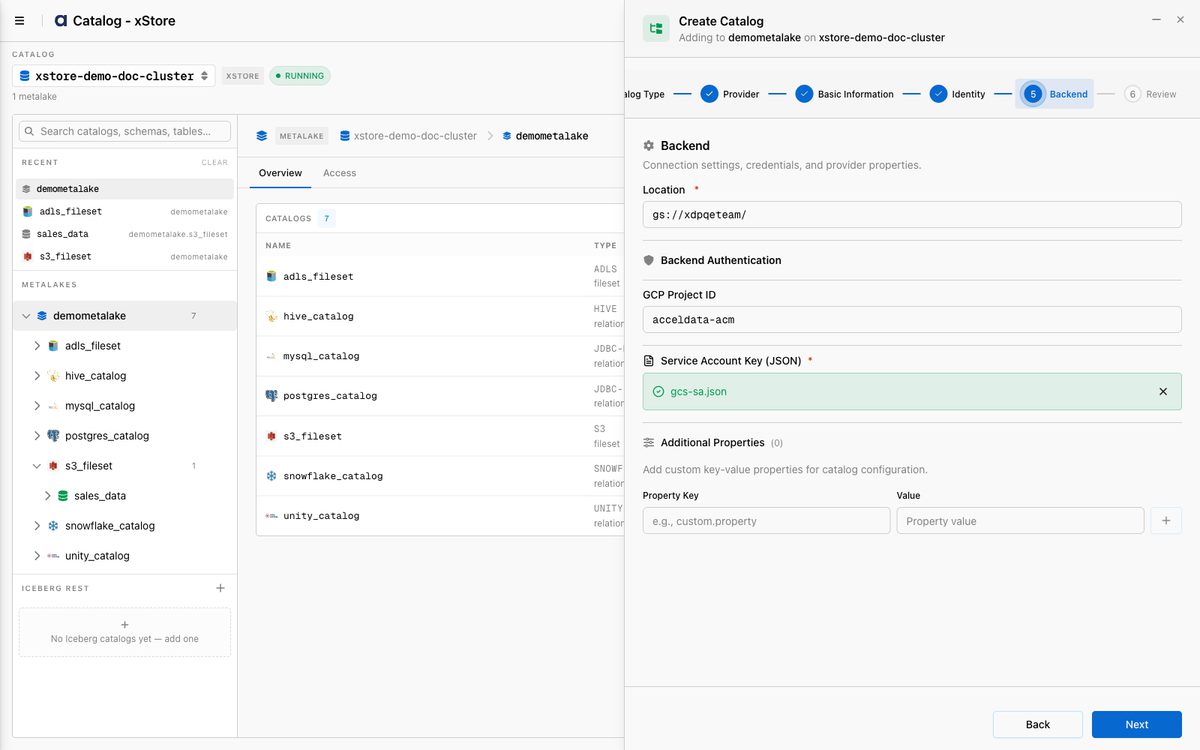
At the Backend step, enter the location and project, and upload the service-account JSON key (only the filename shows — the key content is not displayed):
Location:
gs://<bucket>/GCP Project ID:
<project>Service Account Key (JSON): choose your key file.
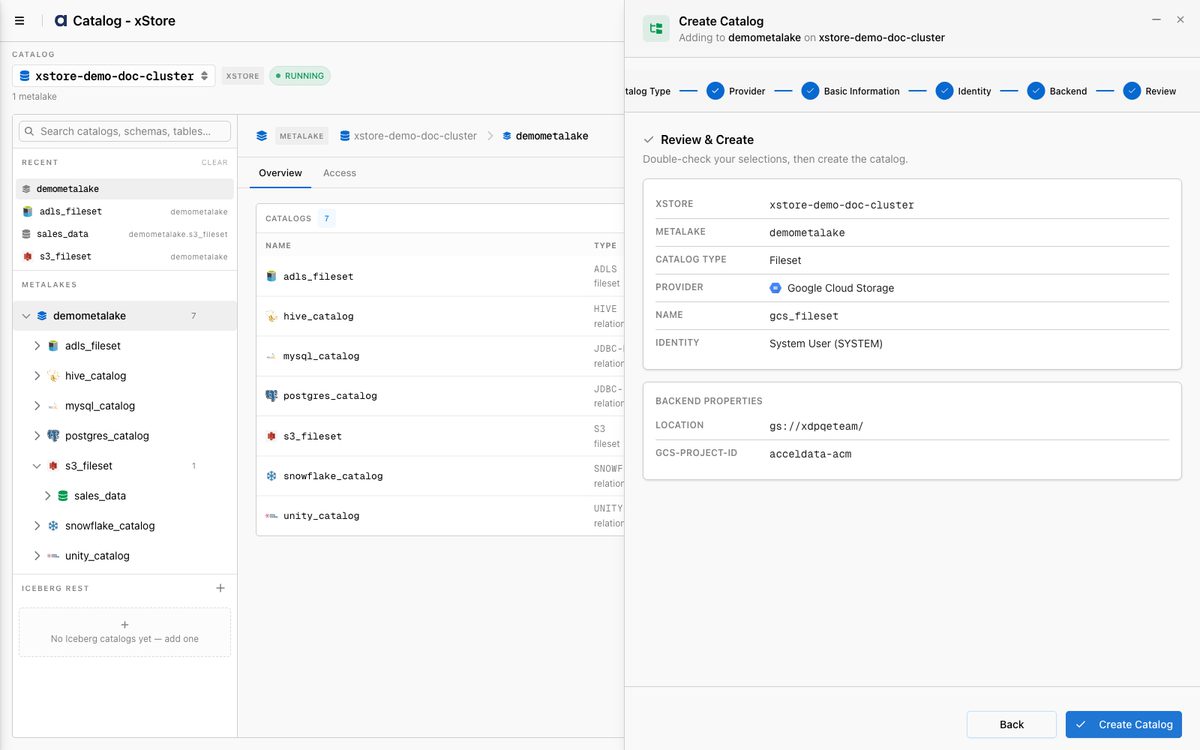
Review the summary and click Create Catalog:
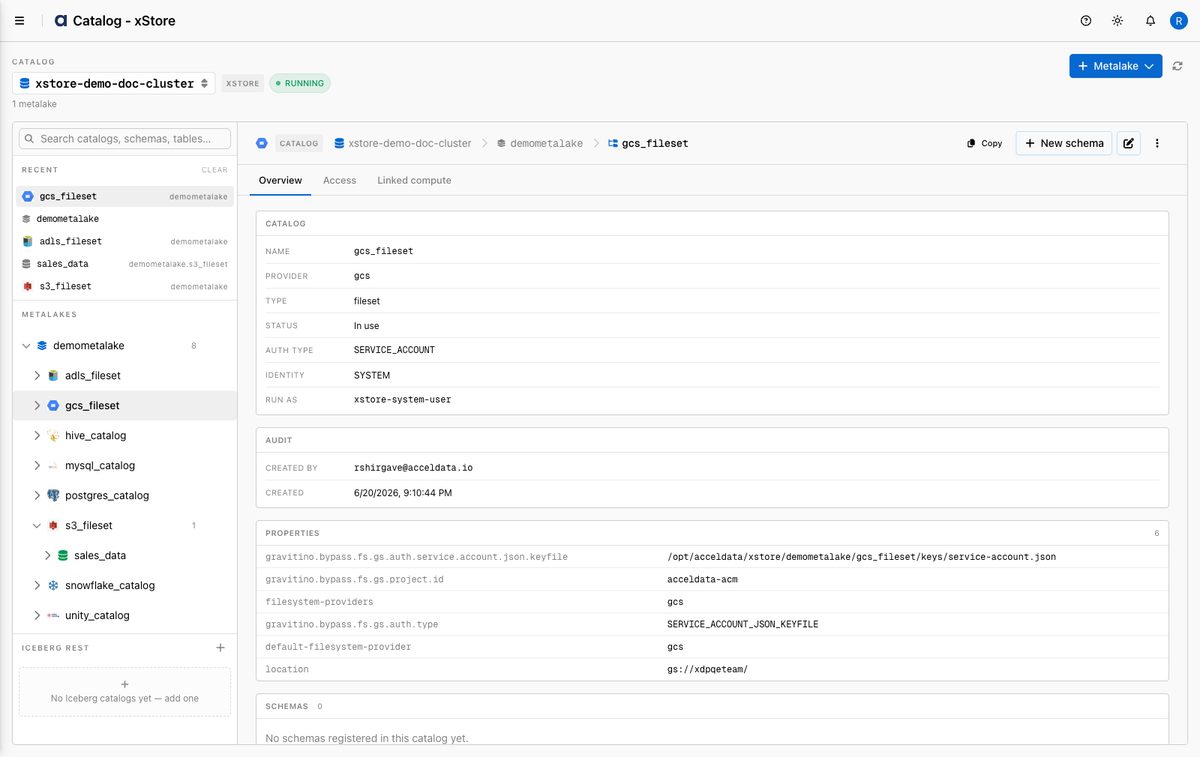
The catalog is created as a gcs / fileset catalog with status In use (the key is stored as a mounted file, not shown):
Then create a schema and filesets as described in Fileset Catalogs.
Reference
Backend fields
Field | Required | Description |
|---|---|---|
Location | Yes | GCS root path, |
GCP Project ID | Yes | The project that owns the bucket. |
Service Account Key (JSON) | Yes | Uploaded JSON key file (stored as a mounted secret file). |
Minimum permissions
Mode | GCS IAM role |
|---|---|
Read-only |
|
Read-write |
|
Best Practices
Use a dedicated service account with the storage role scoped to the bucket.
Rotate the key and re-upload it on the catalog when it changes.
Protect the key file — xDP stores it as a secret file; never share the JSON.
What's Next
Create schemas and filesets — see Fileset Catalogs.
Link an xCompute cluster so Spark/Trino can read/write the filesets.