
Apache Hive Catalog
Overview
The Apache Hive catalog connects xStore to an existing Hive Metastore. Once registered, all databases and tables tracked by that Hive Metastore are visible in the Catalog Browser tree and can be synced to an xCompute Compute Cluster for querying with Trino or Spark.
The Hive catalog works with both Hive-on-HDFS and Hive-on-S3 setups. Authentication can be Simple (no Kerberos) or Kerberos-secured for environments that require it.
When to Use
Use the Hive catalog when:
You have an existing Hadoop or cloud-based data warehouse managed through a Hive Metastore.
Your tables are in ORC, Parquet, Avro, or text formats stored on HDFS or S3, accessed via Hive schemas.
You want Trino or Spark on xCompute to read and write Hive-managed tables without reconfiguring each compute cluster manually.
Prerequisites
Before creating a Hive catalog, ensure:
You have a running xStore cluster. See xStore Clusters.
You have a metalake. See xStore Catalogs .
The Hive Metastore Thrift service is running and reachable from the xStore cluster. The default Thrift port is
9083.If your Metastore is Kerberos-secured, you have a valid Kerberos principal and keytab for the service account that xStore will use.
If your tables are on HDFS with custom configuration, you have your
core-site.xmlandhdfs-site.xmlfiles available for upload.
Creating a Hive Catalog
Navigate to Data Catalog → Browse → Catalog in the sidebar.
Select your metalake in the Catalog Browser tree. If it has no catalogs yet, you will see the empty state shown below. Click + New Catalog (top-right) or + Create Catalog in the empty state.
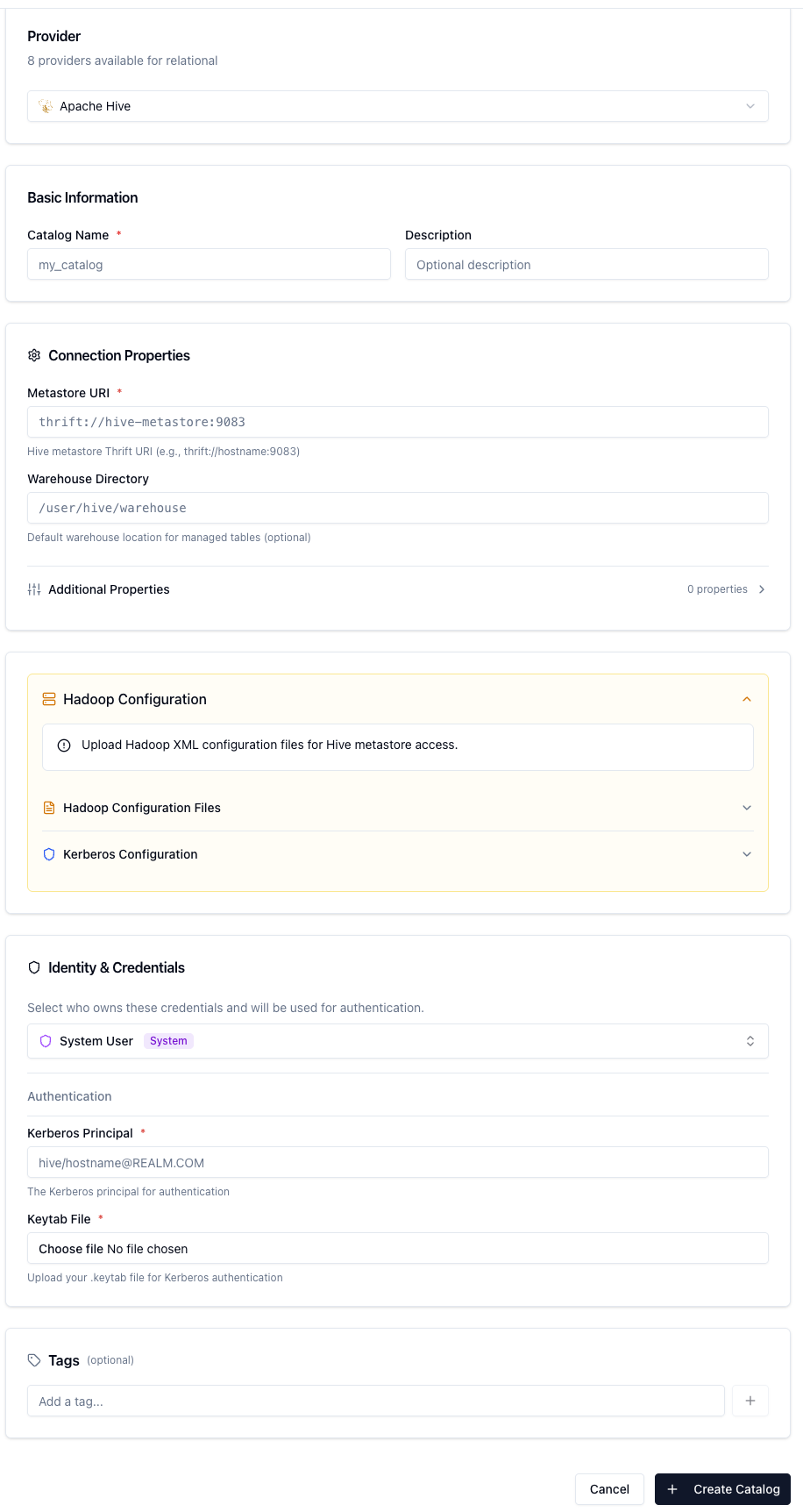
In the Create Catalog form, select Relational as the Catalog Type, then for Provider choose Apache Hive.
Under Basic Information, set the Catalog Name (for example,
hive_warehouse) and an optional Description. The form now shows all the Hive-specific configuration sections:Under Backend, fill in the connection fields:
Field | Required | Description |
|---|---|---|
Metastore URI | Yes | Thrift URI for the Hive Metastore (e.g. |
Hive Service Principal (Kerberos) | Kerberos only | The service principal of the Hive Metastore (e.g. |
List All Tables | No | Set to |
Under Additional Properties, upload any Hadoop configuration files your environment requires:
File | Description |
|---|---|
Core Site XML | Upload your |
HDFS Site XML | Upload your |
Hive Site XML | Upload your |
Kerberos Config | Upload your |
Click the upload area or drag and drop each file into the corresponding field.
Under Authentication, select the type that matches your Hive Metastore:
Simple — No Kerberos. Use this for non-Kerberos clusters.
Kerberos — For secured Hive Metastores. Selecting Kerberos reveals two additional fields:
Field | Required | Description |
|---|---|---|
Kerberos Principal | Yes | The principal xStore authenticates as (e.g. |
Kerberos Keytab | Yes | Upload the |
The screenshot below shows a completed Hive catalog form with the Metastore URI, List All Tables, Kerberos Principal, and Keytab all configured:
Click Create Catalog.
Browsing the Hive Catalog
After creation, the catalog appears in the Catalogs list with a Hive and Relational type badge and an Active status.
To explore its contents, expand the catalog in the Catalog Browser tree:
Click the catalog name to reveal its schemas (Hive databases).
Click a schema to reveal its tables.
Click any table to open the Table Detail Panel on the right — showing column names, data types, partition columns, and table properties.
If the tree shows no schemas, verify that the Metastore URI is correct and that the xStore cluster can reach the Metastore on port 9083.
Syncing and Querying
Sync the Hive catalog to your xCompute Compute Cluster to make it available in Trino:
Select the Hive catalog in the tree.
In the right-hand panel, click Linked Clusters.
Click Sync next to your Compute Cluster.
Once the sync completes, open the SQL Editor and verify:
Updating the Hive Catalog
To update connection details after the catalog is created:
In the Catalog Browser tree, hover over the catalog name and click the Edit icon.
Update the Metastore URI, authentication settings, or upload new configuration files.
Click Save.
Trigger a Sync to apply the changes to all linked Compute Clusters.
Common Issues
No schemas appear after catalog creation
Confirm that the Metastore Thrift service is running:
telnet hive-metastore.internal 9083from inside the xStore cluster's network.Verify the URI format is
thrift://host:port— nothttp://or barehost:port.If you recently created the catalog, wait a few seconds and refresh the tree.
Kerberos authentication failure
Confirm the keytab file corresponds to the principal specified in Kerberos Principal.
Ensure the Hive Service Principal matches the principal configured on the Hive Metastore (typically
hive/_HOST@REALMwhere_HOSTresolves to the Metastore hostname).Verify that the
krb5.conffile points to the correct KDC server.
HDFS permission errors when querying
Ensure the Kerberos principal (or the xStore service account for Simple auth) has read permission on the HDFS paths where your Hive table data is stored.
If using
core-site.xmloverrides, confirm thefs.defaultFSvalue matches your HDFS namenode address.
Tables are missing from a schema
If some tables were created outside of standard Hive DDL (for example, by Spark or Impala), enable List All Tables to include them.