
Apache Iceberg Catalog
Overview
The Apache Iceberg catalog connects xStore to Iceberg table metadata so you can browse schemas and tables in the Catalog Browser and sync them to xCompute Compute Clusters for querying.
Two separate Iceberg surfaces exist in xStore — this guide covers the Catalog Browser catalog only.
This guide — Registering an Iceberg catalog inside a Metalake in the Catalog Browser. Use this when you have existing Iceberg tables managed by an external metadata store (Hive Metastore, a relational database, or a remote Iceberg REST service) and want to make them visible and queryable through xStore.
Iceberg REST tab — A built-in Iceberg REST service for creating and managing Iceberg namespaces and tables directly within your xStore cluster. See xStore Iceberg for that workflow.
When to Use the Iceberg Catalog
Use the Iceberg catalog when:
You have existing Iceberg tables on S3, GCS, ADLS, or HDFS and want to register their metadata in xStore.
Your Iceberg metadata is managed externally — in a Hive Metastore, a JDBC-accessible database, or a remote Iceberg REST catalog (such as Polaris or Nessie).
You want Trino or Spark on xCompute to query those Iceberg tables after a single sync operation.
Choosing a Catalog Backend
When creating an Iceberg catalog, the first choice is the Catalog Backend — where Iceberg's table metadata is stored. The data files themselves live in your object store or file system; the backend only stores the metadata (schemas, snapshot history, partition specs).
Backend | Metadata stored in | URI format |
|---|---|---|
Hive | Hive Metastore (Thrift) |
|
JDBC | A relational database (PostgreSQL, MySQL) |
|
REST | A remote Iceberg REST catalog (Polaris, Nessie, etc.) |
|
Select the backend that matches where your Iceberg metadata currently lives.
Prerequisites
You have a running xStore cluster. See xStore Clusters.
You have a metalake. See xStore Catalogs .
Access to the metadata backend (Hive Metastore URI, database credentials, or REST catalog endpoint).
Access credentials for the storage system where your Iceberg data files are stored (S3, GCS, ADLS, or HDFS).
Creating an Iceberg Catalog
Navigate to Data Catalog → Browse → Catalog in the sidebar.
Select your metalake in the Catalog Browser tree and click New Catalog (or the + icon).
Set a Catalog Name — for example,
lakehouse. This becomes the Trino catalog identifier after sync.For Provider, select Apache Iceberg.
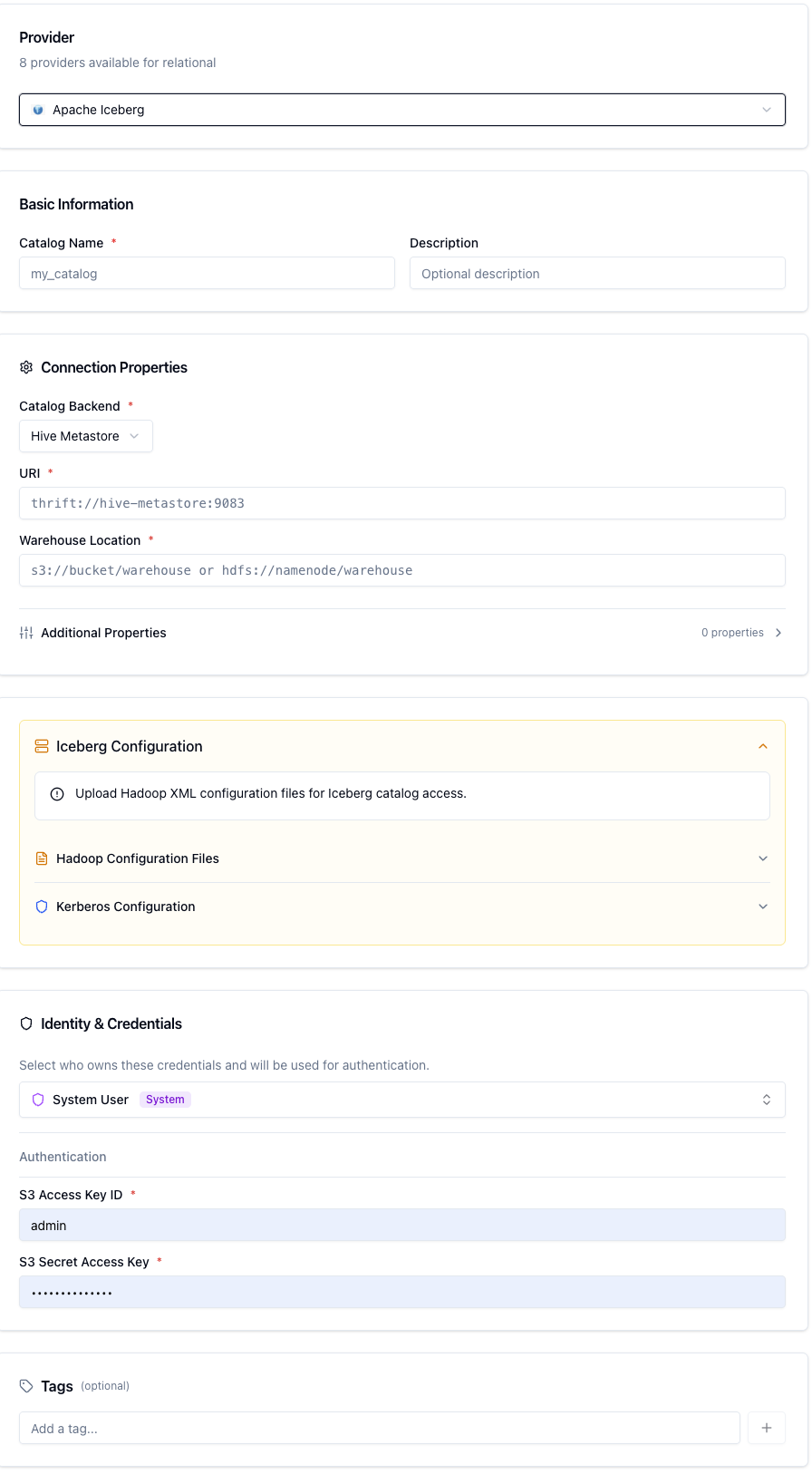
Common Fields (All Backends)
Field | Required | Description |
|---|---|---|
Catalog Backend | Yes | Select |
URI | Yes | The endpoint for the metadata backend (format depends on backend — see below) |
Warehouse | Yes | The root storage path where Iceberg data files are stored (e.g. |
Hive Backend
The Hive backend stores Iceberg table metadata in an existing Hive Metastore. This is the most common configuration when you are adding Iceberg tables to an existing Hive environment.
URI format: thrift://hive-metastore.internal:9083
Hive Backend Fields
Field | Required | Description |
|---|---|---|
Catalog Backend | Yes | Select |
URI | Yes | Hive Metastore Thrift URI (e.g. |
Warehouse | Yes | Root path for Iceberg table data (e.g. |
Hive Service Principal | No | Required only when using Kerberos auth. The Hive Metastore service principal (e.g. |
Hive Backend — Authentication
Select Kerberos if your Hive Metastore is Kerberos-secured. Otherwise, select Simple.
Kerberos fields:
Field | Required | Description |
|---|---|---|
Kerberos Principal | Yes | The principal xStore authenticates as (e.g. |
Kerberos Keytab | Yes | Upload the |
Hive Backend — Optional Configuration Files
File | Description |
|---|---|
Core Site XML | Upload |
HDFS Site XML | Upload |
Hive Site XML | Upload |
Kerberos Config | Upload |
JDBC Backend
The JDBC backend stores Iceberg metadata in a relational database. This is common in setups where you want a lightweight, SQL-queryable metadata store without running a full Hive Metastore.
URI format: jdbc:postgresql://host:5432/iceberg_meta (or jdbc:mysql://host:3306/iceberg_meta)
JDBC Backend Fields
Field | Required | Description |
|---|---|---|
Catalog Backend | Yes | Select |
URI | Yes | JDBC connection string pointing to your metadata database (e.g. |
Warehouse | Yes | Root path for Iceberg data files (e.g. |
JDBC Backend — Authentication
The JDBC backend always uses password authentication.
Field | Required | Description |
|---|---|---|
JDBC User | Yes | Username for the metadata database |
JDBC Password | Yes | Password for the metadata database |
REST Backend
The REST backend connects to any Iceberg REST-compatible catalog service — including Apache Polaris, Project Nessie, or any other service that implements the Iceberg REST Catalog specification.
URI format: http://polaris-server:8181/api/catalog (or https:// for TLS-secured services)
REST Backend Fields
Field | Required | Description |
|---|---|---|
Catalog Backend | Yes | Select |
URI | Yes | Base URL of the Iceberg REST catalog service (e.g. |
Warehouse | Yes | Warehouse identifier as expected by the REST catalog service (may be a storage path or a catalog-specific name depending on the service) |
REST Backend — Authentication
Select Simple for unauthenticated or token-based REST catalogs (where the token is passed via catalog properties). No additional credential fields are required in the form for Simple auth. Consult your REST catalog's documentation for token configuration if needed.
Storage Configuration
Regardless of which metadata backend you choose, Iceberg data files need to be read from and written to a storage system. Configure the storage section to provide credentials for the object store or file system where your Iceberg data lives.
Storage Type
Select the storage system that holds your Iceberg data files:
Storage Type | Use when data is on |
|---|---|
S3 | Amazon S3 or S3-compatible storage (MinIO) |
GCS | Google Cloud Storage |
ADLS | Azure Data Lake Storage Gen2 |
HDFS | Hadoop Distributed File System |
S3 Storage Configuration
Field | Required | Description |
|---|---|---|
S3 Endpoint | No | Custom endpoint for MinIO or non-AWS S3 (e.g. |
S3 Region | No | AWS region (e.g. |
S3 Authentication:
Access Key — Provide an S3 Access Key ID and S3 Secret Access Key for programmatic access.
IAM Role — Use the IAM role attached to the xStore cluster's node. No credential fields are required. This option is only available when xStore is running on AWS.
GCS Storage Configuration
GCS Authentication:
Service Account — Upload a GCS Service Account JSON key file. The service account must have Storage Object Viewer (read) or Storage Object Admin (read/write) permissions on the bucket.
ADLS Storage Configuration
Field | Required | Description |
|---|---|---|
Azure Storage Account | Yes | The name of your Azure Storage account (without |
ADLS Authentication:
Account Key — Provide the Azure Account Key (storage account key from the Azure portal).
Service Principal — Provide Azure Tenant ID, Azure Client ID, and Azure Client Secret for an Entra ID (Azure AD) service principal with Storage Blob Data Contributor access.
HDFS Storage Configuration
HDFS Authentication:
Simple — No authentication. Use for non-Kerberos HDFS clusters.
Kerberos — Provide a Storage Kerberos Principal and upload a Storage Kerberos Keytab file. This is separate from the Hive Metastore Kerberos credentials if you are using the Hive backend.
Completing the Catalog
After filling in all the required fields:
Click Create Catalog.
The catalog appears in the Catalog Browser tree under your metalake.
Expand the catalog to browse Iceberg namespaces (shown as schemas) and tables.
Click any table to open the Table Detail Panel — showing column definitions, partition specs, and Iceberg properties.
Syncing and Querying
Sync the Iceberg catalog to your Compute Cluster to enable Trino and Spark queries:
Select the catalog in the tree.
In the right-hand panel, click Linked Clusters.
Click Sync next to your Compute Cluster.
In the SQL Editor, verify the catalog is available:
Common Issues
No namespaces appear after catalog creation
For the Hive backend: confirm the Metastore Thrift URI is reachable from the xStore cluster on port
9083.For the JDBC backend: verify the JDBC URL, username, and password, and confirm the Iceberg catalog tables exist in the database (they are created by Iceberg on first write).
For the REST backend: confirm the REST catalog URL is reachable and returns a valid response.
Storage access errors when browsing tables
Verify that the storage credentials you provided have read access to the warehouse path.
For S3, ensure the bucket policy or IAM role allows
s3:GetObjectands3:ListBucketon the warehouse prefix.For ADLS, confirm the service principal has Storage Blob Data Reader or higher on the container.
Trino cannot read tables after sync
Ensure the Compute Cluster can reach both the metadata backend and the storage system.
Verify that the Warehouse path in the catalog matches the actual location of your Iceberg metadata files.