
Documentation
ODP 3.3.6.4-1
Release Notes
What is ODP
Installation
Component User guide and Installation Instructions
Upgrade Instructions
Downgrade Instructions
Reference Guide
Security Guide
Troubleshooting Guide
Uninstall ODP
Title
Message
Create new category
What is the title of your new category?
Edit page index title
What is the title of the page index?
Edit category
What is the new title of your category?
Edit link
What is the new title and URL of your link?
Trino Gateway Usage
Summarize Page
Copy Markdown
Open in ChatGPT
Open in Claude
Connect to Cursor
Connect to VS Code
Add a Trino Cluster
- Step 1: Log in to the Trino Gateway UI
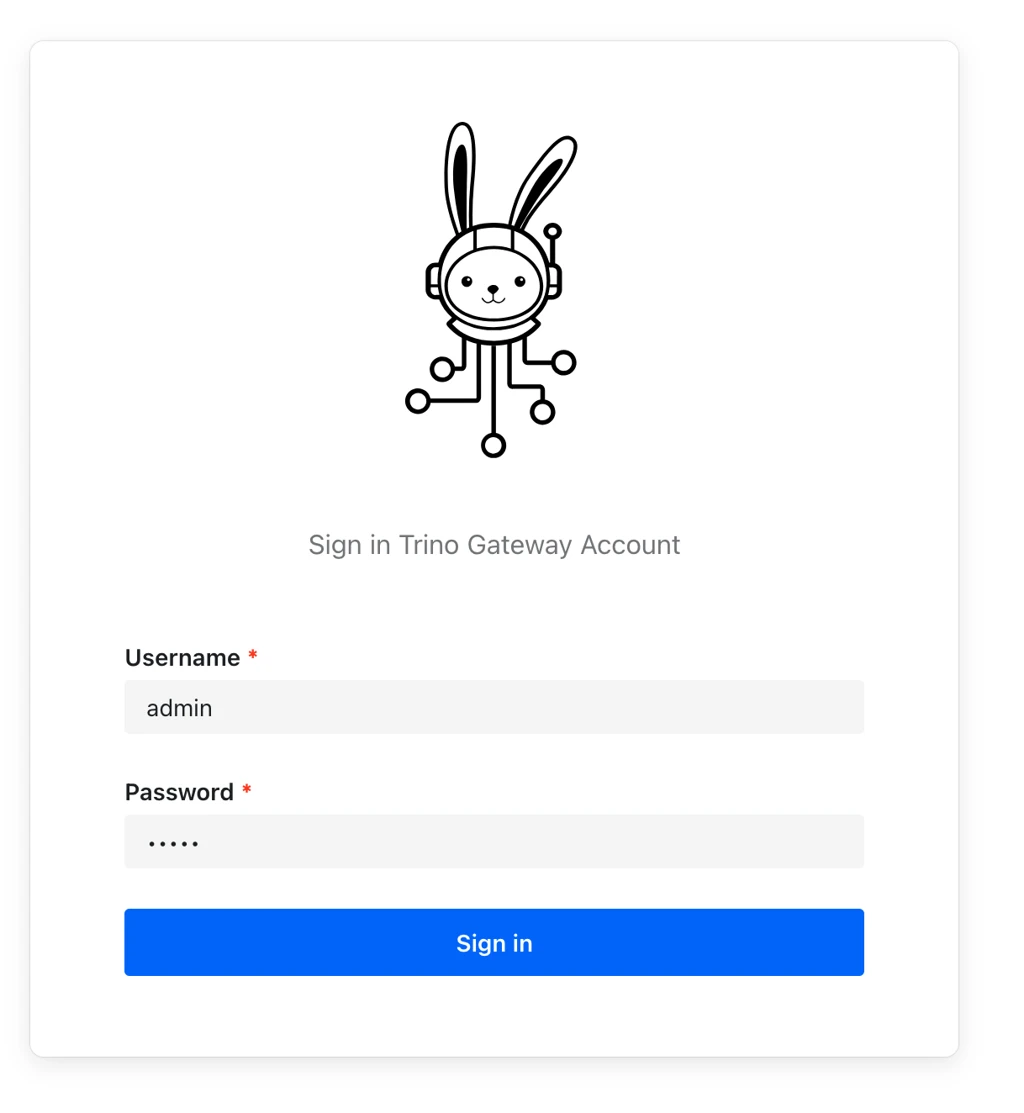
After successful login, the dashboard page is displayed.
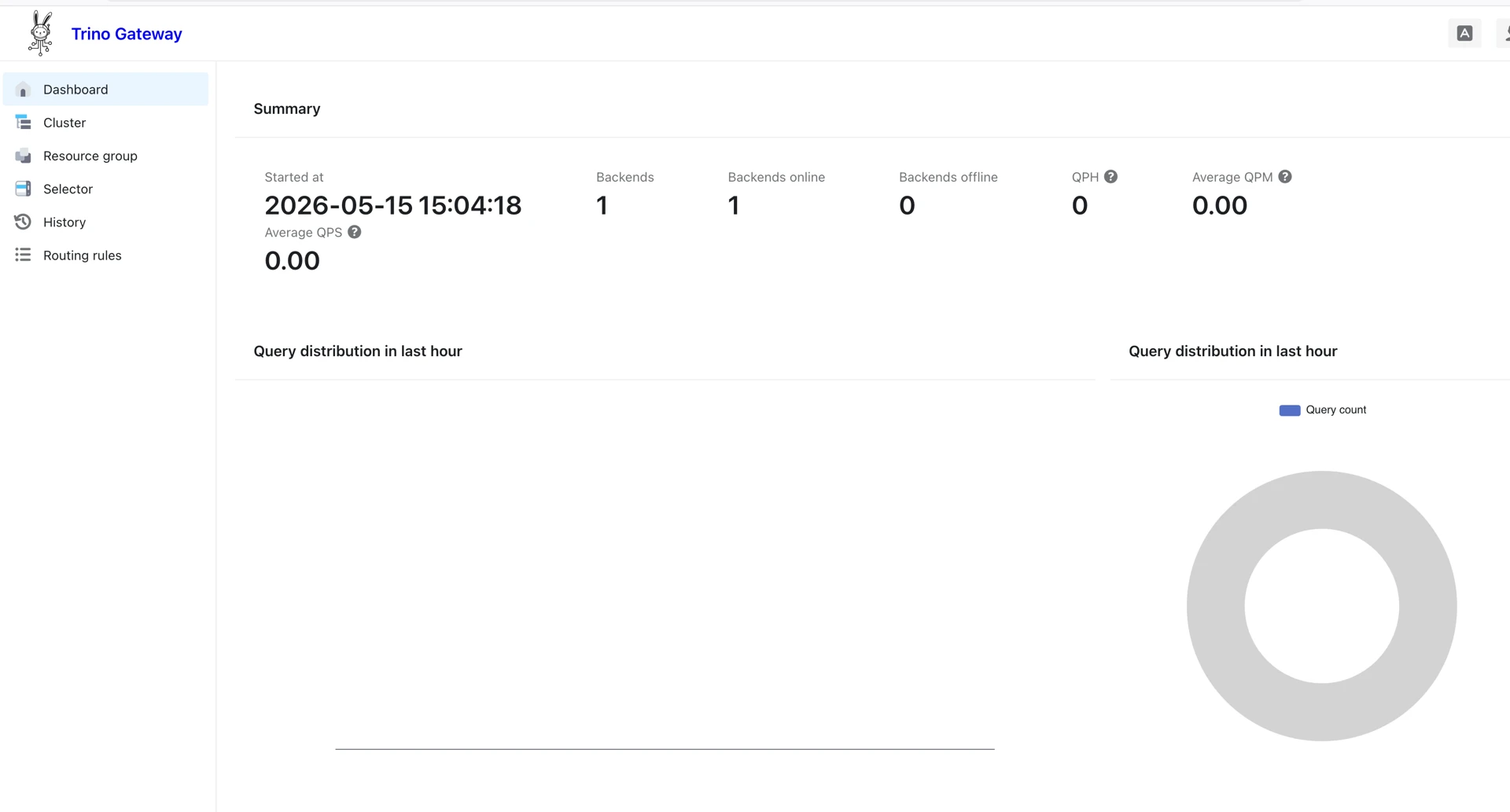
The main page after logging in
Step 2: Navigate to Cluster Management
From the left navigation menu:
- Select Cluster.
- Click Create.

This opens a window on the page that looks like the following:
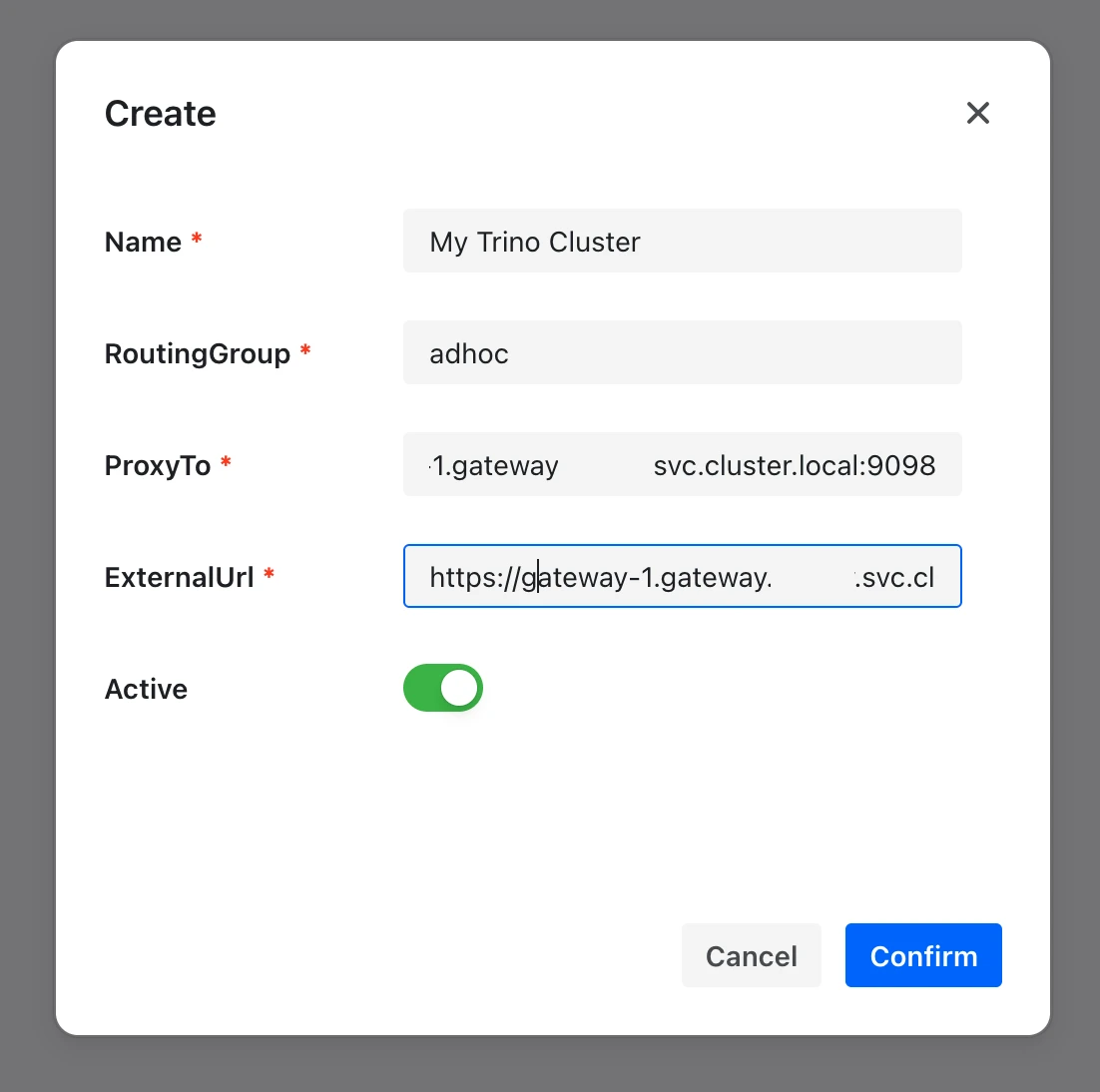
- Step 3: Configure the Cluster
Provide the following values:
| Field | Description |
|---|---|
| Name | Unique cluster name |
| Routing Group | Query routing group |
| ProxyTo | Trino coordinator host and port |
| ExternalUrl | Public/UI-accessible endpoint |
| Active | Enables the cluster |
Important Notes
- Cluster names cannot be modified after creation.
- The default routing group is
adhoc. - Queries without matching routing rules are sent to the
adhocrouting group. ProxyTois used internally for query routing.ExternalUrlis used for UI access.ProxyToandExternalUrlmay be identical.
VariableType to search · ESC to discard
GlossaryType to search · ESC to discard
InsertType to search · ESC to discard
No matches
Last updated on May 27, 2026
Was this page helpful?
Next to read:
Querying Trino Through Trino Gatewaynull
Discard Changes
Do you want to discard your current changes and overwrite with the template?
Archive Synced Block
Message
Create new Template
What is this template's title?
Delete Template
Message
