
Acceldata Open Source Data Platform
ODP 3.2.3.3-2
Release Notes
What is ODP
Installation
Advanced Installation
Configuration and Management
Upgrade
USER GUIDES
Security
Uninstall ODP
Title
Message
Create new category
What is the title of your new category?
Edit page index title
What is the title of the page index?
Edit category
What is the new title of your category?
Edit link
What is the new title and URL of your link?
Enable SSL for JupyterHub
Summarize Page
Copy Markdown
Open in ChatGPT
Open in Claude
Connect to Cursor
Connect to VS Code
To secure communication on JupyterHub with SSL, follow these steps:
- Generate an SSL Certificate and Key: Run the following command to create an SSL certificate and private key.
Bash
openssl req \\ -newkey rsa:2048 -nodes -keyout domain.key \\ -x509 -days 365 -out jupyterhub.crtdomain.key: The private key file.jupyterhub.crt: The SSL certificate file.
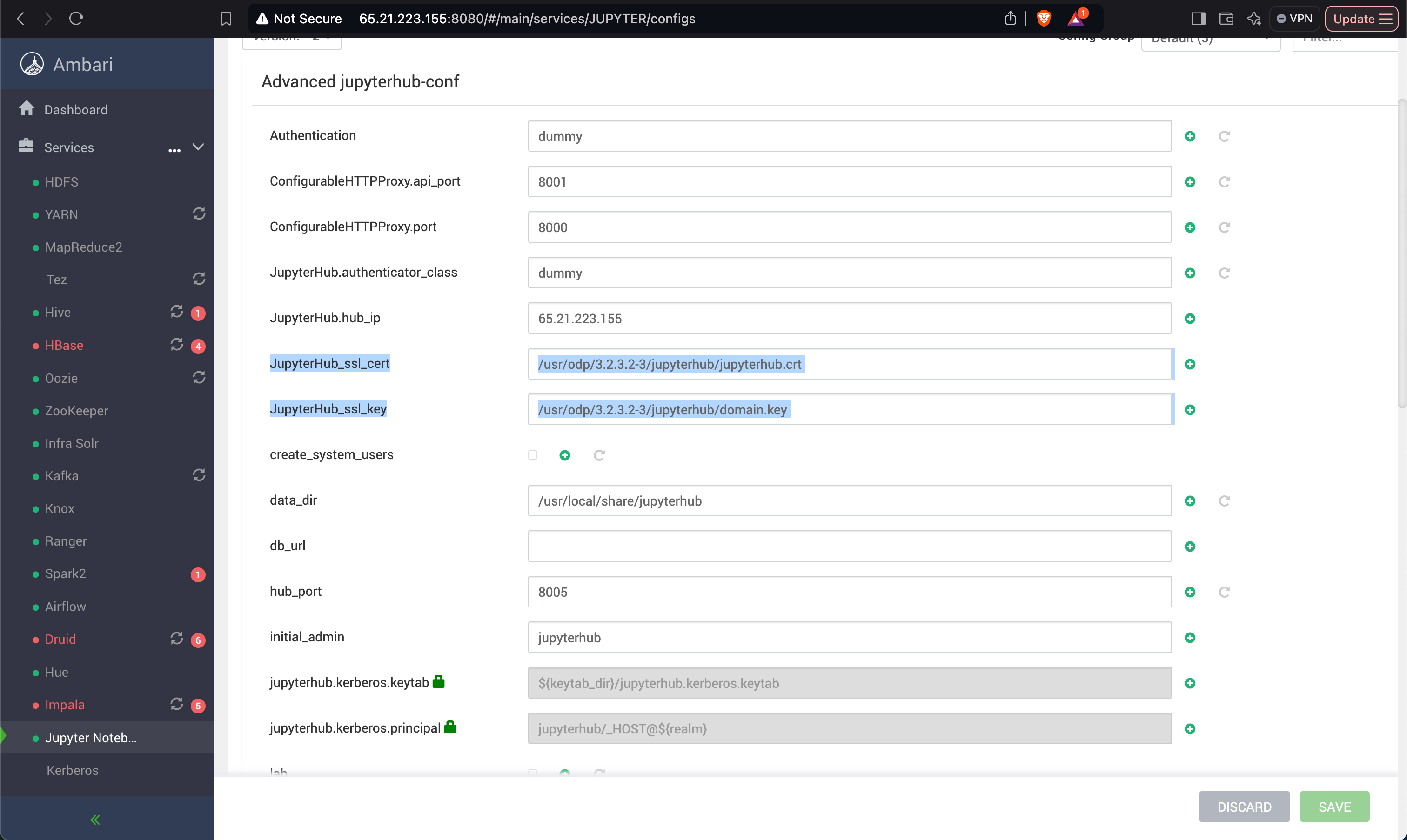
- Update the JupyterHub Configuration: Add the SSL certificate and key file paths to the JupyterHub configuration file.
Bash
c.JupyterHub.ssl_cert = '_usr_odp_3.2.3.2-3_jupyter_jupyterhub.crt'c.JupyterHub.ssl_key = '_usr_odp_3.2.3.2-3_jupyter_domain.key'If using Ambari to manage JupyterHub, add these properties in the JupyterHub configuration section of the Ambari UI, as shown in the screenshot.

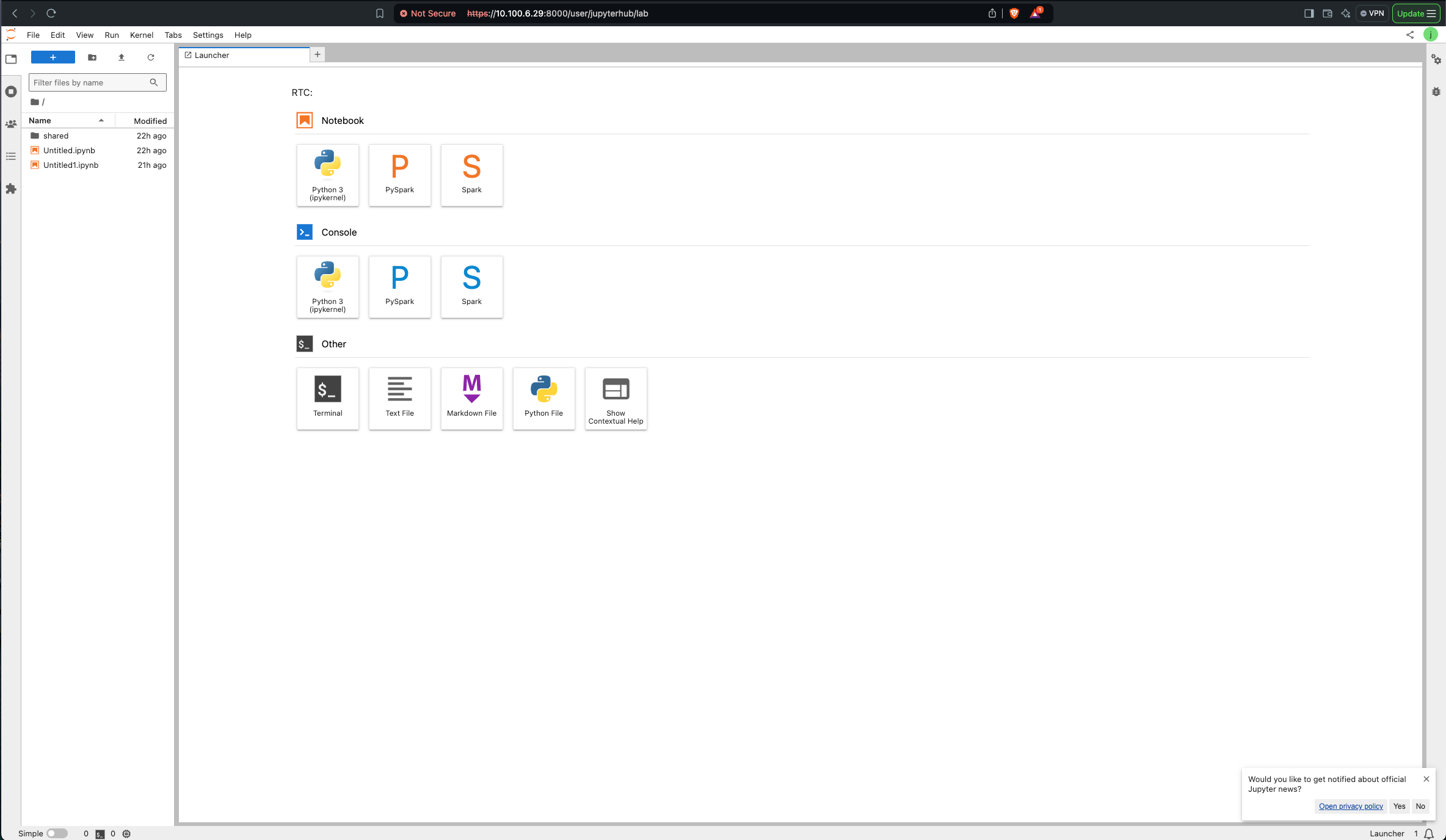
- Save and Restart JupyterHub: After updating the configuration:
- Save the changes.
- Restart the JupyterHub service to apply the new SSL settings.
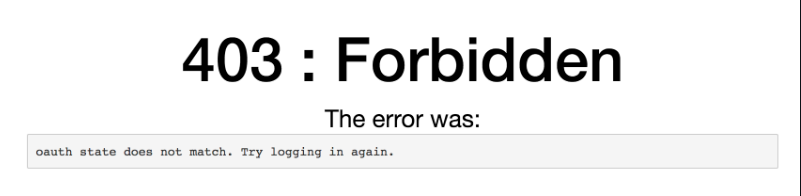
- Troubleshooting SSL Disabling: If you disable SSL and restart JupyterHub but encounter browser-related issues (e.g., connection errors), clear your browser cache to resolve the problem.
Type to search, ESC to discard
Last updated on Sep 2, 2025
Was this page helpful?
Next to read:
Configure Databases for JupyterHubDiscard Changes
Do you want to discard your current changes and overwrite with the template?
Archive Synced Block
Message
Create new Template
What is this template's title?
Delete Template
Message