
Monitor the health and performance of the xStore cluster, including container resources, JVM metrics, database connections, and service-level KPIs.
With xObserve, you can:
Monitor memory and CPU utilization regularly to identify resource bottlenecks.
Review pod-level resource consumption when troubleshooting service performance issues.
Investigate sustained increases in JVM heap memory usage.
Monitor database connection activity to prevent connection pool exhaustion.
Review HTTP thread pool utilization during peak workloads.
Investigate queued requests that persist for extended periods.
Use the Server Health KPIs as the first checkpoint when assessing overall xStore health.
Navigation Steps
In the xObserve UI, go to xStore from the left navigation pane.
Select the desired xStore cluster from the cluster selector in the top-right corner.
The dashboard displays cluster-wide and service-level metrics.
Time Period
Use the Time Period selector in the upper-left corner of the dashboard to filter metrics and charts for a specific monitoring window.
Step Interval
This controls how often the dashboard needs to refresh. By default, the dashboard refreshes every 30 seconds.
Summary Panel
Server Health KPIs
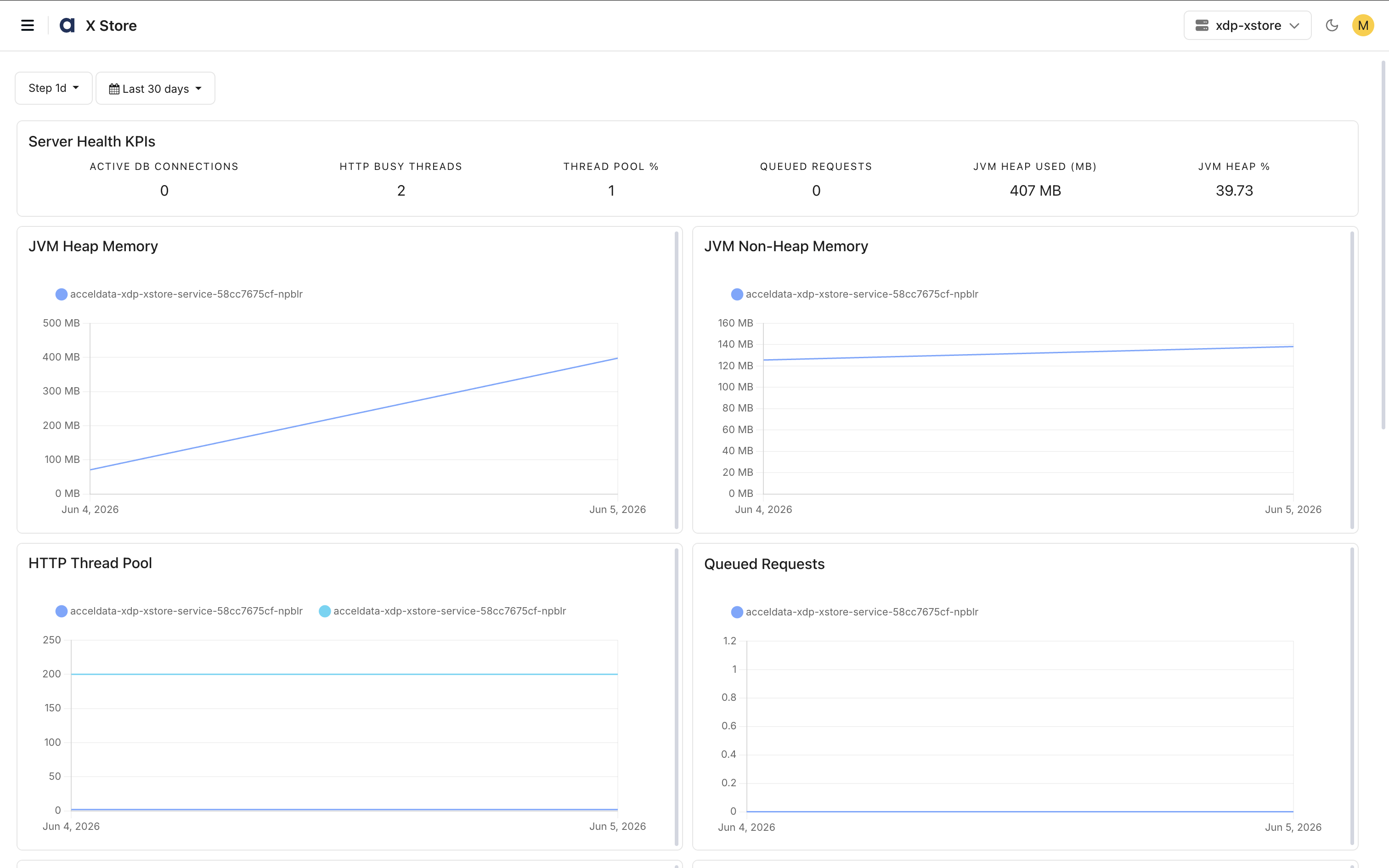
The Server Health KPIs section provides a quick overview of service health and performance.
Active DB Connections: Displays the current number of active database connections.
HTTP Busy Threads: Displays the number of threads actively processing HTTP requests.
Thread Pool %: Displays the percentage of thread pool utilization.
Queued Requests: Displays the number of requests waiting for execution.
JVM Heap Used (MB): Displays the amount of JVM heap memory currently in use.
JVM Heap %: Displays the percentage of JVM heap memory utilization.
Use these KPIs to quickly assess application health, resource utilization, and service responsiveness.
Charts
JVM Heap Memory
The JVM Heap Memory chart displays heap memory utilization over time.
Use this chart to:
Monitor application memory consumption.
Observe garbage collection behavior.
Detect memory leaks or unusual memory growth patterns.
A sudden drop in heap utilization may indicate successful garbage collection activity.
JVM Non-Heap Memory
The JVM Non-Heap Memory chart displays memory used by JVM components outside the heap, such as class metadata and code cache.
Use this chart to:
Monitor JVM overhead.
Track non-heap memory growth.
Identify abnormal memory consumption.
HTTP Thread Pool
The HTTP Thread Pool chart displays thread pool capacity and utilization.
Use this chart to:
Monitor request-processing capacity.
Detect thread exhaustion.
Validate application responsiveness under load.
Queued Requests
The Queued Requests chart displays requests waiting for available processing threads.
Use this chart to:
Detect application bottlenecks.
Identify request backlogs.
Monitor service throughput during peak workloads.
A consistently low or zero queue generally indicates healthy request processing.
Container Resource Monitoring
The following charts are displayed in the dashboard.
Container Memory Usage
The Container Memory Usage chart displays memory utilization for xStore components such as:
DP Auth Service
DP Service
xStore Service
Iceberg REST Service
AD Tunnel Client
Use this chart to:
Monitor memory growth trends.
Identify services consuming excessive memory.
Detect potential memory leaks or resource saturation.
The following charts and KPIs are displayed in the order shown.
Container CPU Usage
The Container CPU Usage chart displays CPU consumption for each service.
Use this chart to:
Monitor workload spikes.
Identify CPU-intensive services.
Detect abnormal processing activity.
X-Store Pods Summary
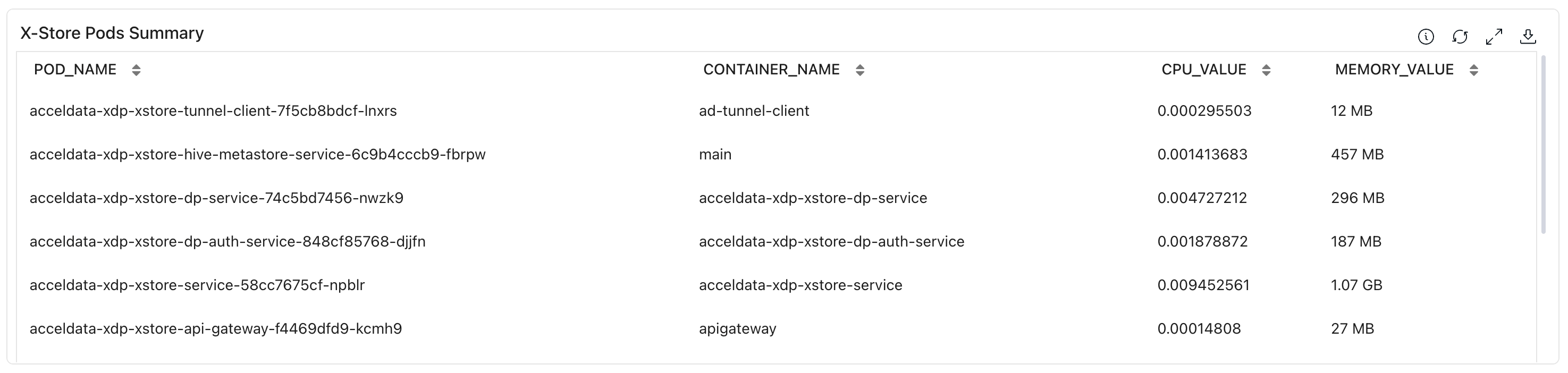
The X-Store Pods Summary table provides pod-level resource utilization details.
POD_NAME: Displays the Kubernetes pod name.
CONTAINER_NAME: Displays the container running within the pod.
CPU_VALUE: Displays the current CPU utilization of the container.
MEMORY_VALUE: Displays the current memory utilization of the container.
Use this section to identify resource-intensive pods, analyze service-level resource consumption, and troubleshoot performance issues.
DB Connections
The DB Connections chart displays active database connections used by the xStore service.
Use this chart to:
Monitor database connection activity.
Track connection pool utilization.
Detect connection leaks or unusual spikes in connections.